
Fortinet white logo
Fortinet white logo

User Guide

Add and Remove Modules

Add and Remove Modules

Each module allows you to customize a feature or add a particular type of security to your application.

Adding a module

To add a module

  1. Go to WAF > Application and click into the desired application.
  2. Click WAF in the side navigation bar to expand the menu, and click Add Module.
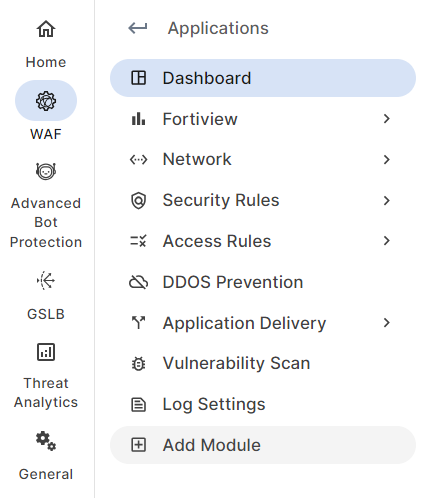
  3. In the module list, locate the modules you want to add.
  4. Click to enable them.
  5. Click OK to save changes.

The modules you have added appear in the left navigation bar, and they are automatically enabled.

Removing a module

When you remove a module, the settings associated with it are reset to the initial configuration, and the data is deleted and cannot be recovered.

You can always add the module again to customize the settings.

To remove a module

  1. Go to Add Module.
  2. In the module list, locate the modules you want to remove.
  3. Click to disable them.
  4. Click OK to save changes.

The modules you have removed will disappear from the left navigation bar.

note icon

When you click to disable a module, the enabled fields remain ON status to help you track the previous configurations.

Add and Remove Modules

Add and Remove Modules

Each module allows you to customize a feature or add a particular type of security to your application.

Adding a module

To add a module

  1. Go to WAF > Application and click into the desired application.
  2. Click WAF in the side navigation bar to expand the menu, and click Add Module.

  3. In the module list, locate the modules you want to add.
  4. Click to enable them.
  5. Click OK to save changes.

The modules you have added appear in the left navigation bar, and they are automatically enabled.

Removing a module

When you remove a module, the settings associated with it are reset to the initial configuration, and the data is deleted and cannot be recovered.

You can always add the module again to customize the settings.

To remove a module

  1. Go to Add Module.
  2. In the module list, locate the modules you want to remove.
  3. Click to disable them.
  4. Click OK to save changes.

The modules you have removed will disappear from the left navigation bar.

note icon

When you click to disable a module, the enabled fields remain ON status to help you track the previous configurations.