Fortinet white logo
Fortinet white logo

Administration Guide

Cross-ADOM search

Cross-ADOM search

You can search for address, IP pool, and Virtual IP objects across multiple ADOMs using the Cross-ADOM Search option located in the Tools menu.

To perform an object search across ADOMs:
  1. Go to Policy & Objects.

  2. In the toolbar, select Tools > Cross-ADOM Search.
    The Cross-ADOM Search window appears.
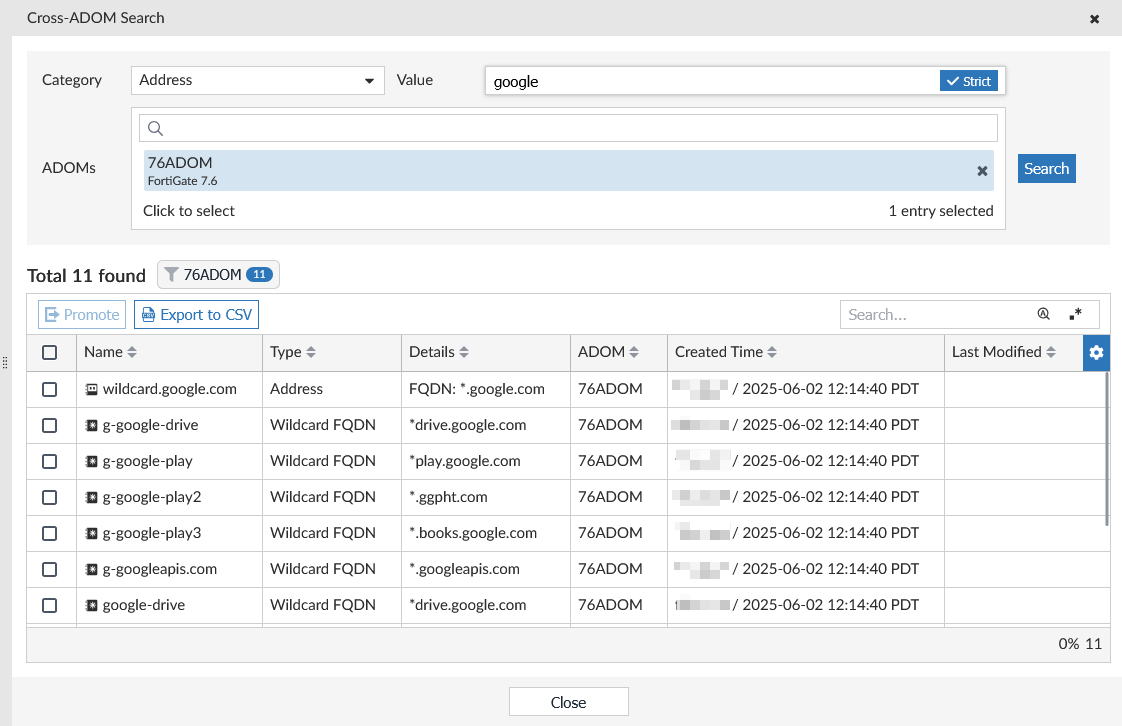
  3. Configure your search parameters:

    Category

    Search the object category to search from one of the following:

    • Address

    • IP Pool

    • Virtual IP

    Value

    Enter the search string. Search can include the object name or IP.

    You can toggle strict searching on or off by clicking the Strict icon.

    Note

    Strict search only works for IPs. You cannot use strict search to search for object names.

    ADOMs Choose the ADOMs to include in the search. Multiple ADOMs can be selected.
  4. Click Search. Results are displayed in a table below.

  5. From the results table, you can optionally promote an object to the Global ADOM or export the results to a CSV.

To promote an object to the Global:
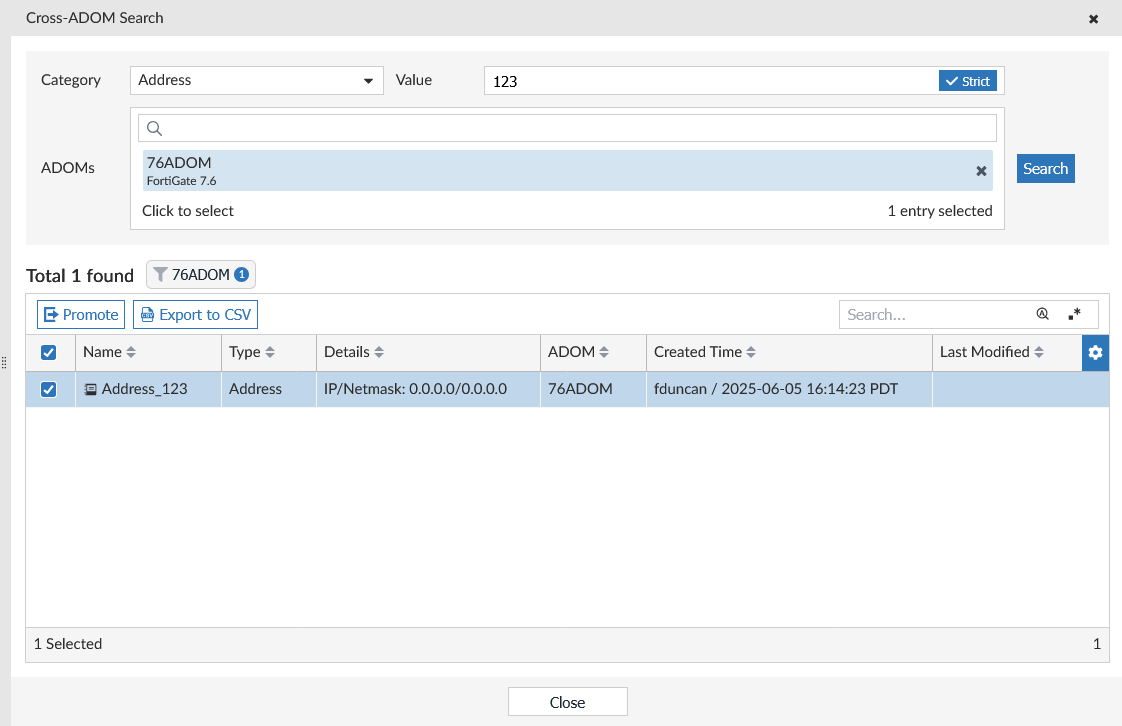
  1. From the results table, select one or more entries.

  2. Click Promote at the top of the table.
  3. Optionally, you can rename the object being promoted to the Global ADOM if required.
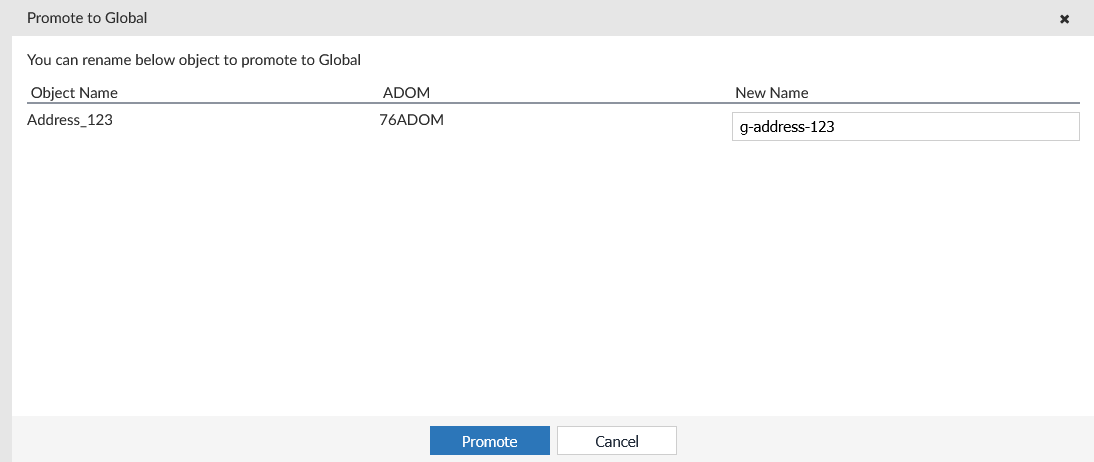
  4. Click Promote.

Tooltip

The ADOM where the object is currently located must match the Global Database ADOM version.

To export results into CSV file:
  1. From the results table, select one or more entries.

  2. Click Export to CSV.

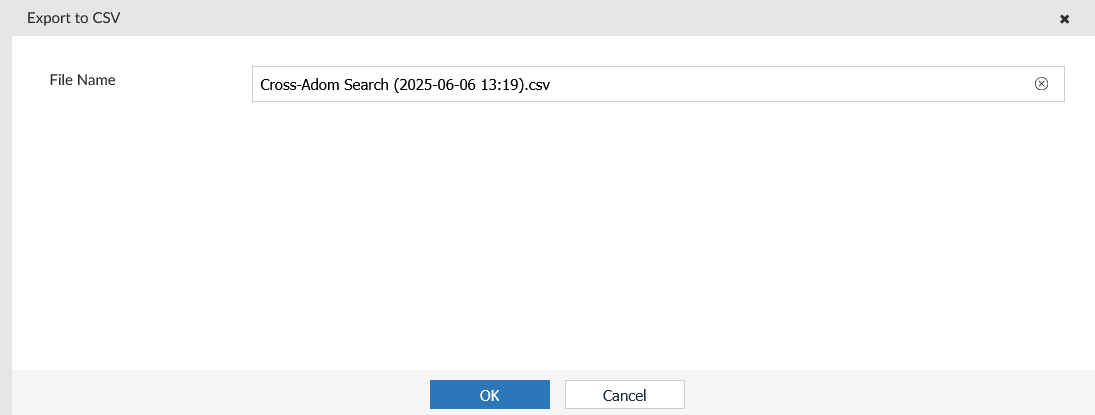
  3. Enter a file name, and click OK.

    All of the displayed entries in the table will be exported into a CSV file.

Cross-ADOM search

Cross-ADOM search

You can search for address, IP pool, and Virtual IP objects across multiple ADOMs using the Cross-ADOM Search option located in the Tools menu.

To perform an object search across ADOMs:
  1. Go to Policy & Objects.

  2. In the toolbar, select Tools > Cross-ADOM Search.
    The Cross-ADOM Search window appears.

  3. Configure your search parameters:

    Category

    Search the object category to search from one of the following:

    • Address

    • IP Pool

    • Virtual IP

    Value

    Enter the search string. Search can include the object name or IP.

    You can toggle strict searching on or off by clicking the Strict icon.

    Note

    Strict search only works for IPs. You cannot use strict search to search for object names.

    ADOMs Choose the ADOMs to include in the search. Multiple ADOMs can be selected.
  4. Click Search. Results are displayed in a table below.

  5. From the results table, you can optionally promote an object to the Global ADOM or export the results to a CSV.

To promote an object to the Global:
  1. From the results table, select one or more entries.

  2. Click Promote at the top of the table.

  3. Optionally, you can rename the object being promoted to the Global ADOM if required.

  4. Click Promote.

Tooltip

The ADOM where the object is currently located must match the Global Database ADOM version.

To export results into CSV file:
  1. From the results table, select one or more entries.

  2. Click Export to CSV.

  3. Enter a file name, and click OK.

    All of the displayed entries in the table will be exported into a CSV file.