
Fortinet white logo
Fortinet white logo

Administration Guide

Adding a VDOM to a managed FortiGate device

Adding a VDOM to a managed FortiGate device

You can add a VDOM to a FortiGate by using the content pane or by using the device database. This topic describes how to use the content pane. For information on using the device database, see Device DB - System Virtual Domain.

The Multi VDOM mode allows you to create multiple VDOMs as per your license.

The number of VDOMs you can add is dependent on the device model. For more information, see the Maximum Values Table in the Fortinet Document Library.

To add a VDOM to a FortiGate device:
  1. Go to Device Manager > Device & Groups.

  2. In the toolbar, select Table View from the dropdown menu.

  3. In the tree menu, click the group. The devices in the group are displayed in the content pane.

  4. In the content pane, right-click a device and select Add VDOM.

    The Create New Virtual Domain window opens.
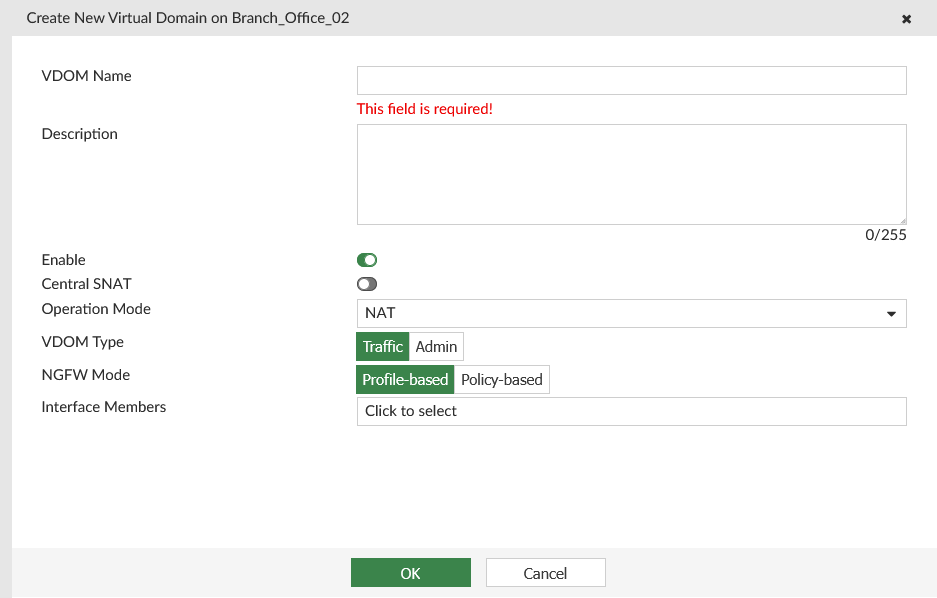
  5. Configure the following options, and click OK.

    VDOM Name

    Type a name for the new virtual domain.

    Description

    Optionally, enter a description of the VDOM.

    Enable

    Select to enable the VDOM.

    Central SNAT

    Toggle ON to enable, and toggle OFF to disable.

    Operation Mode

    Select either NAT or Transparent.

    NGFW Mode

    Select either Profile-based or Policy-based.

    VDOM Type

    Select the VDOM type as either Traffic or Admin.

    For more information on VDOM types, see the FortiGate / FortiOS Administration Guide.

    Interface Members

    Click to select each port one by one.

    Management IP Address 1 / 2

    Type the management IP addresses and network masks for the VDOM.

    This setting is only available when Operation Mode is Transparent.

    Gateway

    Type the gateway IP address.

    This setting is only available when Operation Mode is Transparent.

Kubernetes Service must be enabled on the server side for AWS, Azure, OCI and, GCP for Kubernetes to function for the particular cloud platform. Once the service is enabled, Kubernetes can be configured for the particular cloud platform in FortiManager.

Adding a VDOM to a managed FortiGate device

Adding a VDOM to a managed FortiGate device

You can add a VDOM to a FortiGate by using the content pane or by using the device database. This topic describes how to use the content pane. For information on using the device database, see Device DB - System Virtual Domain.

The Multi VDOM mode allows you to create multiple VDOMs as per your license.

The number of VDOMs you can add is dependent on the device model. For more information, see the Maximum Values Table in the Fortinet Document Library.

To add a VDOM to a FortiGate device:
  1. Go to Device Manager > Device & Groups.

  2. In the toolbar, select Table View from the dropdown menu.

  3. In the tree menu, click the group. The devices in the group are displayed in the content pane.

  4. In the content pane, right-click a device and select Add VDOM.

    The Create New Virtual Domain window opens.

  5. Configure the following options, and click OK.

    VDOM Name

    Type a name for the new virtual domain.

    Description

    Optionally, enter a description of the VDOM.

    Enable

    Select to enable the VDOM.

    Central SNAT

    Toggle ON to enable, and toggle OFF to disable.

    Operation Mode

    Select either NAT or Transparent.

    NGFW Mode

    Select either Profile-based or Policy-based.

    VDOM Type

    Select the VDOM type as either Traffic or Admin.

    For more information on VDOM types, see the FortiGate / FortiOS Administration Guide.

    Interface Members

    Click to select each port one by one.

    Management IP Address 1 / 2

    Type the management IP addresses and network masks for the VDOM.

    This setting is only available when Operation Mode is Transparent.

    Gateway

    Type the gateway IP address.

    This setting is only available when Operation Mode is Transparent.

Kubernetes Service must be enabled on the server side for AWS, Azure, OCI and, GCP for Kubernetes to function for the particular cloud platform. Once the service is enabled, Kubernetes can be configured for the particular cloud platform in FortiManager.