
Fortinet white logo
Fortinet white logo

User Guide

Registering a License

Registering a License

This section describes registering the following license types.

Device License

To register your device license for deploying in FortiEdge Cloud, see Registering Assets.

Use the registration code/serial number obtained from Fortinet during device procurement. The registered license is listed in the Inventory Devices tab of the FortiEdge Cloud page.

UTP License

Ensure that the FortiAP is registered prior to performing the following steps to register the UTP license.

  1. Login into https://support.fortinet.com.

  2. Navigate to Products > My Assets and click Register More.
  3. Enter the Registration Code/serial number obtained from Fortinet during license procurement and select the End User Type as per the user functionality defined on the page.
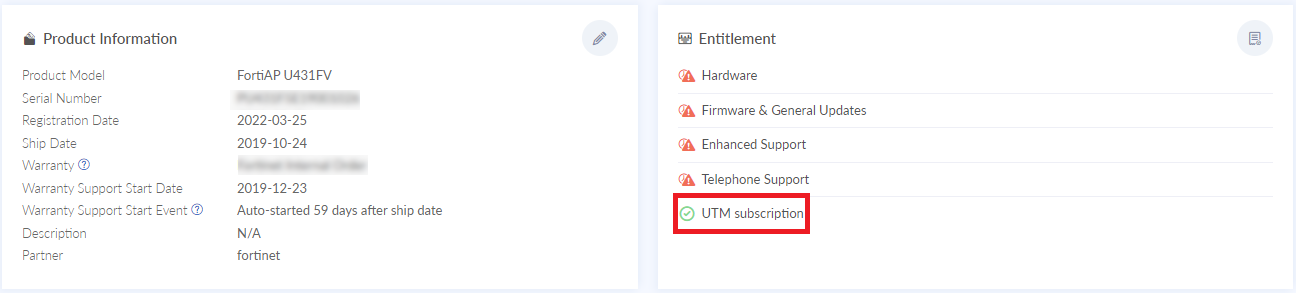
  4. Select the FortiAP to apply the UTP license to and complete the registration process. The UTP license is enabled.
Registering a License

Registering a License

This section describes registering the following license types.

Device License

To register your device license for deploying in FortiEdge Cloud, see Registering Assets.

Use the registration code/serial number obtained from Fortinet during device procurement. The registered license is listed in the Inventory Devices tab of the FortiEdge Cloud page.

UTP License

Ensure that the FortiAP is registered prior to performing the following steps to register the UTP license.

  1. Login into https://support.fortinet.com.

  2. Navigate to Products > My Assets and click Register More.
  3. Enter the Registration Code/serial number obtained from Fortinet during license procurement and select the End User Type as per the user functionality defined on the page.
  4. Select the FortiAP to apply the UTP license to and complete the registration process. The UTP license is enabled.