
Fortinet white logo
Fortinet white logo

Introduction

Introduction

FortiSOAR Cloud is a cloud-hosted Security Orchestration & Automated Response (SOAR) platform, available via subscription through an a la carte SKU. FortiSOAR Cloud simplifies deployment, management, and scaling by eliminating the need for users to provision a virtual machine (VM) in their environment.

FortiCloud automatically sets up a cloud-based FortiSOAR instance with an integrated secure message exchange under your user account. Starting from release 7.6.0, FortiSOAR Cloud supports provisioning multiple FortiSOAR instances per account, enabling active-active clustering for horizontal scaling. For more details, see the High Availability Capability for FortiSOAR Cloud chapter.

Starting with release 7.6.1, Fortinet offers a managed upgrade service for FortiSOAR Cloud customers, simplifying the upgrade process. For more information, see the Upgrading FortiSOAR Cloud chapter.

This section includes the following topics:

FortiSOAR Cloud Virtual Machine Specifications

The FortiSOAR Cloud VM has the following default specifications:

  • 12 available vCPUs
  • 48 GB available RAM
  • 1 TB available disk space: Recommended to have high-performance storage, preferably SSDs.
  • 1 vNIC

High-volume systems (e.g., those with large alert ingestion or playbook execution) may require additional resources. Scale your FortiSOAR Cloud deployment by purchasing additional CPU, RAM, and Storage SKU, or by deploying a multi-node cluster. Contact your sales team for scalability and sizing details. For more information on expanding resources for your FortiSOAR Cloud instance, see the Upgrading FortiSOAR Cloud chapter.

A FortiCloud account is required to provision FortiSOAR Cloud. If you do not have one, create a FortiCloud account [here]. Access to FortiSOAR Cloud requires a primary FortiCloud account, which can invite secondary users to access FortiSOAR Cloud.

Licensing

You can purchase various FortiSOAR Cloud subscription licenses, including:

  • FortiSOAR Cloud Enterprise License
  • FortiSOAR Cloud MultiTenant Edition - Manager
  • FortiSOAR Cloud Dedicated Tenant
  • FortiSOAR Cloud Regional SOC

Each FortiSOAR Cloud instance license grants one VM instance for the duration of the license. Multiple instance licenses must be purchased to create a multi-node cluster, where clustering is supported by the license type.

Additional subscription feature licenses are available, including:

  • FortiSOAR Cloud Threat Intel Management
    This licensing option for the Threat Intelligence Management (TIM) Service includes FortiGuard Premium Threat Feeds, granting full access to TIM features, including unrestricted consumption of FortiGuard feeds. For details on unrestricted FortiGuard threat feeds, premium TIM features, and TIM SKUs, see the Licensing chapter in the FortiSOAR "Deployment Guide." For more information on TIM, see the Threat Intel Management Solution Pack documentation.
  • FortiSOAR CloudUser Seat License
  • FortiSOAR Cloud per-VM storage, CPU, and RAM Add-On, see the Upgrading FortiSOAR Cloud chapter for details

Contact your sales team to discuss licensing in detail.

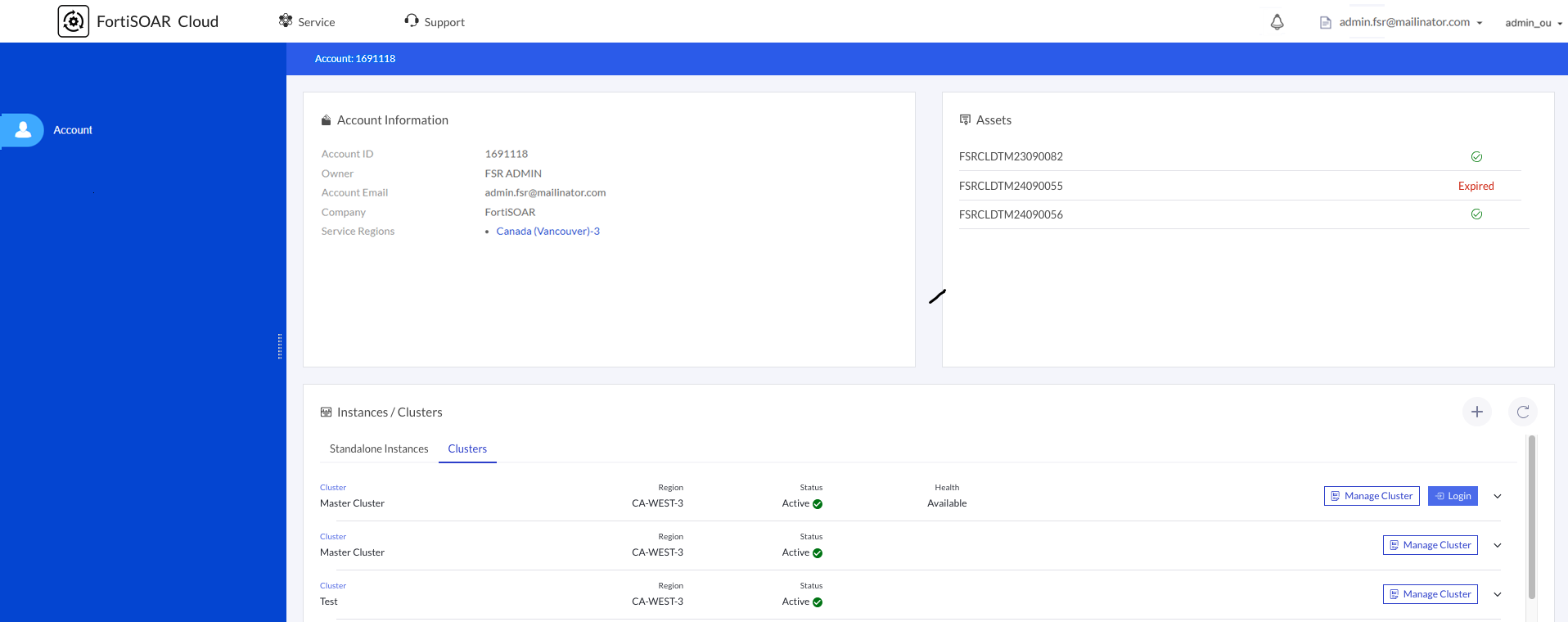
A license expiration warning is displayed 30 days in FortiSOAR before the expiration date. Customers have a 3-day grace period to renew their contract and maintain access to the VM. After the grace period, the cloud portal will be inaccessible:
License Expired

FortiSOAR Cloud license contract registration

  1. Ensure you have a FortiCare account.
  2. Contact FortiSOAR Support for the FortiSOAR Cloud product SKU.
    Note: By default, the FortiSOAR Cloud product SKUs comes with two users included. Additional users can be added by purchasing the 'Additional Users Entitlement' SKU.
  3. Once you complete purchasing the FortiSOAR Cloud product SKU and/or the 'Additional Users' SKU, you will receive a service contract registration code at your registered email address.
  4. Login to your FortiCare account and click Asset > Register/Activate to register your FortiSOAR Cloud product. Register your FortiSOAR Cloud product by following the instructions provided in the FortiCare registration wizard.
    Copy and paste the service contract registration code from the email to register FortiSOAR Cloud. After verification, click Complete to finalize the registration.

Introduction

Introduction

FortiSOAR Cloud is a cloud-hosted Security Orchestration & Automated Response (SOAR) platform, available via subscription through an a la carte SKU. FortiSOAR Cloud simplifies deployment, management, and scaling by eliminating the need for users to provision a virtual machine (VM) in their environment.

FortiCloud automatically sets up a cloud-based FortiSOAR instance with an integrated secure message exchange under your user account. Starting from release 7.6.0, FortiSOAR Cloud supports provisioning multiple FortiSOAR instances per account, enabling active-active clustering for horizontal scaling. For more details, see the High Availability Capability for FortiSOAR Cloud chapter.

Starting with release 7.6.1, Fortinet offers a managed upgrade service for FortiSOAR Cloud customers, simplifying the upgrade process. For more information, see the Upgrading FortiSOAR Cloud chapter.

This section includes the following topics:

FortiSOAR Cloud Virtual Machine Specifications

The FortiSOAR Cloud VM has the following default specifications:

  • 12 available vCPUs
  • 48 GB available RAM
  • 1 TB available disk space: Recommended to have high-performance storage, preferably SSDs.
  • 1 vNIC

High-volume systems (e.g., those with large alert ingestion or playbook execution) may require additional resources. Scale your FortiSOAR Cloud deployment by purchasing additional CPU, RAM, and Storage SKU, or by deploying a multi-node cluster. Contact your sales team for scalability and sizing details. For more information on expanding resources for your FortiSOAR Cloud instance, see the Upgrading FortiSOAR Cloud chapter.

A FortiCloud account is required to provision FortiSOAR Cloud. If you do not have one, create a FortiCloud account [here]. Access to FortiSOAR Cloud requires a primary FortiCloud account, which can invite secondary users to access FortiSOAR Cloud.

Licensing

You can purchase various FortiSOAR Cloud subscription licenses, including:

  • FortiSOAR Cloud Enterprise License
  • FortiSOAR Cloud MultiTenant Edition - Manager
  • FortiSOAR Cloud Dedicated Tenant
  • FortiSOAR Cloud Regional SOC

Each FortiSOAR Cloud instance license grants one VM instance for the duration of the license. Multiple instance licenses must be purchased to create a multi-node cluster, where clustering is supported by the license type.

Additional subscription feature licenses are available, including:

  • FortiSOAR Cloud Threat Intel Management
    This licensing option for the Threat Intelligence Management (TIM) Service includes FortiGuard Premium Threat Feeds, granting full access to TIM features, including unrestricted consumption of FortiGuard feeds. For details on unrestricted FortiGuard threat feeds, premium TIM features, and TIM SKUs, see the Licensing chapter in the FortiSOAR "Deployment Guide." For more information on TIM, see the Threat Intel Management Solution Pack documentation.
  • FortiSOAR CloudUser Seat License
  • FortiSOAR Cloud per-VM storage, CPU, and RAM Add-On, see the Upgrading FortiSOAR Cloud chapter for details

Contact your sales team to discuss licensing in detail.

A license expiration warning is displayed 30 days in FortiSOAR before the expiration date. Customers have a 3-day grace period to renew their contract and maintain access to the VM. After the grace period, the cloud portal will be inaccessible:
License Expired

FortiSOAR Cloud license contract registration

  1. Ensure you have a FortiCare account.
  2. Contact FortiSOAR Support for the FortiSOAR Cloud product SKU.
    Note: By default, the FortiSOAR Cloud product SKUs comes with two users included. Additional users can be added by purchasing the 'Additional Users Entitlement' SKU.
  3. Once you complete purchasing the FortiSOAR Cloud product SKU and/or the 'Additional Users' SKU, you will receive a service contract registration code at your registered email address.
  4. Login to your FortiCare account and click Asset > Register/Activate to register your FortiSOAR Cloud product. Register your FortiSOAR Cloud product by following the instructions provided in the FortiCare registration wizard.
    Copy and paste the service contract registration code from the email to register FortiSOAR Cloud. After verification, click Complete to finalize the registration.