

Auto-provisioning with Bluetooth device discovery
You can register and auto-provision the following FortiFone IP phones by pairing them with the FortiVoice Admin app.
|
FortiFone phone model |
For more information |
|---|---|
|
FON-780B desk phone |
|
|
FON-W80B cordless phone |
To auto-provision with Bluetooth device discovery
- On the FortiFone phone, activate BLE pairing mode:
- Hold down the asterisk button (*).
While continuing to hold down *, press 3.
The phone displays a code for ten minutes.
-
On your mobile phone, open the FortiVoice Admin app.
-
In the tab bar, tap Users.
-
Tap the three-dot menu at the top of the screen.
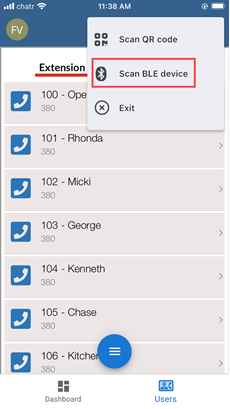
- Tap Scan BLE device:
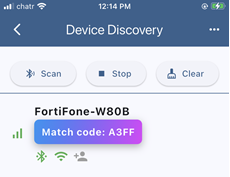
FortiVoice Admin starts scanning and, when it detects a BLE device, displays the device and the Bluetooth pairing code:
-
Tap the entry.
-
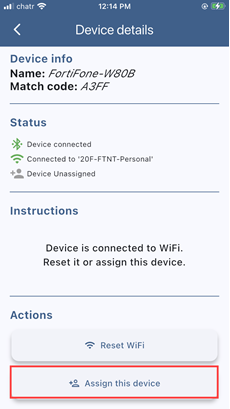
Tap Assign this device:
- In Assign Device to Extension, you can choose from the following settings:
How would you like to assign this device?
Extension options based on device selection
Main Device
Create a new extension.
Select an existing extension.
Auxiliary Device
Select an existing extension.
Add Device Only
Assign the device to an extension later.
- Tap ✓.
The phone downloads the configuration and completes registration with FortiVoice
Alternative method for provisioning a supported BLE phone and assigning it to an existing extension:
- On your FortiFone phone, activate BLE pairing mode:
- Hold down the asterisk button (*).
While continuing to hold down *, press 3.
The phone displays a code for ten minutes.
-
Open the FortiVoice Admin app on your mobile phone and tap Users in the tab bar.
-
In the Extensions tab, search for the extension for which you want to provision the phone.
-
Swipe left on an extension and tap
 .
.FortiVoice Admin starts scanning and, when it detects a Bluetooth-enabled device, displays the device and the Bluetooth pairing code.
-
Tap the entry.
-
Tap Assign this device.
-
If the extension is already assigned to another phone on the FortiVoice network, choose how you want to assign this device:
-
Main Device
-
Auxiliary Device
-
- Tap ✓.