Manual deployment on KVM
Activate a FortiGate VM using a FortiFlex license. FortiFlex allows for adhoc license via its portal.
Step 1. Create the FortiFlex configuration.
To create a FortiFlex configuration:
- Open the FortiFlex portal.
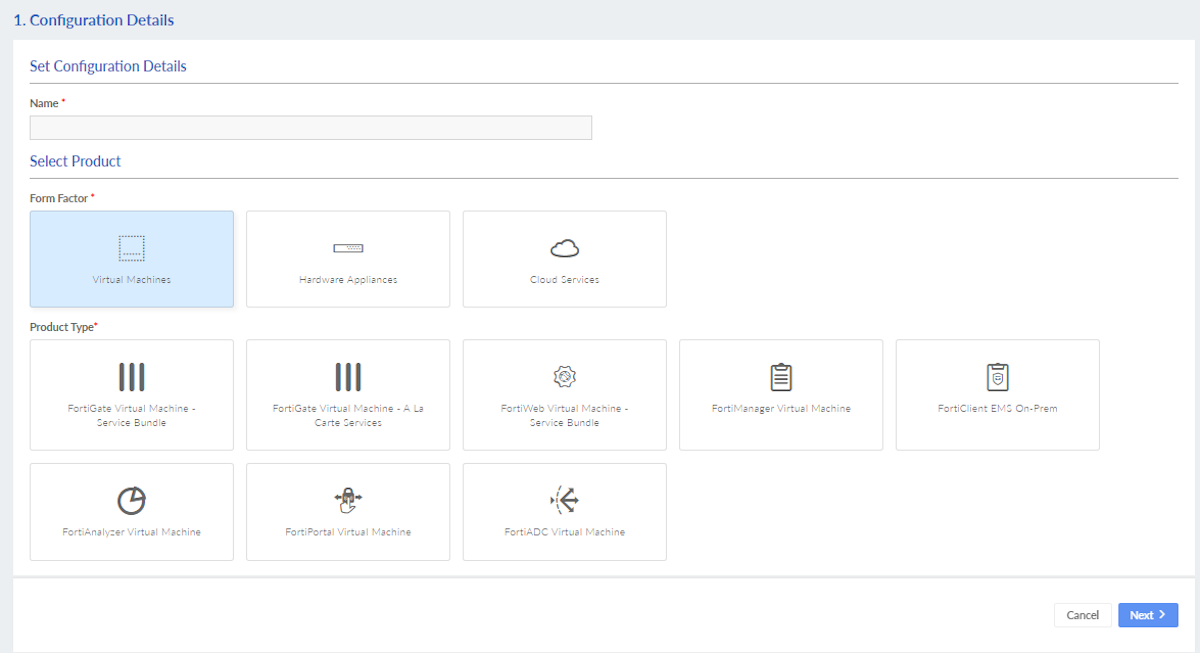
- Go to Configurations and click New configuration.
- In the Configuration Details page, enter a name for the configuration and the product type and click Next.
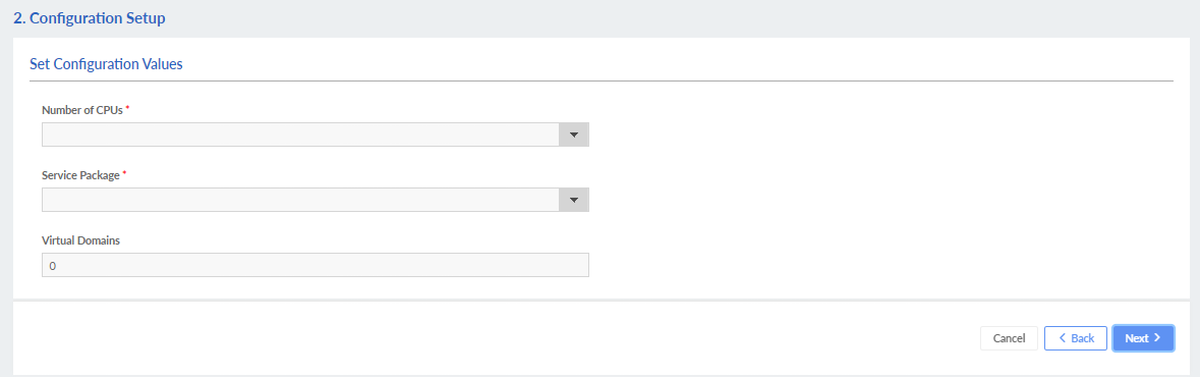
- Set the configuration values and click Next.
- On the Review configuration page, click Submit.
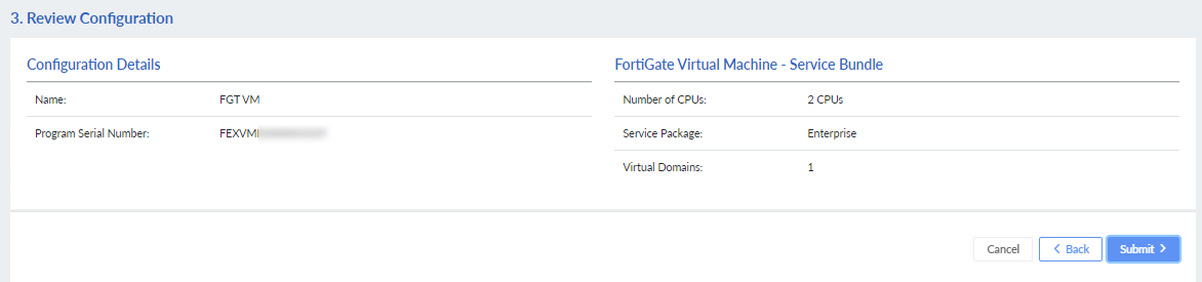
The configuration is complete.
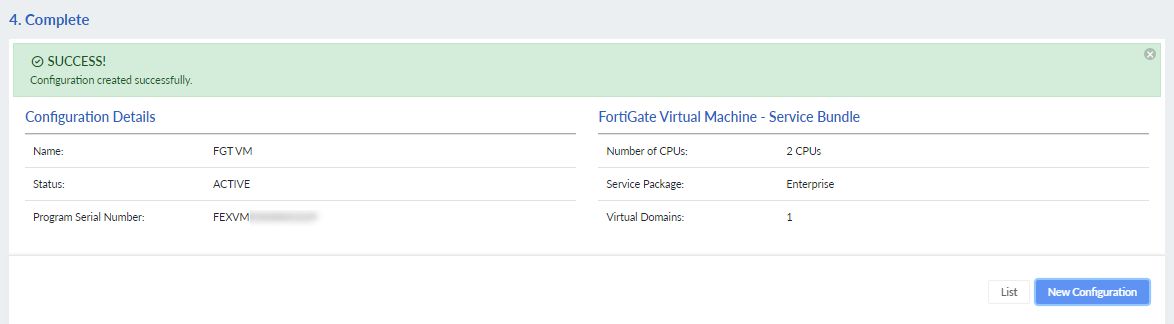
Step 2. Create the license entitlement
To create a license entitlement:
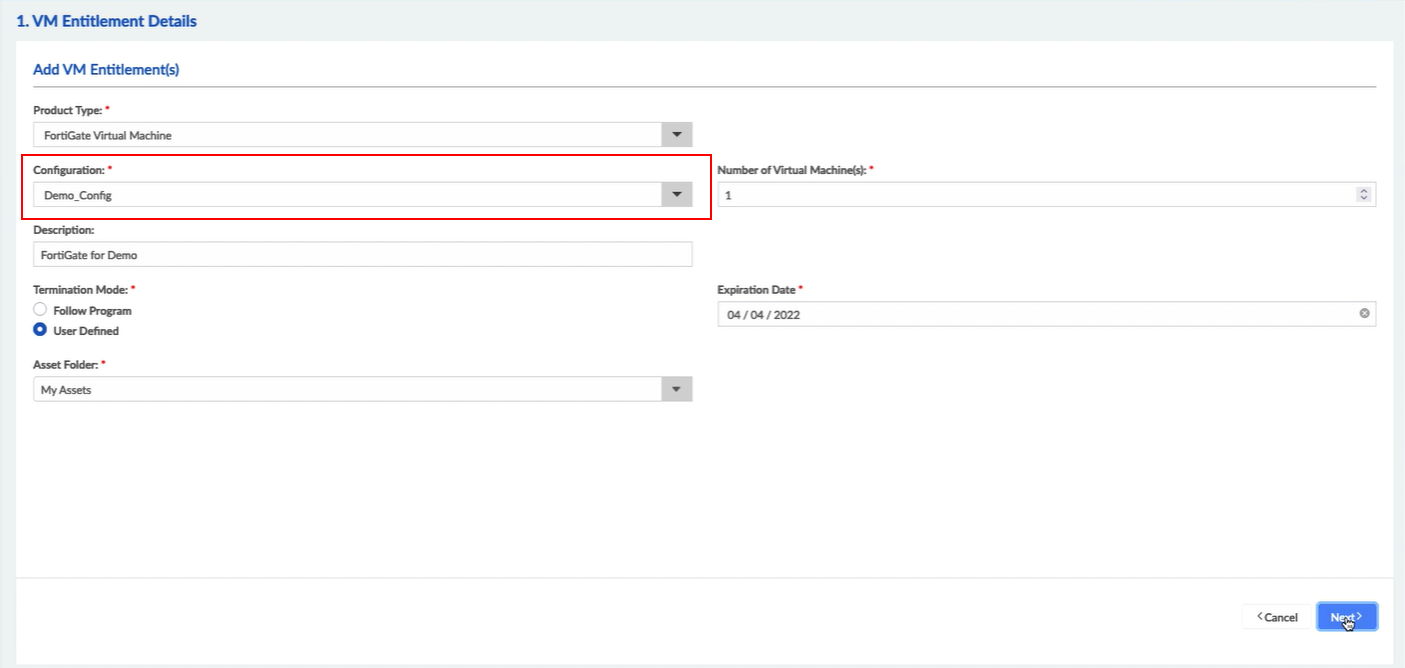
- Go to VM Entitlements and click New VM Entitlement.
- In the VM Entitlement Details page, from the Configuration list, select the configuration you created in Step 1 and click Next.
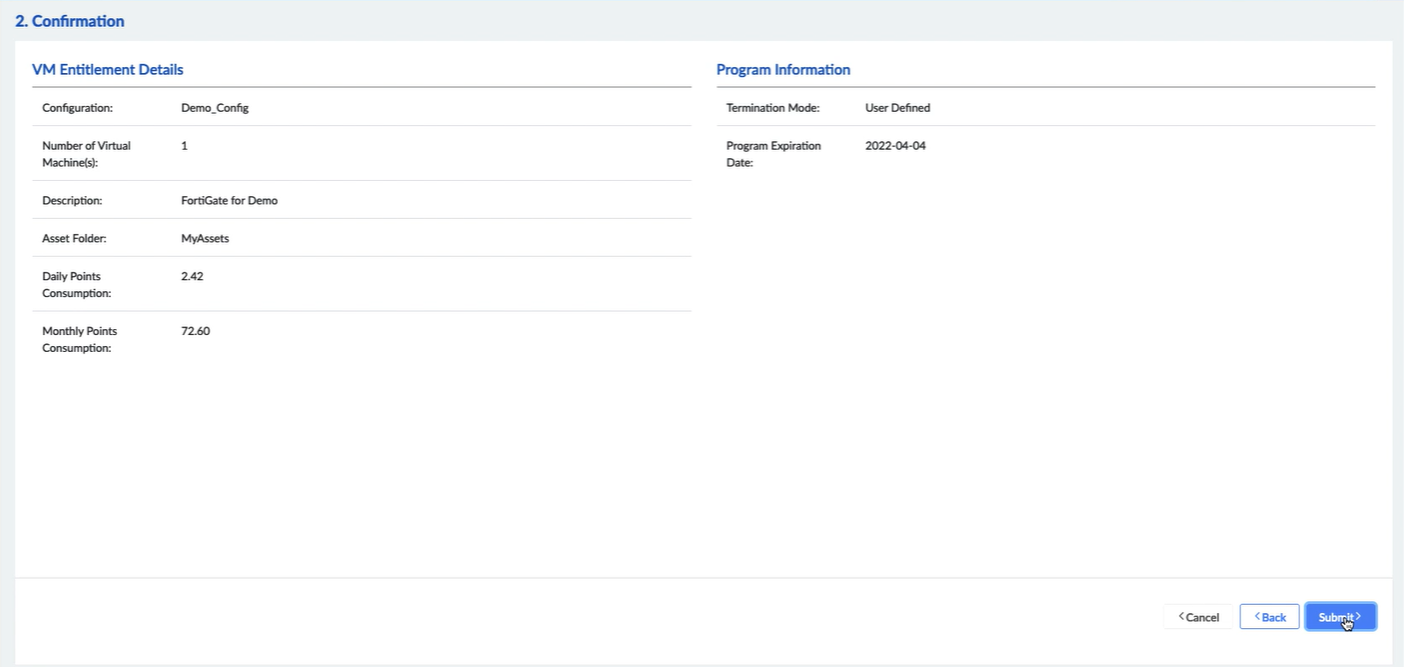
- On the Confirmation page, click Submit.
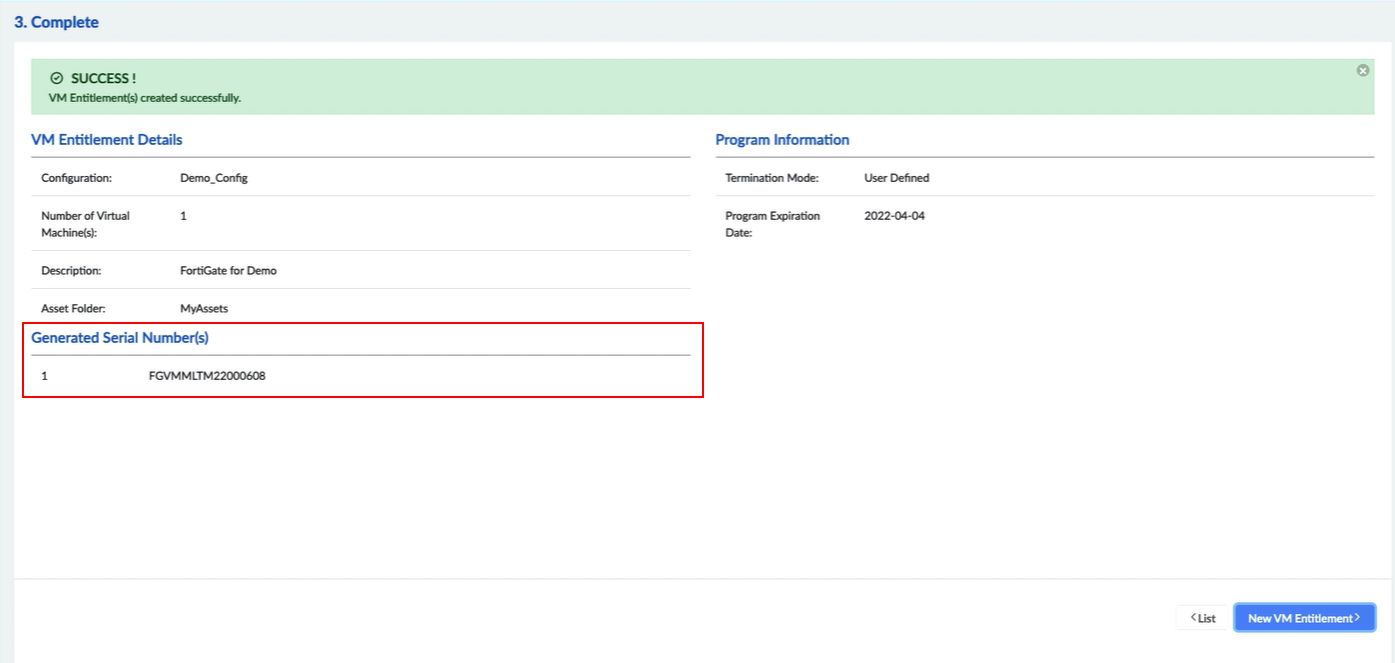
The license entitlement is created. The serial number is displayed under Generated Serial Number(s).
- Go to VM Entitlements and search for the Serial Number you generated. Click the Serial Number to view the Product details.
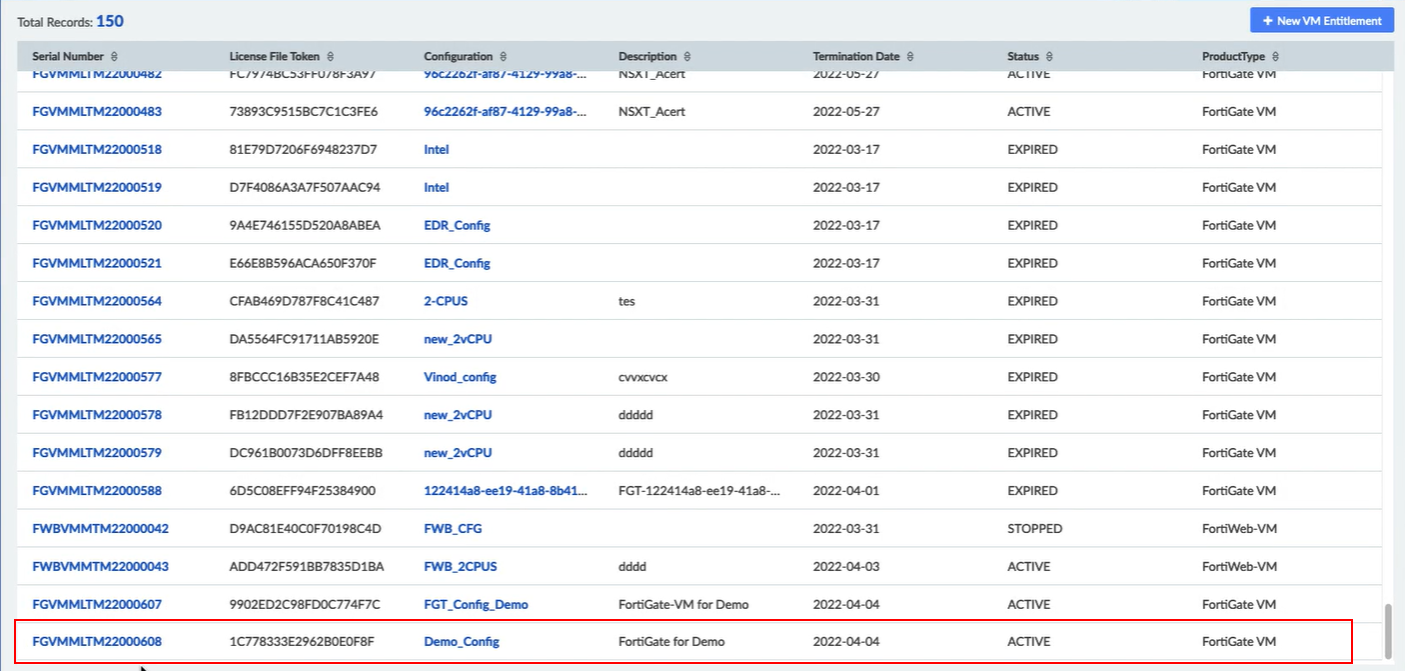
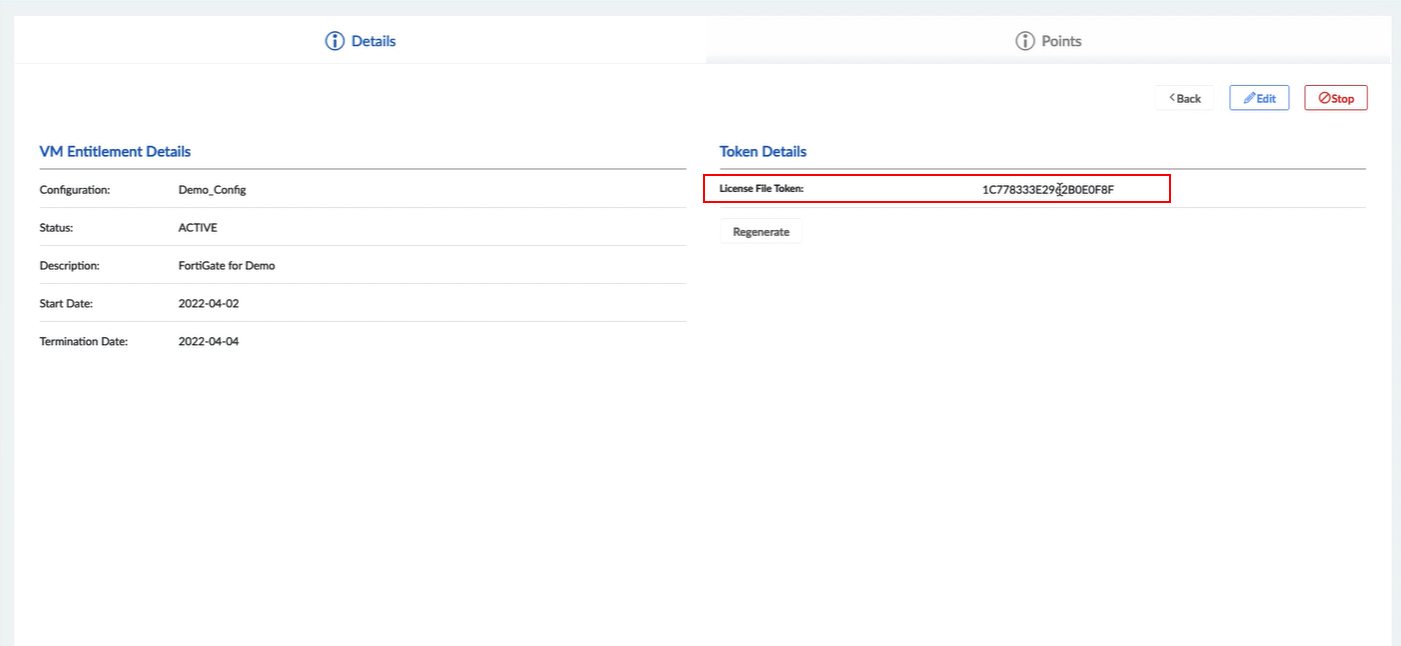
- In the Details page, copy the License File Token. You will need this token to activate the FortiGate VM instance.
Step 3: Configure the VM
To configure the VM:
- Open the KVM host which has already deployed the FortiGate VM and connect to it.
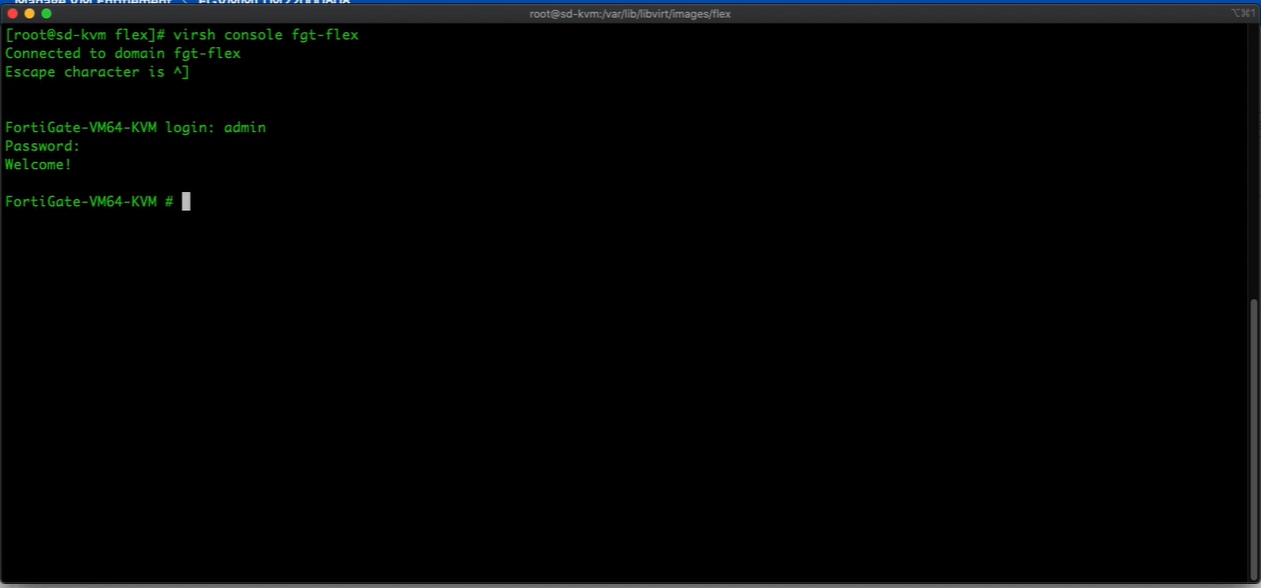
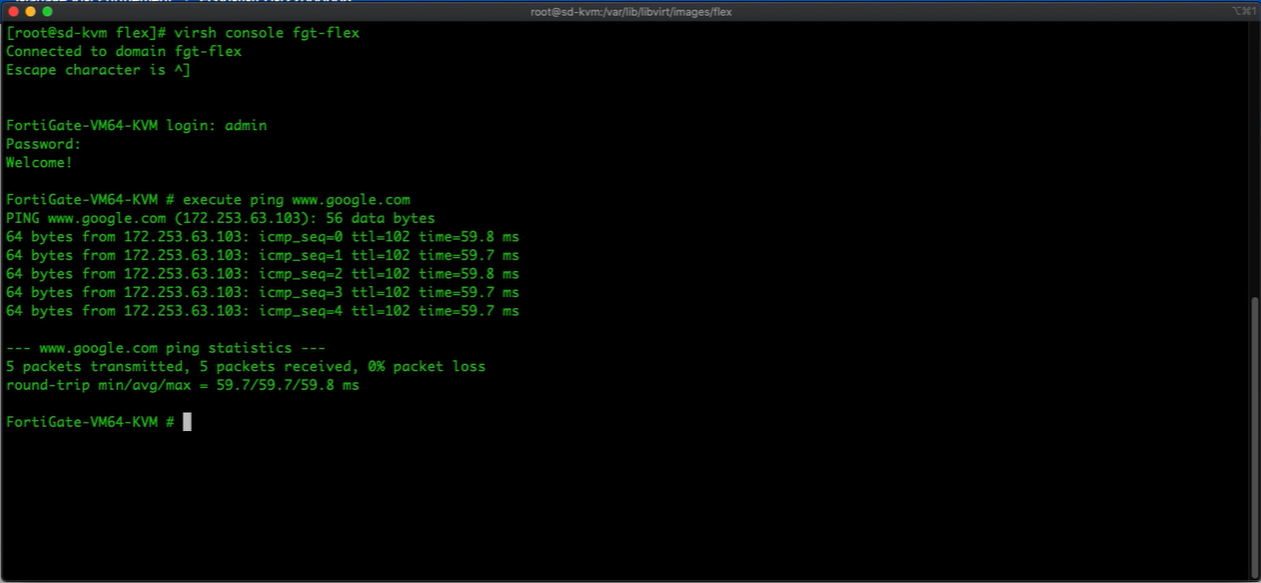
- Confirm the VM is connected to the Internet.
- Activate the license with the following command:
execute vm-license <license_token>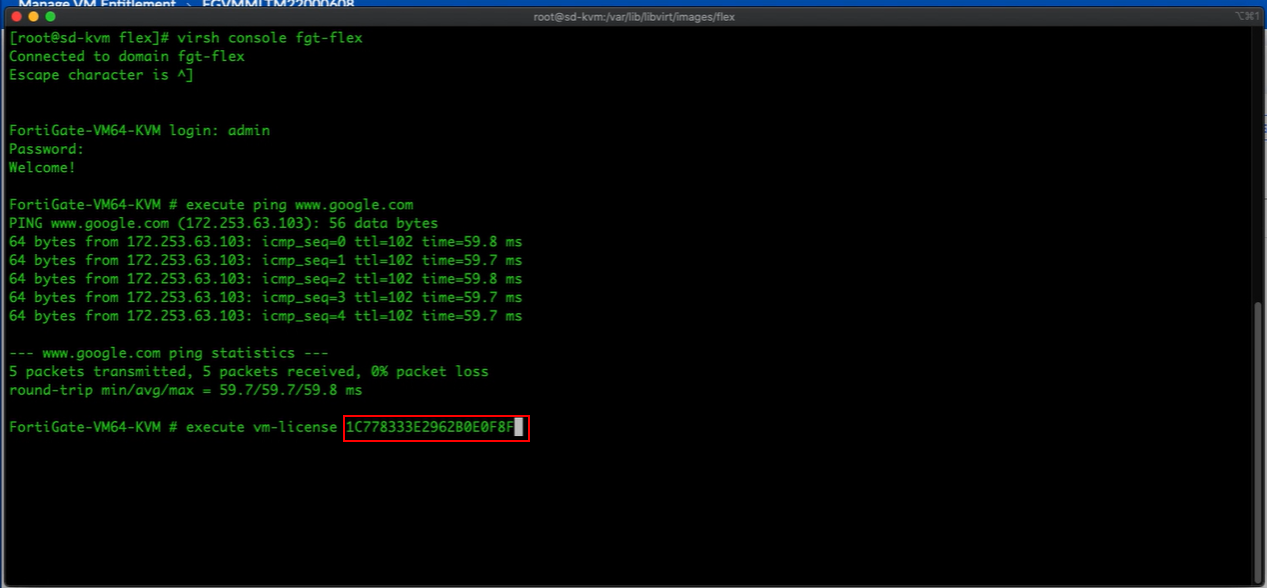
- When prompted enter
yto allow the VM to reboot to activate the new license. The VM reboots and the license is validated against the FortiGaurd servers.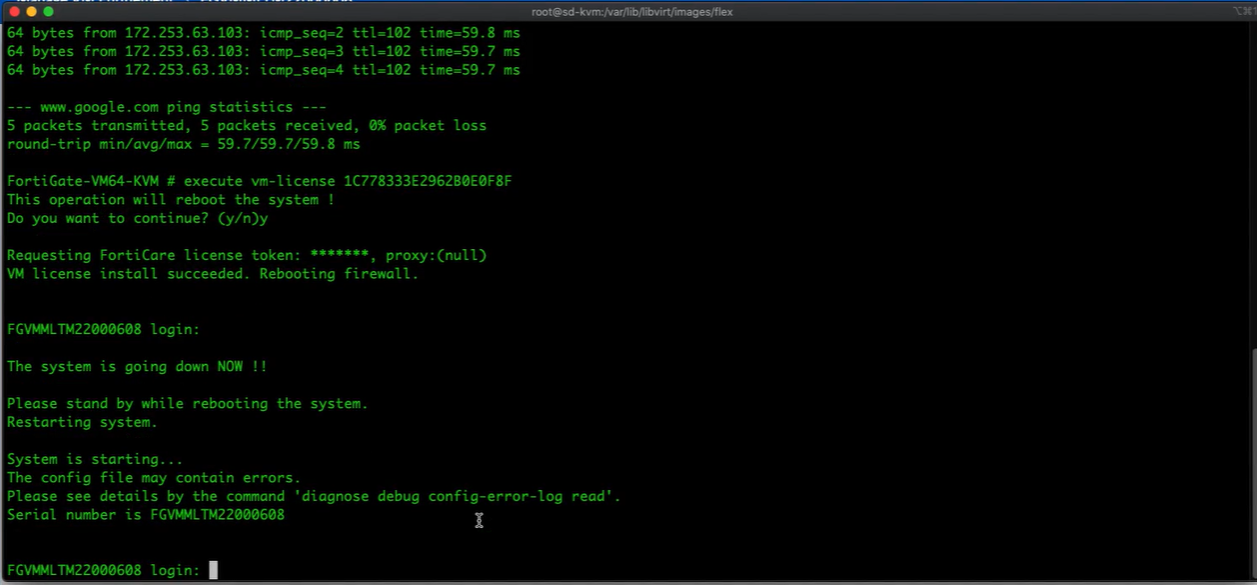
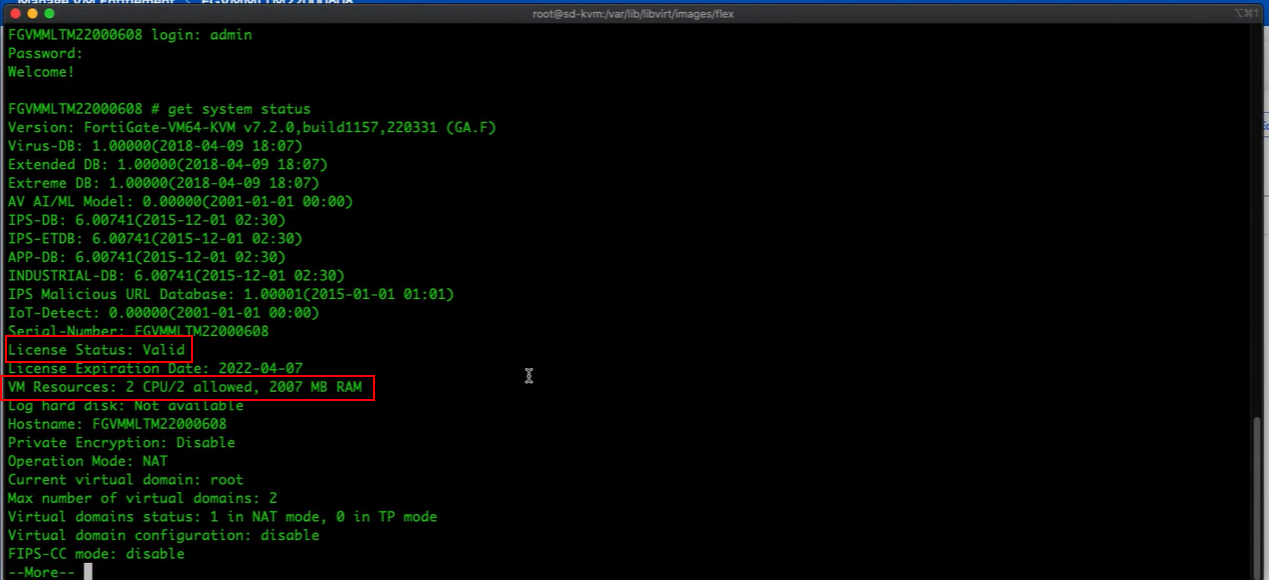
- To confirm the license and configuration, run the following command:
get system status