
Fortinet white logo
Fortinet white logo

Creating hardware device entitlements

Creating hardware device entitlements

Create a hardware device entitlement to be used with FortiGate products. License tokens are not applicable for hardware devices.

To create a hardware device entitlement:
  1. Go to Flex Entitlements, and click New Flex Entitlement. The Add Flex Entitlement(s) page opens.
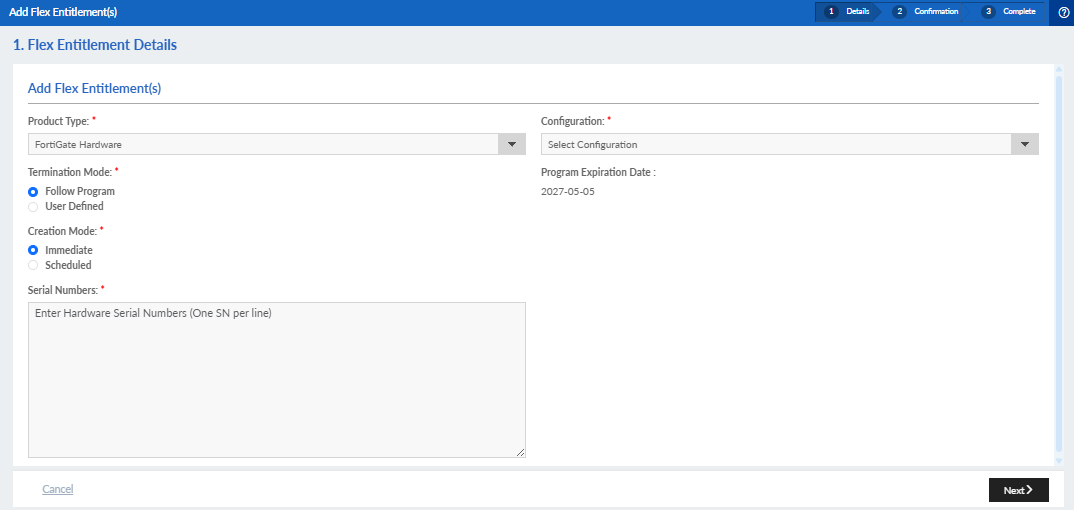
  2. Configure the hardware entitlement.

    Product Type

    Select one of the following service bundles from the dropdown:

    • FortiGate Hardware

    • FortiAP

    • FortiSwitch

    • FortiExtender

    For information about the product types, see Service offerings.

    ConfigurationSelect a configuration from the list. See Creating a hardware appliance configuration.
    Termination Mode
    • Select Follow Program to terminate the machine when the program expires.
    • Select User Defined, and select a date in the calendar to specify the termination date.

    Creation Mode

    • Select Immediate for the entitlement to take effect immediately upon successful configuration.

    • Select Scheduled to further configure when the entitlement should take effect.

    For information on the requirements of scheduled entitlement configuration, see Scheduled creation mode.

    Serial Numbers

    Enter the device serial numbers.

    The quantity of serial numbers permitted for each entitlement request is dependent on the Creation Mode:

    • Immediate: Up to 100 serial numbers can be entered per request.

    • Scheduled: Up to 1 000 serial numbers can be entered per request.

    See Scheduled creation mode for more information.

  3. Click Next.
  4. If the Creation Mode was set to Scheduled, configure the start date for each serial number:
    1. To configure individual start dates for each serial number:
      1. Select the Start Date from the dropdown calendar for each list entry.
      2. Click Next.
    2. To configure the same start date for each serial number:
      1. Select the date from the Serial Number Start Dates dropdown calendar.
      2. Click Set Start Date for All.
      3. Click Next.
  5. Review the Flex Entitlement Details and Program Information, and click Submit.
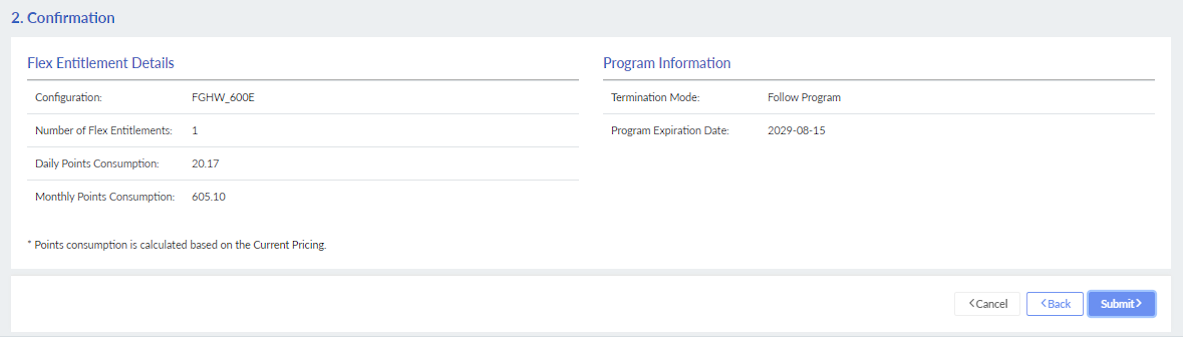
Points start to be consumed on the same day even though your managed hardware may still not be running.

Creating hardware device entitlements

Creating hardware device entitlements

Create a hardware device entitlement to be used with FortiGate products. License tokens are not applicable for hardware devices.

To create a hardware device entitlement:
  1. Go to Flex Entitlements, and click New Flex Entitlement. The Add Flex Entitlement(s) page opens.

  2. Configure the hardware entitlement.

    Product Type

    Select one of the following service bundles from the dropdown:

    • FortiGate Hardware

    • FortiAP

    • FortiSwitch

    • FortiExtender

    For information about the product types, see Service offerings.

    ConfigurationSelect a configuration from the list. See Creating a hardware appliance configuration.
    Termination Mode
    • Select Follow Program to terminate the machine when the program expires.
    • Select User Defined, and select a date in the calendar to specify the termination date.

    Creation Mode

    • Select Immediate for the entitlement to take effect immediately upon successful configuration.

    • Select Scheduled to further configure when the entitlement should take effect.

    For information on the requirements of scheduled entitlement configuration, see Scheduled creation mode.

    Serial Numbers

    Enter the device serial numbers.

    The quantity of serial numbers permitted for each entitlement request is dependent on the Creation Mode:

    • Immediate: Up to 100 serial numbers can be entered per request.

    • Scheduled: Up to 1 000 serial numbers can be entered per request.

    See Scheduled creation mode for more information.

  3. Click Next.
  4. If the Creation Mode was set to Scheduled, configure the start date for each serial number:
    1. To configure individual start dates for each serial number:
      1. Select the Start Date from the dropdown calendar for each list entry.
      2. Click Next.
    2. To configure the same start date for each serial number:
      1. Select the date from the Serial Number Start Dates dropdown calendar.
      2. Click Set Start Date for All.
      3. Click Next.
  5. Review the Flex Entitlement Details and Program Information, and click Submit.

Points start to be consumed on the same day even though your managed hardware may still not be running.