

HTTP Scripting configuration overview
You can use HTTP scripts to perform actions that are not currently supported by the built-in feature set for Layer 2 and Layer 7 HTTP/HTTPS virtual servers. Scripts enable you to use predefined script commands and variables to manipulate the HTTP request/response or select a content route, or get SSL information.
HTTP scripts are composed of several functional components that define the trigger events, commands, operators, and more. The following example demonstrates how HTTP scripting is applied to rewrite the HTTP Host header and path in an HTTP request.
The HTTP script:
when RULE_INIT {
debug("rewrite the HTTP Host header and path in a HTTP request \n")
}

when HTTP_REQUEST{
host = HTTP:header_get_value("Host")
path = HTTP:path_get()
if host:lower():find("myold.hostname.com") then
debug("found myold.hostname.com in Host %s \n", host)
HTTP:header_replace("Host", "mynew.hostname.com")
HTTP:path_set("/other.html")
end
}
HTTP script component breakdown:
|
Parameter |
Example |
Description |
|---|---|---|
|
Events — for details, see HTTP Scripting events. |
||
|
RULE_INIT |
The event is used to initialize global or static variables used within a script. It is triggered when a script is added or modified, or when the device starts up, or when the software is restarted. | |
|
|
HTTP_REQUEST |
The virtual server receives a complete HTTP request header. |
|
Commands — for details, see Predefined HTTP Scripting commands. |
||
|
Debug(str) |
Prints the debug information when VS using scripting. | |
|
|
HTTP:header_get_values(header_name) |
Returns a list of value(s) of the HTTP header named <header_name>, with a count for each value. Note that the command returns all the values in the headers as a list if there are multiple headers with the same name. |
|
|
HTTP:path_get() |
Returns the string of the HTTP request path. |
|
|
HTTP:header_replace(header_name, value) |
Replaces the occurrence value of header <header_name> with value <value>. |
|
|
HTTP:path_set(value) |
Sets HTTP request path to the string <value>. |
|
Operators — for details, see Operators. (Not applicable in this example). |
||
| Strings — for details, see String library. | ||
|
|
host:lower():find("myold.hostname.com") |
The string library includes the string-manipulation functions, such as:
This example combines the above string manipulation functions, using |
| Control structures — for details, see Control structures. | ||
|
if...then end |
if condition1 then … else if condition2 then … break else … go to location1 end
::location1:: |
|
|
Functions — for details, see Functions. (Not applicable in this example). |
||
Configuring HTTP Scripting
From the FortiADC GUI, you can type or paste the script content into the configuration page. Alternatively, you can clone a system predefined script to customize. For details, see Predefined HTTP scripts. From the HTTP Script page, you also have the option to import, export, and delete scripts.
Before you begin:
- You must have Read-Write permission for Server Load Balance settings.
After you have created a script configuration object, you can specify it in the virtual server configuration.
To create an HTTP script configuration object:
- Go to Server Load Balance > Scripting.
The configuration page displays the HTTP tab. - Click Create New to display the configuration editor.
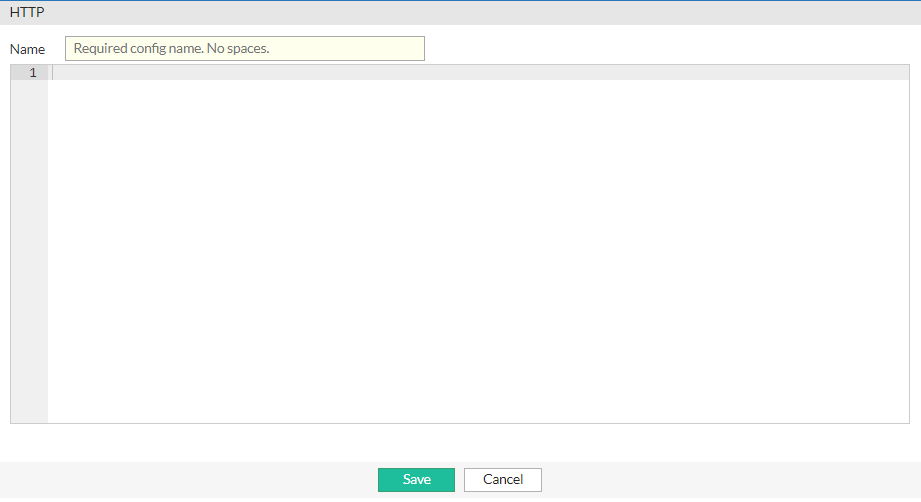
- Enter a unique name for the HTTP script configuration. Valid characters are
A-Z,a-z,0-9,_, and-. No spaces. After you initially save the configuration, you cannot edit the name. - In the text box, type or paste your HTTP script.
If you want to include this script as part of a multi-script configurations that allows you to execute multiple scripts in a certain order, ensure to set its priority. For more information, see Multi-script support for HTTP Scripting. - Click Save.
Once the HTTP script configuration is saved, you can specify it in the virtual server.
To import an HTTP script:
-
Go to Server Load Balance > Scripting.
The configuration page displays the HTTP tab. -
Click Import to display the file import options.
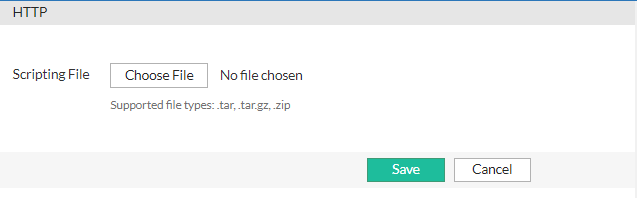
-
Click Choose File and browse for the script file. Supported file types are .tar, .tar.gz, and .zip.
-
Click Save.
Once the file is successfully imported, it will be listed in the Scripting > HTTP page.
To export an HTTP script:
-
Go to Server Load Balance > Scripting.
The configuration page displays the HTTP tab. -
From the HTTP page, select an HTTP script configuration.
In the example below, the HTTP_2_HTTPS_REDIRECTION script is selected.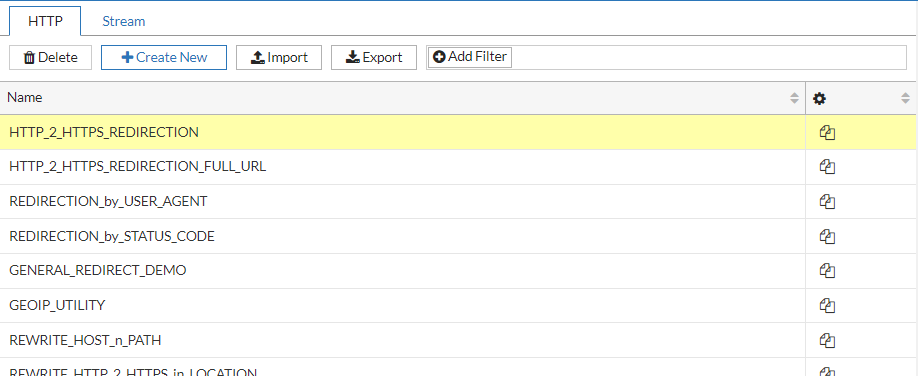
-
Click Export initiate the file download.
The selected script configuration will be exported as a .tar file.
To delete an HTTP script:
-
Go to Server Load Balance > Scripting.
The configuration page displays the HTTP tab. -
From the HTTP page, select a user-defined HTTP script configuration. System predefined scripts cannot be deleted.
In the example below, the testing script configuration is selected.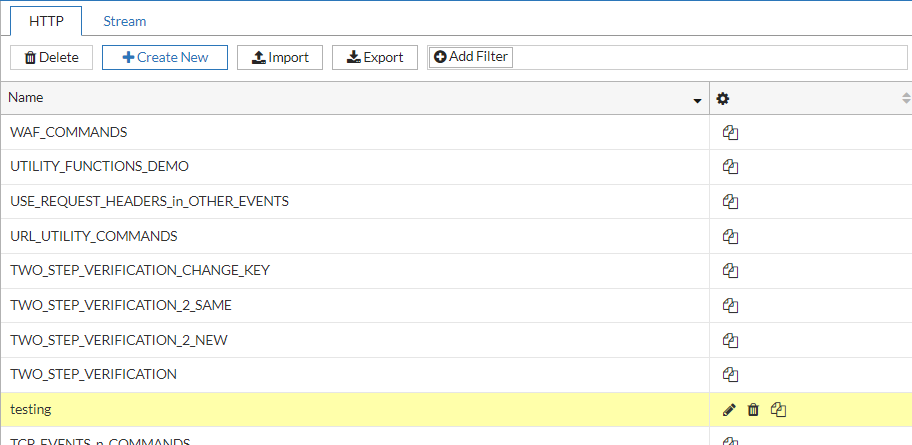
-
Click Delete from the top navigation, or click
 (delete icon) of the configuration.
Multiple script configurations can be deleted using the Delete button on the top navigation.