config system feature-visibility/feature-visibility-global
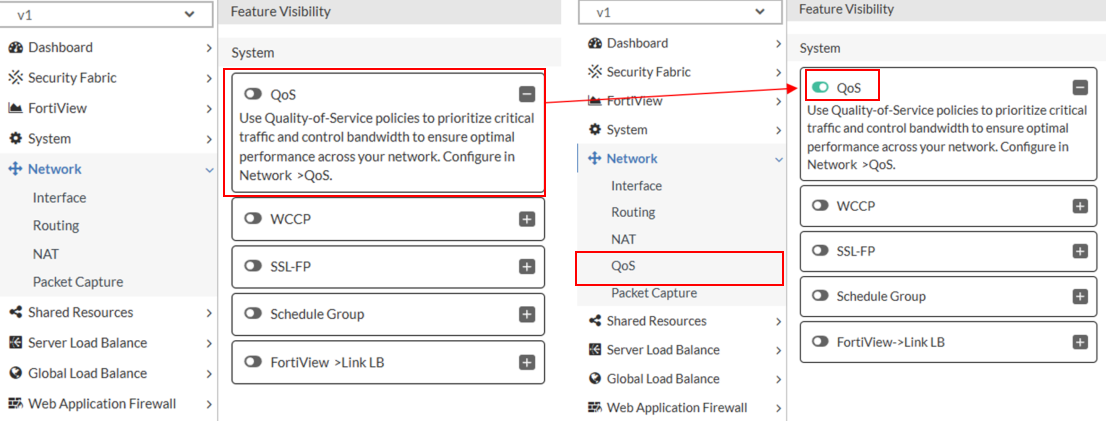
Use this command to selectively control the visibility of configurable features in the GUI. This allows administrators to streamline the interface by hiding features that are unused, inactive, or not relevant to the current deployment.
Feature visibility settings affect only the graphical interface and do not control feature activation. A hidden feature remains fully operational and can still be configured through the CLI.
Once applied, the GUI navigation menu is refreshed to reflect the updated visibility settings.

|
After making and saving changes to the feature visibility list, the system automatically logs out the current session. You must log in again to continue working. |
The features available in the Feature Visibility page are grouped into three categories: System, Application Delivery, and Security/Additional Feature. These categories help administrators locate and manage GUI options more efficiently, especially in complex environments.
Some features are visible by default to support common deployment scenarios. Others can be enabled as needed, based on the requirements of the current configuration.
The following features are visible by default:
-
Decompression
-
Firewall
-
Web Vulnerability Scanner
|
System |
Application Delivery |
Security/Additional Feature |
|---|---|---|
| QoS | Link Load Balance | ZTNA |
| WCCP | Clone Pool | AD FS Proxy |
| SSL-FP | Schedule Pool | Firewall |
| Schedule Group | Decompression | Web Vulnerability Scanner |
| FortiView->Link LB | Captcha | Web Anti-Defacement |
| Debug | JSON and XML Protection | |
| API Gateway |
Feature Visibility View by Configuration Context
The features available in the Feature Visibility page vary depending on the system’s VDOM status, the current administrative context (Global vs. VDOM), and the VDOM mode (Independent Network or Shared Network).
-
VDOM Disabled: A single set of features is available and managed system-wide through
config system feature-visibility. -
VDOM Enabled – Independent Network Mode:
-
The Global context shows only Debug. This is configured through
config system feature-visibility-global. -
Each VDOM context (root or non-root) displays the full set of configurable features except Debug. This is configured through
config system feature-visibilityfrom the VDOM.
-
-
VDOM Enabled – Shared Network Mode (ADOM Mode):
-
The Global context shows only Debug.
-
The root ADOM displays the full set of configurable features except Debug.
-
The non-root ADOM displays the same set of configurable features as the root ADOM, except QoS and Firewall.
-
|
Configuration Context |
System |
Application Delivery |
Security/Additional Feature |
|---|---|---|---|
| VDOM Disabled | QoS, WCCP, SSL-FP, Schedule Group, FortiView→Link LB, Debug | Link Load Balance, Clone Pool, Schedule Pool, Decompression, Captcha | ZTNA, AD FS Proxy, Firewall, Web Vulnerability Scanner, Web Anti-Defacement, JSON and XML Protection, API Gateway |
| VDOM Enabled – VDOM Mode – Global | Debug | (Not shown) | (Not shown) |
| VDOM Enabled – VDOM Mode – Root VDOM | QoS, WCCP, SSL-FP, Schedule Group, FortiView→Link LB | Link Load Balance, Clone Pool, Schedule Pool, Decompression, Captcha | ZTNA, AD FS Proxy, Firewall, Web Vulnerability Scanner, Web Anti-Defacement, JSON and XML Protection, API Gateway |
| VDOM Enabled – VDOM Mode – Non-root VDOM | (Same as Root VDOM) | (Same as Root VDOM) | (Same as Root VDOM) |
| VDOM Enabled – ADOM Mode – Global | Debug | (Not shown) | (Not shown) |
| VDOM Enabled – ADOM Mode – Root ADOM | QoS, WCCP, SSL-FP, Schedule Group, FortiView->Link LB | Link Load Balance, Clone Pool, Schedule Pool, Decompression, Captcha | ZTNA, AD FS Proxy, Firewall, Web Vulnerability Scanner, Web Anti-Defacement, JSON and XML Protection, API Gateway |
| VDOM Enabled – ADOM Mode – Non-root ADOM | WCCP, SSL-FP, Schedule Group, FortiView->Link LB | (Same as Root ADOM) | ZTNA, AD FS Proxy, Web Vulnerability Scanner, Web Anti-Defacement, JSON and XML Protection, API Gateway |
Before you begin:
-
You must have read-write permission to system settings.
Syntax
VDOM Disabled
config system feature-visibility
  set API_gateway {enable|disable}
  set ad-fs-proxy {enable|disable}
  set captcha {enable|disable}
  set clone-pool {enable|disable}
  set debug {enable|disable}
  set decompression {enable|disable}
  set firewall {enable|disable}
  set json_protection {enable|disable}
  set llb {enable|disable}
  set llb_list {enable|disable}
  set qos {enable|disable}
  set schedule-pool {enable|disable}
  set schedule_group {enable|disable}
  set ssl-fp-resources {enable|disable}
  set wad_profile {enable|disable}
  set wccp {enable|disable}
  set web_vulnerability_scanner {enable|disable}
  set xml_protection {enable|disable}
  set ztna {enable|disable}
end
VDOM Enabled
Global context (requires config global):
config global
config system feature-visibility-global
  set debug {enable|disable}
end
VDOM context (requires entering a specific VDOM):
config vdom
  edit <vdom_name>
  config system feature-visibility
    set API_gateway {enable|disable}
    set ad-fs-proxy {enable|disable}
    set captcha {enable|disable}
    set clone-pool {enable|disable}
    set decompression {enable|disable}
    set firewall {enable|disable}
    set json_protection {enable|disable}
    set llb {enable|disable}
    set llb_list {enable|disable}
    set qos {enable|disable}
    set schedule-pool {enable|disable}
    set schedule_group {enable|disable}
    set ssl-fp-resources {enable|disable}
    set wad_profile {enable|disable}
    set wccp {enable|disable}
    set web_vulnerability_scanner {enable|disable}
    set xml_protection {enable|disable}
    set ztna {enable|disable}
  next
end
Example
config vdom
  edit v1
  config system feature-visibility-global
    set qos enable
  next
end