
Fortinet white logo
Fortinet white logo

Administration Guide

Debug

Debug

The Debug configuration provides advanced diagnostic tools to assist in troubleshooting and system analysis. Use the Save Debug File feature to generate a comprehensive archive containing configuration files, system logs, and operational telemetry. The appliance can store a maximum of three debug files locally. You can download these archives to your management computer or upload them to a remote FTP server for further analysis by Fortinet Technical Support.

A critical component of the system debug file is the crash log. Because downloading the full crash log can significantly impact browser memory performance, the system allows you to download a lightweight text file containing only the crash log filenames. This alternative provides a summary of available diagnostic data without the overhead of the complete log files.

If this feature is not visible in the GUI navigation menu, you may need to enable it under System > Feature Visibility. For details, see Feature Visibility.

To create a system debug file:
  1. Go to System > Debug.
  2. Click Save Debug File.
  3. Set the Enable Crash Package options:
    • Enable — The debug file will contain all core files and crash files. This is the default option.
    • Disable — The debug file will contain all core files and a text file containing only the file names of the crash files.
  4. Click OK.
    The save debug will run, which may take several seconds. Check the Running Status for when the file is ready to download.
  5. When the file is ready, as indicated in the Running Status column, you can download it via the GUI or upload it to an FTP server.
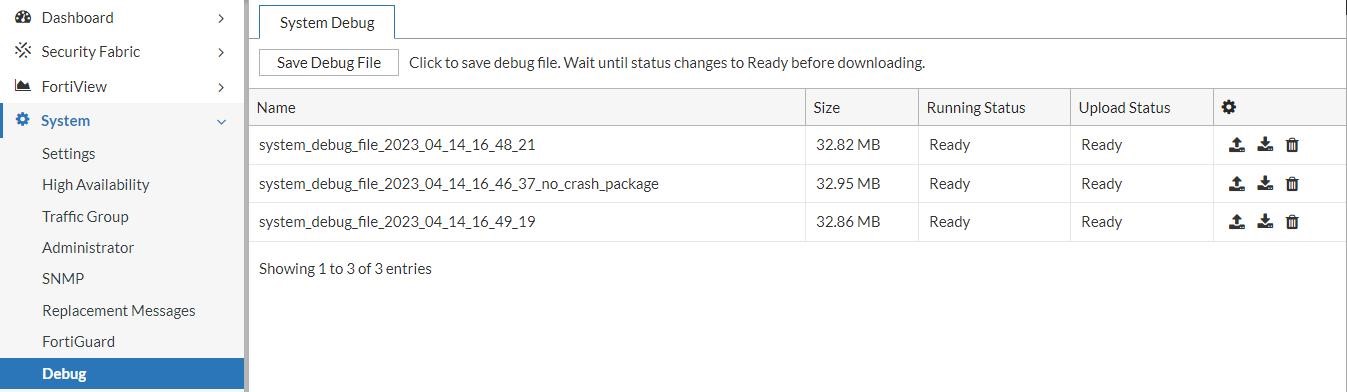
    ColumnDescription

    Name

    system_debug_file_<date>_<time>

    Running Status

    Running status indicates the final download status.

    Running — The system is still collecting and compressing the debug file to generate a download file.

    Ready — The file is ready to download via the GUI or upload to FTP.

    Upload Status

    The upload FTP status.

    Running — The File is uploading. Error messages will appear in the Upload Status column.

    Ready — The Upload is completed.

  6. Optionally, you may terminate a debug file save request while its Running Status is still in Running.

Debug

Debug

The Debug configuration provides advanced diagnostic tools to assist in troubleshooting and system analysis. Use the Save Debug File feature to generate a comprehensive archive containing configuration files, system logs, and operational telemetry. The appliance can store a maximum of three debug files locally. You can download these archives to your management computer or upload them to a remote FTP server for further analysis by Fortinet Technical Support.

A critical component of the system debug file is the crash log. Because downloading the full crash log can significantly impact browser memory performance, the system allows you to download a lightweight text file containing only the crash log filenames. This alternative provides a summary of available diagnostic data without the overhead of the complete log files.

If this feature is not visible in the GUI navigation menu, you may need to enable it under System > Feature Visibility. For details, see Feature Visibility.

To create a system debug file:
  1. Go to System > Debug.
  2. Click Save Debug File.
  3. Set the Enable Crash Package options:
    • Enable — The debug file will contain all core files and crash files. This is the default option.
    • Disable — The debug file will contain all core files and a text file containing only the file names of the crash files.
  4. Click OK.
    The save debug will run, which may take several seconds. Check the Running Status for when the file is ready to download.
  5. When the file is ready, as indicated in the Running Status column, you can download it via the GUI or upload it to an FTP server.

    ColumnDescription

    Name

    system_debug_file_<date>_<time>

    Running Status

    Running status indicates the final download status.

    Running — The system is still collecting and compressing the debug file to generate a download file.

    Ready — The file is ready to download via the GUI or upload to FTP.

    Upload Status

    The upload FTP status.

    Running — The File is uploading. Error messages will appear in the Upload Status column.

    Ready — The Upload is completed.

  6. Optionally, you may terminate a debug file save request while its Running Status is still in Running.