

Importing and Exporting Maps
You can exchange Wi-Fi Maps with Ekahau, allowing you to import new maps and export modified ones for deeper analysis in the Ekahau application.
Importing Maps
You can import maps created or modified in Ekahau directly into the system:
-
Navigate to Wireless > Wi-Fi Maps.
-
In the left pane, select All Sites or any site to import maps. Click Import.
Note: Maximum supported .zip or .esx file is 250 MB.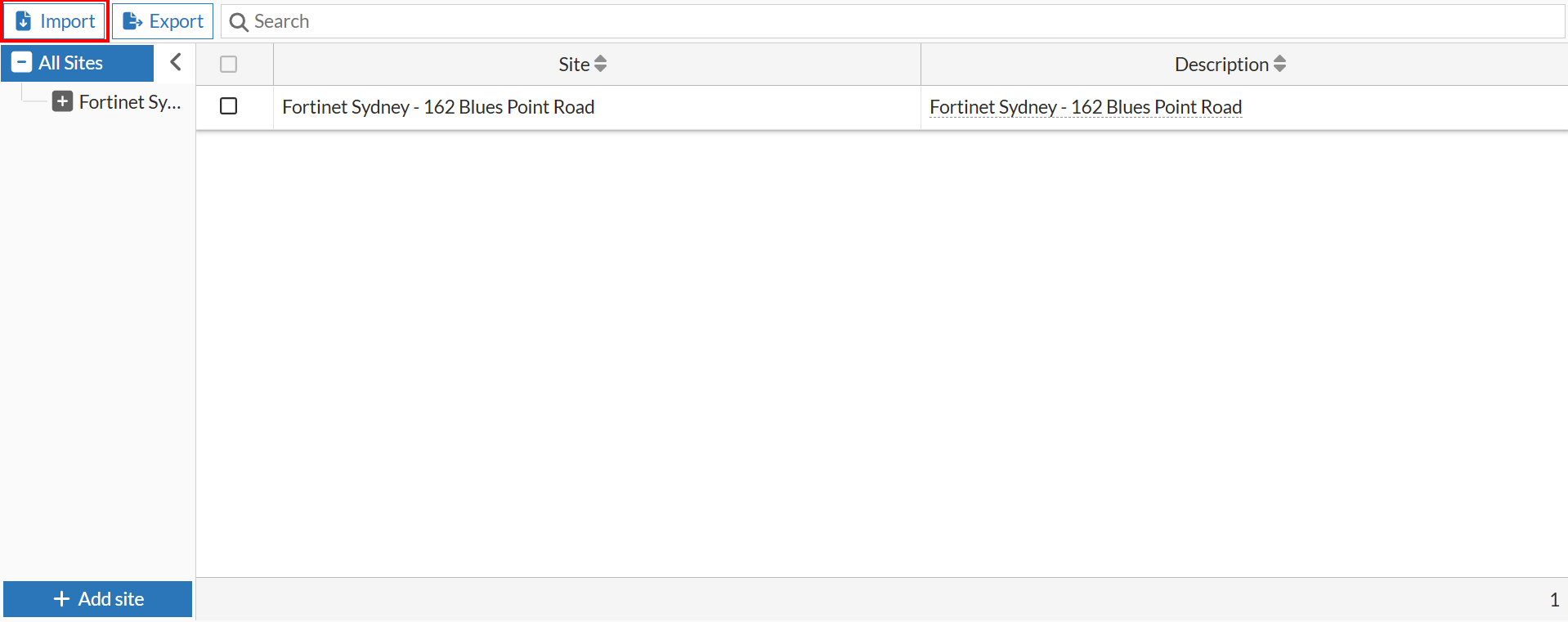
-
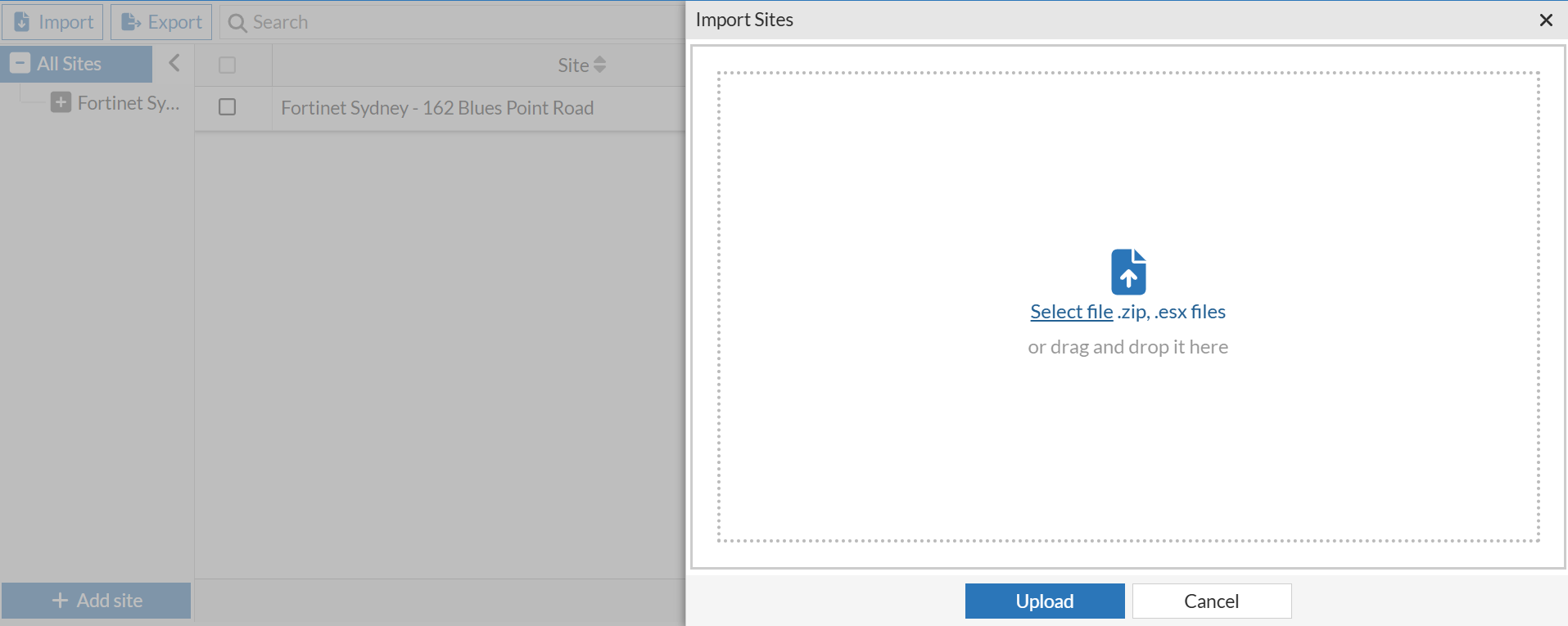
In the Import Sites pane, select your Ekahau file (either a .esx file or a .zip file containing multiple .esx files).
-
Click Upload.
The imported maps will appear in the left pane, structured appropriately.
Mapping APs
If the Access Point (AP) names in the imported map match your existing inventory names, the APs are mapped to their floor plan locations automatically.
If AP names do not match, those APs will be displayed in an Inactive state. To map them:
-
Click Unlock Map.
-
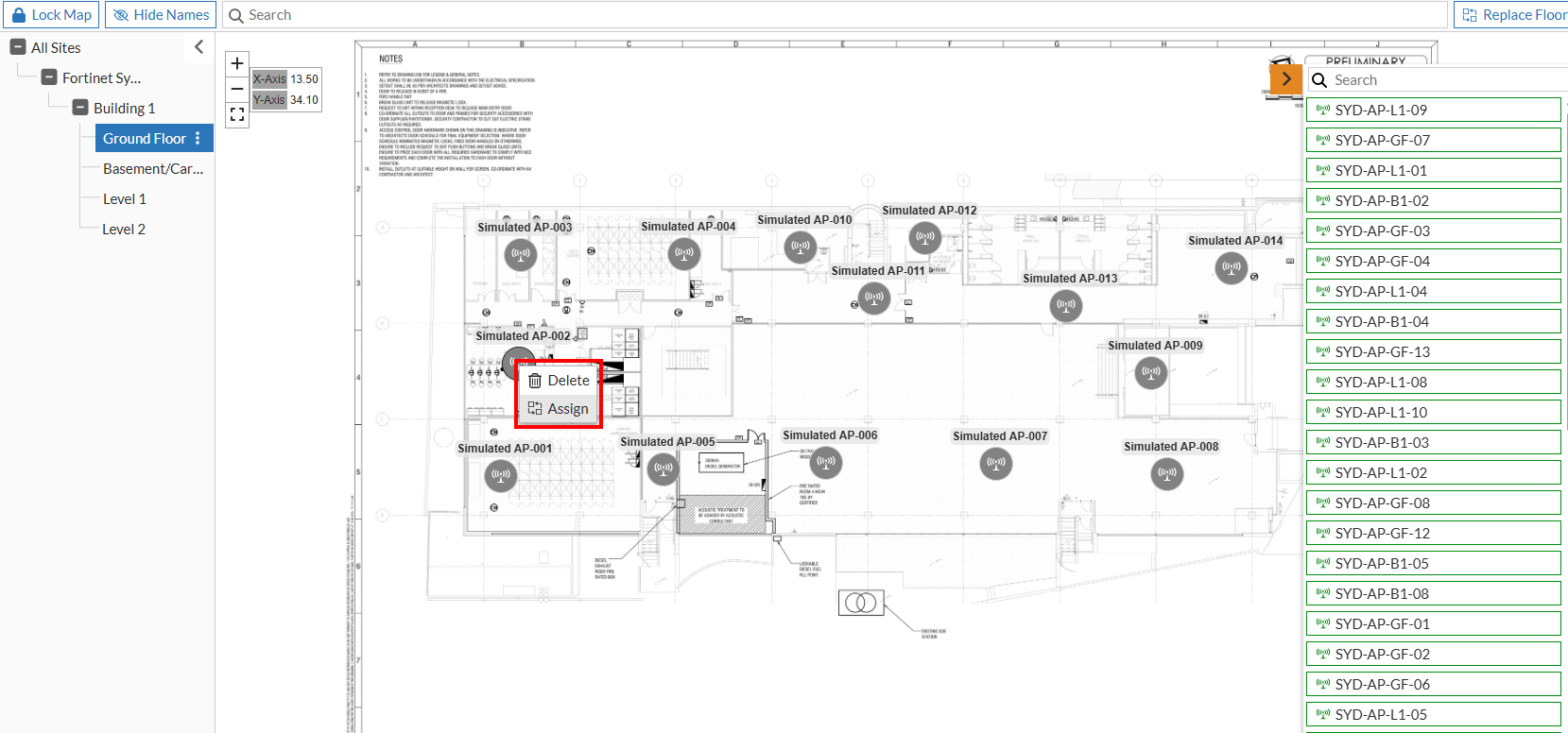
Select the unplaced AP on the map. Click Assign.
-
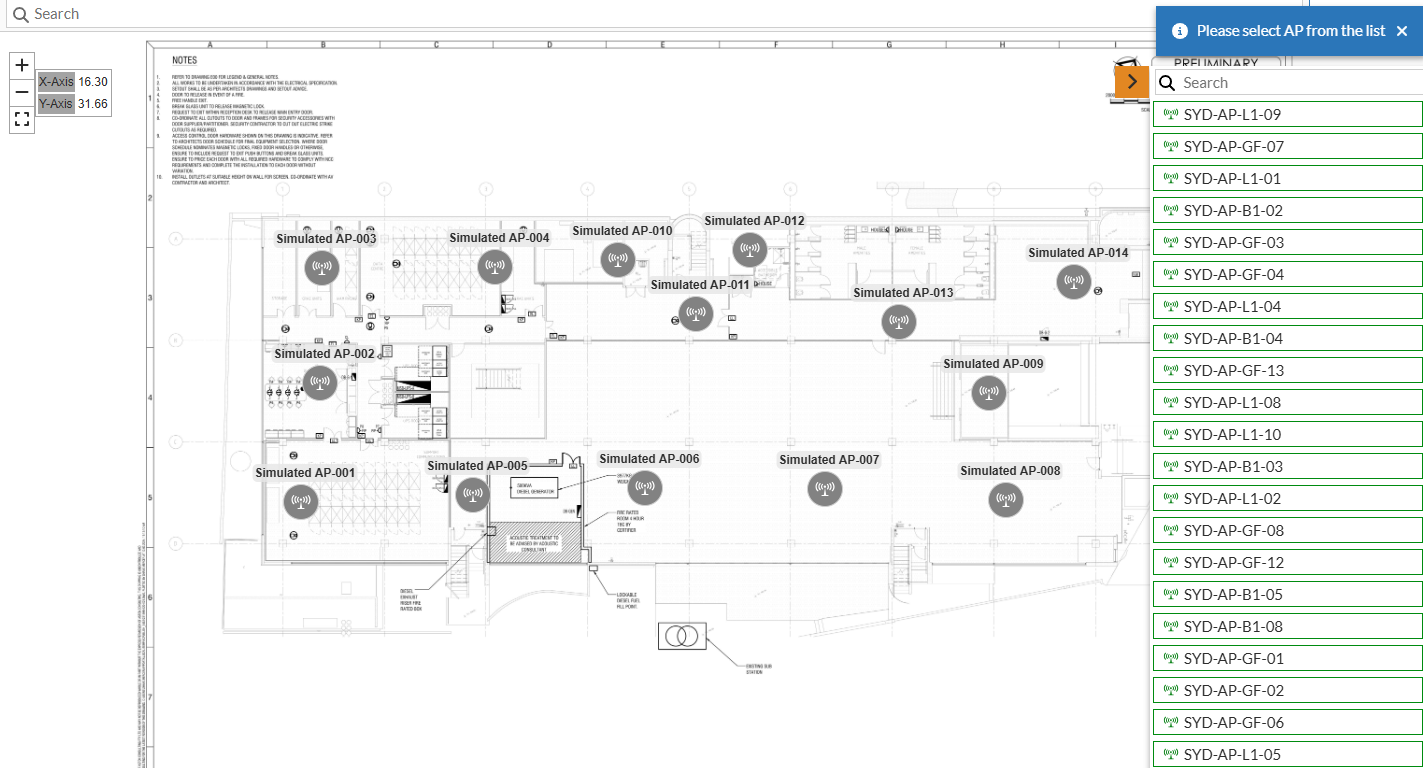
A list of unplaced APs will appear; select the correct AP from this list to assign it to the selected location.
-
Click Lock Map when finished.
Exporting Maps
You can export modified maps and use them in Ekahau for further analysis.
-
Navigate to Wireless > Wi-Fi Maps.
-
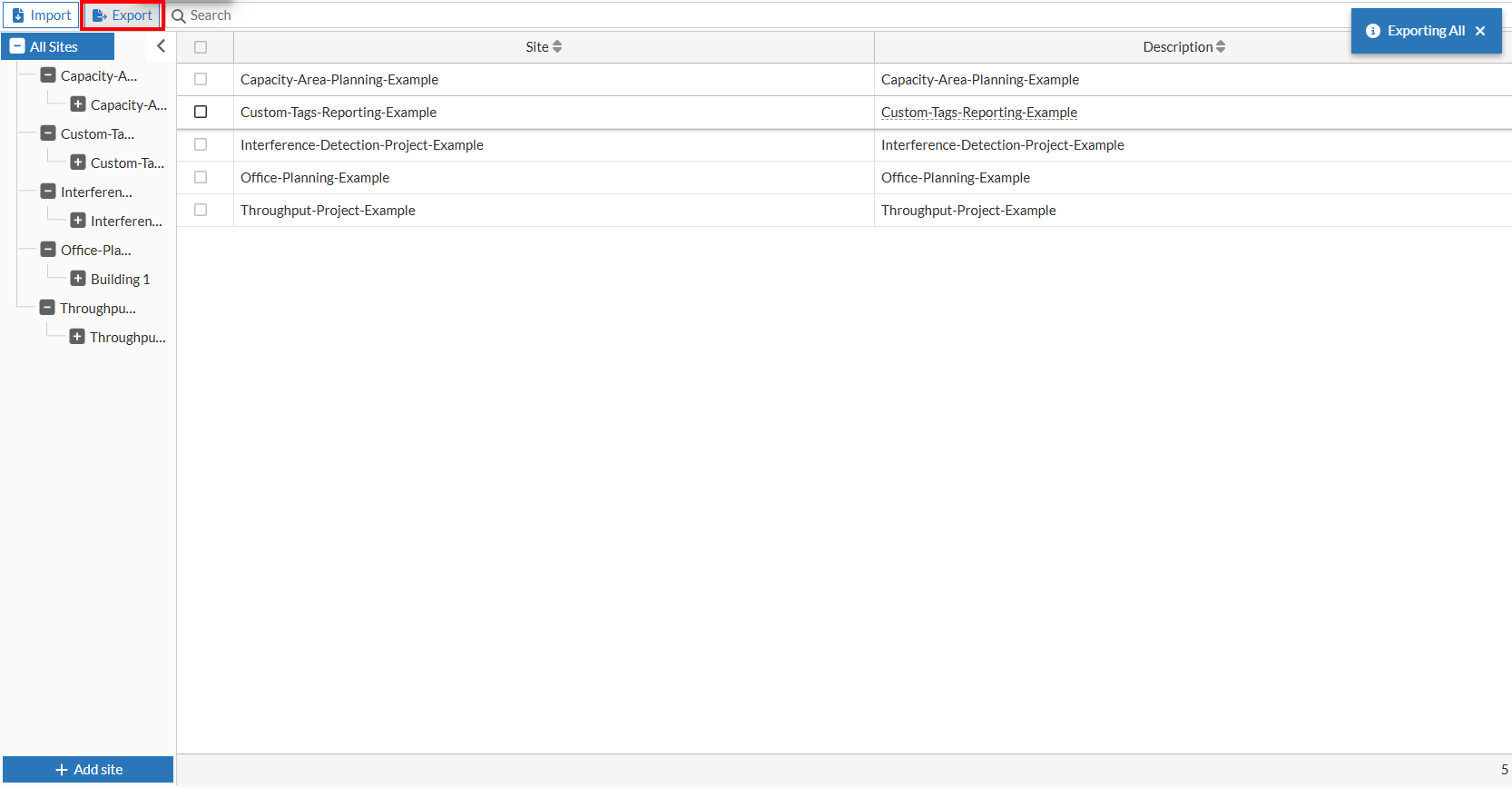
To export all sites, select All Sites.
-
To export specific sites, use the check boxes to select the individual ones.
-
To export specific sites, use the check boxes to select the individual sites or navigate to the site (in the hierarchy) and click Export.
A .zip file containing the map(s) will be downloaded.