

Configuring the Interface IP Address
You can configure the IP address of an interface using either the FortiBranchSASE GUI or CLI.
To configure the interface IP address - GUI:
- Navigate to Networking > Interface > Edit Physical Ports.
- Select an interface (for example, Port 1, Port 2, or WAN depending on your model).
- Click Edit
 .
. -
Depending on your network setup, select a Mode.
You can choose between static or dhcp.
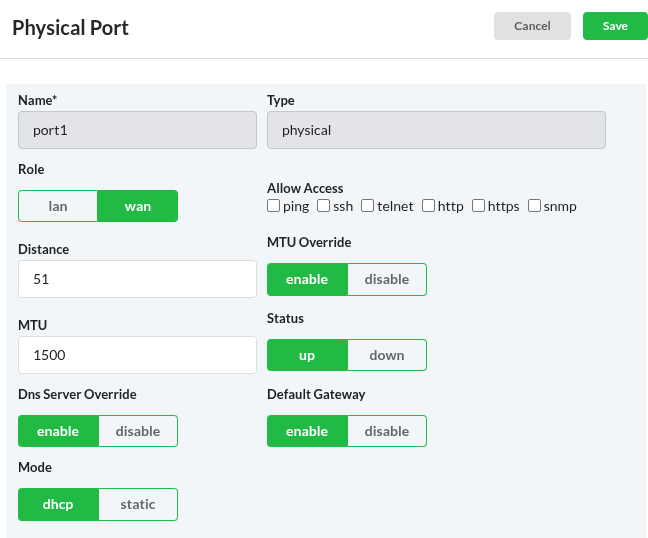
- When you are finished, click Save.
To configure the interface IP address - CLI:
config system interface
  edit <interface_name>
    set mode <dhcp | static>
      # If using static mode:
      set ip <IP_address> <subnet_mask>
  next
end
|
Command |
Description |
|---|---|
|
<interface_name> |
Enter the interface. For example, port1, port2, or wan. |
|
mode <dhcp | static> |
Select a server mode. |
|
set ip <IP_address> <subnet_mask> |
If you selected a static server mode, enter a static IP and subnet mask. For example, 192.168.1.99 255.255.255.0. |