
Fortinet white logo
Fortinet white logo

User Guide

7.2.0

Using mask detection

Using mask detection

Mask detection can assist in compliance with public health measures. When the AI detects someone, an event is generated and stored on FortiRecorder that classifies the person as a "Masked Person" or an "Unmasked Person".

Configuring mask detection

  1. On the view pane for a camera, click the Settings button.
  2. Go to Analytics.
  3. Select Mask Detection from the Algorithm dropdown menu
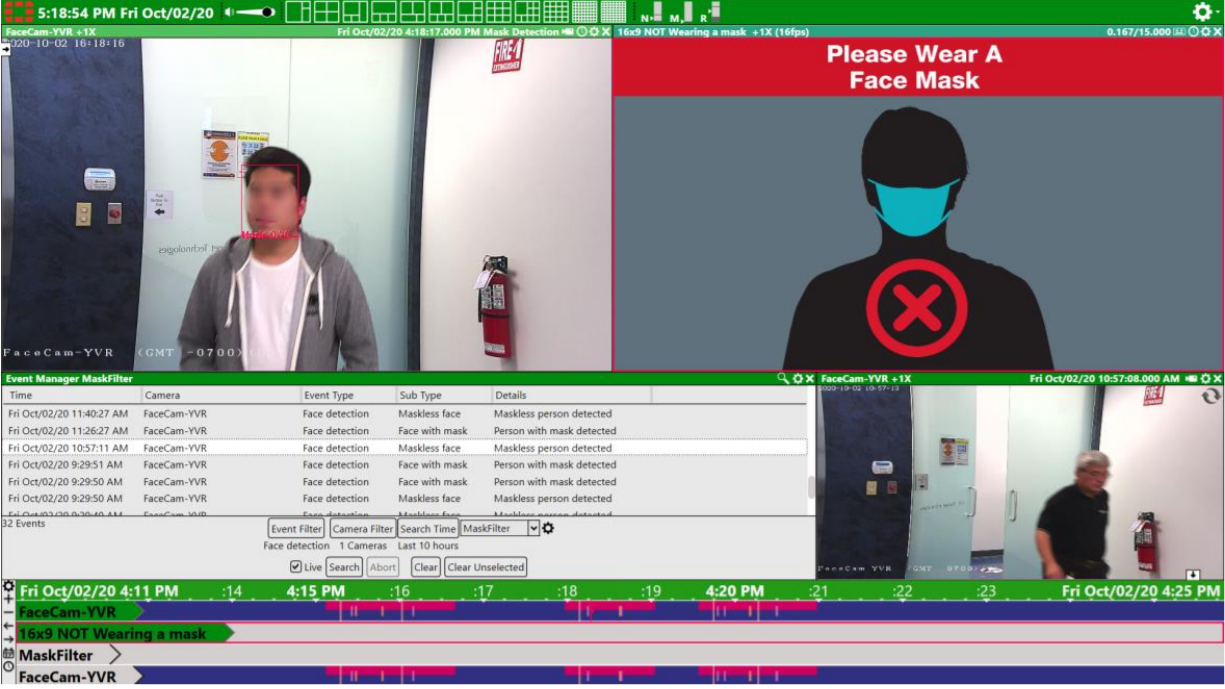
  4. Enable Visualize to show a frame around detected faces, which are labeled mask or no mask with an indicator of the confidence level of detection.
  5. Enable Show Snapshot to display a screen shot of the last detection of the individual's face on the right side of the pane.
  6. Slide the Mask Threshold slider to the desired point. The threshold determines how strict masks are enforced. A higher value assures that only certain mask detections are registered.

    Mask detection notifications are displayed on the timeline as detection events. To show details, hover your mouse over the red bar.

Enabling live message announcements for mask detection

For live installations, you can put a screen that displays FortiCentral next to a building entrance that has a camera. The screen can show feedback depending on whether or not the person is wearing a mask. These messages are fully customizable and can even include audio and video animations.
To enable live messages for mask detection

  1. Click the Settings button in the top right corner.
  2. Go to Settings > Media.
  3. Upload the media that you want to display when a person is or is not wearing a mask.
  4. Go to Settings > Analytics.
  5. From the Media for Mask Detection and Media for No Mask Detected dropdown menus, select the audio or video that you want to play.
  6. Click the OK button.

Using mask detection

Using mask detection

Mask detection can assist in compliance with public health measures. When the AI detects someone, an event is generated and stored on FortiRecorder that classifies the person as a "Masked Person" or an "Unmasked Person".

Configuring mask detection

  1. On the view pane for a camera, click the Settings button.
  2. Go to Analytics.
  3. Select Mask Detection from the Algorithm dropdown menu
  4. Enable Visualize to show a frame around detected faces, which are labeled mask or no mask with an indicator of the confidence level of detection.
  5. Enable Show Snapshot to display a screen shot of the last detection of the individual's face on the right side of the pane.
  6. Slide the Mask Threshold slider to the desired point. The threshold determines how strict masks are enforced. A higher value assures that only certain mask detections are registered.

    Mask detection notifications are displayed on the timeline as detection events. To show details, hover your mouse over the red bar.

Enabling live message announcements for mask detection

For live installations, you can put a screen that displays FortiCentral next to a building entrance that has a camera. The screen can show feedback depending on whether or not the person is wearing a mask. These messages are fully customizable and can even include audio and video animations.

To enable live messages for mask detection

  1. Click the Settings button in the top right corner.
  2. Go to Settings > Media.
  3. Upload the media that you want to display when a person is or is not wearing a mask.
  4. Go to Settings > Analytics.
  5. From the Media for Mask Detection and Media for No Mask Detected dropdown menus, select the audio or video that you want to play.
  6. Click the OK button.