Prepare the FortiDeceptor image for Hyper-V
Download the image archive file for the Hyper-V platform and unzip it to get image file .out.hyperv.zip. After the image is downloaded, connect to the Hyper-V server to create the Virtual Machine.
To download the FortiDeceptor image:
- Log in to FortiCloud.
- In the banner, click Support > Downloads > Firmware Download. The Download/Firmware Images page opens.
- From the Select Product dropdown, select FortiDeceptor.
- Click the Download tab.
- In the Image File Path section, click the image folder until you reach the image page.
- Select FDC_VM-v400-build0204-FORTINET.out.hyperv.zip.
- Go to Start > Windows Administrative > Tools > Hyper-V Manager to launch the Hyper-V Manager on your Microsoft server.
- In the Actions pane, click Connect to Server to connect to the Hyper-V server.
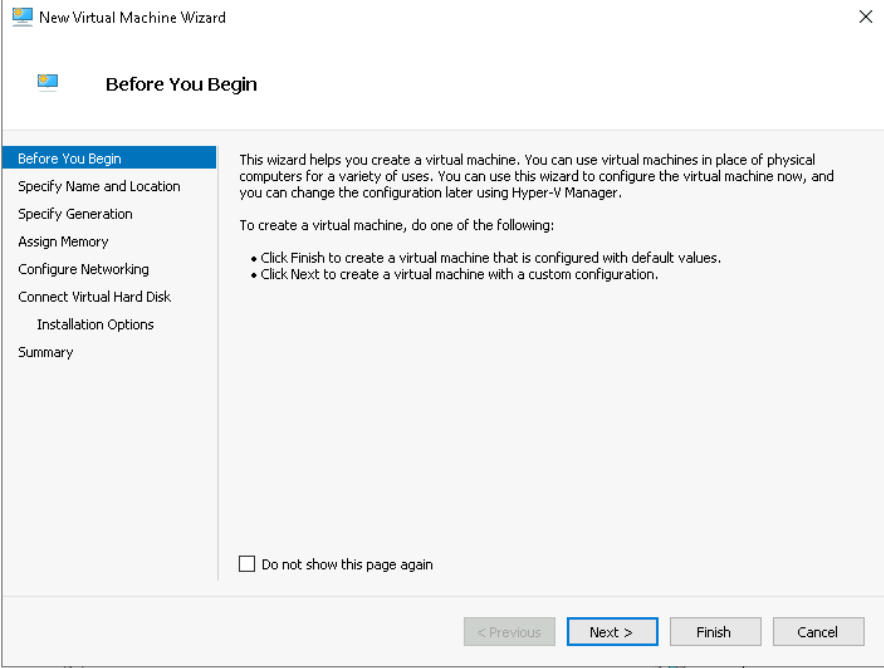
- Right-click the server and click New > Virtual Machine. The New Virtual Machine Wizard opens.
Alternatively, in the Actions menu, you can click New > Virtual Machine to launch the wizard.