
Fortinet white logo
Fortinet white logo

New Features

Customizable password reuse thresholds

Customizable password reuse thresholds

Note

This information is also available in the FortiOS 7.6 Administration Guide:

You can now use a global option to specify how many passwords to save for local users and system administrators, and then you can specify how many of the saved passwords can be reused. Password history is visible in the backup configuration.

The config system global command includes a new option:

config system global
    set user-history-password-threshold <integer>
end

set user-history-password-threshold <integer>

Global maximum number of previous passwords saved for each local user and system administrator (3-15, default = 3).

When a password policy is enabled for system administrators, a new option is available:

config system password-policy    
    set reuse-password-limit <integer>
end

When expire-status and reuse-password are enabled in the password policy for a local user, a new option is available:

config user password-policy
    edit <ID>
        set reuse-password-limit <integer>
    end
end

set reuse-password-limit <integer>

Number of times the password for system administrators or local users can be reused (0 - 20, default = 0). If set to 0, the password can be reused an unlimited number of times.

Cannot exceed the global user-history-password-threshold.

For existing password policies, the new options are disabled by default after upgrading to FortiOS 7.6.0 or later.

To create a password policy for a local user:

Multiple password policies can be created and applied to different local user accounts.

  1. Configure a global password history limit.

    In this example, the global policy is to save three passwords for each local user and system administrator.

    config system global
        set user-history-password-threshold 3
    end
  2. Configure a password policy for local users:

    1. Before you can configure the password limit, enable expire-status and reuse-password.

      config user password-policy
          edit 1
              set expire-status enable
              set reuse-password enable 
          next
      end
    2. Specify the maximum number of times a user can reuse a password.

      In this example, the reuse-password-limit is set to 1, which means one of the globally-set three saved passwords can be reused.

      config user password-policy
          edit 1
              set reuse-password-limit 1
          next
      end
  3. Assign the password policy to a local user.

    In this example, password policy 1 is assigned to local user local2.

    config user local
        edit "local2"
            set type password
            set passwd-policy "1"
            set passwd ********
        next
    end
  4. Add the local user to a firewall policy, an SSL VPN policy, or to FortiGate user groups used in policies.

Before the password for the local user expires, the FortiOS GUI provides the option to change the password during login or skip the password change.
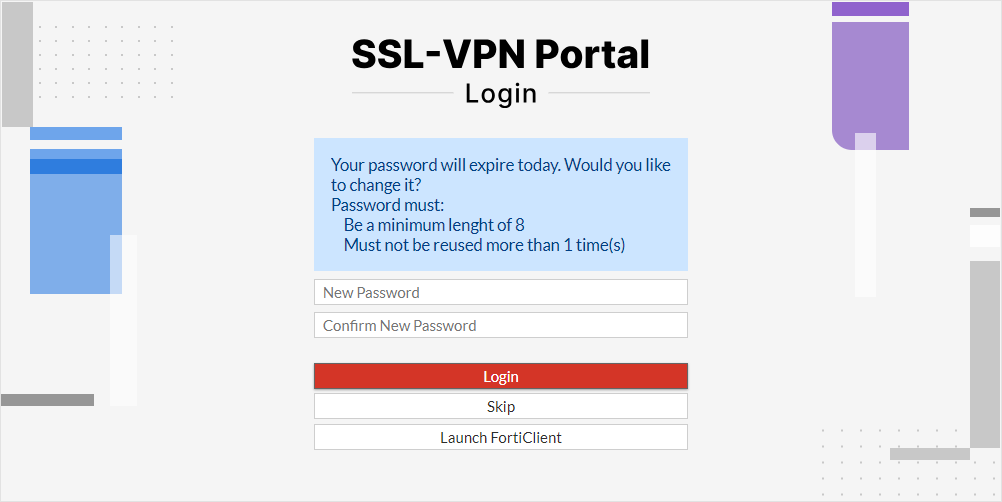
If the password for the local user has expired, the FortiOS GUI provides the option to change the password during login. When the local user enters a password that adheres to the policy, the login continues. If the new password has been used too many times before, a warning message is displayed.

To create a password policy for all system administrators:

The password policy applies to all administrator accounts when enabled, including the built-in admin account named admin. If an existing system administrator account fails to comply with the enabled password policy, the administrator is forced to change passwords on next login.

  1. Configure a global history password limit.

    In this example, the global policy is to save three passwords for each local user and system administrator.

    config system global
        set user-history-password-threshold 3
    end
  2. Configure a password policy for system administrators:

    1. Enable the password policy.

      config system password-policy
          set status enable    
      end
    2. Enable the expire status and set the password reuse limit.

      In this example, the reuse-password-limit is set to 1, which means one of the globally-set three saved passwords can be reused.

      config system password-policy    
          set expire-status enable
          set expire-day 3
          set reuse-password-limit 1
      end

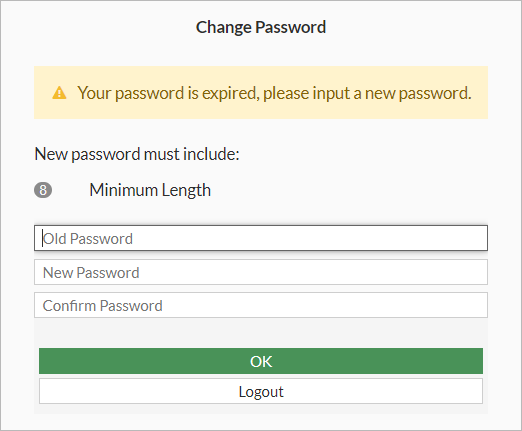
When a password policy is enabled, and passwords for existing system administrators fail to comply with the new policy, the Change Password dialog box is displayed to communicate the policy requirements and prompt the password change.
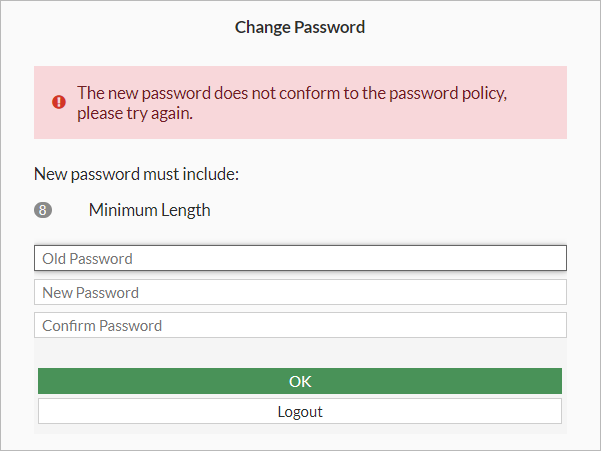
After the system administrator password expires, the Change Password dialog box is displayed after the system administrator logs in to prompt the password change:
Customizable password reuse thresholds

Customizable password reuse thresholds

Note

This information is also available in the FortiOS 7.6 Administration Guide:

You can now use a global option to specify how many passwords to save for local users and system administrators, and then you can specify how many of the saved passwords can be reused. Password history is visible in the backup configuration.

The config system global command includes a new option:

config system global
    set user-history-password-threshold <integer>
end

set user-history-password-threshold <integer>

Global maximum number of previous passwords saved for each local user and system administrator (3-15, default = 3).

When a password policy is enabled for system administrators, a new option is available:

config system password-policy    
    set reuse-password-limit <integer>
end

When expire-status and reuse-password are enabled in the password policy for a local user, a new option is available:

config user password-policy
    edit <ID>
        set reuse-password-limit <integer>
    end
end

set reuse-password-limit <integer>

Number of times the password for system administrators or local users can be reused (0 - 20, default = 0). If set to 0, the password can be reused an unlimited number of times.

Cannot exceed the global user-history-password-threshold.

For existing password policies, the new options are disabled by default after upgrading to FortiOS 7.6.0 or later.

To create a password policy for a local user:

Multiple password policies can be created and applied to different local user accounts.

  1. Configure a global password history limit.

    In this example, the global policy is to save three passwords for each local user and system administrator.

    config system global
        set user-history-password-threshold 3
    end
  2. Configure a password policy for local users:

    1. Before you can configure the password limit, enable expire-status and reuse-password.

      config user password-policy
          edit 1
              set expire-status enable
              set reuse-password enable 
          next
      end
    2. Specify the maximum number of times a user can reuse a password.

      In this example, the reuse-password-limit is set to 1, which means one of the globally-set three saved passwords can be reused.

      config user password-policy
          edit 1
              set reuse-password-limit 1
          next
      end
  3. Assign the password policy to a local user.

    In this example, password policy 1 is assigned to local user local2.

    config user local
        edit "local2"
            set type password
            set passwd-policy "1"
            set passwd ********
        next
    end
  4. Add the local user to a firewall policy, an SSL VPN policy, or to FortiGate user groups used in policies.

Before the password for the local user expires, the FortiOS GUI provides the option to change the password during login or skip the password change.

If the password for the local user has expired, the FortiOS GUI provides the option to change the password during login. When the local user enters a password that adheres to the policy, the login continues. If the new password has been used too many times before, a warning message is displayed.

To create a password policy for all system administrators:

The password policy applies to all administrator accounts when enabled, including the built-in admin account named admin. If an existing system administrator account fails to comply with the enabled password policy, the administrator is forced to change passwords on next login.

  1. Configure a global history password limit.

    In this example, the global policy is to save three passwords for each local user and system administrator.

    config system global
        set user-history-password-threshold 3
    end
  2. Configure a password policy for system administrators:

    1. Enable the password policy.

      config system password-policy
          set status enable    
      end
    2. Enable the expire status and set the password reuse limit.

      In this example, the reuse-password-limit is set to 1, which means one of the globally-set three saved passwords can be reused.

      config system password-policy    
          set expire-status enable
          set expire-day 3
          set reuse-password-limit 1
      end

When a password policy is enabled, and passwords for existing system administrators fail to comply with the new policy, the Change Password dialog box is displayed to communicate the policy requirements and prompt the password change.

After the system administrator password expires, the Change Password dialog box is displayed after the system administrator logs in to prompt the password change: