
Fortinet white logo
Fortinet white logo

Administration Guide

Enhanced firmware upgrade management for extension devices

Enhanced firmware upgrade management for extension devices

FortiGate allows users to dismiss specific firmware upgrade prompts for extension devices, helping reduce unnecessary notifications. When a recommended firmware release is available, an Upgrade Available notification appears on both the System > Firmware & Registration page and the device management pages. Users can choose to hide notifications for builds they do not intend to install.

Upgrade logs IDs have been added to distinguish between automatic and manual upgrades, and email alerts include detailed status updates. Logs are triggered when auto-upgrade is enabled or disabled, a new firmware is detected, and when the upgrade completes or fails. After disabling auto-upgrade and performing an update, the login GUI prompts users to manually confirm their auto-upgrade preference.

New log IDs:
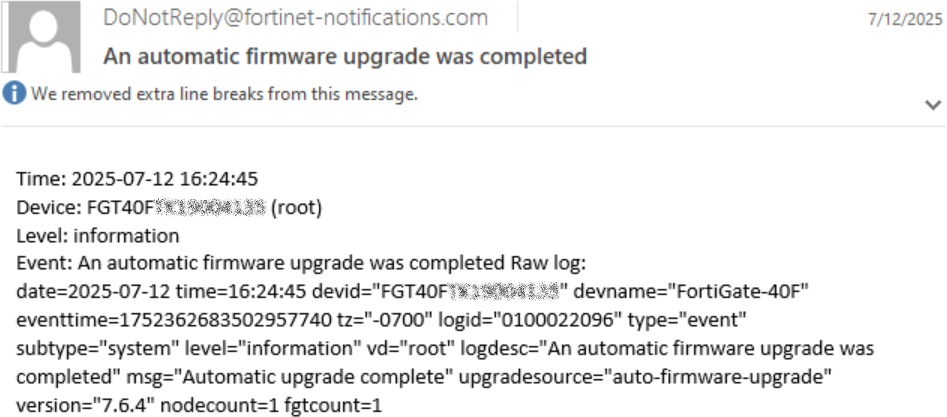
  • Log ID 22096: Auto-upgrade completed successfully

    16: date=2025-07-12 time=16:24:45 eventtime=1752362683502957740 tz="-0700" logid="0100022096" type="event" subtype="system" level="information" vd="root" logdesc="An automatic firmware upgrade was completed" msg="Automatic upgrade complete" upgradesource="auto-firmware-upgrade" version="7.6.4" nodecount=1 fgtcount=1
    

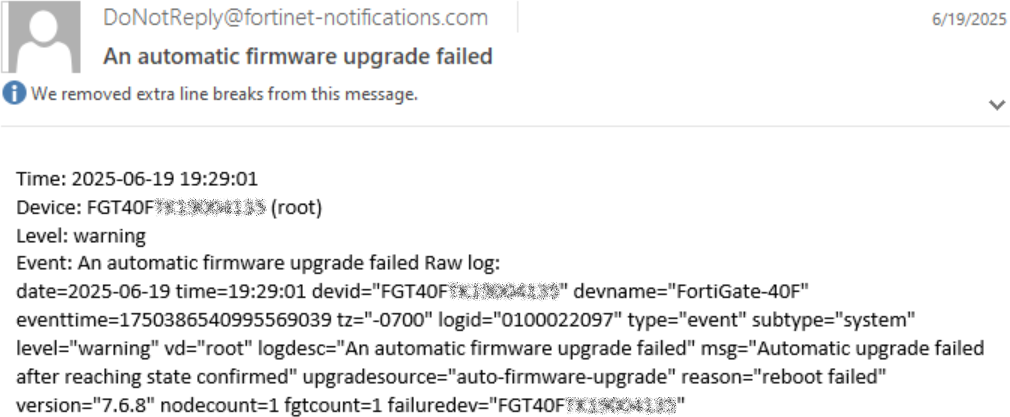
  • Log ID 22097: Auto-upgrade failed

    date=2025-07-12 time=18:12:58 eventtime=1752369177089407840 tz="-0700" logid="0100022097" type="event" subtype="system" level="warning" vd="root" logdesc="An automatic firmware upgrade failed" msg="Automatic upgrade failed after reaching state confirmed" upgradesource="auto-firmware-upgrade" reason="firmware changed" version="7.6.7" nodecount=1 fgtcount=1 failuredev="FGT40F0000000000"
Login prompt:
  • When auto-upgrade is disabled, no option is preselected in the setup wizard and Enable is marked as recommended. Enable or Disable must be selected to proceed.
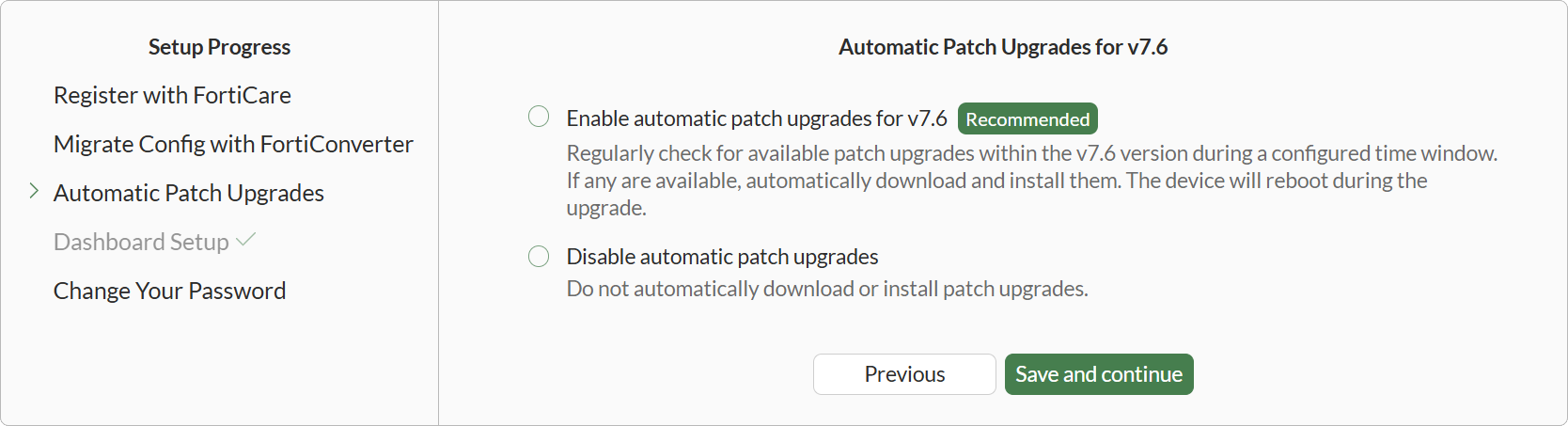
  • When auto-upgrade is enabled, Enable is pre-selected.

To dismiss extension device upgrade notifications in the GUI:
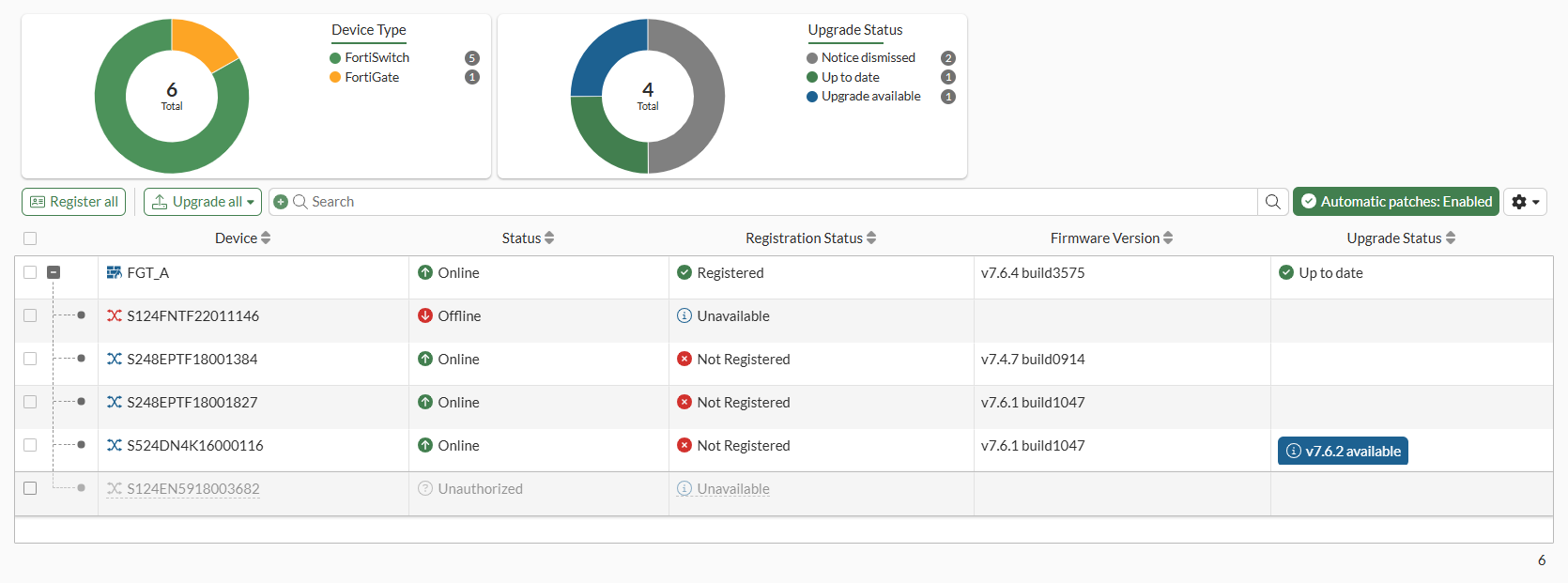
  1. Go to System > Firmware & Registration.

    The recommended upgrade notifications are shown in the Upgrade Status column.

  2. Hover over a notification and click Dismiss reminder to remove the notification.
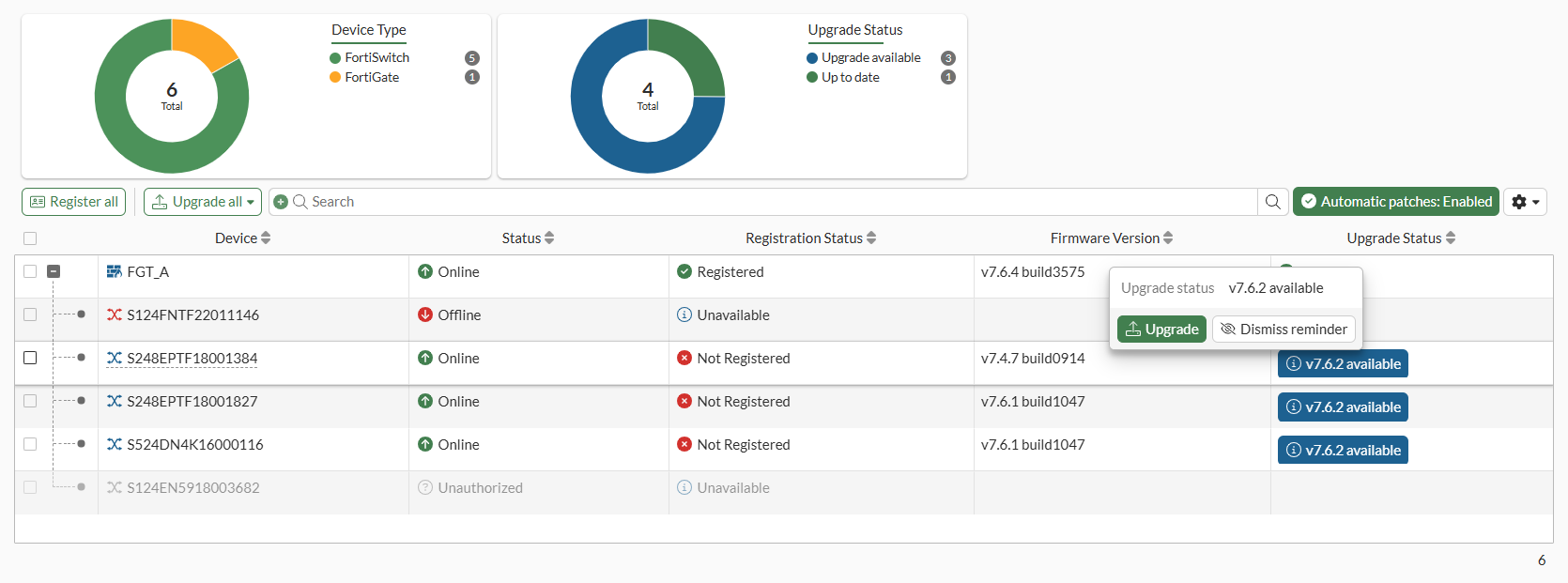
    The page refreshes and the notification is no longer displayed.
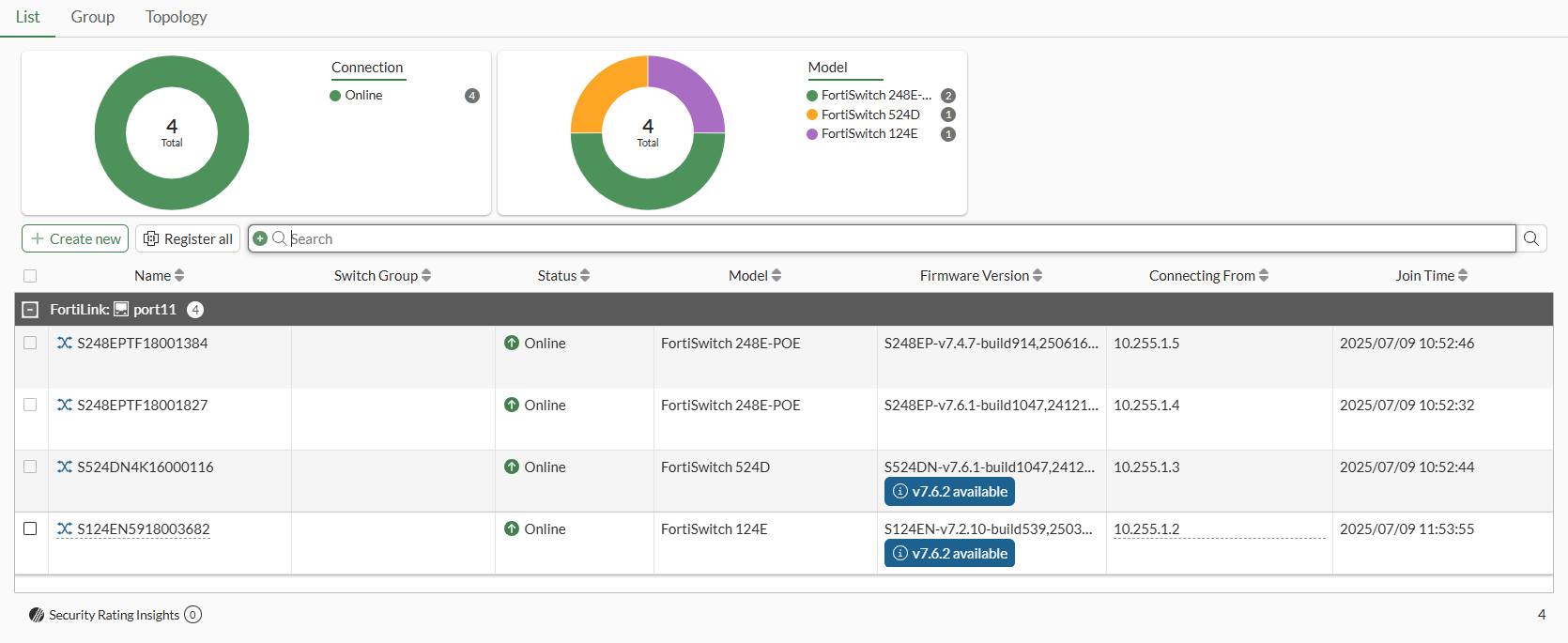
  3. Go to WiFi & Switch Controller > Managed FortiSwitches.

    The notification is also no longer displayed on the page.
  4. Hover over a notification on this page and click Dismiss reminder to remove the notification.
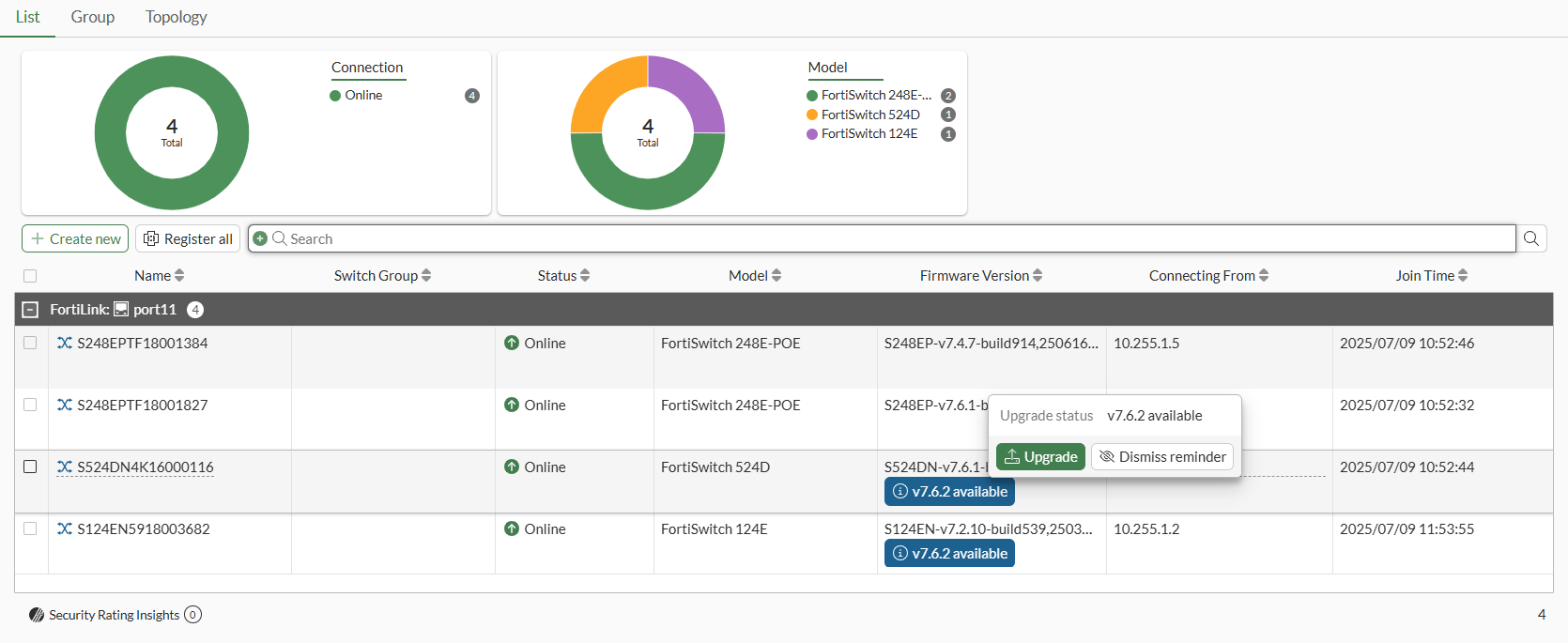
    The page refreshes and the notification is no longer displayed.
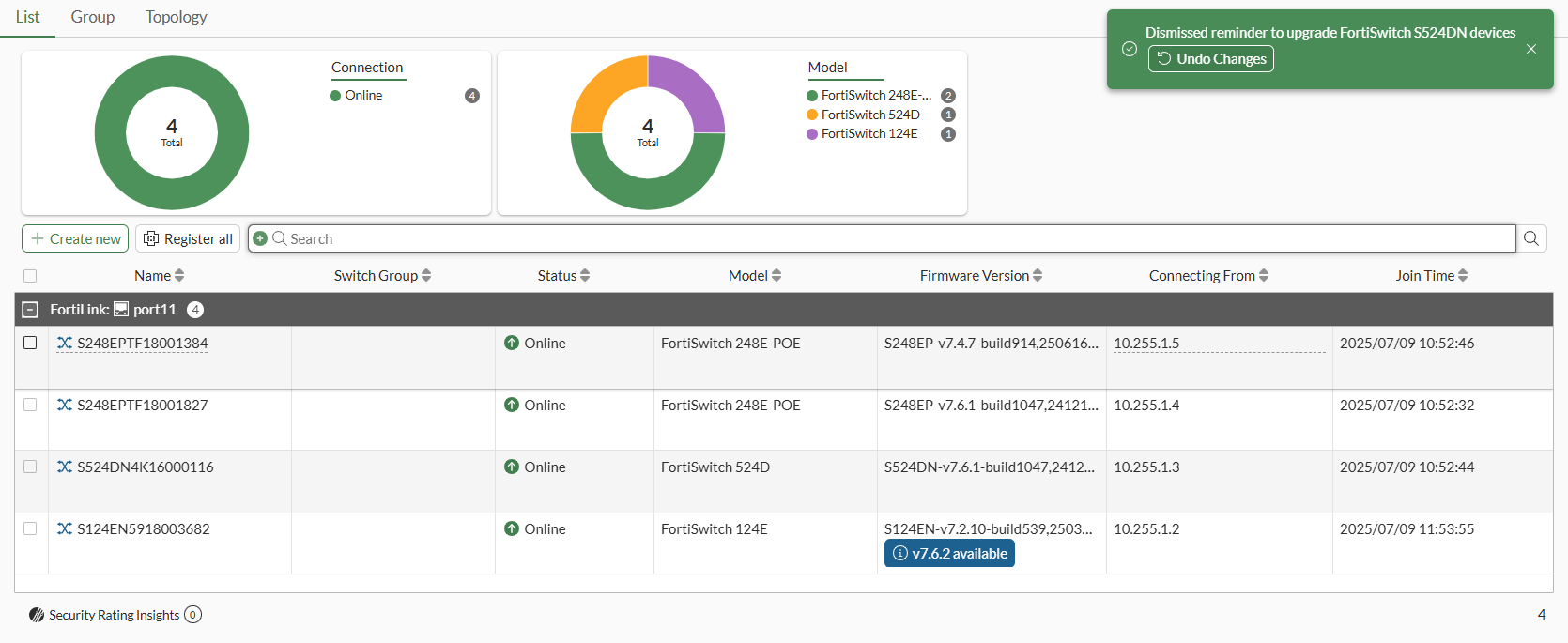
To dismiss extension device upgrade notifications in the CLI:
config system device-upgrade-exemptions
    edit 1
        set fortinet-device <device>
        set version <version>
    next
end

Option

Description

fortinet-device <device>

Fortinet extension device (FortiAP, FortiSwitch, FortiExtender).

version <version>

Highest version of Fortinet firmware to exempt (format in Major.minor.patch, such as 7.6.4).

For example, to dismiss the version 7.6.2 notification for the FortiSwitch 248E-POE:

config system device-upgrade-exemptions
    edit 1
        set fortinet-device "S248EP"
        set version 7.6.2
    next
end

Enhanced firmware upgrade management for extension devices

Enhanced firmware upgrade management for extension devices

FortiGate allows users to dismiss specific firmware upgrade prompts for extension devices, helping reduce unnecessary notifications. When a recommended firmware release is available, an Upgrade Available notification appears on both the System > Firmware & Registration page and the device management pages. Users can choose to hide notifications for builds they do not intend to install.

Upgrade logs IDs have been added to distinguish between automatic and manual upgrades, and email alerts include detailed status updates. Logs are triggered when auto-upgrade is enabled or disabled, a new firmware is detected, and when the upgrade completes or fails. After disabling auto-upgrade and performing an update, the login GUI prompts users to manually confirm their auto-upgrade preference.

New log IDs:
  • Log ID 22096: Auto-upgrade completed successfully

    16: date=2025-07-12 time=16:24:45 eventtime=1752362683502957740 tz="-0700" logid="0100022096" type="event" subtype="system" level="information" vd="root" logdesc="An automatic firmware upgrade was completed" msg="Automatic upgrade complete" upgradesource="auto-firmware-upgrade" version="7.6.4" nodecount=1 fgtcount=1
    

  • Log ID 22097: Auto-upgrade failed

    date=2025-07-12 time=18:12:58 eventtime=1752369177089407840 tz="-0700" logid="0100022097" type="event" subtype="system" level="warning" vd="root" logdesc="An automatic firmware upgrade failed" msg="Automatic upgrade failed after reaching state confirmed" upgradesource="auto-firmware-upgrade" reason="firmware changed" version="7.6.7" nodecount=1 fgtcount=1 failuredev="FGT40F0000000000"

Login prompt:
  • When auto-upgrade is disabled, no option is preselected in the setup wizard and Enable is marked as recommended. Enable or Disable must be selected to proceed.

  • When auto-upgrade is enabled, Enable is pre-selected.

To dismiss extension device upgrade notifications in the GUI:
  1. Go to System > Firmware & Registration.

    The recommended upgrade notifications are shown in the Upgrade Status column.

  2. Hover over a notification and click Dismiss reminder to remove the notification.

    The page refreshes and the notification is no longer displayed.

  3. Go to WiFi & Switch Controller > Managed FortiSwitches.

    The notification is also no longer displayed on the page.

  4. Hover over a notification on this page and click Dismiss reminder to remove the notification.

    The page refreshes and the notification is no longer displayed.

To dismiss extension device upgrade notifications in the CLI:
config system device-upgrade-exemptions
    edit 1
        set fortinet-device <device>
        set version <version>
    next
end

Option

Description

fortinet-device <device>

Fortinet extension device (FortiAP, FortiSwitch, FortiExtender).

version <version>

Highest version of Fortinet firmware to exempt (format in Major.minor.patch, such as 7.6.4).

For example, to dismiss the version 7.6.2 notification for the FortiSwitch 248E-POE:

config system device-upgrade-exemptions
    edit 1
        set fortinet-device "S248EP"
        set version 7.6.2
    next
end