

Microsoft Teams integration webhook
A webhook can be created to post messages and notifications to Microsoft Teams.
In this example, a configuration change triggers the FortiGate to post a message to Teams.
To create a webhook automation stitch for Teams integration in the GUI:
-
Create an incoming webhook in Teams. See Create an incoming webhook for information.
-
Go to Security Fabric > Automation and click Create New.
-
Enter the stitch name.
-
Configure the trigger:
-
Click Add Trigger.
-
Select Configuration Change.
-
Click Apply.
-
-
Configure the action:
-
Click Add Action.
-
Click Create and select Webhook.
-
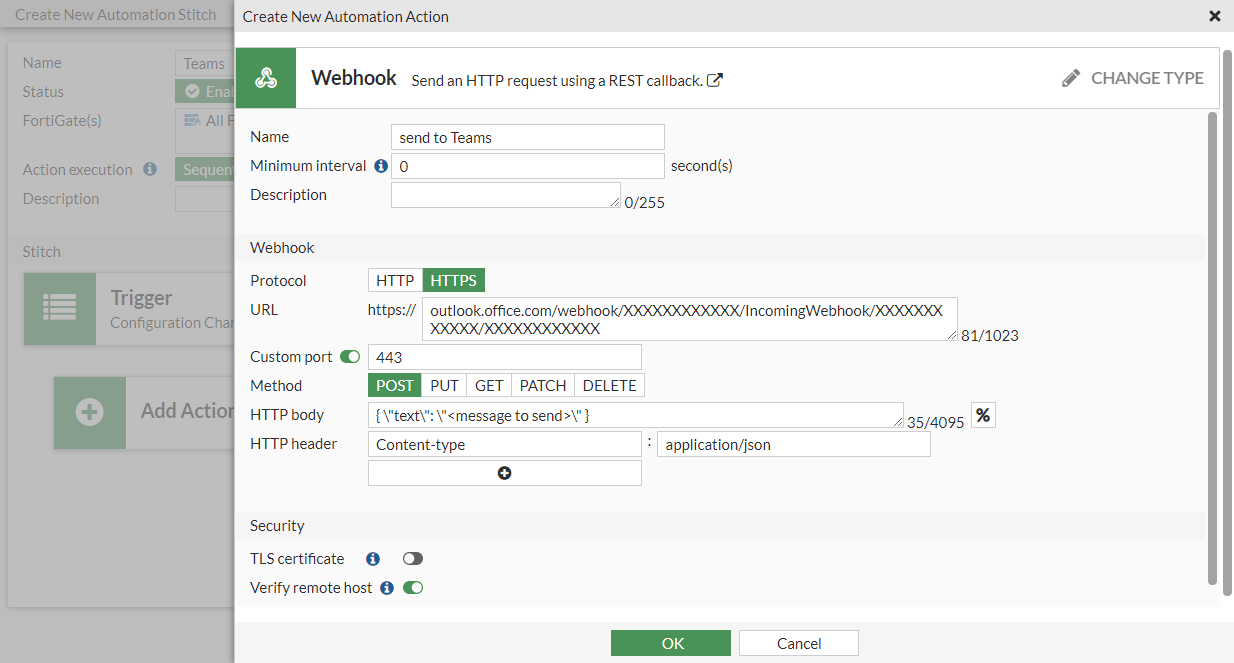
Enter the following:
Name
send to Teams
Protocol
HTTPS
URL
Enter the incoming webhook URL created in Teams
Custom port
Enable and enter 443
Method
POST
HTTP body
{ \"text\": \"<message to send>\" }
HTTP header
Content-type : application/json
-
Click OK.
-
Select the action in the list and click Apply.
-
-
Click OK.
To create a webhook automation stitch for Teams integration in the CLI:
-
Create an incoming webhook in Teams. See Create an incoming webhook for information.
-
Create the automation trigger:
config system automation-trigger edit "Configuration Change" set event-type config-change next end -
Create the automation action:
config system automation-action edit "send to Teams" set action-type webhook set protocol https set uri "outlook.office.com/webhook/XXXXXXXXXXXX/IncomingWebhook/XXXXXXXXXXXX/XXXXXXXXXXXX" set http-body "{ \"text\": \"<message to send>\" }" set port 443 config http-headers edit 1 set key "Content-type" set value "application/json" next end next end -
Create the automation stitch:
config system automation-stitch
    edit "Teams"
        set trigger "Configuration Change"
        config actions
            edit 1
                set action "send to Teams"
                set required enable
            next
        end
    next
end

|
For information about more advanced messages that can be configured and sent to the Teams incoming webhook, see Sending messages to connectors and webhooks. |