
Fortinet white logo
Fortinet white logo

Administration Guide

Default administrator password

Default administrator password

By default, your FortiGate has an administrator account set up with the username admin and no password.

Starting in FortiOS 7.6.5, the password policy is enabled by default and enforced, and your password must meet the policy requirements. If not, you are prompted to change your password when you log in to FortiOS. See Password policy for more information.

Note

Adding a password to the admin administrator is mandatory. You will be prompted to configure it the first time you log in to the FortiGate using that account, after a factory reset, and after a new image installation.

To change the default password in the GUI:
  1. Go to System > Administrators.
  2. Edit the admin account.
  3. Click Change Password.
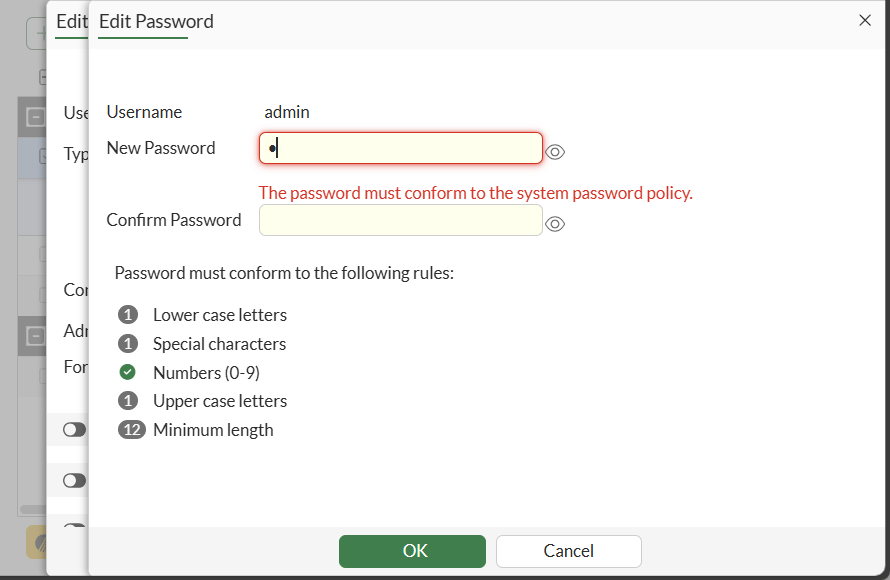
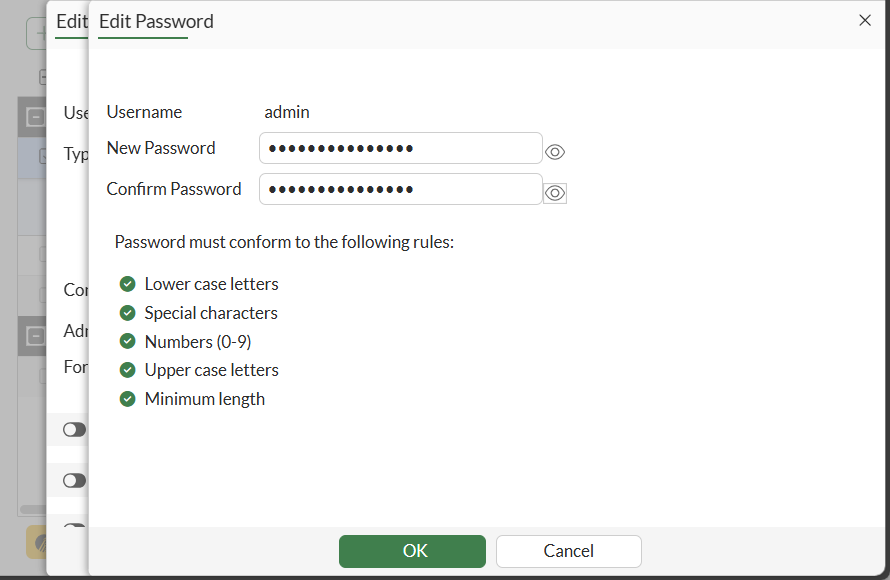
  4. Enter a password in the New Password field, then enter it again in the Confirm Password field.

    If the password does not conform to the password policy, an error is shown:
    If the password conforms to the password policy, no error message is shown:
  5. Click OK.
To change the default password in the CLI:
config system admin
    edit admin
        set password <new password>
        Please enter current administrator password: <your password>
    next
end
Tooltip

It is also recommended that you change the user name of this account; however, since you cannot change the user name of an account that is currently in use, a second administrator account must be created in order to do this.

Default administrator password

Default administrator password

By default, your FortiGate has an administrator account set up with the username admin and no password.

Starting in FortiOS 7.6.5, the password policy is enabled by default and enforced, and your password must meet the policy requirements. If not, you are prompted to change your password when you log in to FortiOS. See Password policy for more information.

Note

Adding a password to the admin administrator is mandatory. You will be prompted to configure it the first time you log in to the FortiGate using that account, after a factory reset, and after a new image installation.

To change the default password in the GUI:
  1. Go to System > Administrators.
  2. Edit the admin account.
  3. Click Change Password.
  4. Enter a password in the New Password field, then enter it again in the Confirm Password field.

    If the password does not conform to the password policy, an error is shown:

    If the password conforms to the password policy, no error message is shown:

  5. Click OK.
To change the default password in the CLI:
config system admin
    edit admin
        set password <new password>
        Please enter current administrator password: <your password>
    next
end
Tooltip

It is also recommended that you change the user name of this account; however, since you cannot change the user name of an account that is currently in use, a second administrator account must be created in order to do this.