Fortinet white logo
Fortinet white logo

What's New

What's New

This section describes the key features of FortiGuest.

Feature

Description

Visitor Management: Flexible User Creation

From this release, visitors can register using either a phone number or an email. By default, the system prioritizes the phone number as the username, but if it is not provided, the email address is used instead.

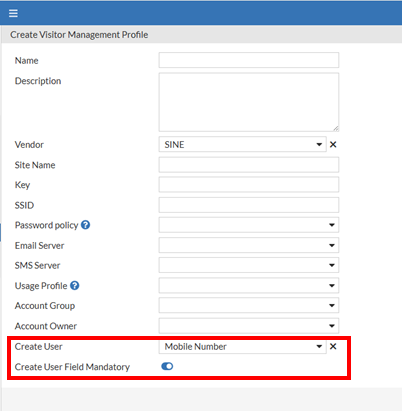
On the Visitor Management window, administrators can now set a default preference for username (phone number or email) using the new Create User field. If a visitor provides both, the system uses the administrator's chosen default. If only one is provided, it is used as the username. Additionally, administrators can make their preferred contact information mandatory by enabling the Create User Field Mandatory option, which requires visitors to provide either a phone number or an email to create an account.

RADIUS Support for Extreme Networks WiNG Controller

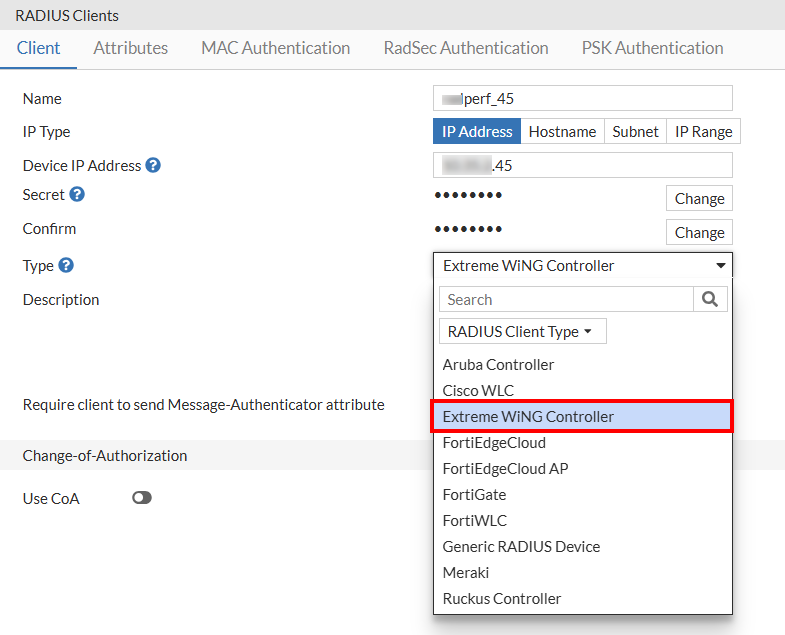
FortiGuest now supports Extreme Networks WiNG Controller, expanding its compatibility beyond the already supported vendors, which include Aruba Controller, Cisco WLC, FortiEdge Cloud, FortiEdge Cloud AP, FortiGate, FortiWLC, Generic RADIUS Device, Meraki, and Ruckus Controller.

To select Extreme Networks WiNG Controller as vendor type, navigate to Devices > RADIUS Clients.

Packet Capture Retention Policy

This release introduces a new feature that lets you set a data retention policy for packet captures on interfaces with RADIUS authentication enabled. This automatically deletes old, unnecessary data, which helps prevent the database from slowing down.

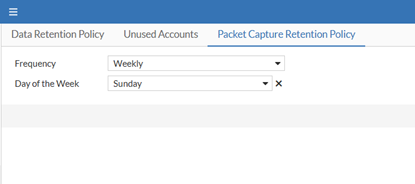
To define this policy, navigate to System > Data Retention Policy > Packet Capture Retention Policy.

In the Frequency field, you can select how long you want to keep the data. The options available are:

  • Daily: Keeps packet data from the last 24 hours and deletes the rest. This is the default option.

  • Weekly: Retains the last one week data. You can choose which day of the week the retention period begins using the Day of the Week dropdown.

  • Monthly: Keeps the last one month data. You can select the day of the month for the retention period to begin using the Day of the Month dropdown.

Email Verification for Guest Portals

A new option is now available for administrators to verify a visitor's email address. When the Verify Email option is enabled for a portal, FortiGuest sends the visitor's email to an external validation provider through an API. Based on the response (e.g., "valid," "invalid," or "disposable"), the visitor is either allowed to proceed or blocked. The following email validation providers are currently supported:

To enable email verification, navigate to Portals > Settings > General Settings and enable Verify Email.

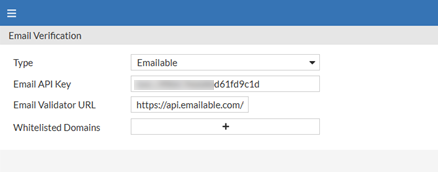
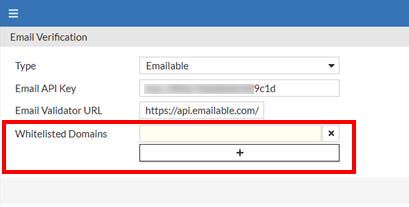
The email validation settings can be configured in the new Email Verification window. Navigate to Guest Portal > Email Verification and specify the following:

  • Type: Select the type of validation from the drop down.

  • Email API Key: Enter the API key for the type of validation selected.

  • Email Validator URL: Enter the URL for the validation type selected.

Domain Whitelisting

You can now whitelist specific domains for guest portals. When a visitor enters an email address with a whitelisted domain, FortiGuest bypasses the email validation step, letting the user proceed immediately.

To add whitelist domains, navigate to Guest Portal > Email Verification. In the Whitelisted Domains field, add the domains using +.

Enable SAML-only Login for Guest Portals

FortiGuest now supports SAML-only login for guest portals. The portal can be configured to accept only visitors with SAML logins, and local user accounts will not be able to sign in.

To enable SAML-only login, after you have configured the SAML settings in the Authentication Policy, navigate to Guest Portal > Portals > Policy > Realm Policy tab. In the Allowed Realms field, select only the SAML realm.

MPSK Improvements

This release improves the RADIUS Access-Accept message, providing more detailed information for device management and reporting. The message now includes:

  • The preshared key name by default.

  • The username field for self-created MPSK.

  • Fortinet-Group-Name, based on the authorization profile mapping.

Following is a sample RADIUS Access-Accept message:

Sent Access-Accept Id 96 from 10.32.4.53:1812 to 10.37.5.65:17291 length 180

(113) Message-Authenticator = 0x

(113) Fortinet-Webfilter-Category-Allow = 0x01067c214a388f7e0210b9256def34a532692177d650c6364fa9a
da041067eda5ed8a6c3f2febba45335d5d144e506040000000

(113) Fortinet-PreShared-Key-Name = "ADMIN1"

(113) Session-Timeout = 3591

(113) User-Name = "test1"

(113) Fortinet-Group-Name = "Staff"

(113) Acct-Interim-Interval = 60

Authorization Profile Mapping

When an MPSK device connects, the authorization policy is evaluated based on the account group of the guest user the MPSK is mapped to, rather than the device's account group.

Note: Other authorization policy settings do not apply to MPSK devices.

What's New

What's New

This section describes the key features of FortiGuest.

Feature

Description

Visitor Management: Flexible User Creation

From this release, visitors can register using either a phone number or an email. By default, the system prioritizes the phone number as the username, but if it is not provided, the email address is used instead.

On the Visitor Management window, administrators can now set a default preference for username (phone number or email) using the new Create User field. If a visitor provides both, the system uses the administrator's chosen default. If only one is provided, it is used as the username. Additionally, administrators can make their preferred contact information mandatory by enabling the Create User Field Mandatory option, which requires visitors to provide either a phone number or an email to create an account.

RADIUS Support for Extreme Networks WiNG Controller

FortiGuest now supports Extreme Networks WiNG Controller, expanding its compatibility beyond the already supported vendors, which include Aruba Controller, Cisco WLC, FortiEdge Cloud, FortiEdge Cloud AP, FortiGate, FortiWLC, Generic RADIUS Device, Meraki, and Ruckus Controller.

To select Extreme Networks WiNG Controller as vendor type, navigate to Devices > RADIUS Clients.

Packet Capture Retention Policy

This release introduces a new feature that lets you set a data retention policy for packet captures on interfaces with RADIUS authentication enabled. This automatically deletes old, unnecessary data, which helps prevent the database from slowing down.

To define this policy, navigate to System > Data Retention Policy > Packet Capture Retention Policy.

In the Frequency field, you can select how long you want to keep the data. The options available are:

  • Daily: Keeps packet data from the last 24 hours and deletes the rest. This is the default option.

  • Weekly: Retains the last one week data. You can choose which day of the week the retention period begins using the Day of the Week dropdown.

  • Monthly: Keeps the last one month data. You can select the day of the month for the retention period to begin using the Day of the Month dropdown.

Email Verification for Guest Portals

A new option is now available for administrators to verify a visitor's email address. When the Verify Email option is enabled for a portal, FortiGuest sends the visitor's email to an external validation provider through an API. Based on the response (e.g., "valid," "invalid," or "disposable"), the visitor is either allowed to proceed or blocked. The following email validation providers are currently supported:

To enable email verification, navigate to Portals > Settings > General Settings and enable Verify Email.

The email validation settings can be configured in the new Email Verification window. Navigate to Guest Portal > Email Verification and specify the following:

  • Type: Select the type of validation from the drop down.

  • Email API Key: Enter the API key for the type of validation selected.

  • Email Validator URL: Enter the URL for the validation type selected.

Domain Whitelisting

You can now whitelist specific domains for guest portals. When a visitor enters an email address with a whitelisted domain, FortiGuest bypasses the email validation step, letting the user proceed immediately.

To add whitelist domains, navigate to Guest Portal > Email Verification. In the Whitelisted Domains field, add the domains using +.

Enable SAML-only Login for Guest Portals

FortiGuest now supports SAML-only login for guest portals. The portal can be configured to accept only visitors with SAML logins, and local user accounts will not be able to sign in.

To enable SAML-only login, after you have configured the SAML settings in the Authentication Policy, navigate to Guest Portal > Portals > Policy > Realm Policy tab. In the Allowed Realms field, select only the SAML realm.

MPSK Improvements

This release improves the RADIUS Access-Accept message, providing more detailed information for device management and reporting. The message now includes:

  • The preshared key name by default.

  • The username field for self-created MPSK.

  • Fortinet-Group-Name, based on the authorization profile mapping.

Following is a sample RADIUS Access-Accept message:

Sent Access-Accept Id 96 from 10.32.4.53:1812 to 10.37.5.65:17291 length 180

(113) Message-Authenticator = 0x

(113) Fortinet-Webfilter-Category-Allow = 0x01067c214a388f7e0210b9256def34a532692177d650c6364fa9a
da041067eda5ed8a6c3f2febba45335d5d144e506040000000

(113) Fortinet-PreShared-Key-Name = "ADMIN1"

(113) Session-Timeout = 3591

(113) User-Name = "test1"

(113) Fortinet-Group-Name = "Staff"

(113) Acct-Interim-Interval = 60

Authorization Profile Mapping

When an MPSK device connects, the authorization policy is evaluated based on the account group of the guest user the MPSK is mapped to, rather than the device's account group.

Note: Other authorization policy settings do not apply to MPSK devices.