Fortinet white logo
Fortinet white logo

User Guide

Microsoft Active Directory

Microsoft Active Directory

Supports authentication against multiple domain controllers that can be a part of the same Active Directory to provide resilience, or they can be in different Active Directories. FortiGuest can authenticate users from separate domains, even where no trust relationship is configured. All Active Directory authentications are performed against individual domain controller entries. FortiGuest attempts to authenticate users against each domain controller entry according to the authentication order specified in the authentication settings.

Note

The user list may appear empty if users are not assigned to any Active Directory groups. This is because the query relies on AD group membership. To resolve this, create a dedicated group in Active Directory and add the relevant users as members. If the group already exists, ensure the group name is added in the format CN=GroupName in the AD group within FortiGuest. Additionally, verify that all users have an email address configured.

Note: In case the following security settings are configured in the domain controller, then the encryption type should not be None.

  • Domain controller - LDAP server signing requirements are set to Require Signing.
  • Network security - LDAP client signing requirements set to Negotiate signing or Require signing.

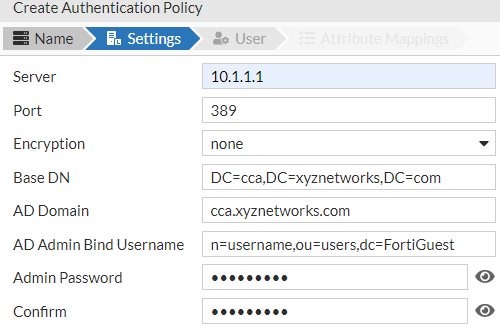
Configure the following fields to enable Active Directory authentication.

  • Server - The Hostname or IP address of the Active Directory server.
  • Port - The port number of the Active Directory server.
  • Encryption - The desired encryption method of the Active Directory server.
  • AD Domain - Enter the domain name of the Active Directory.
  • Base DN - This is the Distinguished Name of the domain controller. It is the name of the root of the directory tree and informs FortiGuest where to start the group searches from. For example, the base DN for the domain cca.xyznetworks.com is DC=cca,DC=xyznetworks,DC=com.
    Note: The AD Domain and Base DN are populated when you enter the Active Directory Server details.
  • Admin Bind DN and Admin Password - To authenticate a user account the client must bind to the Active Directory server using the bind DN and password of the user account. A Bind DN example is, cn=username,ou=users,dc=FortiGuest, where username is that of the user account.

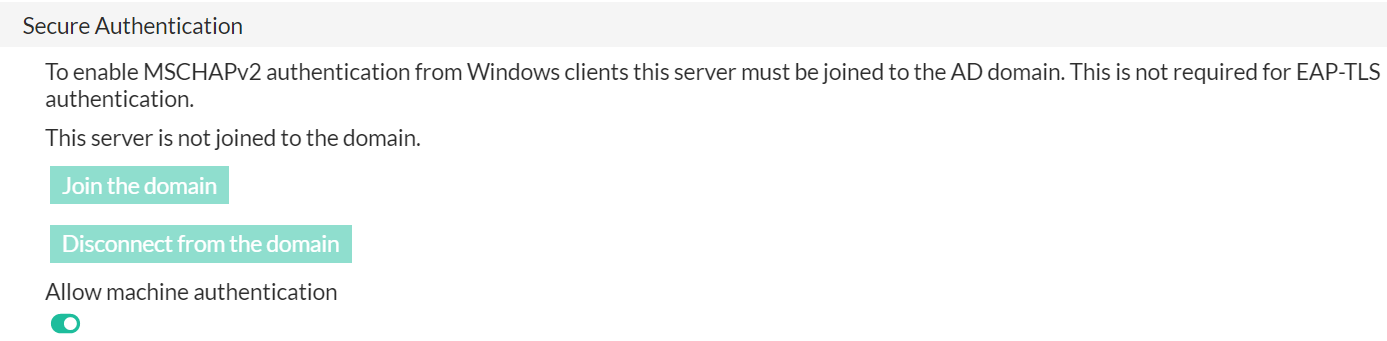
FortiGuest supports MSCHAPv2 authentication to enable a Windows client to connect to a controller that uses FortiGuest as a RADIUS server, that in turns authenticates against an MS Active Directory server. FortiGuest supports authentication from users in domains that are trusted by the domain that it is joined to, for example, if Domain A trusts Domain B, then users from Domain B can also be authenticated to FortiGuest.
Notes:

  • FortiGuest can join only one domain at a time for MSCHAPv2 support.

  • You have to re-join the domain after an upgrade/reboot.

The User is the realm/domain to which the user belongs.

Enter any Attribute Mappings required for the server and then map them to the usage profile you require and also set the Account Group. Click Add Mapping to configure the rules for the policy.

Microsoft Active Directory

Microsoft Active Directory

Supports authentication against multiple domain controllers that can be a part of the same Active Directory to provide resilience, or they can be in different Active Directories. FortiGuest can authenticate users from separate domains, even where no trust relationship is configured. All Active Directory authentications are performed against individual domain controller entries. FortiGuest attempts to authenticate users against each domain controller entry according to the authentication order specified in the authentication settings.

Note

The user list may appear empty if users are not assigned to any Active Directory groups. This is because the query relies on AD group membership. To resolve this, create a dedicated group in Active Directory and add the relevant users as members. If the group already exists, ensure the group name is added in the format CN=GroupName in the AD group within FortiGuest. Additionally, verify that all users have an email address configured.

Note: In case the following security settings are configured in the domain controller, then the encryption type should not be None.

  • Domain controller - LDAP server signing requirements are set to Require Signing.
  • Network security - LDAP client signing requirements set to Negotiate signing or Require signing.

Configure the following fields to enable Active Directory authentication.

  • Server - The Hostname or IP address of the Active Directory server.
  • Port - The port number of the Active Directory server.
  • Encryption - The desired encryption method of the Active Directory server.
  • AD Domain - Enter the domain name of the Active Directory.
  • Base DN - This is the Distinguished Name of the domain controller. It is the name of the root of the directory tree and informs FortiGuest where to start the group searches from. For example, the base DN for the domain cca.xyznetworks.com is DC=cca,DC=xyznetworks,DC=com.
    Note: The AD Domain and Base DN are populated when you enter the Active Directory Server details.
  • Admin Bind DN and Admin Password - To authenticate a user account the client must bind to the Active Directory server using the bind DN and password of the user account. A Bind DN example is, cn=username,ou=users,dc=FortiGuest, where username is that of the user account.

FortiGuest supports MSCHAPv2 authentication to enable a Windows client to connect to a controller that uses FortiGuest as a RADIUS server, that in turns authenticates against an MS Active Directory server. FortiGuest supports authentication from users in domains that are trusted by the domain that it is joined to, for example, if Domain A trusts Domain B, then users from Domain B can also be authenticated to FortiGuest.

Notes:

  • FortiGuest can join only one domain at a time for MSCHAPv2 support.

  • You have to re-join the domain after an upgrade/reboot.

The User is the realm/domain to which the user belongs.

Enter any Attribute Mappings required for the server and then map them to the usage profile you require and also set the Account Group. Click Add Mapping to configure the rules for the policy.