Fortinet white logo
Fortinet white logo

Admin Guide

26.2.a

How to use FortiClient

How to use FortiClient

FortiIdentity Cloud supports FortiClient for both auto push and manual OTP. To use FortiClient with FortiIdentity Cloud, you must make sure that Notification is enabled on the FortiToken Mobile app on your mobile device. For auto push, you must also ensure that Enable push is selected in Settings>Realm>FTM on the FortiIdentity Cloud portal.

Use auto push

Upon entering your username and password, do the following:

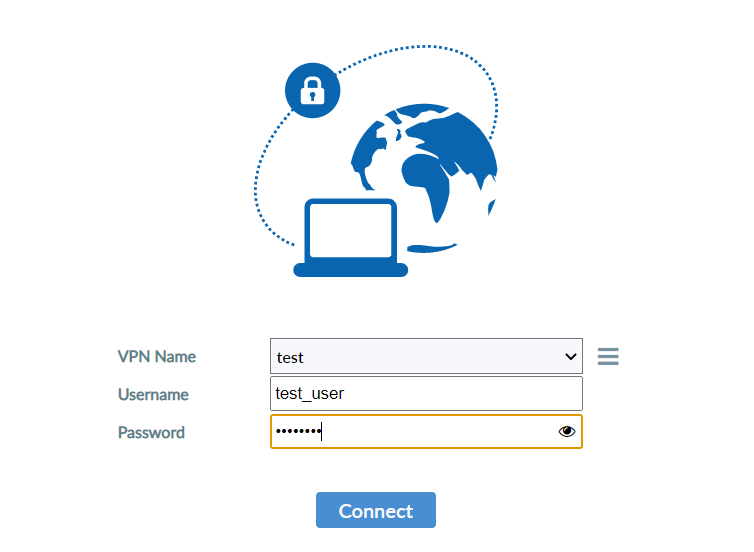
  1. On FortiClient, log in with your username and password.
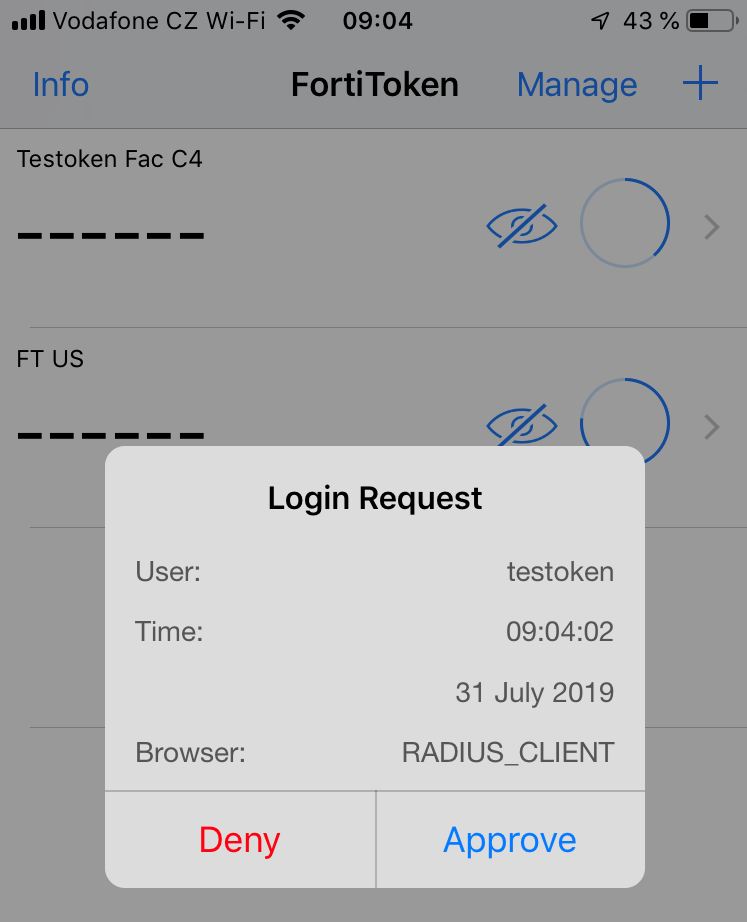
  2. On your mobile device, press Approve.

  3. Wait for FortiClient to complete the remote access login.

Use OTP

Upon entering your username and password, do the following:

  1. In the Token window on FortiClient, enter the OTP obtained from your mobile device, and click OK.
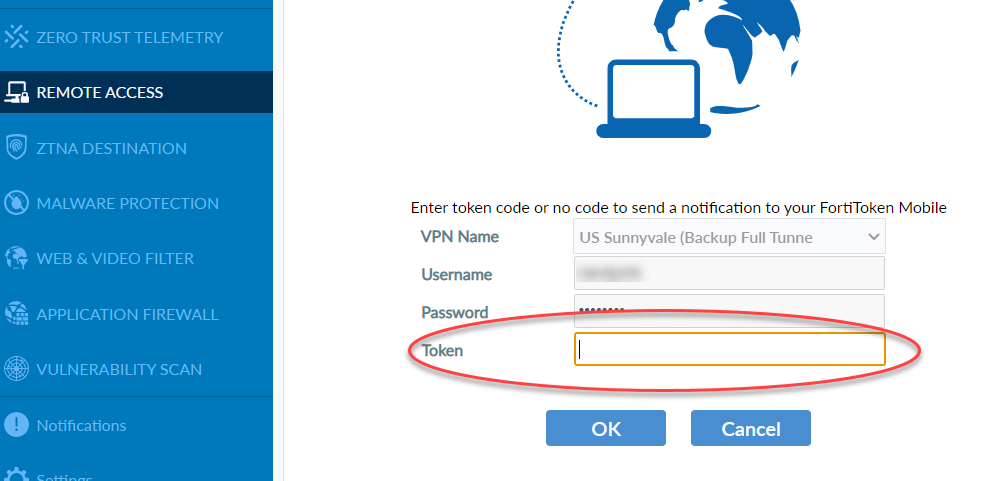
  2. Wait for FortiClient to complete the remote access login.

How to use FortiClient

How to use FortiClient

FortiIdentity Cloud supports FortiClient for both auto push and manual OTP. To use FortiClient with FortiIdentity Cloud, you must make sure that Notification is enabled on the FortiToken Mobile app on your mobile device. For auto push, you must also ensure that Enable push is selected in Settings>Realm>FTM on the FortiIdentity Cloud portal.

Use auto push

Upon entering your username and password, do the following:

  1. On FortiClient, log in with your username and password.

  2. On your mobile device, press Approve.

  3. Wait for FortiClient to complete the remote access login.

Use OTP

Upon entering your username and password, do the following:

  1. In the Token window on FortiClient, enter the OTP obtained from your mobile device, and click OK.

  2. Wait for FortiClient to complete the remote access login.