

Viewing the dashboard
Dashboard > Status displays first after you log in to the GUI. It contains a dashboard with widgets that each indicate performance level or other statistics.
By default, widgets display the serial number and current system status of the FortiMail unit, including uptime, system resource usage, alert messages, host name, firmware version, system time, and email throughput.
Hiding, showing, and moving widgets
The dashboard is customizable. You can select which widgets to display, where they are located on the tab, and whether they are minimized or maximized.
To move a widget, position your mouse cursor on the widget’s title bar, then click and drag the widget to its new location.
To show or hide a widget select Manage Widget and then select the widgets you want displayed on the Dashboard. If the widget is grayed out, the widget will not display. Select Apply when you have made your selections.
Options vary slightly from widget to widget, but always include options to close, refresh, or minimize/maximize the widget.
Active mailbox user list
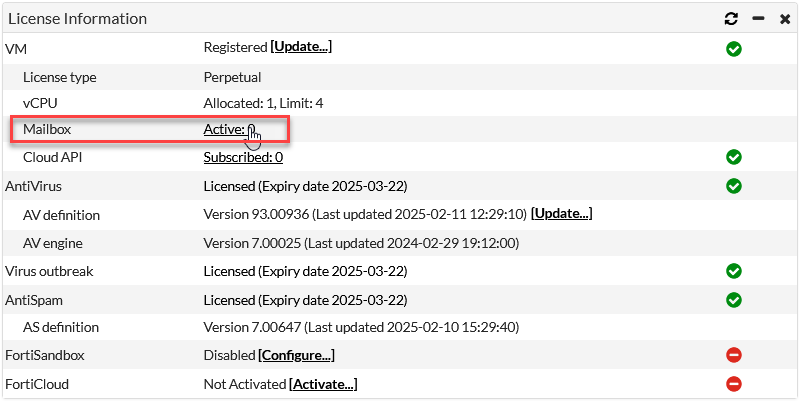
On Dashboard > Status, in the License Information widget, there may be a row named Mailbox. Depending on the feature license, it may display numbers for recipient usernames on protected domains ("mailboxes").
License Information widget showing the active username count in FortiMail with Advanced Management feature license
|
GUI item |
Description | ||
|
Active |
Number of usernames where email was delivered during the current month. This does not include sent email.
Active only appears if you have advanced management feature license and then enable Mailbox accounting service. |

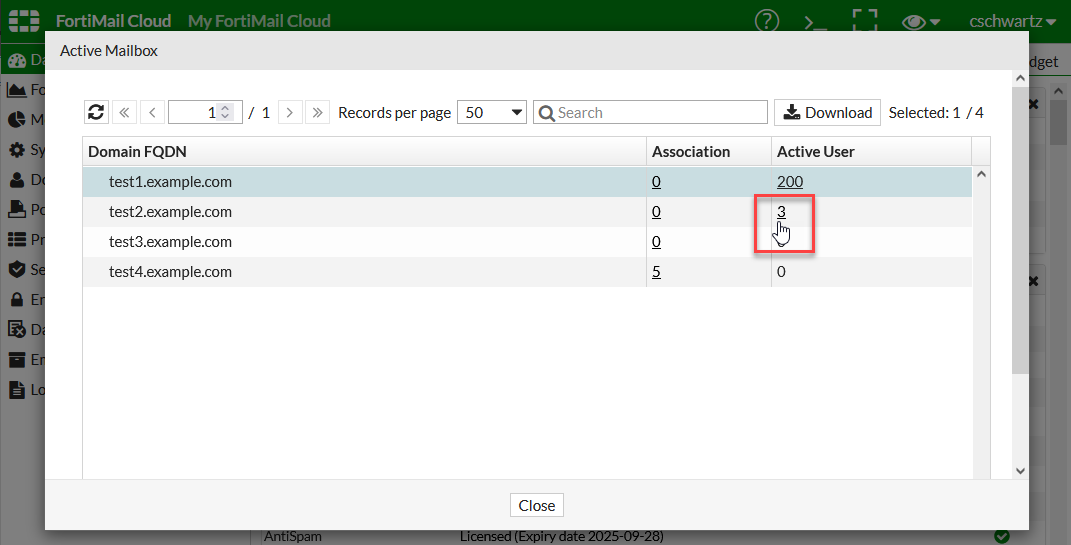
If you click Active, a dialog appears with a list of protected domains, and how many of the active usernames belong to each domain. Click the links in the columns to display either:
-
Association
Number of active usernames in each associated domain.
-
Active User
Active usernames, and when email was recently delivered to each username.
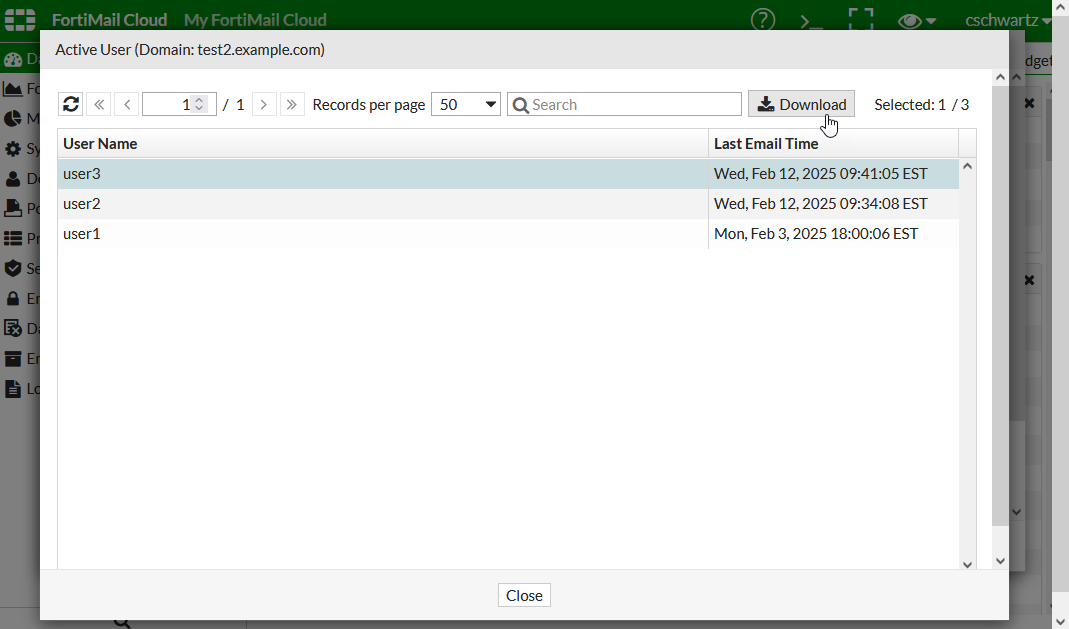
Alternatively, to get the same information as the Active User dialog, you can either:
-
click Download to download the list in a comma-separated values (CSV) file format that you can open in spreadsheet software such as Microsoft Excel
-
go to Domain & User > Domain > Domain and then click the number in the Active User column