

Operating as an FDS in a closed network
The FortiManager can be operated as a local FDS server when it is in a closed network with no internet connectivity.
Without a connection to a FortiGuard server, update packages and licenses must be manually downloaded from the Fortinet Support portal, and then uploaded to the FortiManager.
To use FortiManager as FDS in a closed network:
- On FortiGate, enable the update services/profiles that you require.
-
On FortiManager, go to FortiGuard > Settings to configure FortiManager as a local FDS server:
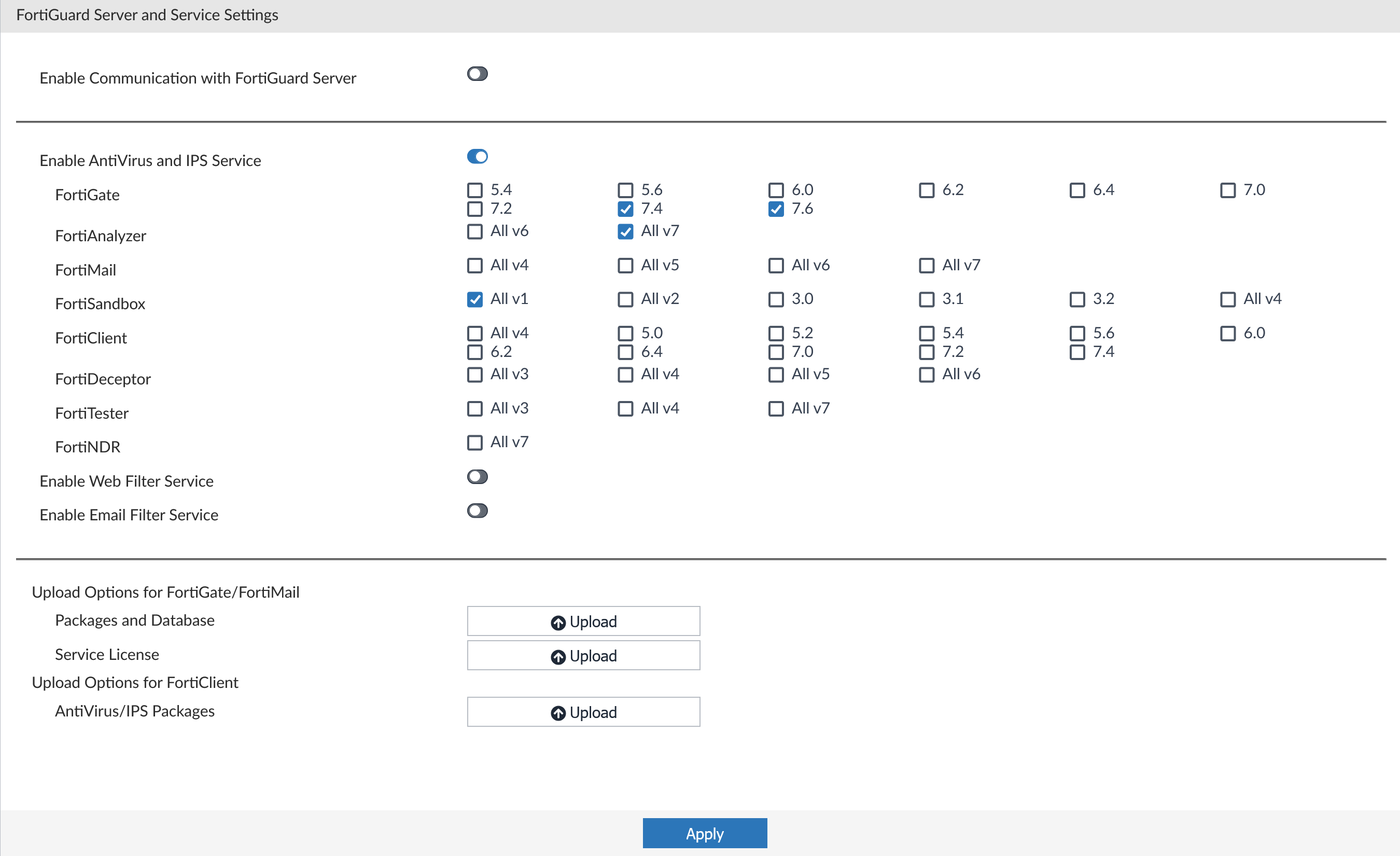
Enable Communication with FortiGuard Servers
Toggle OFF to disable communication with the FortiGuard servers.
Enable Antivirus and IPS Service
Toggle ON to enable antivirus and intrusion protection service, and select what versions for each product to support.
Enable Web Filter Services
Toggle ON to enable web filter services. When uploaded to FortiManager, the Web Filter database is displayed.
Enable Email Filter Services
Toggle ON to enable email filter services. When uploaded to FortiManager, the Email Filter database is displayed.
-
Download the service update package(s) that are required by the FortiGate from the Fortinet Support portal.

FortiGate only downloads service updates from FortiManager for the services/profiles that it has enabled. For more information on available services, see FortiGuard in the FortiGate Administration Guide.
Importing metadata packages in closed network scenarios
When operating FortiManager as an FDS in a closed network, metadata packages (for example, Signature Meta Data (IPS Slim) packages) must be manually imported into the FortiManager. Some metadata packages are not available for download through FortiGuard.com; instead, they can be obtained by exporting them from an online FortiManager. See Exporting packages example.
-
Go to FortiGuard > Settings and upload the service update packages:
Upload Options for FortiGate/FortiMail (and FortiSOAR)
Packages and Database
Select to upload antivirus and IPS packages, web filter databases, and email filter databases.
Browse for the file you downloaded from the Fortinet Support portal on your management computer, or drag and drop the file onto the dialog box, and click OK.
As databases can be large, we recommend uploading them using the CLI. See Uploading packages with the CLI.
Service License
Select to import the FortiGate or FortiSOAR license.
License files can be obtained from support by requesting your account entitlement for the device. See Requesting account entitlement files.
Browse for the file you downloaded from the Fortinet Support portal on your management computer, or drag and drop the file onto the dialog box, and click OK.
Upload Options for FortiClient
AntiVirus/IPS Packages
Select to upload the FortiClient AntiVirus/IPS packages.
Browse for the file you downloaded from the Fortinet Support portal on your management computer, or drag and drop the file onto the dialog box, and click OK.
Uploading packages with the CLI
Packages and licenses can be uploaded using the CLI. This should be used when the packages being uploaded are large, like database packages.
To upload packages and license files using the CLI:
- If not already done, disable communications with the FortiGuard server and enable a closed network with the following CLI commands:
config fmupdate publicnetwork
set status disable
end
- Upload an update package or license:
- Load the package or license file to an FTP, SCP, or TFTP server
- Run the following CLI command:
execute fmupdate {ftp | scp | tftp} import <av-ips | fct-av | url | spam | file-query | license-fgt | license-fct | custom-url | domp> <remote_file> <ip> <port> <remote_path> <user> <password>