

Example: Adding an offline device with a device template
This section describes how to add a FortiGate model device to FortiManager with a device template. You must perform some steps using FortiManager and some steps using FortiOS.
To add a model device using a provisioning template:
- Go to Device Manager > Provisioning Templates > System Templates, and create a new system template.

Some fields in provisioning templates can use metadata variables to allow the common template to be applied to a wide array of devices using per-device mappings. See ADOM-level metadata variables
- Go to Device Manager > Device & Groups > Add Device. The Add Device dialog appears.
- Click Add Model Device.
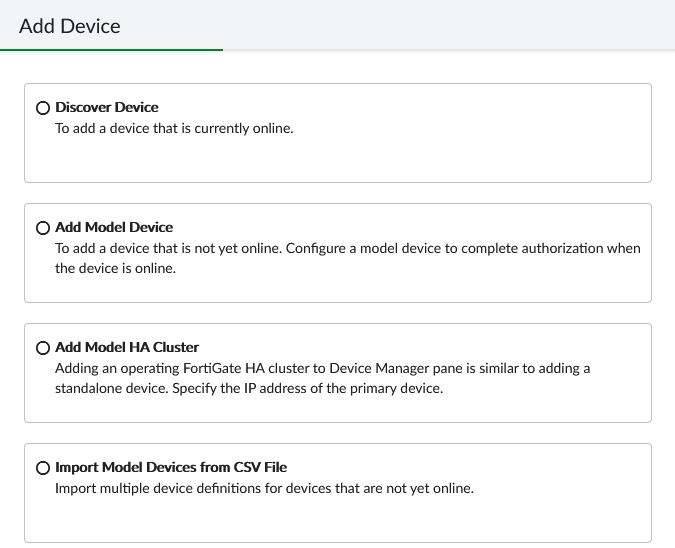
- Configure the settings as follows:
Name
Enter a name for the model device.
Link Device By
Select Serial Number.
Serial Number
Add the serial number of the FortiGate device to be added.
Device Model
Select the device model from the dropdown list.
Provisioning Template
Click to display the Assign Provisioning Templates dialog box, and then select the template you created in Step 1.
To continue without overriding the value(s) used by the metadata variables in the template(s), proceed with the next steps. To override variable values in the system template:
- Click Edit Used Metadata Variables.
- Make the required changes by clicking the edit icon in the Mapping Value field for the field to be updated, and click OK.
- Click Next. The device is successfully added.
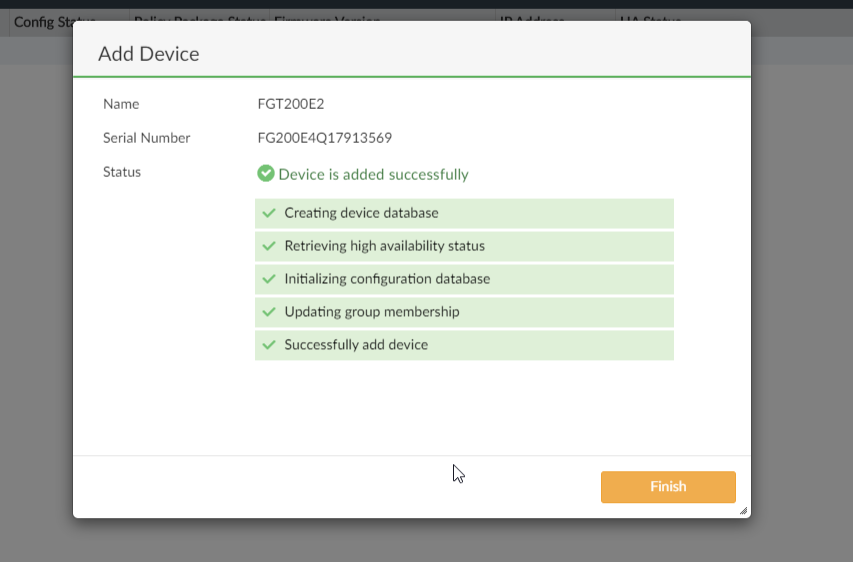
- On the added FortiGate device, add the FortiManager IP address.
- Confirm the FortiGate on the FortiManager to synchronize both the devices. The provisioning template is pushed to the FortiGate device.
