

Special Notices
This section highlights some of the operational changes that administrators should be aware of in 7.6.5.
Upgrading FortiGate devices on FOS 7.6.1 and 7.6.2 from FortiManager
Due to FortiOS issue 1106072, image file transfers between FortiManager and FortiGate devices on FortiOS 7.6.1 and 7.6.2 may fail when the upgrade is initiated from the FortiManager acting as the Local FDS Server. This issue is resolved in FortiOS 7.6.3 and later.
If you select an multi-step upgrade path for FortiGate which contains FortiOS 7.6.1 or 7.6.2, the upgrade process may stop once the devices have been upgraded to these affected versions.
Workarounds:
When managed devices have access to public FortiGuard:
-
If FortiGate devices have internet connectivity, you can enable the “Let Device Download Firmware From FortiGuard” option in FortiManager. This allows FortiGate devices to retrieve the firmware image directly from FortiGuard during the upgrade process, reducing load on FortiManager.
When managed devices do NOT have access to public FortiGuard (air-gapped or restricted environments):
-
Firmware upgrades may require using the following CLI command on the FortiGate:
execute restore image management-station <Image-ID> <Version>
With this approach, the FortiGate pulls the firmware image from FortiManager, which acts as a Local FDS server.
If multiple managed devices are affected, this CLI command can be deployed via a FortiManager script and installed across the FortiGate devices to streamline the upgrade process.
Install issues for 2 GB RAM or less FortiGate models running FortiOS 7.4.10 and 7.4.11
FortiManager 7.6.5 will install fail for FortiGate models with 2 GB RAM or less running FortiOS 7.4.10 and 7.4.11 due to the following objects:
-
web-proxy global proxy-fqdn
-
firewall profile-protocol-options
-
firewall ssl-ssh-profile ssh
This only applies to lower end FortiGate models, such as FortiGate/FortiWiFi 40F, 50G, 60E, 60F, 80E, and 90E series devices, along with their variants, and the FortiGate-Rugged 60F (2 GB versions only).
FortiManager 7.6.5 compatibility with FortiGate-90G/91G Gen1 models
FortiManager 7.6.5 cannot add FortiGate-90G/91G Gen1 models by default since the x1, x2 interface are not valid ports on FortiGate. Attempting to add the default FortiGate-90G/91G Gen1 models results in the "reloadconffail | invalid value.” error message. FortiManager can only add these FortiGate models after changing it to "set member "x1" "x2"".
    edit "fortilink"
        set vdom "root"
        set fortilink enable
        set ip 10.255.1.1 255.255.255.0
        set allowaccess ping fabric
        set type aggregate
        set member "x1" "x2"
        set lldp-reception enable
        set lldp-transmission enable
        set snmp-index 17
    next
end
FortiGate-90G/91G Gen2 models are not affected and can be added by default.
The FortiManager XML API is no longer supported
The XML API is removed as of FortiManager 7.6.5.
The grep command is added to the CLI
The grep command is added in FortiManager 7.6.5 CLI. This command can be used to filter larger outputs so that they only show the required information.
For more information, see the FortiManager CLI Reference.
New Admin Profile permissions
In FortiManager 7.6.4, the following permissions are added for Admin Profiles:
-
Firmware Upgrades (
device-fwm-profile): set permissions for device firmware profiles. -
Assign Templates to Device (
device-assignment): set permissions to assign provisioning templates. -
Execute Script (
script-run): set permissions to execute scripts.
To review the default settings for these permissions in predefined Admin Profiles, see the FortiManager Administration Guide.
For existing custom Admin Profiles created prior to upgrading to FortiManager 7.6.4 or later, the new permissions will be set to None. You must update these settings according to your needs in the custom Admin Profiles.
Default password policy for local users
Beginning in FortiManager 7.6.4, a password policy for local users is enabled and configured by default. If you are setting up FortiManager 7.6.4 or later, the password created at setup must be at least 8 characters and must contain uppercase letter(s), lowercase letter(s), number(s), and special character(s).
Note that existing password policy settings are maintained after upgrading. For example, if the password policy is disabled prior to upgrading to FortiManager 7.6.4 or later, it will remain disabled after the upgrade.
MEAs removed in FortiManager 7.6.4
As of FortiManager 7.6.4, there is no support for management extension applications (MEAs) in FortiManager.
New CLI option for managing FortiGate HA clusters
By default, FortiManager no longer installs HA-related configurations to FortiGate clusters unless explicitly configured to do so.
The following CLI option has been added in FortiManager 7.6.3:
config system dm
set handle-nonhasync-config {enable | disable}
end
Previously, there was no CLI option like handle-nonhasync-config. This caused issues during installations to FortiGate HA clusters. For example, FortiManager could push FortiGate A's IP to FortiGate B, leading to partial or failed policy package (PP) installations.
Now, with the introduction of the handle-nonhasync-config CLI setting:
-
Disabled (default): FortiManager will skip any configuration items marked as nonhasync when installing to the FortiGate. This avoids pushing HA-related or member-specific configurations that might break HA sync.
-
Enabled: FortiManager will include nonhasync configuration items during installation, allowing updates to HA settings, vdom-exception configs, and other per-platform objects.
This change makes FortiManager behavior safer by default and gives admins more control over what gets pushed to HA clusters.
SSL VPN tunnel mode no longer supported in FortiOS 7.6.3
Starting in FortiOS 7.6.3, the SSL VPN tunnel mode feature is no longer available in the GUI and CLI. Settings will not be upgraded from previous versions. This applies to all FortiGate models.
To ensure uninterrupted remote access, customers must migrate their SSL VPN tunnel mode configuration to IPsec VPN before upgrading to FortiOS 7.6.3.
See Migration from SSL VPN tunnel mode to IPsec VPN in the FortiOS 7.6 New Feature guide for detailed steps on migrating to IPsec VPN before upgrade.
A complete migration guide can be found in the following links:
-
For FortiOS 7.6, see SSL VPN to IPsec VPN Migration.
-
For FortiOS 7.4, see SSL VPN to IPsec VPN Migration.
Adding VM devices to FortiManager
As of FortiManager 7.6.3, connection between VM devices and FortiManager is restricted for security. By default, FortiManager will not allow VM platform connection in FGFM.
This applies to the following products:
-
FortiGate-VM
-
FortiCarrier-VM
-
FortiProxy-VM
-
FortiFirewall-VM
When upgrading from an earlier version of FortiManager, VM devices already managed by FortiManager will continue to be supported without interruption, but you must enable fgfm-allow-vm in global settings before adding additional VM devices.
To allow VM platform connection in FGFM, enter the following command in the FortiManager CLI:
config system global
set fgfm-allow-vm enable
end
The system interface speed is read-only in FortiManager
The default value for system interface speed in FortiOS depends on the FortiGate platform, specified interface, and config. This attribute is read-only in FortiManager, and can only be edited in the FortiGate.
HA synchronization of FortiGuard package management receive status
Starting in FortiManager 7.6.2, the To Be Deployed Version configured in FortiGuard > Packages > Receive Status is synchronized in an HA cluster. This means that the package version selected for deployment on the primary device will persist during a failover event. For more information on the To Be Deployed Version setting, see the FortiManager Administration Guide.
When upgrading an operating FortiManager cluster to version 7.6.2, please review To Be Deployed Version settings for each cluster member before proceeding with the upgrade to ensure there is no unintended impact when the settings are synchronized. If the To Be Deployed Version package is not available on the secondary FortiManager, the secondary FortiManager will stay at the latest package to be installed.
The names of policies derived from policy blocks no longer automatically include the policy block name
Previously, when a policy was derived from a "policy block," its name was automatically prefixed with the policy block name, ensuring unique names but sometimes exceeding the 35-character limit in the policy package. To address this, the renaming behavior has been removed, and policies now retain their original names without policy block prefixes, avoiding the character limit issue.
After the fix, FortiManager may encounter duplicate policy names if multiple policy blocks previously contained policies with the same base name. Since FortiManager requires unique policy names for proper management, this duplication can break the installation or functionality of policies. To resolve this, customers may need to manually identify and rename all conflicting policies after upgrading.
FortiManager support for updated FortiOS private data encryption key
With the introduction of FortiOS 7.6.1, Fortinet has updated the private-data-encryption key feature. Administrators are no longer required to manually input a 32-digit hexadecimal private-data-encryption key. Instead administrators simply enable the command, and a random private-data-encryption key is generated.
Previous FortiOS CLI behavior
config system global
    set private-data-encryption enable
end
Please type your private data encryption key (32 hexadecimal numbers):
12345678901234567890123456789abc
Please re-enter your private data encryption key (32 hexadecimal numbers) again:
12345678901234567890123456789abc
Your private data encryption key is accepted.
New FortiOS CLI behavior
config system global
    set private-data-encryption enable
end
This operation will generate a random private data encryption key!
Previous config files encrypted with the system default key cannot be restored after this operation!
Do you want to continue? (y/n)y

Private data encryption key generation succeeded!
FortiManager behavior
Support for the FortiGate private-data-encryption key by the Device Manager in FortiManager 7.6.2 and earlier is unchanged. It automatically detects the remote FortiGate private-data-encryption key status and prompts the administrator to manually type the private key (see picture below). FortiManager 7.6.2 and earlier does not support the updated, random private-data-encryption key as the administrator will have no knowledge of the key generated in the FortiOS CLI command above. It will be supported in a later version of FortiManager.
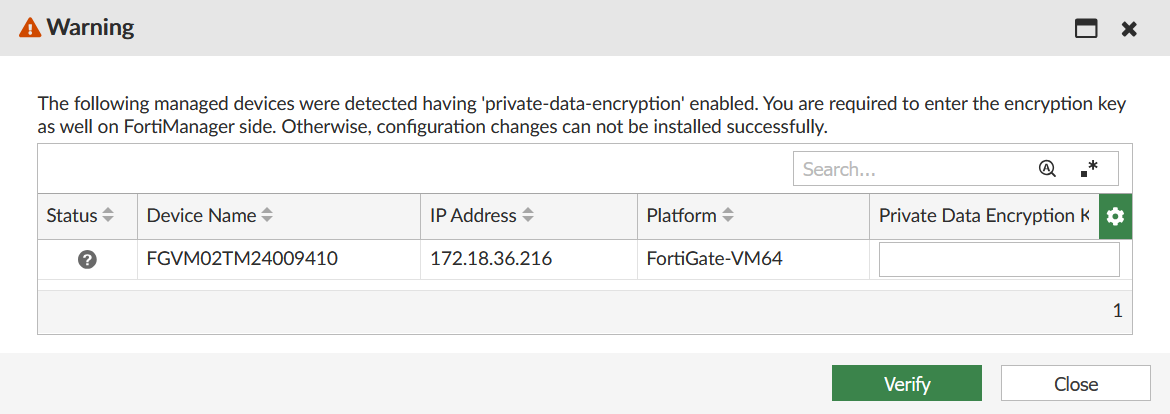
FortiOS upgrade behavior
If in FortiOS 7.4.5 or 7.6.0 the 32-digit hexadecimal private key is enabled, and then the FortiGate device is upgraded to 7.6.1, the 32-digit hexadecimal private-data-encryption key is preserved. As a result, FortiManager 7.6.2 and earlier is aware of the 32-digit hexadecimal private-data-encryption key and can continue to manage the FortiGate device. However, if the private-data-encryption key is enabled after an upgrade of FortiOS to 7.6.1, FortiManager 7.6.2 and earlier no longer can manage FortiGate devices running FortiOS 7.6.1.
Shell access has been removed
As of FortiManager 7.6.0, shell access has been removed.
The following CLI variables have been removed, which were previously used to enable shell access:
config system admin setting
set shell-access {enable | disable}
set shell-password <passwd>
The following CLI command has been removed, which was previously used to access shell when enabled:
execute shell
Enable fcp-cfg-service for Backup Mode ADOMs
When performing a configuration backup from the CLI of FortiGates managed by FortiManager in Backup Mode ADOMs, you must enable the "fcp-cfg-service" using the following command on the FortiManager:
config system global
set fcp-cfg-service enable
end
System Templates include new fields
Beginning in FortiManager 7.4.3, the Hostname, Timezone, gui-device-latitude, and gui-device-longitude fields have been added to System Templates.
System Templates created before upgrading to 7.4.3 must be reconfigured to specify these fields following the upgrade. If these fields are not specified in a System Template, the default settings will be applied the next time an install is performed which may result in preferred settings being overwritten on the managed device.
Custom certificate name verification for FortiGate connection

|
In FortiManager 7.6.2, the |
FortiManager 7.4.3 introduces a new verification of the CN or SAN of a custom certificate uploaded by the FortiGate admin. This custom certificate is used when a FortiGate device connects to a FortiManager unit. The FortiGate and FortiManager administrators may configure the use of a custom certificate with the following CLI commands:
FortiGate-related CLI:
config system central-management
local-cert Certificate to be used by FGFM protocol.
ca-cert CA certificate to be used by FGFM protocol.
FortiManager-related CLI:
config system global
fgfm-ca-cert set the extra fgfm CA certificates.
fgfm-cert-exclusive set if the local or CA certificates should be used exclusively.
fgfm-local-cert set the fgfm local certificate.
Upon upgrading to FortiManager 7.4.3, FortiManager will request that the FortiGate certificate must contain the FortiGate serial number either in the CN or SAN. The tunnel connection may fail if a matching serial number is not found. If the tunnel connection fails, the administrator may need to re-generate the custom certificates to include serial number.
Additional configuration required for SSO users
Beginning in 7.4.3, additional configuration is needed for FortiManager Users declared as wildcard SSO users.
When configuring Administrators as wildcard SSO users, the ext-auth-accprofile-override and/or ext-auth-adom-override features, under Advanced Options, should be enabled if the intent is to obtain the ADOMs list and/or permission profile from the SAML IdP.
When using VPN Manager, IPSEC VPN CA certificates must be re-issued to all devices after upgrade
When FortiManager is upgraded to 7.4.2/7.6.0 or later, it creates a new CA <ADOM Name>_CA3 certificate as part of a fix for resolved issue 796858. See Resolved Issues in the FortiManager 7.4.2 Release Notes. These certificates are installed to the FortiGate devices on the next policy push. As a result, the next time any IPSEC VPNs which use FortiManager certificates rekey, they will fail authentication and be unable to re-establish.
The old CA <ADOM Name>_CA2 cannot be deleted, as existing certificates rely on it for validation. Similarly, the new CA <ADOM Name>_CA3 cannot be deleted as it is required for the fix. Therefore, customers affected by this change must follow the below workaround after upgrading FortiManager to v7.4.2/7.6.0 or later.
A maintenance period is advised to avoid IPSEC VPN service disruption.
Workaround:
Re-issue all certificates again to all devices, and then delete the old CA <ADOM Name>_CA2 from all devices. Next, regenerate the VPN certificates.
To remove CA2 from FortiManager, Policy & Objects > Advanced > CA Certificates must be enabled in feature visibility.
FortiGuard web filtering category v10 update
Fortinet has updated its web filtering categories to v10, which includes two new URL categories for AI chat and cryptocurrency web sites. In order to use the new categories, customers must upgrade their Fortinet products to one of the versions below.
-
FortiManager - Fixed in 6.0.12, 6.2.9, 6.4.7, 7.0.2, 7.2.0, 7.4.0.
-
FortiOS - Fixed in 7.2.8 and 7.4.1.
-
FortiClient - Fixed in Windows 7.2.3, macOS 7.2.3, Linux 7.2.3.
-
FortiClient EMS - Fixed in 7.2.1.
-
FortiMail - Fixed in 7.0.7, 7.2.5, 7.4.1.
-
FortiProxy - Fixed in 7.4.1.
Please read the following CSB for more information to caveats on the usage in FortiManager and FortiOS.
https://support.fortinet.com/Information/Bulletin.aspx
FortiManager 7.2.3 and later firmware on FortiGuard
Starting in FortiManager 7.2.1, a setup wizard executes to prompt the user for various configuration steps and registration with FortiCare. During the execution, the FortiManager unit attempts to communicate with FortiGuard for a list of FortiManager firmware images currently available on FortiGuard – older and newer.
In the case of FortiManager 7.2.2, a bug in the GUI prevents the wizard from completing and prevents the user from accessing the FortiManager unit. The issue has been fixed in 7.2.3 and later and a CLI command has been added to bypass the setup wizard at login time.
config system admin setting
set firmware-upgrade-check disable
end
Fortinet has not uploaded FortiManager 7.2.3 and later firmware to FortiGuard in order to work around the GUI bug, however, the firmware is available for download from the Fortinet Support website.
Configuration backup requires a password
As of FortiManager 7.4.2, configuration backup files are automatically encrypted and require you to set a password. The password is required for scheduled backups as well.
In previous versions, the encryption and password were optional.
For more information, see the FortiManager Administration Guide.
FortiManager-400E support
FortiManager 7.4.2 and later does not support the FortiManager-400E device.
FortiManager 7.4.2 introduces an upgrade of the OpenSSL library to address known vulnerabilities in the library. As a result, the SSL connection that is setup between the FortiManager-400E device and the Google Map server hosted by Fortinet uses a SHA2 (2048) public key length. The certificate stored on the BIOS that is used during the setup of the SSL connection contains a SHA1 public key length, which causes the connection setup to fail. Running the following command shows the key length.
FMG400E # conf sys certificate local
(local)# ed Fortinet_Local
(Fortinet_Local)# get
name : Fortinet_Local
password : *
comment : Default local certificate
private-key :
certificate :
Subject: C = US, ST = California, L = Sunnyvale, O = Fortinet, OU = FortiManager, CN = FL3K5E3M15000074, emailAddress = support@fortinet.com
Issuer: C = US, ST = California, L = Sunnyvale, O = Fortinet, OU = Certificate Authority, CN = support, emailAddress = support@fortinet.com
Valid from: 2015-03-06 16:22:10 GMT
Valid to: 2038-01-19 03:14:07 GMT
Fingerprint: FC:D0:0C:8D:DC:57:B6:16:58:DF:90:22:77:6F:2C:1B
Public key: rsaEncryption (1024 bits)
Signature: sha1WithRSAEncryption
Root CA: No
Version: 3
Serial Num:
1e:07:7a
Extension 1: X509v3 Basic Constraints:
CA:FALSE
...
(Fortinet_Local)#
Serial console has changed for FortiManager deployments on Xen
As of FortiManager 7.4.1, the serial console for Xen deployments has changed from hvc0 (Xen specific) to ttyS0 (standard).
OpenXen in PV mode is not supported in FortiManager 7.4.1
As of FortiManager 7.4.1, kernel and rootfs are encrypted. OpenXen in PV mode tries to unzip the kernel and rootfs, but it will fail. Therefore, OpenXen in PV mode cannot be used when deploying or upgrading to FortiManager 7.4.1. Only HVM (hardware virtual machine) mode is supported for OpenXen in FortiManager 7.4.1.
Option to enable permission check when copying policies
As of 7.4.0, a new command is added in the CLI:
config system global
set no-copy-permission-check {enable | disable}
end
By default, this is set to disable. When set to enable, a check is performed when copying policies to prevent changing global device objects if the user does not have permission.
Install On column for policies
Prior to version 7.2.3, the 'Install-on' column for policies in the policy block had no effect. However, starting from version 7.2.3, the 'Install-on' column is operational and significantly impacts the behavior and installation process of policies. It's important to note that using 'Install-on' on policies in the policy block is not recommended. If required, this setting can only be configured through a script or JSON APIs.
Changes to FortiManager meta fields
Beginning in 7.2.0, FortiManager supports policy object metadata variables.
When upgrading from FortiManager 7.0 to 7.2.0 and later, FortiManager will automatically create ADOM-level metadata variable policy objects for meta fields previously configured in System Settings that have per-device mapping configurations detected. Objects using the meta field, for example CLI templates, are automatically updated to use the new metadata variable policy objects.
Meta fields in System Settings can continue to be used as comments/tags for configurations.
For more information, see ADOM-level meta variables for general use in scripts, templates, and model devices.
View Mode is disabled in policies when policy blocks are used
When policy blocks are added to a policy package, the View Mode option is no longer available, and policies in the table cannot be arranged by Interface Pair View. This occurs because policy blocks typically contain policies with multiple interfaces, however, View Mode is still disabled even when policy blocks respect the interface pair.
Reconfiguring Virtual Wire Pairs (VWP)
A conflict can occur between the ADOM database and device database when a Virtual Wire Pair (VWP) is installed on a managed FortiGate that already has a configured VWP in the device database. This can happen when an existing VWP has been reconfigured or replaced.
Before installing the VWP, you must first remove the old VWP from the device's database, otherwise a policy and object validation error may occur during installation. You can remove the VWP from the device database by going to Device Manager > Device & Groups, selecting the managed device, and removing the VWP from System > Interface.
Citrix XenServer default limits and upgrade
Citrix XenServer limits ramdisk to 128M by default. However the FMG-VM64-XEN image is larger than 128M. Before updating to FortiManager 6.4, increase the size of the ramdisk setting on Citrix XenServer.
To increase the size of the ramdisk setting:
- On Citrix XenServer, run the following command:
xenstore-write /mh/limits/pv-ramdisk-max-size 536,870,912
- Confirm the setting is in effect by running
xenstore-ls.-----------------------
limits = ""
pv-kernel-max-size = "33554432"
pv-ramdisk-max-size = "536,870,912"
boot-time = ""
---------------------------
- Remove the pending files left in
/run/xen/pygrub.
|
|
The ramdisk setting returns to the default value after rebooting. |
Multi-step firmware upgrades
Prior to using the FortiManager to push a multi-step firmware upgrade, confirm the upgrade path matches the path outlined on our support site. To confirm the path, please run:
dia fwmanager show-dev-upgrade-path <device name> <target firmware>
Alternatively, you can push one firmware step at a time.
Hyper-V FortiManager-VM running on an AMD CPU
A Hyper-V FMG-VM running on a PC with an AMD CPU may experience a kernel panic. Fortinet recommends running VMs on an Intel-based PC.