
Fortinet white logo
Fortinet white logo

User Guide

MITRE ATT&CK

MITRE ATT&CK

The MITRE ATT&CK Matrix dashboard displays detection coverage based on detectors developed by FortiGuard Labs.

MITRE ATT&CK is a globally recognized knowledge base of threat behaviors and techniques used by security professionals to understand and respond to threats. FortiGuard Lab detectors can be mapped to MITRE ATT&CK to provide visibility into the threat coverage offered by FortiNDR Cloud.

The dashboard presents detections by behavior type (behavioral and non-behavioral) and by technique type (primary and secondary):

  • Primary Technique: The main technique used to detect the behavior.
  • Secondary Technique: A related technique that may not be directly observed on the network but is associated with the threat. This is not displayed in most cases.

    To view the secondary technique, click the plus (+) symbol in the bottom-right corner of a Primary Technique box.

Detection indicators

  • A blue shield icon indicates active detections for a technique or sub-technique, and that you have permission to view them on the Detections page.
  • An empty shield icon indicates that detections are resolved, but still viewable.
  • Techniques shown as plain text either have no detections or you lack permission to view them.
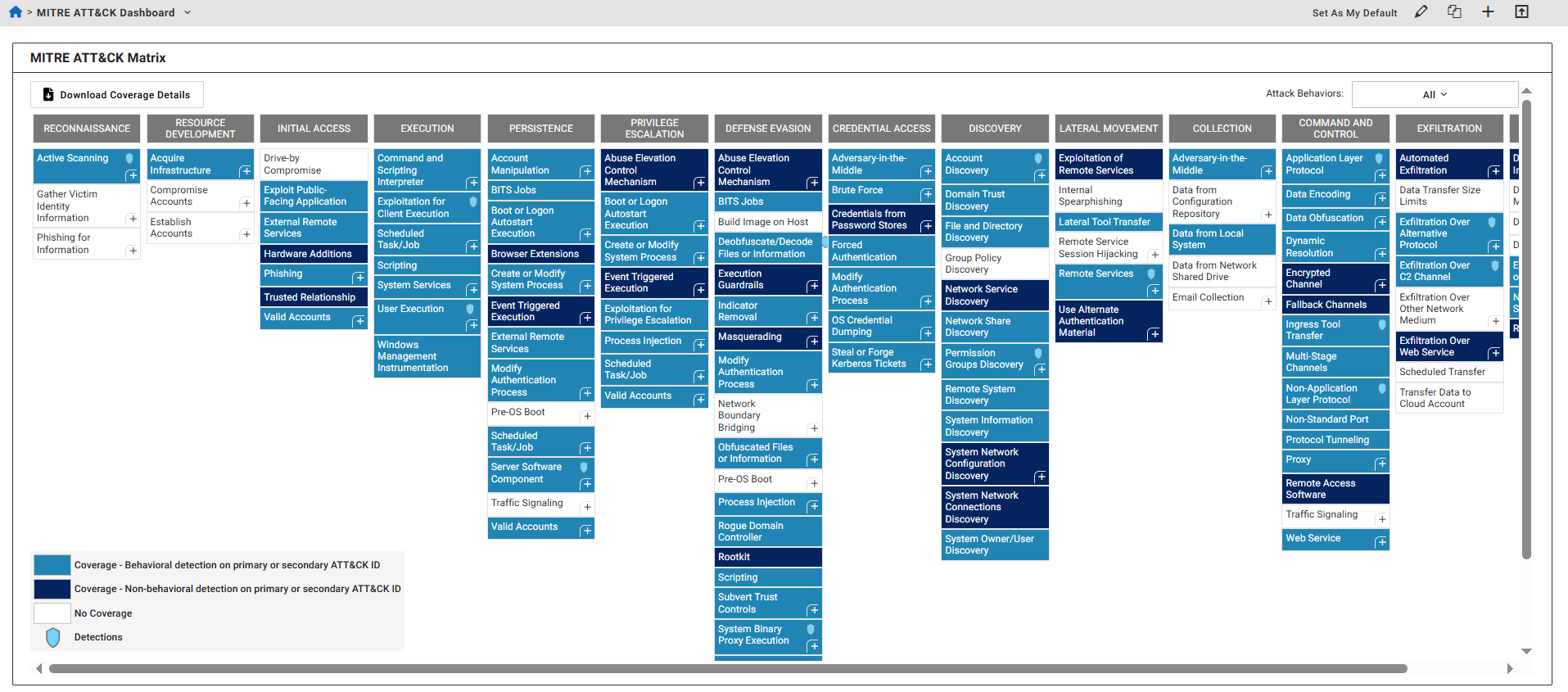
MITRE Attack Matrix

Viewing the MITRE ATT&CK Matrix

To view the MITRE ATT&CK Matrix:
  1. Click the Dashboard tab. Do one of the following:
    • At the top left-side of the page, click Default Dashboard > MITRE ATT&CK Dashboard.
    • In the MITRE ATT&CK widget, click Go to MITRE Coverage Dashboard.
  2. Click the Attack Behaviors drop-down at the top-right of the dashboard to filter the dashboard by behaviors:

    • All
    • Ransomware
    • Insider Threat
    • Cyber Espionage
  3. Click a technique in the table. A summary of the technique is displayed.

    Column

    Description

    TacticThe tactic of the behavior.
    CoverageThe coverage status of the technique and the sub-techniques.
    NameThe behavior name.
    ID

    ID number of the technique and the sub-techniques.

    For techniques and sub-techniques with active detections (indicated by a blue shield icon), the ID number is a hyperlink that directs you to the Detections page.

To download the coverage details:
  • Click the Download Coverage Details button to download the coverage details as a CSV file which contains the Date Updated, Name, Primary Attack ID, Secondary Attack ID and Description.

MITRE ATT&CK

MITRE ATT&CK

The MITRE ATT&CK Matrix dashboard displays detection coverage based on detectors developed by FortiGuard Labs.

MITRE ATT&CK is a globally recognized knowledge base of threat behaviors and techniques used by security professionals to understand and respond to threats. FortiGuard Lab detectors can be mapped to MITRE ATT&CK to provide visibility into the threat coverage offered by FortiNDR Cloud.

The dashboard presents detections by behavior type (behavioral and non-behavioral) and by technique type (primary and secondary):

  • Primary Technique: The main technique used to detect the behavior.
  • Secondary Technique: A related technique that may not be directly observed on the network but is associated with the threat. This is not displayed in most cases.

    To view the secondary technique, click the plus (+) symbol in the bottom-right corner of a Primary Technique box.

Detection indicators

  • A blue shield icon indicates active detections for a technique or sub-technique, and that you have permission to view them on the Detections page.
  • An empty shield icon indicates that detections are resolved, but still viewable.
  • Techniques shown as plain text either have no detections or you lack permission to view them.

MITRE Attack Matrix

Viewing the MITRE ATT&CK Matrix

To view the MITRE ATT&CK Matrix:
  1. Click the Dashboard tab. Do one of the following:
    • At the top left-side of the page, click Default Dashboard > MITRE ATT&CK Dashboard.
    • In the MITRE ATT&CK widget, click Go to MITRE Coverage Dashboard.
  2. Click the Attack Behaviors drop-down at the top-right of the dashboard to filter the dashboard by behaviors:

    • All
    • Ransomware
    • Insider Threat
    • Cyber Espionage
  3. Click a technique in the table. A summary of the technique is displayed.

    Column

    Description

    TacticThe tactic of the behavior.
    CoverageThe coverage status of the technique and the sub-techniques.
    NameThe behavior name.
    ID

    ID number of the technique and the sub-techniques.

    For techniques and sub-techniques with active detections (indicated by a blue shield icon), the ID number is a hyperlink that directs you to the Detections page.

To download the coverage details:
  • Click the Download Coverage Details button to download the coverage details as a CSV file which contains the Date Updated, Name, Primary Attack ID, Secondary Attack ID and Description.