
Fortinet white logo
Fortinet white logo

User Guide

Response configuration

Response configuration

Response Configuration allows you to automatically ban an IP address when a high-severity and high-confidence detection occurs.

Automated integration response is available for FortiEDR, CrowdStrike Falcon EDR and FortiGate via FortiManager at this time. Only a single integration can be set to Auto-Remediate at a time. Other integrations may be configured, but must be set up to respond manually.

To enable automated response configuration:
  1. Go to Detections > Response Configuration. The Integration Response Configuration dialog opens.
    You can also enable Response Configuration in the Account Management > Modules page by clicking Configure in the integration's tile.
  2. In the Action column, click Edit next to the integration.
  3. In the Configure dialog, select Auto-remediate and click Save.
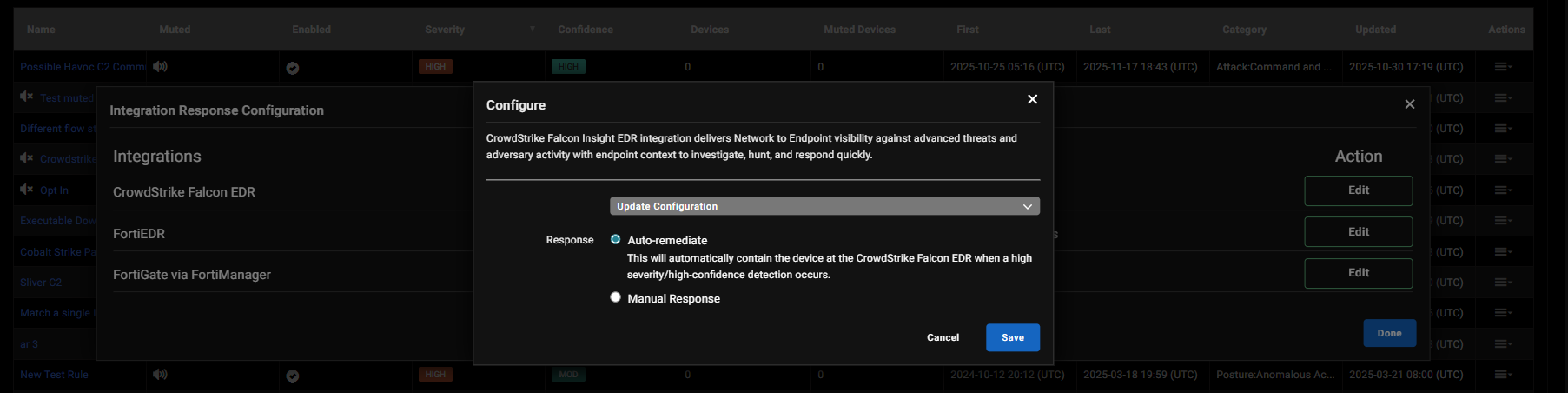
  4. Click Update Configuration and configure the following settings:

    FieldDescription
    Client IdThe unique identifier used to authenticate FortiNDR Cloud. This valuemust be copied into FortiNDR Cloud exactly as provided.
    Client SecretThe authentication token paired with the Client Id is generated by the integration and is required to authorize API communication.
    URLThe API endpoint that FortiNDR Cloud communicates with. This must match the correct regional API base URL provided by the integration.
  5. Click Save.

Response configuration

Response configuration

Response Configuration allows you to automatically ban an IP address when a high-severity and high-confidence detection occurs.

Automated integration response is available for FortiEDR, CrowdStrike Falcon EDR and FortiGate via FortiManager at this time. Only a single integration can be set to Auto-Remediate at a time. Other integrations may be configured, but must be set up to respond manually.

To enable automated response configuration:
  1. Go to Detections > Response Configuration. The Integration Response Configuration dialog opens.
    You can also enable Response Configuration in the Account Management > Modules page by clicking Configure in the integration's tile.
  2. In the Action column, click Edit next to the integration.
  3. In the Configure dialog, select Auto-remediate and click Save.

  4. Click Update Configuration and configure the following settings:

    FieldDescription
    Client IdThe unique identifier used to authenticate FortiNDR Cloud. This valuemust be copied into FortiNDR Cloud exactly as provided.
    Client SecretThe authentication token paired with the Client Id is generated by the integration and is required to authorize API communication.
    URLThe API endpoint that FortiNDR Cloud communicates with. This must match the correct regional API base URL provided by the integration.
  5. Click Save.