
Fortinet white logo
Fortinet white logo

User Guide

FortiNDR Cloud portal

FortiNDR Cloud portal

Logging into the portal

Users can log into the FortiNDR Cloud portal using either a FortiNDR Cloud account or Single Sign-On (SSO).

The following table provides an overview of how user accounts are managed in FortiNDR Cloud, including user creation, multi-factor authentication, and permission management.

Account

User creation

Multi-Factor Authentication

Permission management

FortiNDR Cloud

Admin creates user in FortiNDR Cloud

Managed by FortiNDR Cloud

  • Admin assigns permissions
  • Training access included automatically

SSO enabled

Admin creates user, or user logs in with SSO

  • Managed by SSO provider if logging in with SSO
  • Manged by FortiNDR Cloud if logging in with FortiNDR Cloud username and password.
  • Managed at the time the user is created in the portal (or later)
  • Training access included automatically

SSO enabled with SSO only

User logs in with SSO

Managed by SSO provider

  • May be added only after user logs in once
  • Training access only when first logged in

SSO not enabled

Admin creates user

Managed by FortiNDR Cloud

  • Managed at time user is created (or later)
  • Training access included automatically
  • FortiNDR Cloud only supports IdP initiated SAML.
  • Assertions must always be signed.

You can log into the FortiNDR Cloud portal with an email address or with a FortiCloud sub-user account.

To log into the portal:
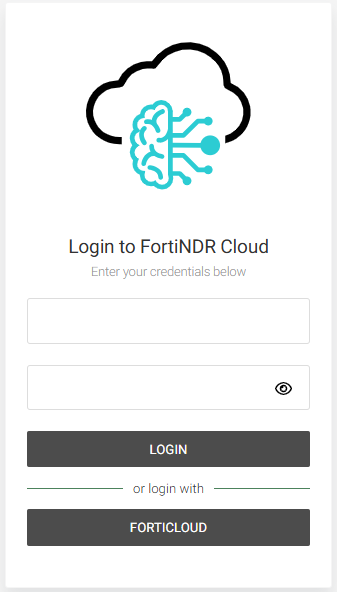
  1. Go to https://portal.fortindr.forticloud.com/.
  2. Do one of the following:

    Log in with

    Description

    EmailEnter your email address and password, then click Login.
    FortiCloud
    1. Click FortiCloud. The FortiCloud login page opens.
    2. Enter your FortiCloud email address, password and token to login.

    You can only login in with a FortiCloud sub-user account. The FortiNDR Cloud portal does not support IAM users at this time. For information, see User permissions in the FortiCloud Services Guide.
Navigating the portal

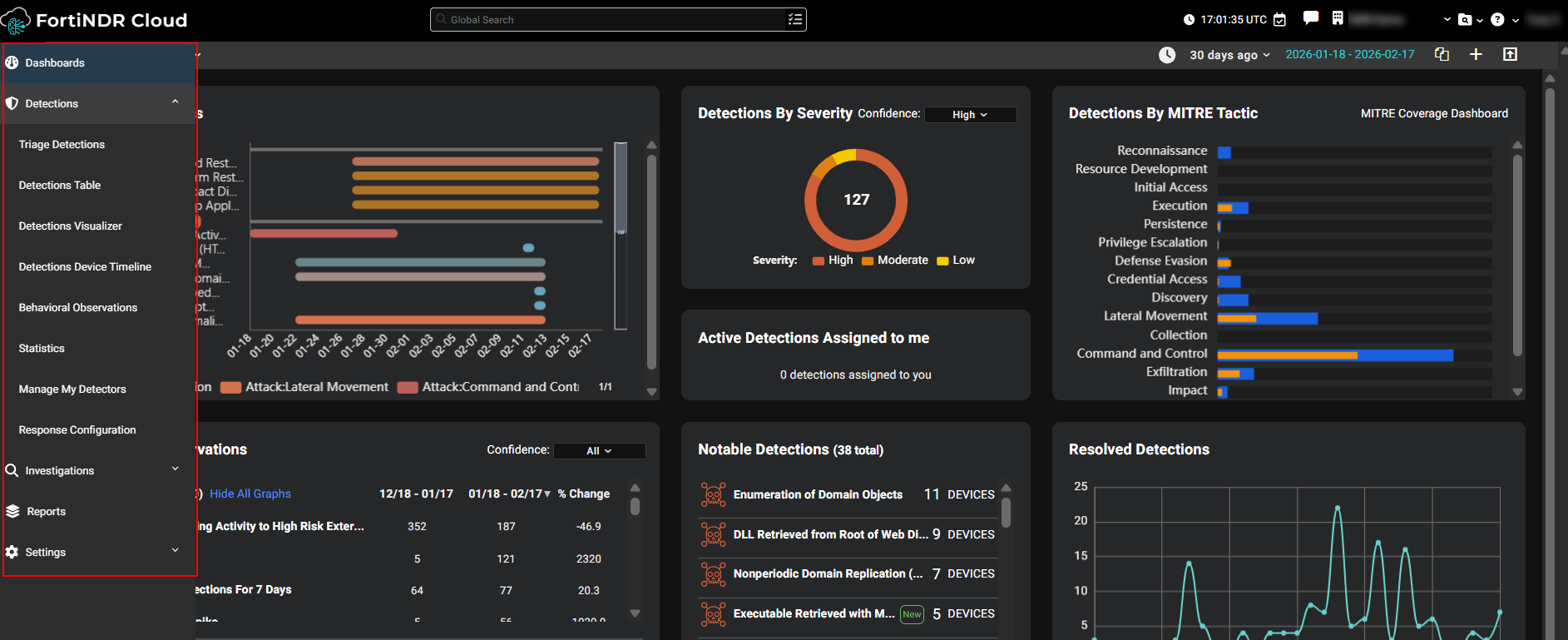
The portal uses a collapsible left navigation panel that expands on hover. This menu displays options based on the user’s permissions and highlights the current section and page.
Dashboard

This is the landing page for the FortiNDR Cloud portal and provides high-level summary information. For more information, see Dashboard.

Detections

This section displays all detections that have been triggered in your account.

Investigations

This section allows you to run queries or guided queries to perform forensic analysis and conduct threat hunting across your network data.

Reports

This section provides access to the following reports: the FortiNDR Cloud Network Security Posture Report, the FortiNDR Cloud Network Traffic Usage Report, the FortiNDR Cloud Network Traffic Usage of a Sensor Report, and the FortiNDR Cloud Detections Report.

Global Search

Use the Global Search function to search FortiNDR Cloud with a text string, IP address or domain. Search results are organized by Detections, Detections Coverage, Investigations, Search Timeline and Entity Lookup. You can enter multiple IPs or domains separated by a comma or a space. However, if you are performing a bulk search for IPs FortiNDR Cloud will stop the search after it finds the first IP in the list.

Settings

The Settings section provides access to features that let you manage your FortiNDR Cloud account, profile, and system behavior. From here, you can update your personal settings, configure notifications, manage annotations, define mutes and exclusions, administer sensors, and handle account‑level management tasks.

Configuring global search

The Global Search function allows you to search FortiNDR Cloud using a text string, IP address, or domain. You can enter multiple IPs and domains, separated by a comma or space.

You can configure Global Search to:

  • Show or hide categories
  • Limit the number of results
  • Arrange the order of results on the page
To configure global search:
  1. Click the dropdown menu at the right side of the search field. The Configure Global Search dialog opens.
  2. Configure the search settings.

    IncludeSelect/Deselect the categories to appear in the results.
    LimitSelect 5, 10, or 50 results to be displayed.
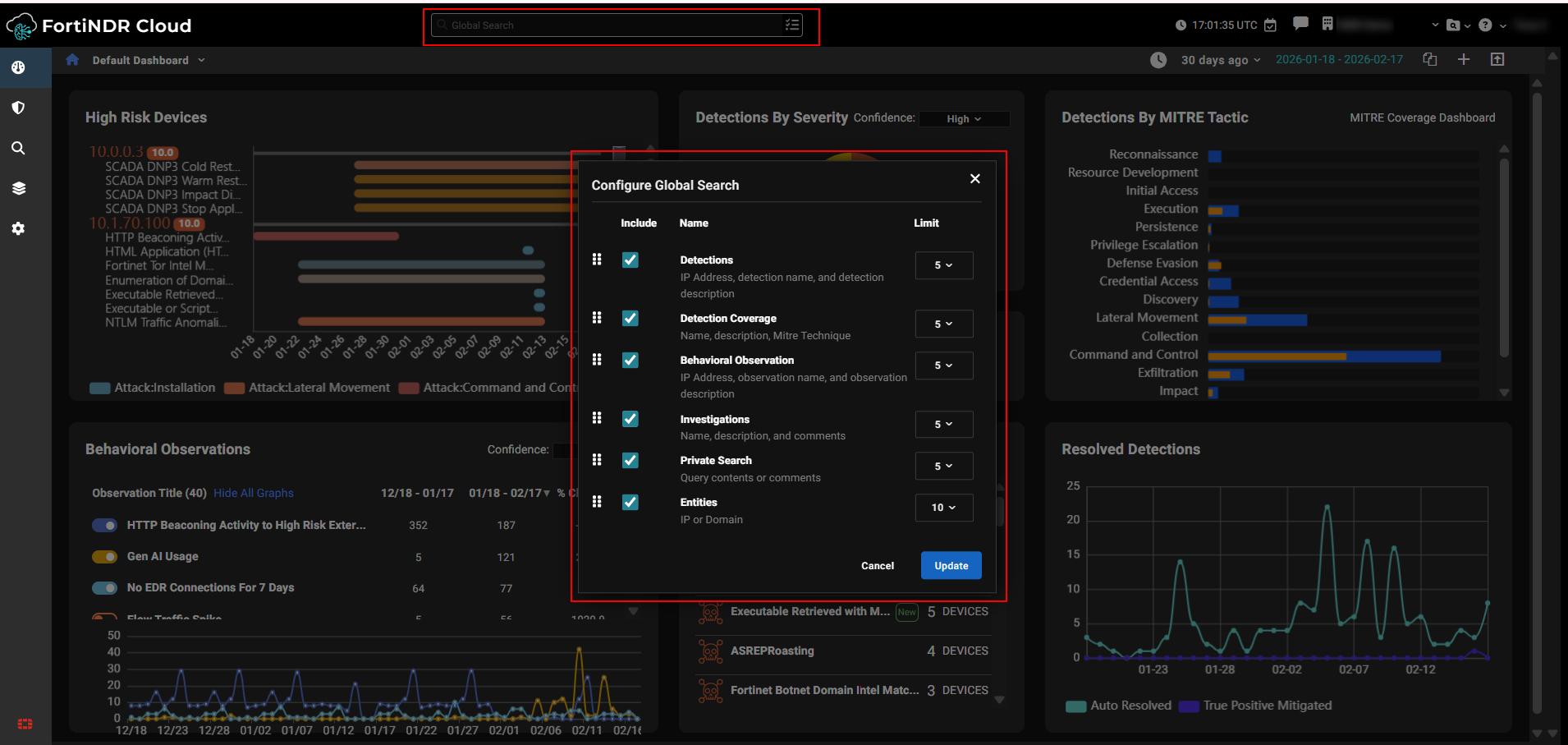
  3. To arrange the order the results are displayed, drag a heading up or down in the dialog.
  4. Click Update.

FortiNDR Cloud portal

FortiNDR Cloud portal

Logging into the portal

Users can log into the FortiNDR Cloud portal using either a FortiNDR Cloud account or Single Sign-On (SSO).

The following table provides an overview of how user accounts are managed in FortiNDR Cloud, including user creation, multi-factor authentication, and permission management.

Account

User creation

Multi-Factor Authentication

Permission management

FortiNDR Cloud

Admin creates user in FortiNDR Cloud

Managed by FortiNDR Cloud

  • Admin assigns permissions
  • Training access included automatically

SSO enabled

Admin creates user, or user logs in with SSO

  • Managed by SSO provider if logging in with SSO
  • Manged by FortiNDR Cloud if logging in with FortiNDR Cloud username and password.
  • Managed at the time the user is created in the portal (or later)
  • Training access included automatically

SSO enabled with SSO only

User logs in with SSO

Managed by SSO provider

  • May be added only after user logs in once
  • Training access only when first logged in

SSO not enabled

Admin creates user

Managed by FortiNDR Cloud

  • Managed at time user is created (or later)
  • Training access included automatically
  • FortiNDR Cloud only supports IdP initiated SAML.
  • Assertions must always be signed.

You can log into the FortiNDR Cloud portal with an email address or with a FortiCloud sub-user account.

To log into the portal:
  1. Go to https://portal.fortindr.forticloud.com/.
  2. Do one of the following:

    Log in with

    Description

    EmailEnter your email address and password, then click Login.
    FortiCloud
    1. Click FortiCloud. The FortiCloud login page opens.
    2. Enter your FortiCloud email address, password and token to login.

    You can only login in with a FortiCloud sub-user account. The FortiNDR Cloud portal does not support IAM users at this time. For information, see User permissions in the FortiCloud Services Guide.

Navigating the portal

The portal uses a collapsible left navigation panel that expands on hover. This menu displays options based on the user’s permissions and highlights the current section and page.

Dashboard

This is the landing page for the FortiNDR Cloud portal and provides high-level summary information. For more information, see Dashboard.

Detections

This section displays all detections that have been triggered in your account.

Investigations

This section allows you to run queries or guided queries to perform forensic analysis and conduct threat hunting across your network data.

Reports

This section provides access to the following reports: the FortiNDR Cloud Network Security Posture Report, the FortiNDR Cloud Network Traffic Usage Report, the FortiNDR Cloud Network Traffic Usage of a Sensor Report, and the FortiNDR Cloud Detections Report.

Global Search

Use the Global Search function to search FortiNDR Cloud with a text string, IP address or domain. Search results are organized by Detections, Detections Coverage, Investigations, Search Timeline and Entity Lookup. You can enter multiple IPs or domains separated by a comma or a space. However, if you are performing a bulk search for IPs FortiNDR Cloud will stop the search after it finds the first IP in the list.

Settings

The Settings section provides access to features that let you manage your FortiNDR Cloud account, profile, and system behavior. From here, you can update your personal settings, configure notifications, manage annotations, define mutes and exclusions, administer sensors, and handle account‑level management tasks.

Configuring global search

The Global Search function allows you to search FortiNDR Cloud using a text string, IP address, or domain. You can enter multiple IPs and domains, separated by a comma or space.

You can configure Global Search to:

  • Show or hide categories
  • Limit the number of results
  • Arrange the order of results on the page
To configure global search:
  1. Click the dropdown menu at the right side of the search field. The Configure Global Search dialog opens.
  2. Configure the search settings.

    IncludeSelect/Deselect the categories to appear in the results.
    LimitSelect 5, 10, or 50 results to be displayed.

  3. To arrange the order the results are displayed, drag a heading up or down in the dialog.
  4. Click Update.