Fortinet white logo
Fortinet white logo

Examples

Configuring a secret template with TOTP

Configuring a secret template with TOTP

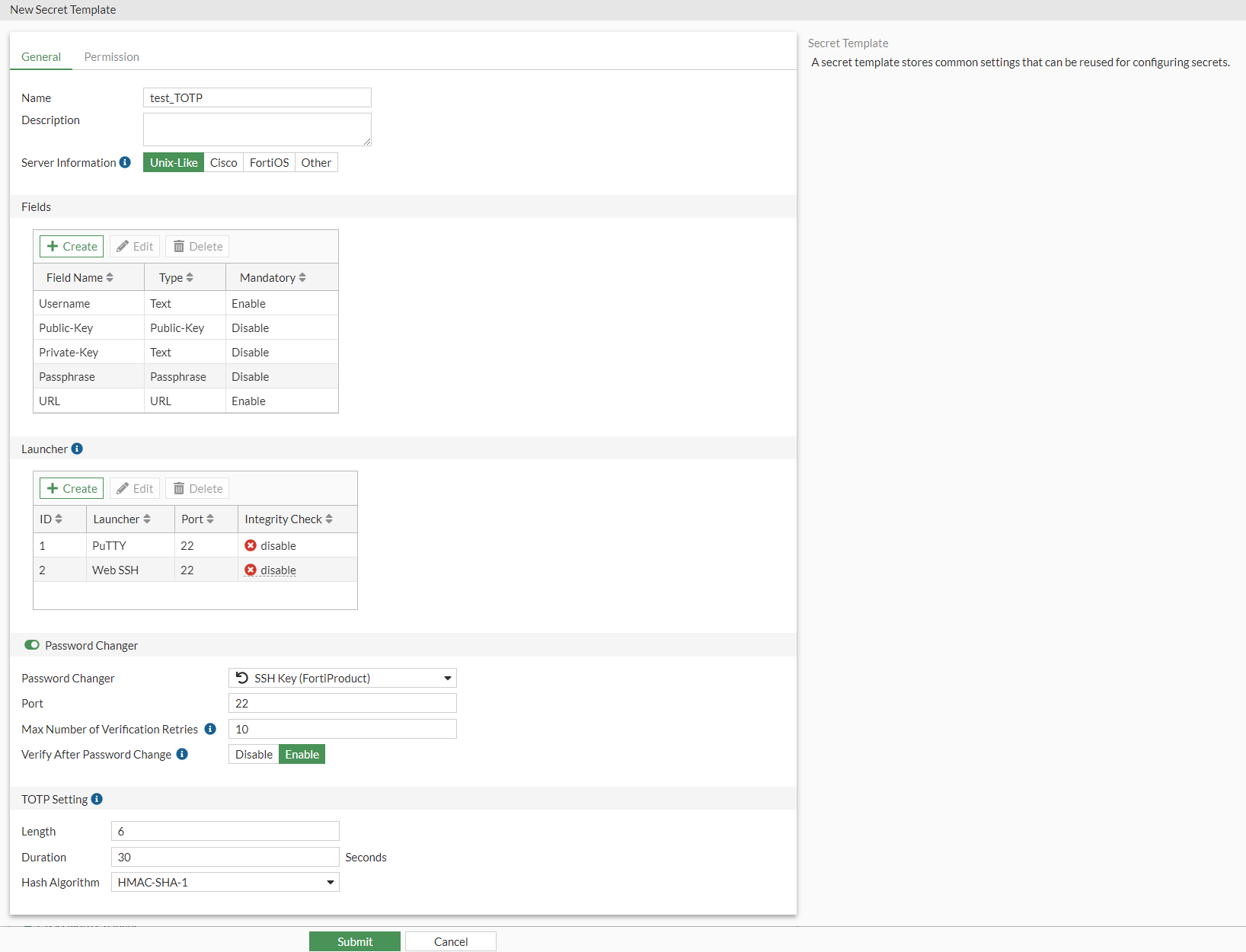
To configure a secret template with TOTP:
  1. Go to Secret Settings > Templates.
  2. In the secret template list, select Create.

    The General tab in the New Secret Template window opens.

  3. In the General tab:
    1. In Name, enter a name for the secret template.
    2. Optionally, enter a description for the secret template.
    3. In Sever Information, select Unix-Like.
  4. In the Fields pane, select Create to add a new field.

    The New Field window opens.

    1. In Field Name, enter Username.
    2. In the Type dropdown, select Username.
    3. In the Mandatory dropdown, ensure that it is enabled.
    4. Click OK.
  5. Use steps in 4 to create the following fields:
    1. Public-Key (disabled)
    2. Private-Key (disabled)
    3. Passphrase (disabled)
    4. URL (enabled)
  6. In the Launcher pane, select Create to add a new launcher.

    The New Launcher Selection window opens.

    1. In Launcher Name dropdown, select PuTTY.
    2. In the Launcher Port, ensure that port 22 is selected.
    3. Click OK.
  7. Use steps in 6 to select Web SSH launcher.
  8. In the Password Changer pane:
    1. In Password Changer, select SSH Key (FortiProduct).
    2. Ensure that remaining settings in the Password Changer pane are on default.
  9. In the TOTP Setting pane:
    1. In Length, Duration, and Hash Algorithm, ensure that the default values are used.

      Notes:

      • Length: Number of digits in the TOTP code.

      • Duration: Period of time for which the TOTP code is valid.

      • Hash Algorithm: HMAC algorithm used to generate the TOTP code.

  10. Click Submit.

    Generally, you should avoid changing secret template TOTP settings, if a target server requires special TOTP setting, you can configure this from the TOTP Setting pane when creating or editing the secret.

Configuring a secret template with TOTP

Configuring a secret template with TOTP

To configure a secret template with TOTP:
  1. Go to Secret Settings > Templates.
  2. In the secret template list, select Create.

    The General tab in the New Secret Template window opens.

  3. In the General tab:
    1. In Name, enter a name for the secret template.
    2. Optionally, enter a description for the secret template.
    3. In Sever Information, select Unix-Like.
  4. In the Fields pane, select Create to add a new field.

    The New Field window opens.

    1. In Field Name, enter Username.
    2. In the Type dropdown, select Username.
    3. In the Mandatory dropdown, ensure that it is enabled.
    4. Click OK.
  5. Use steps in 4 to create the following fields:
    1. Public-Key (disabled)
    2. Private-Key (disabled)
    3. Passphrase (disabled)
    4. URL (enabled)
  6. In the Launcher pane, select Create to add a new launcher.

    The New Launcher Selection window opens.

    1. In Launcher Name dropdown, select PuTTY.
    2. In the Launcher Port, ensure that port 22 is selected.
    3. Click OK.
  7. Use steps in 6 to select Web SSH launcher.
  8. In the Password Changer pane:
    1. In Password Changer, select SSH Key (FortiProduct).
    2. Ensure that remaining settings in the Password Changer pane are on default.
  9. In the TOTP Setting pane:
    1. In Length, Duration, and Hash Algorithm, ensure that the default values are used.

      Notes:

      • Length: Number of digits in the TOTP code.

      • Duration: Period of time for which the TOTP code is valid.

      • Hash Algorithm: HMAC algorithm used to generate the TOTP code.

  10. Click Submit.

    Generally, you should avoid changing secret template TOTP settings, if a target server requires special TOTP setting, you can configure this from the TOTP Setting pane when creating or editing the secret.