Fortinet white logo
Fortinet white logo

Examples

Configuring a DLP sensor profile

Configuring a DLP sensor profile

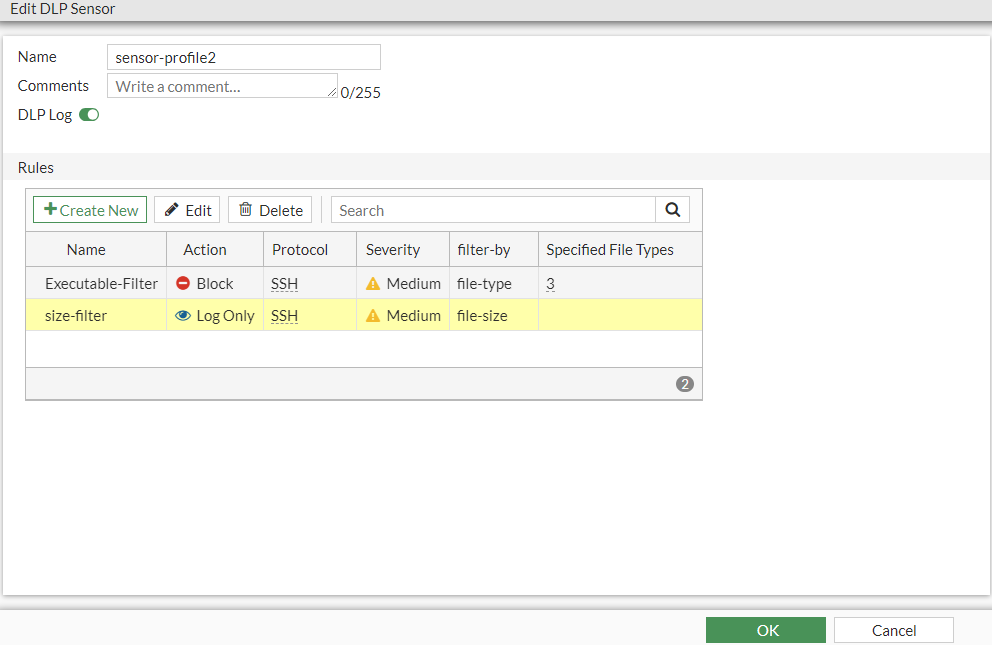
Here, we configure a DLP sensor profile with the following two DLP filter rules:

  • A DLP filter rule that blocks transfer of .exe files.

  • A DLP filter rule that logs download/upload of files larger than 500KB in size.

The DLP file pattern for .exe files was configured in Configuring the DLP file pattern.

To configure a DLP sensor profile:
  1. Go to Secret Settings > Data Leak Prevention.
  2. From the DLP sensors list, select Create New.

    The New DLP Sensor window opens.

  3. In Name, enter the name for the DLP sensor.
  4. In the Rules pane, select Create New to create a new DLP filter rule:

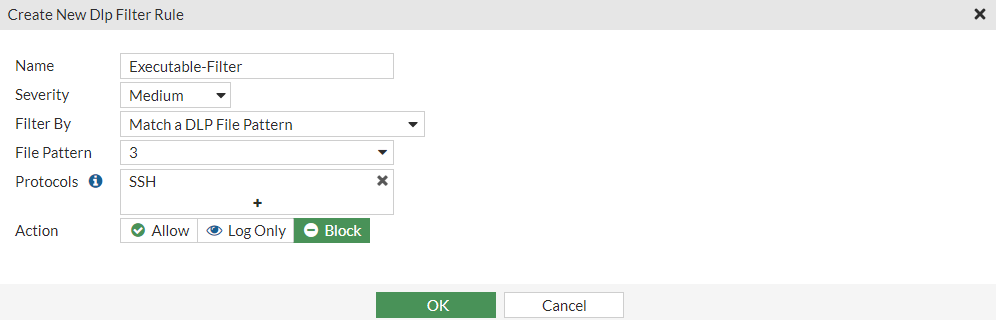
    The Create New Dlp Filter Rule window opens.

    1. In Name, enter a name for the DLP filter rule.
    2. In the Severity dropdown, select Medium.
    3. In the Filter By drodown, select Match a DLP File Pattern.
    4. In the File Pattern dropdown, select the DLP file pattern (by ID) created in Configuring the DLP file pattern.
    5. In the Protocols dropdown:
      1. Select +.
      2. In the Select Entries window, select SSH.
      3. Click Close.
    6. In Action, select Block.
    7. Click OK.
  5. In the Rules pane, select Create New to create another DLP filter rule:

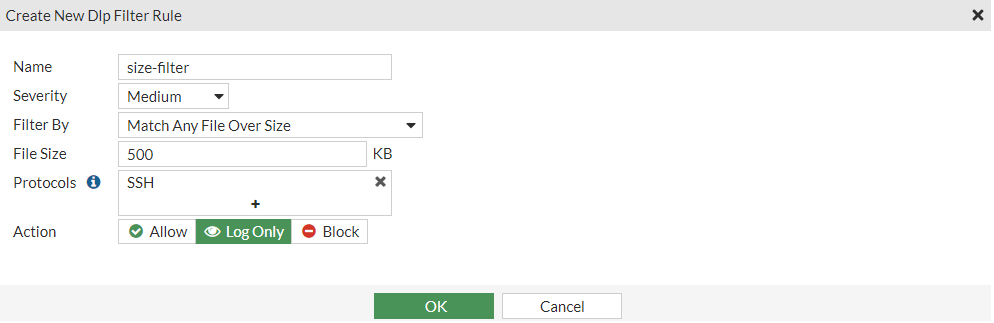
    The Create New Dlp Filter Rule window opens.

    1. In Name, enter a name for the DLP filter rule.
    2. In the Severity dropdown, select Medium.
    3. In the Filter By drodown, select Match Any File Over Size.
    4. In the File Size field, enter 500 (KB).
    5. In Action, select Log Only.
    6. Click OK.
  6. Click OK.

Configuring a DLP sensor profile

Configuring a DLP sensor profile

Here, we configure a DLP sensor profile with the following two DLP filter rules:

  • A DLP filter rule that blocks transfer of .exe files.

  • A DLP filter rule that logs download/upload of files larger than 500KB in size.

The DLP file pattern for .exe files was configured in Configuring the DLP file pattern.

To configure a DLP sensor profile:
  1. Go to Secret Settings > Data Leak Prevention.
  2. From the DLP sensors list, select Create New.

    The New DLP Sensor window opens.

  3. In Name, enter the name for the DLP sensor.
  4. In the Rules pane, select Create New to create a new DLP filter rule:

    The Create New Dlp Filter Rule window opens.

    1. In Name, enter a name for the DLP filter rule.
    2. In the Severity dropdown, select Medium.
    3. In the Filter By drodown, select Match a DLP File Pattern.
    4. In the File Pattern dropdown, select the DLP file pattern (by ID) created in Configuring the DLP file pattern.
    5. In the Protocols dropdown:
      1. Select +.
      2. In the Select Entries window, select SSH.
      3. Click Close.
    6. In Action, select Block.
    7. Click OK.
  5. In the Rules pane, select Create New to create another DLP filter rule:

    The Create New Dlp Filter Rule window opens.

    1. In Name, enter a name for the DLP filter rule.
    2. In the Severity dropdown, select Medium.
    3. In the Filter By drodown, select Match Any File Over Size.
    4. In the File Size field, enter 500 (KB).
    5. In Action, select Log Only.
    6. Click OK.
  6. Click OK.