

Creating a Windows application filter profile
We create a Windows application filter profile that prevents the user from running Powershell, MS Paint, and other executables except in the directories %PROGRAMFILES%\*, %WINDIR\*.
To create the Windows application filter:
- Go to Secret Settings > Windows App Filter Profiles and select +Create.
- Enter the name for the Windows application filter.
- In Executable:
- Select +.
- In Deny, enter
C:\Windows\System32\WindowsPowerShell.exe. - Select +.
- In Deny, enter
%WINDIR%\system32\mspaint.exe.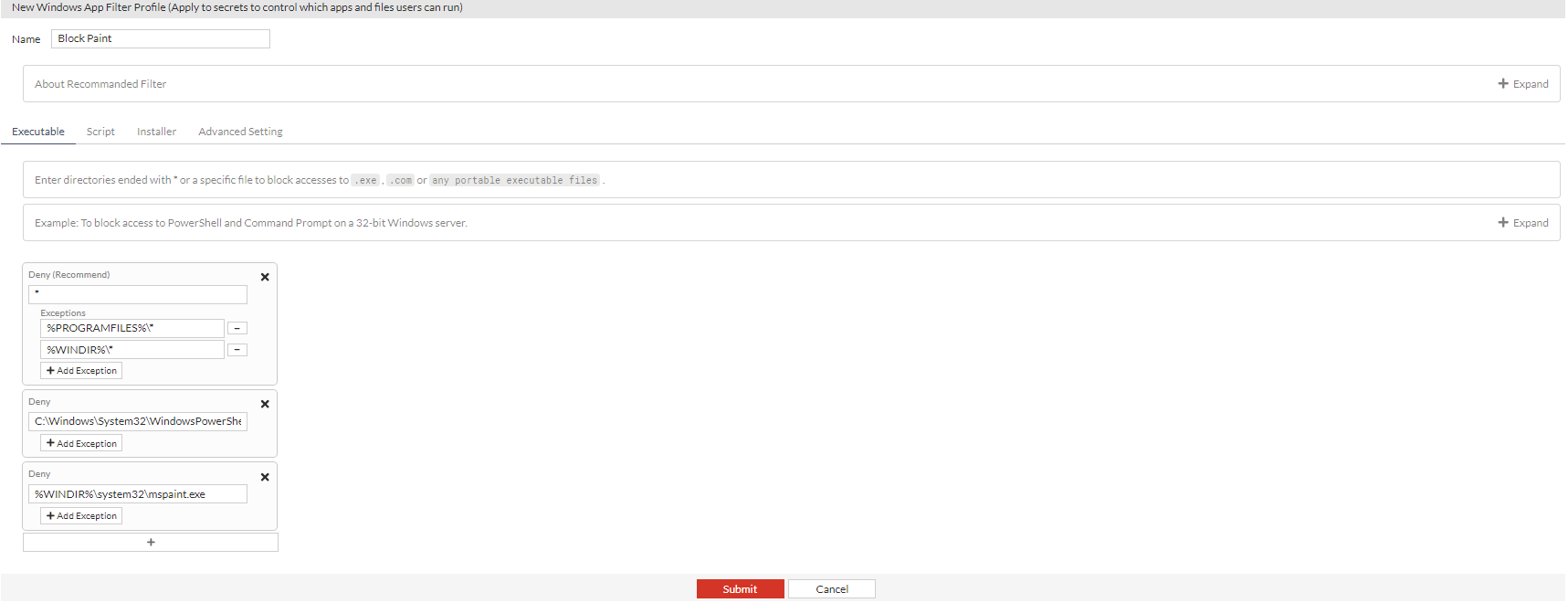
- Go to the Script tab:
- Select +.
- In Deny, enter
C:\Users\%USER%\Desktop\*to block any script located on the desktop.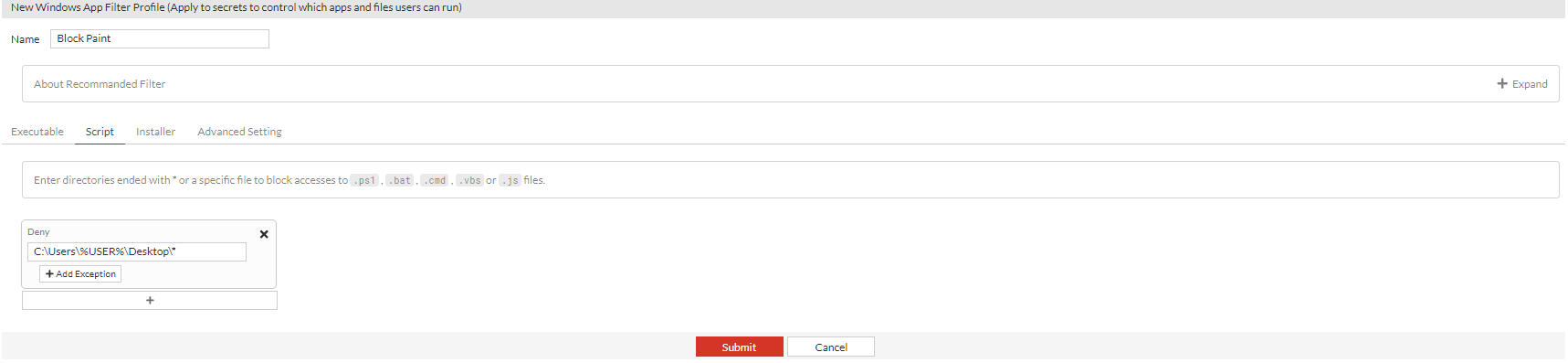
- Go to the Installer tab:
- In Deny (Recommend), all installers are blocked except those in the directories
%PROGRAMFILES%\*, %WINDIR%\*.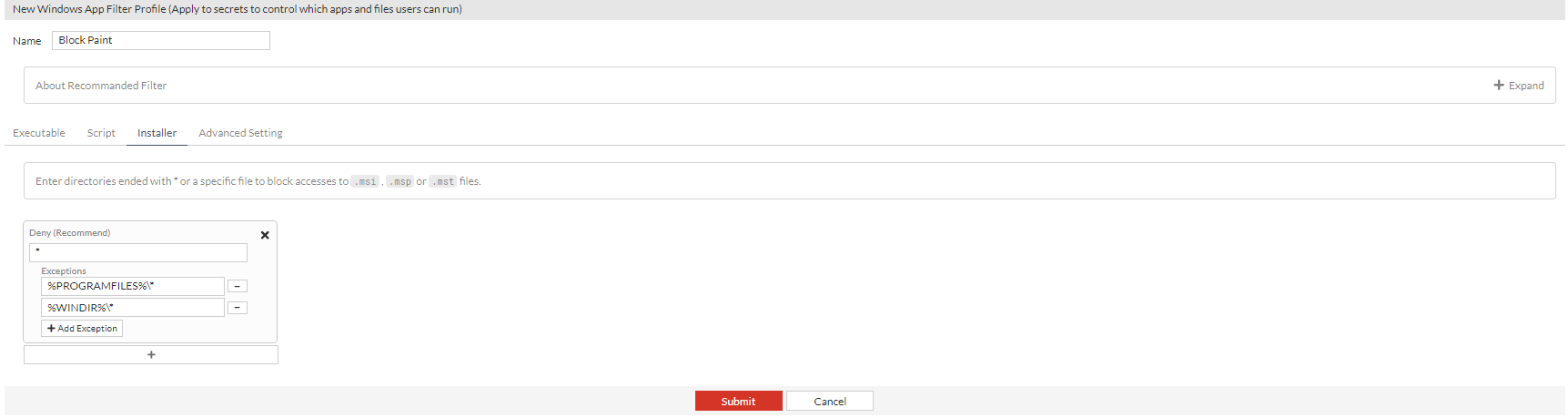
- In Deny (Recommend), all installers are blocked except those in the directories
- Go to the Advanced Setting tab.
- In Refresh Period, keep the default value, 30 minutes.

- In Refresh Period, keep the default value, 30 minutes.
- Click Submit.
The above target can be created in the CLI using the following commands CLI:
 config secret winappfilter-profile
  edit "Block Paint"
   config rules
    edit 1
     set deny "*"
     set exception
"%PROGRAMFILES%\\* %WINDIR%\\*"
    next
	edit 3
	 set type script
	 set deny "C:\\Users\\%USER%\\Desktop\\*"
	next
	edit 4
	 set type msi
	 set "*"
	 set exception
"%PROGRAMFILES%\\* %WINDIR%\\*"
	next
	edit 5
	 set deny"C:\\Windows\\System32\\WindowsPowerShell\\v1.0\\powershell.exe"
	next
	edit 6
	 set deny
"%WINDIR%\\system32\\mspaint.exe"
    next
   end
  next
 end