
Fortinet white logo
Fortinet white logo

Upgrade instructions

Upgrade instructions

Back up your configuration before beginning this procedure. While no data loss should occur if the procedures below are correctly followed, it is recommended a full backup is made before proceeding with firmware upgrade.

For information on how to set up automated backup, see the Backup topic in the FortiPAM Administration Guide on the Fortinet Docs Library.

Firmware upgrade process

Back up your configuration and then upgrade the firmware. Optionally, you can restore your configuration.

Before you can install FortiPAM firmware, you must download the firmware image from FortiCloud, then upload it from your computer to the FortiPAM device. See Upgrading the firmware.

To download the firmware image from FortiCloud:
  1. Log into FortiCloud.
  2. Go to Support > Downloads, and select VM Images from the dropdown list.

    The VM Images page opens.

  3. In Select Product, select Other.
  4. Click on the hyperlink that appears.
  5. In Select Product, select FortiPAM.
  6. Switch to the Download tab and go inside the correct image folder.
  7. Click on HTTPS for the zip file you intend to download.

    The zip file is downloaded to your management computer.

Image checksums

To verify the integrity of the firmware file, use a checksum tool to compute the firmware file’s MD5 checksum. Compare it with the checksum indicated by Fortinet. If the checksums match, the file is intact.

MD5 checksums for software releases are available on FortiCloud.

FortiCloud image checksum tool

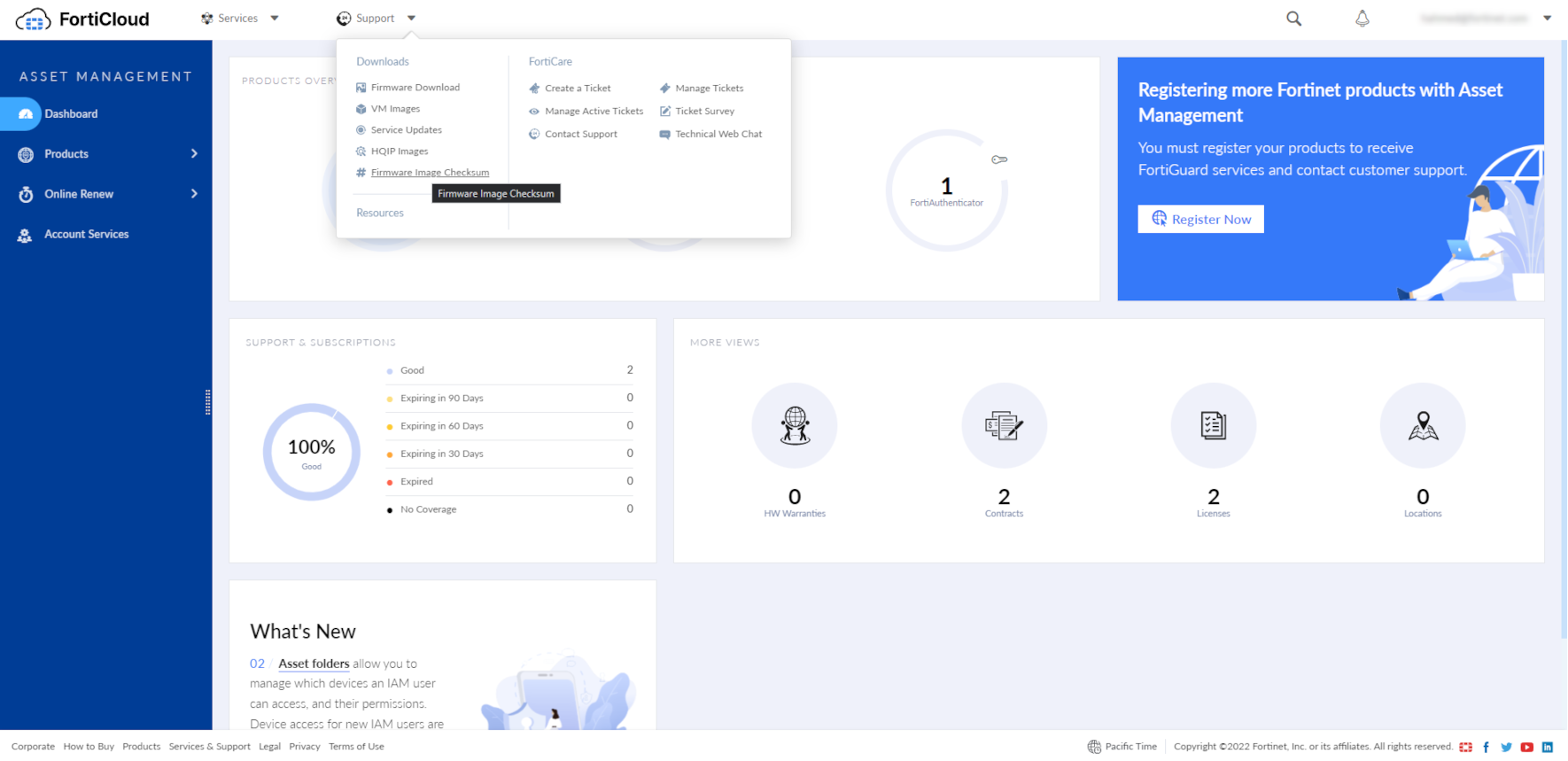
After logging in to FortiCloud, in the menus at the top, click Support, then click Firmware Image Checksum.

In the Image File Name field, enter the firmware image file name, including its extension, then click Get Checksum Code to get the checksum code.
To backup your configuration manually:
  1. In the user dropdown, go to Configuration > Backup.

    The Backup System Configuration window opens.

  2. Select Local PC as the backup option.
  3. Enable Encryption, enter and confirm password.
  4. Click OK.

    The backup file is downloaded to your local computer.

To upgrade the firmware:
  1. You can only upload a firmware when in maintenance mode.

    From the user dropdrown, select Activate Maintenance Mode in System.

    1. Enter the maximum duration, in minutes.
    2. Enter a reason for activating the maintenance mode.
    3. Click OK.

      When in maintenance mode, select Renew Maintenance Mode in System, enter the new duration and reason and then click OK to renew the maintenance mode.

  2. In the user dropdown, go to System > Firmware.

    The Firmware Management window opens.

  3. Go to the File Upload tab:
    1. Select Browse, then locate the firmware image on your local computer.
    2. Click Open.
    3. Click Confirm and Backup Config.

      The firmware image uploads from your local computer to the FortiPAM device, which will then reboot. For a short period of time during this reboot, the FortiPAM device is offline and unavailable.

To restore the configuration manually:
  1. You can only restore a configuration when in maintenance mode.

    Repeat step 1 from Upgrading the firmware.

  2. In the the user dropdown, go to Configuration > Restore.

    The Restore System Configuration window opens.

  3. Select Local PC as the option to restore from.
  4. Select Upload:
    1. Locate the backup file on your local computer.
    2. Click Open.
    3. In Password, enter the encryption password for the backup file.
    4. Click OK.

When you restore the configuration from a backup file, any information changed since the backup will be lost.

Any active sessions will be ended and must be restarted.

You will have to log back in when the system reboots.

Once the configuration is restored, select Deactivate Maintenance Mode in System to deactivate the maintenance mode.

Upgrade instructions

Upgrade instructions

Back up your configuration before beginning this procedure. While no data loss should occur if the procedures below are correctly followed, it is recommended a full backup is made before proceeding with firmware upgrade.

For information on how to set up automated backup, see the Backup topic in the FortiPAM Administration Guide on the Fortinet Docs Library.

Firmware upgrade process

Back up your configuration and then upgrade the firmware. Optionally, you can restore your configuration.

Before you can install FortiPAM firmware, you must download the firmware image from FortiCloud, then upload it from your computer to the FortiPAM device. See Upgrading the firmware.

To download the firmware image from FortiCloud:
  1. Log into FortiCloud.
  2. Go to Support > Downloads, and select VM Images from the dropdown list.

    The VM Images page opens.

  3. In Select Product, select Other.
  4. Click on the hyperlink that appears.
  5. In Select Product, select FortiPAM.
  6. Switch to the Download tab and go inside the correct image folder.
  7. Click on HTTPS for the zip file you intend to download.

    The zip file is downloaded to your management computer.

Image checksums

To verify the integrity of the firmware file, use a checksum tool to compute the firmware file’s MD5 checksum. Compare it with the checksum indicated by Fortinet. If the checksums match, the file is intact.

MD5 checksums for software releases are available on FortiCloud.

FortiCloud image checksum tool

After logging in to FortiCloud, in the menus at the top, click Support, then click Firmware Image Checksum.

In the Image File Name field, enter the firmware image file name, including its extension, then click Get Checksum Code to get the checksum code.

To backup your configuration manually:
  1. In the user dropdown, go to Configuration > Backup.

    The Backup System Configuration window opens.

  2. Select Local PC as the backup option.
  3. Enable Encryption, enter and confirm password.
  4. Click OK.

    The backup file is downloaded to your local computer.

To upgrade the firmware:
  1. You can only upload a firmware when in maintenance mode.

    From the user dropdrown, select Activate Maintenance Mode in System.

    1. Enter the maximum duration, in minutes.
    2. Enter a reason for activating the maintenance mode.
    3. Click OK.

      When in maintenance mode, select Renew Maintenance Mode in System, enter the new duration and reason and then click OK to renew the maintenance mode.

  2. In the user dropdown, go to System > Firmware.

    The Firmware Management window opens.

  3. Go to the File Upload tab:
    1. Select Browse, then locate the firmware image on your local computer.
    2. Click Open.
    3. Click Confirm and Backup Config.

      The firmware image uploads from your local computer to the FortiPAM device, which will then reboot. For a short period of time during this reboot, the FortiPAM device is offline and unavailable.

To restore the configuration manually:
  1. You can only restore a configuration when in maintenance mode.

    Repeat step 1 from Upgrading the firmware.

  2. In the the user dropdown, go to Configuration > Restore.

    The Restore System Configuration window opens.

  3. Select Local PC as the option to restore from.
  4. Select Upload:
    1. Locate the backup file on your local computer.
    2. Click Open.
    3. In Password, enter the encryption password for the backup file.
    4. Click OK.

When you restore the configuration from a backup file, any information changed since the backup will be lost.

Any active sessions will be ended and must be restarted.

You will have to log back in when the system reboots.

Once the configuration is restored, select Deactivate Maintenance Mode in System to deactivate the maintenance mode.