
Fortinet white logo
Fortinet white logo

HTTPS download of PAC files for explicit proxy

HTTPS download of PAC files for explicit proxy

Proxy auto-config (PAC) files can be downloaded for an explicit proxy through the FortiProxy's secure explicit proxy using HTTPS to ensure a secure download.

Example

In this example, a Windows PC has an HTTPS URL configured in its proxy settings to download a PAC file from a FortiProxy by using a download link, https://10.150.0.58:8080/proxy.pac, through a secure explicit proxy. Once the PAC file is securely downloaded using HTTPS, browsers installed on the PC can use the proxy in the PAC file to visit a website.

If you use a customized SSL certificate as the HTTPS server's certificate on the FortiProxy, all CA certificates in the server certificate must be installed and trusted on the Windows PC.

To download a PAC file using HTTPS:
  1. Configure the explicit web proxy to get a PAC file and download the PAC file through HTTPS:

    config web-proxy explicit-proxy
          edit "mgmt_8080"
    	set status enable
    	set interface "port4"
    	set secure-web-proxy enable
    	set incoming-ip 10.150.0.58
    	set http-incoming-port 8080
    	set secure-web-proxy-cert "default-server-cert"
    	set pac-file-server-status enable
    	set pac-file-server-port 8080
    	set pac-file-name "proxy.pac"
           set pac-file-data "function FindProxyForURL(url, host) {
       // testtest
       return \"PROXY 10.1.100.1:8080\";
    }
    "
     next
    end

    See Configuring a secure explicit proxy for more details about secure explicit proxy.

  2. On the Windows PC, go to Settings > Network & Internet > Proxy.
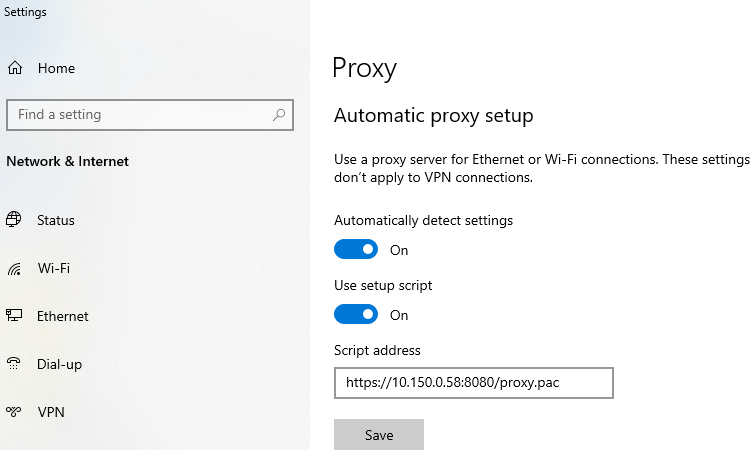
  3. In the Automatic proxy setup section, click Save to trigger the PAC file download from the HTTPS URL.

HTTPS download of PAC files for explicit proxy

HTTPS download of PAC files for explicit proxy

Proxy auto-config (PAC) files can be downloaded for an explicit proxy through the FortiProxy's secure explicit proxy using HTTPS to ensure a secure download.

Example

In this example, a Windows PC has an HTTPS URL configured in its proxy settings to download a PAC file from a FortiProxy by using a download link, https://10.150.0.58:8080/proxy.pac, through a secure explicit proxy. Once the PAC file is securely downloaded using HTTPS, browsers installed on the PC can use the proxy in the PAC file to visit a website.

If you use a customized SSL certificate as the HTTPS server's certificate on the FortiProxy, all CA certificates in the server certificate must be installed and trusted on the Windows PC.

To download a PAC file using HTTPS:
  1. Configure the explicit web proxy to get a PAC file and download the PAC file through HTTPS:

    config web-proxy explicit-proxy
          edit "mgmt_8080"
    	set status enable
    	set interface "port4"
    	set secure-web-proxy enable
    	set incoming-ip 10.150.0.58
    	set http-incoming-port 8080
    	set secure-web-proxy-cert "default-server-cert"
    	set pac-file-server-status enable
    	set pac-file-server-port 8080
    	set pac-file-name "proxy.pac"
           set pac-file-data "function FindProxyForURL(url, host) {
       // testtest
       return \"PROXY 10.1.100.1:8080\";
    }
    "
     next
    end

    See Configuring a secure explicit proxy for more details about secure explicit proxy.

  2. On the Windows PC, go to Settings > Network & Internet > Proxy.

  3. In the Automatic proxy setup section, click Save to trigger the PAC file download from the HTTPS URL.