

Access control between on-net devices and internal web server using security posture tags
In this example, policies are configured that use security posture tags to control access between on-net devices and an internal web server. This mode does not require the use of the access proxy, and only uses security posture tags for access control. Traffic is passed when the FortiClient endpoint is tagged with the customized security posture tag, identifying the device as logged on. Traffic is denied when the FortiClient endpoint is tagged with Malicious-File-Detected.
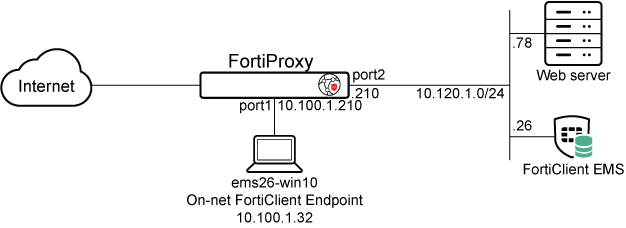
This example assumes that the FortiProxy EMS fabric connector is already successfully connected.

|
To configure ZTNA in the GUI, go to System > Feature Visibility and enable Zero Trust Network Access. |
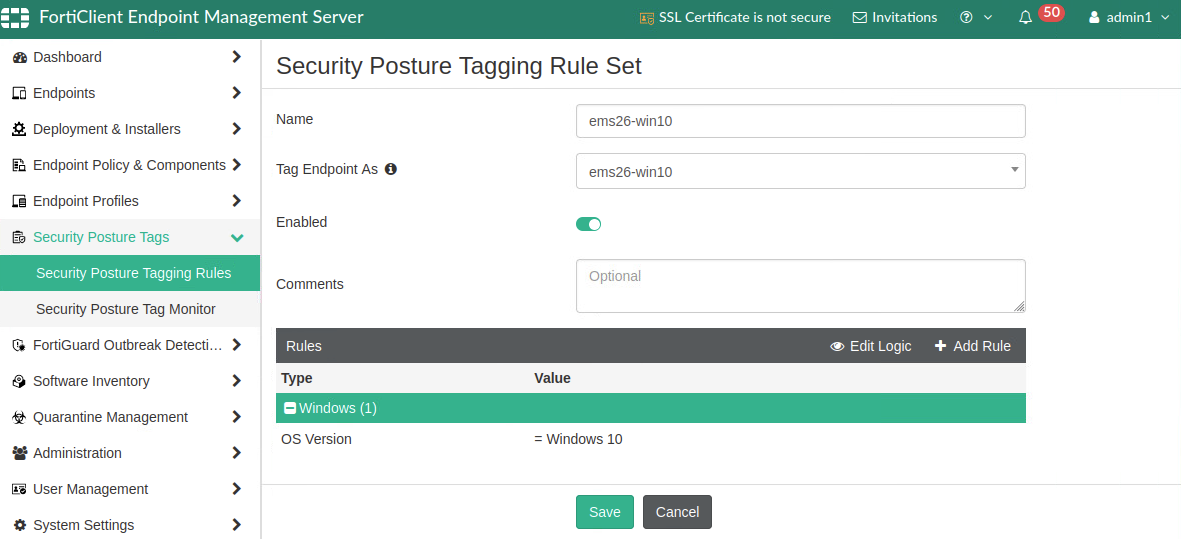
To configure a security posture tag on the FortiClient EMS:
-
Log in to the FortiClient EMS.
-
Go to Security posture tags > Security posture tagging rules, and click Add.
-
In the Name field, enter ems26-win10.
-
In the Tag Endpoint As dropdown list, select the custom tag.
-
Click Add Rule and configure the rule so that the client computer can fulfill this rule:
-
For OS, select Windows.
-
From the Rule Type dropdown list, select File and click the + button.
-
Enter a file name, such as C:\virus.txt.
-
Click Save.
-
-
Go to Endpoint > All Endpoints.
-
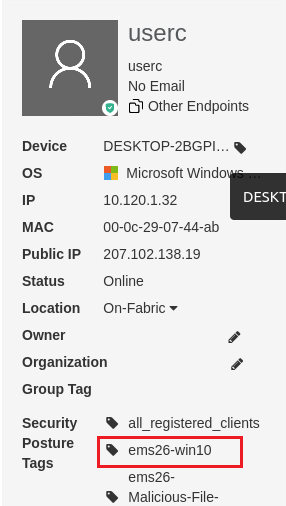
Select the computer that will be granted access. This computer should be already registered to FortiClient EMS.
-
Ensure that the computer fulfills the custom tag you defined earlier.
-
Click Save.
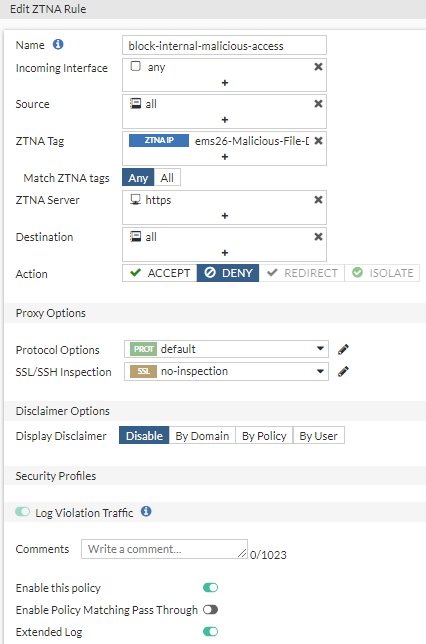
To configure a ZTNA rule to deny traffic in the GUI:
-
Go to Policy & Objects > ZTNA and click Create New on the ZTNA Rules tab.
-
Set Name to block-internal-malicious-access.
-
Set Action to DENY.
-
Set Incoming Interface to any.
-
Set Source to all.
-
Set ZTNA Tag to EMS1_ZTNA_Malicious-File-Detected.
-
Set Destination to the address of the Web server.
-
Enable Log Violation Traffic.
-
Configure the remaining settings as needed.
-
Click OK.
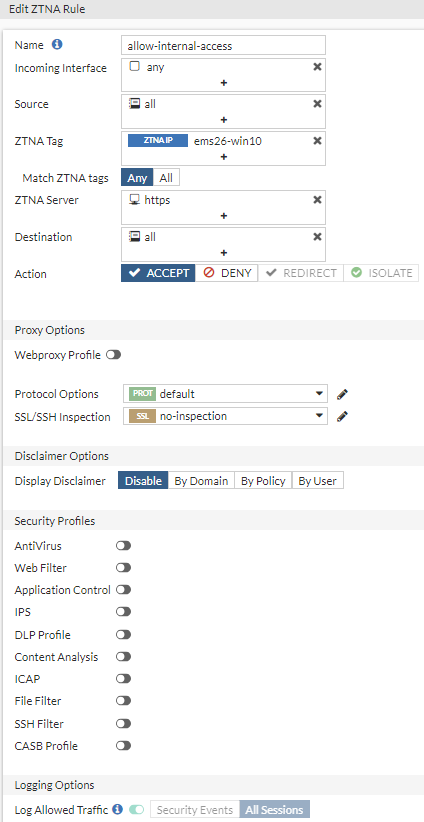
To configure a ZTNA rule to allow access in the GUI:
-
Go to Policy & Objects > ZTNA and click Create New on the ZTNA Rules tab.
-
Set Name to allow-internal-access.
-
Set Action to ACCEPT.
-
Set Incoming interface to any.
-
Set Source to all.
-
Set Destination to the address of the Web server.
-
Enable Log allowed traffic and set it to All Sessions.
-
Configure the remaining settings as needed.
-
Click OK.
To configure policies to block and allow access in the CLI:
config firewall policy
    edit 6
        set type access-proxy
        set name "block-internal-malicious-access"
        set uuid 13ece116-7218-51ef-626c-66ba0f7c3dbd
        set srcintf "any"
        set srcaddr "all"
        set dstaddr "all"
        set schedule "always"
        set access-proxy "https"
        set ztna-ems-tag "EMS1_ZTNA_ems26-Malicious-File-Detected"
        set logtraffic all
        set log-http-transaction enable
        set extended-log enable
    next
    edit 7
        set type access-proxy
        set name "allow-internal-access"
        set uuid 36296498-7218-51ef-5625-d2e3c7b5e6a2
        set srcintf "any"
        set srcaddr "all"
        set dstaddr "all"
        set action accept
        set schedule "always"
        set access-proxy "https"
        set ztna-ems-tag "EMS1_ZTNA_ems26-win10"
        set logtraffic all
        set log-http-transaction enable
        set extended-log enable
    next
end
Testing the access to the web server from the on-net client endpoint
Access allowed:
-
On the client computer, open FortiClient.
-
On the Zero Trust Telemetry tab, make sure that you are connected to the EMS server.
-
Open a browser and enter the address of the server.
-
The FortiProxy matches your security posture by verifying your security posture tags and matching the corresponding
allow-internal-accesspolicy, and you are allowed access to the web server.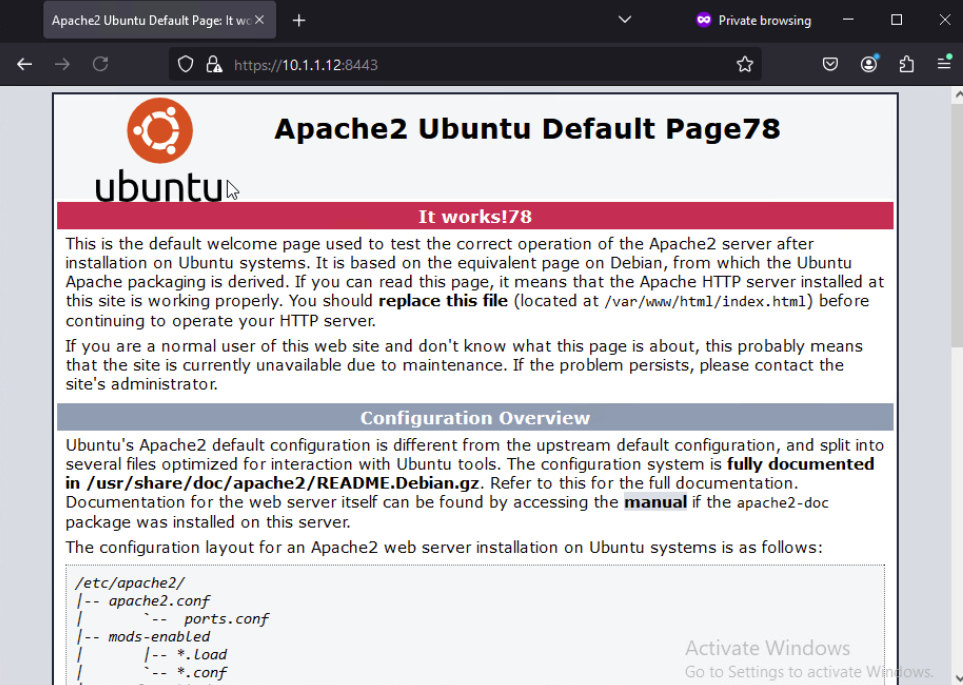
Logs and debugs
Access allowed:
# diagnose endpoint record list
Record #2:
                IP Address = 10.120.1.32
                MAC Address = 00:0c:29:07:44:ab
                MAC list =
                VDOM = root (0)
                EMS serial number: FCTEMS8824006853
                EMS tenant id: 00000000000000000000000000000000
                Client cert SN: 97B05CC32B3C2BC73DE7D7C09AE6A867DAA0BD8C
                Public IP address: 207.102.138.19
                Quarantined: no
                Online status: onlineRegistration status: registeredOn-net status: on-netGateway Interface: port1
                FortiClient version: 7.4.0
                …
                Number of Routes: (1)
                        Gateway Route #0:
                                - IP:10.120.1.32, MAC: 00:0c:29:07:44:ab, VPN: no
                                - Interface:port1, VFID:0, SN: FPXVULTM24000083
# diagnose wad dev query-by uid F0D60B28FCAB464E81C725270B62BEC0 FCTEMS8824006853 00000000000000000000000000000000
Attr of type=0, length=83, value(ascii)=F0D60B28FCAB464E81C725270B62BEC0
Attr of type=4, length=0, value(ascii)=
Attr of type=6, length=1, value(ascii)=true
Attr of type=5, length=40, value(ascii)=97B05CC32B3C2BC73DE7D7C09AE6A867DAA0BD8C
Attr of type=3, length=39, value(ascii)=EMS1_ZTNA_ems26-Malicious-File-Detected
Attr of type=3, length=43, value(ascii)=MAC_EMS1_ZTNA_ems26-Malicious-File-Detected
Attr of type=3, length=21, value(ascii)=EMS1_ZTNA_ems26-win10
Attr of type=3, length=25, value(ascii)=MAC_EMS1_ZTNA_ems26-win10
Attr of type=3, length=26, value(ascii)=EMS1_ZTNA_ems26_Anti_Virus
Attr of type=3, length=30, value(ascii)=MAC_EMS1_ZTNA_ems26_Anti_Virus
Attr of type=3, length=32, value(ascii)=EMS1_ZTNA_all_registered_clients
Attr of type=3, length=36, value(ascii)=MAC_EMS1_ZTNA_all_registered_clients
Attr of type=3, length=15, value(ascii)=EMS1_CLASS_High
Attr of type=3, length=19, value(ascii)=MAC_EMS1_CLASS_High
Response termination due to no more data
# diagnose firewall dynamic list
List all dynamic addresses:
IP dynamic addresses in VDOM root(vfid: 0):
…
CMDB name: EMS1_ZTNA_ems26-Malicious-File-Detected
TAG name: ems26-Malicious-File-Detected
EMS1_ZTNA_ems26-Malicious-File-Detected: ID(22)
        ADDR(10.120.1.32)
Total IP dynamic range blocks: 0.
Total IP dynamic addresses: 1.

...
CMDB name: EMS1_ZTNA_ems26-win10
TAG name: ems26-win10
EMS1_ZTNA_ems26-win10: ID(131)
        ADDR(10.120.1.12)
        ADDR(10.120.1.32)
Total IP dynamic range blocks: 0.
Total IP dynamic addresses: 2.

...
# diagnose test application fcnacd 7
Entry #1:
 - UID: F0D60B28FCAB464E81C725270B62BEC0
 - EMS Fabric ID: FCTEMS8824006853:00000000000000000000000000000000
 - Domain:
 - User: userc
 - Owner:
 - Certificate SN: 97B05CC32B3C2BC73DE7D7C09AE6A867DAA0BD8C
 - online: true
 - Routes (1):
  -- Route #0: IP=10.120.1.32, vfid=0
 - FWAddrNames (10):
  -- Name (#0): EMS1_ZTNA_ems26-Malicious-File-Detected
  -- Name (#1): MAC_EMS1_ZTNA_ems26-Malicious-File-Detected
  -- Name (#2): EMS1_ZTNA_ems26-win10
  -- Name (#3): MAC_EMS1_ZTNA_ems26-win10
  -- Name (#4): EMS1_ZTNA_ems26_Anti_Virus
  -- Name (#5): MAC_EMS1_ZTNA_ems26_Anti_Virus
  -- Name (#6): EMS1_ZTNA_all_registered_clients
  -- Name (#7): MAC_EMS1_ZTNA_all_registered_clients
  -- Name (#8): EMS1_CLASS_High
  -- Name (#9): MAC_EMS1_CLASS_High
lls_idx_mask = 0x00000001,
date=2024-09-18 time=15:01:13 eventtime=1726696873510296962 tz="-0700" logid="0005000024" type="traffic" subtype="ztna" level="notice" vd="root" srcip=10.120.1.32 srcport=57720 srcintf="port1" srcintfrole="undefined" dstcountry="Reserved" srccountry="Reserved" dstip=10.100.1.78 dstport=443 dstintf="port2" dstintfrole="undefined" sessionid=49073183 service="HTTPS" proxyapptype="http" proto=6 action="accept" policyid=7 policytype="proxy-policy" poluuid="36296498-7218-51ef-5625-d2e3c7b5e6a2" policyname="allow-internal-access" clientip=10.120.1.32 duration=176570 gatewayid=1 vip="https" accessproxy="https" clientdeviceid="F0D60B28FCAB464E81C725270B62BEC0" clientdevicemanageable="manageable" clientdevicetags="MAC_EMS1_CLASS_High/EMS1_CLASS_High/MAC_EMS1_ZTNA_all_registered_clients/EMS1_ZTNA_all_registered_clients" emsconnection="online" wanin=9606 rcvdbyte=9606 wanout=2047 lanin=2920 sentbyte=2920 lanout=9776 fctuid="F0D60B28FCAB464E81C725270B62BEC0" unauthuser="userc" unauthusersource="forticlient" srcremote=207.102.138.19 appcat="unscanned" utmaction="allow"