
Fortinet white logo
Fortinet white logo

Administration Guide

Site-to-site VPN with digital certificate

Site-to-site VPN with digital certificate

This is a sample configuration of IPsec VPN authenticating a remote FortiProxy peer with a certificate. The certificate on one peer is validated by the presence of the CA certificate installed on the other peer.
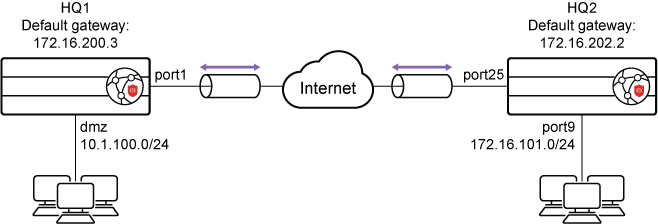
To configure IPsec VPN authenticating a remote FortiProxy peer with a digital certificate in the GUI:
  1. Import the certificate.
  2. Configure user peers.
  3. Configure the HQ1 FortiProxy.
    1. Go to VPN > IPsec Wizard and configure the following settings for VPN Setup:
      1. Enter a VPN name.
      2. For Template Type, select Site to Site.
      3. For Remote Device Type, select FortiProxy.
      4. For NAT Configuration, select No NAT Between Sites.
      5. Click Next.
    2. Configure the following settings for Authentication:
      1. For Remote Device, select IP Address.
      2. For the IP address, enter 172.16.202.1.
      3. For Outgoing interface, enter port1.
      4. For Authentication Method, select Signature.
      5. In the Certificate name field, select the imported certificate.
      6. From the Peer Certificate CA dropdown list, select the desired peer CA certificate.
      7. Click Next.
    3. Configure the following settings for Policy & Routing:
      1. From the Local Interface dropdown menu, select the local interface.
      2. Configure the Local Subnets as 10.1.100.0.
      3. Configure the Remote Subnets as 172.16.101.0.
      4. Click Create.
  4. Configure the HQ2 FortiProxy.
    1. Go to VPN > IPsec Wizard and configure the following settings for VPN Setup:
      1. Enter a VPN name.
      2. For Template Type, select Site to Site.
      3. For Remote Device Type, select FortiProxy.
      4. For NAT Configuration, select No NAT Between Sites.
      5. Click Next.
    2. Configure the following settings for Authentication:
      1. For Remote Device, select IP Address.
      2. For the IP address, enter 172.16.2001.
      3. For Outgoing interface, enter port25.
      4. For Authentication Method, select Signature.
      5. In the Certificate name field, select the imported certificate.
      6. From the Peer Certificate CA dropdown list, select the peer CA certificate.
      7. Click Next.
    3. Configure the following settings for Policy & Routing:
      1. From the Local Interface dropdown menu, select the local interface.
      2. Configure Local Subnets as 172.16.101.0.
      3. Configure the Remote Subnets as 10.1.100.0.
      4. Click Create.
To configure IPsec VPN authenticating a remote FortiProxy peer with a digital certificate using the CLI:
  1. Configure the WAN interface and default route. The WAN interface is the interface connected to the ISP. The IPsec tunnel is established over the WAN interface.
    1. Configure HQ1.
      config system interface 
          edit "port1"
              set vdom "root"
              set ip 172.16.200.1 255.255.255.0
          next
      end
      config router static
          edit 1
              set gateway 172.16.200.3
              set device "port1"
          next
      end
    2. Configure HQ2.
      config system interface
          edit "port25"
              set vdom "root"
              set ip 172.16.202.1 255.255.255.0
          next
      end
      config router static
          edit 1
              set gateway 172.16.202.2
              set device "port25"
          next
      end
  2. Configure the internal (protected subnet) interface. The internal interface connects to the corporate internal network. Traffic from this interface routes out the IPsec VPN tunnel.
    1. Configure HQ1.
      config system interface
          edit "dmz"
              set vdom "root"
              set ip 10.1.100.1 255.255.255.0
          next
      end
    2. Configure HQ2.
      config system interface
          edit "port9"
              set vdom "root"
              set ip 172.16.101.1 255.255.255.0
          next
      end 
  3. Configure the import certificate and its CA certificate information. The certificate and its CA certificate must be imported on the remote peer FortiProxy and on the primary FortiProxy before configuring IPsec VPN tunnels. If the built-in Fortinet_Factory certificate and the Fortinet_CA CA certificate are used for authentication, you can skip this step.
    1. Configure HQ1.
      config vpn certificate local
          edit "test1"
              ...
              set range global
          next
      end
      config vpn certificate ca
          edit "CA_Cert_1"
              ...
              set range global
          next
      end
    2. Configure HQ2.
      config vpn certificate local
          edit "test2"
              ...
              set range global
          next
      end
      config vpn certificate ca
          edit "CA_Cert_1"
              ...
              set range global
          next
      end
  4. Configure the peer user. The peer user is used in the IPsec VPN tunnel peer setting to authenticate the remote peer FortiProxy.
    1. If not using the built-in Fortinet_Factory certificate and Fortinet_CA CA certificate, do the following:
      1. Configure HQ1.
        config user peer
            edit "peer1"
                set ca "CA_Cert_1"
            next
        end
      2. Configure HQ2.
        config user peer
            edit "peer2"
                set ca "CA_Cert_1"
            next
        end
    2. If the built-in Fortinet_Factory certificate and Fortinet_CA CA certificate are used for authentication, the peer user must be configured based on Fortinet_CA.
      1. Configure HQ1.
        config user peer
            edit "peer1"
                set ca "Fortinet_CA"
            next
        end
      2. Configure HQ2.
        config user peer
            edit "peer2"
                set ca "Fortinet_CA"
            next
        end
  5. Configure the IPsec phase1-interface.
    1. Configure HQ1.
      config vpn ipsec phase1-interface
          edit "to_HQ2"
              set interface "port1"
              set authmethod signature
              set net-device enable
              set proposal aes128-sha256 aes256-sha256 aes128-sha1 aes256-sha1
              set remote-gw 172.16.202.1
              set certificate "test1"
              set peer "peer1"
          next
      end
    2. Configure HQ2.
      config vpn ipsec phase1-interface
          edit "to_HQ1" 
              set interface "port25"
              set authmethod signature
              set net-device enable
              set proposal aes128-sha256 aes256-sha256 aes128-sha1 aes256-sha1
              set remote-gw 172.16.200.1
              set certificate "test2"
              set peer "peer2"
          next
      end
  6. Configure the IPsec phase2-interface.
    1. Configure HQ1.
      config vpn ipsec phase2-interface
          edit "to_HQ2"
              set phase1name "to_HQ2"
              set proposal aes128-sha1 aes256-sha1 aes128-sha256 aes256-sha256 aes128gcm aes256gcm chacha20poly1305
              set auto-negotiate enable
          next
      end
    2. Configure HQ2.
      config vpn ipsec phase2-interface
          edit "to_HQ2"
              set phase1name "to_HQ1"
              set proposal aes128-sha1 aes256-sha1 aes128-sha256 aes256-sha256 aes128gcm aes256gcm chacha20poly1305
              set auto-negotiate enable
          next
      end
  7. Configure the static routes. Two static routes are added to reach the remote protected subnet. The blackhole route is important to ensure that IPsec traffic does not match the default route when the IPsec tunnel is down.
    1. Configure HQ1.
      config router static
          edit 2
              set dst 172.16.101.0 255.255.255.0
              set device "to_HQ2"
          next
      end
    2. Configure HQ2.
      config router static
          edit 2
              set dst 10.1.100.0 255.255.255.0
              set device "to_HQ1"
          next
  8. Configure two firewall policies to allow bidirectional IPsec traffic flow over the IPsec VPN tunnel.
    1. Configure HQ1.
      config firewall policy
          edit 1
              set name "inbound"
              set srcintf "to_HQ2"
              set dstintf "dmz"
              set srcaddr "172.16.101.0"
              set dstaddr "10.1.100.0"
              set action accept
              set schedule "always"
              set service "ALL"
          next
          edit 2
              set name "outbound"
              set srcintf "dmz"
              set dstintf "to_HQ2"
              set srcaddr "10.1.100.0"
              set dstaddr "172.16.101.0"
              set action accept
              set schedule "always"
              set service "ALL"
          next
      end
    2. Configure HQ2.
      config firewall policy
          edit 1
              set name "inbound"
              set srcintf "to_HQ1"
              set dstintf "port9"
              set srcaddr "10.1.100.0"
              set dstaddr "172.16.101.0"
              set action accept
              set schedule "always"
              set service "ALL"
          next
          edit 2
              set name "outbound"
              set srcintf "port9"
              set dstintf "to_HQ1"
              set srcaddr "172.16.101.0"
              set dstaddr "10.1.100.0"
              set action accept
              set schedule "always"
              set service "ALL"
          next
      end
  9. Run diagnose commands. The diagnose ipsec list-sa, diagnose ipsec list-conn, and diagnose ipsec p1-statuscommands are the key to troubleshoot why the IPsec tunnel failed to establish.

Site-to-site VPN with digital certificate

Site-to-site VPN with digital certificate

This is a sample configuration of IPsec VPN authenticating a remote FortiProxy peer with a certificate. The certificate on one peer is validated by the presence of the CA certificate installed on the other peer.

To configure IPsec VPN authenticating a remote FortiProxy peer with a digital certificate in the GUI:
  1. Import the certificate.
  2. Configure user peers.
  3. Configure the HQ1 FortiProxy.
    1. Go to VPN > IPsec Wizard and configure the following settings for VPN Setup:
      1. Enter a VPN name.
      2. For Template Type, select Site to Site.
      3. For Remote Device Type, select FortiProxy.
      4. For NAT Configuration, select No NAT Between Sites.
      5. Click Next.
    2. Configure the following settings for Authentication:
      1. For Remote Device, select IP Address.
      2. For the IP address, enter 172.16.202.1.
      3. For Outgoing interface, enter port1.
      4. For Authentication Method, select Signature.
      5. In the Certificate name field, select the imported certificate.
      6. From the Peer Certificate CA dropdown list, select the desired peer CA certificate.
      7. Click Next.
    3. Configure the following settings for Policy & Routing:
      1. From the Local Interface dropdown menu, select the local interface.
      2. Configure the Local Subnets as 10.1.100.0.
      3. Configure the Remote Subnets as 172.16.101.0.
      4. Click Create.
  4. Configure the HQ2 FortiProxy.
    1. Go to VPN > IPsec Wizard and configure the following settings for VPN Setup:
      1. Enter a VPN name.
      2. For Template Type, select Site to Site.
      3. For Remote Device Type, select FortiProxy.
      4. For NAT Configuration, select No NAT Between Sites.
      5. Click Next.
    2. Configure the following settings for Authentication:
      1. For Remote Device, select IP Address.
      2. For the IP address, enter 172.16.2001.
      3. For Outgoing interface, enter port25.
      4. For Authentication Method, select Signature.
      5. In the Certificate name field, select the imported certificate.
      6. From the Peer Certificate CA dropdown list, select the peer CA certificate.
      7. Click Next.
    3. Configure the following settings for Policy & Routing:
      1. From the Local Interface dropdown menu, select the local interface.
      2. Configure Local Subnets as 172.16.101.0.
      3. Configure the Remote Subnets as 10.1.100.0.
      4. Click Create.
To configure IPsec VPN authenticating a remote FortiProxy peer with a digital certificate using the CLI:
  1. Configure the WAN interface and default route. The WAN interface is the interface connected to the ISP. The IPsec tunnel is established over the WAN interface.
    1. Configure HQ1.
      config system interface 
          edit "port1"
              set vdom "root"
              set ip 172.16.200.1 255.255.255.0
          next
      end
      config router static
          edit 1
              set gateway 172.16.200.3
              set device "port1"
          next
      end
    2. Configure HQ2.
      config system interface
          edit "port25"
              set vdom "root"
              set ip 172.16.202.1 255.255.255.0
          next
      end
      config router static
          edit 1
              set gateway 172.16.202.2
              set device "port25"
          next
      end
  2. Configure the internal (protected subnet) interface. The internal interface connects to the corporate internal network. Traffic from this interface routes out the IPsec VPN tunnel.
    1. Configure HQ1.
      config system interface
          edit "dmz"
              set vdom "root"
              set ip 10.1.100.1 255.255.255.0
          next
      end
    2. Configure HQ2.
      config system interface
          edit "port9"
              set vdom "root"
              set ip 172.16.101.1 255.255.255.0
          next
      end 
  3. Configure the import certificate and its CA certificate information. The certificate and its CA certificate must be imported on the remote peer FortiProxy and on the primary FortiProxy before configuring IPsec VPN tunnels. If the built-in Fortinet_Factory certificate and the Fortinet_CA CA certificate are used for authentication, you can skip this step.
    1. Configure HQ1.
      config vpn certificate local
          edit "test1"
              ...
              set range global
          next
      end
      config vpn certificate ca
          edit "CA_Cert_1"
              ...
              set range global
          next
      end
    2. Configure HQ2.
      config vpn certificate local
          edit "test2"
              ...
              set range global
          next
      end
      config vpn certificate ca
          edit "CA_Cert_1"
              ...
              set range global
          next
      end
  4. Configure the peer user. The peer user is used in the IPsec VPN tunnel peer setting to authenticate the remote peer FortiProxy.
    1. If not using the built-in Fortinet_Factory certificate and Fortinet_CA CA certificate, do the following:
      1. Configure HQ1.
        config user peer
            edit "peer1"
                set ca "CA_Cert_1"
            next
        end
      2. Configure HQ2.
        config user peer
            edit "peer2"
                set ca "CA_Cert_1"
            next
        end
    2. If the built-in Fortinet_Factory certificate and Fortinet_CA CA certificate are used for authentication, the peer user must be configured based on Fortinet_CA.
      1. Configure HQ1.
        config user peer
            edit "peer1"
                set ca "Fortinet_CA"
            next
        end
      2. Configure HQ2.
        config user peer
            edit "peer2"
                set ca "Fortinet_CA"
            next
        end
  5. Configure the IPsec phase1-interface.
    1. Configure HQ1.
      config vpn ipsec phase1-interface
          edit "to_HQ2"
              set interface "port1"
              set authmethod signature
              set net-device enable
              set proposal aes128-sha256 aes256-sha256 aes128-sha1 aes256-sha1
              set remote-gw 172.16.202.1
              set certificate "test1"
              set peer "peer1"
          next
      end
    2. Configure HQ2.
      config vpn ipsec phase1-interface
          edit "to_HQ1" 
              set interface "port25"
              set authmethod signature
              set net-device enable
              set proposal aes128-sha256 aes256-sha256 aes128-sha1 aes256-sha1
              set remote-gw 172.16.200.1
              set certificate "test2"
              set peer "peer2"
          next
      end
  6. Configure the IPsec phase2-interface.
    1. Configure HQ1.
      config vpn ipsec phase2-interface
          edit "to_HQ2"
              set phase1name "to_HQ2"
              set proposal aes128-sha1 aes256-sha1 aes128-sha256 aes256-sha256 aes128gcm aes256gcm chacha20poly1305
              set auto-negotiate enable
          next
      end
    2. Configure HQ2.
      config vpn ipsec phase2-interface
          edit "to_HQ2"
              set phase1name "to_HQ1"
              set proposal aes128-sha1 aes256-sha1 aes128-sha256 aes256-sha256 aes128gcm aes256gcm chacha20poly1305
              set auto-negotiate enable
          next
      end
  7. Configure the static routes. Two static routes are added to reach the remote protected subnet. The blackhole route is important to ensure that IPsec traffic does not match the default route when the IPsec tunnel is down.
    1. Configure HQ1.
      config router static
          edit 2
              set dst 172.16.101.0 255.255.255.0
              set device "to_HQ2"
          next
      end
    2. Configure HQ2.
      config router static
          edit 2
              set dst 10.1.100.0 255.255.255.0
              set device "to_HQ1"
          next
  8. Configure two firewall policies to allow bidirectional IPsec traffic flow over the IPsec VPN tunnel.
    1. Configure HQ1.
      config firewall policy
          edit 1
              set name "inbound"
              set srcintf "to_HQ2"
              set dstintf "dmz"
              set srcaddr "172.16.101.0"
              set dstaddr "10.1.100.0"
              set action accept
              set schedule "always"
              set service "ALL"
          next
          edit 2
              set name "outbound"
              set srcintf "dmz"
              set dstintf "to_HQ2"
              set srcaddr "10.1.100.0"
              set dstaddr "172.16.101.0"
              set action accept
              set schedule "always"
              set service "ALL"
          next
      end
    2. Configure HQ2.
      config firewall policy
          edit 1
              set name "inbound"
              set srcintf "to_HQ1"
              set dstintf "port9"
              set srcaddr "10.1.100.0"
              set dstaddr "172.16.101.0"
              set action accept
              set schedule "always"
              set service "ALL"
          next
          edit 2
              set name "outbound"
              set srcintf "port9"
              set dstintf "to_HQ1"
              set srcaddr "172.16.101.0"
              set dstaddr "10.1.100.0"
              set action accept
              set schedule "always"
              set service "ALL"
          next
      end
  9. Run diagnose commands. The diagnose ipsec list-sa, diagnose ipsec list-conn, and diagnose ipsec p1-statuscommands are the key to troubleshoot why the IPsec tunnel failed to establish.