Policy views
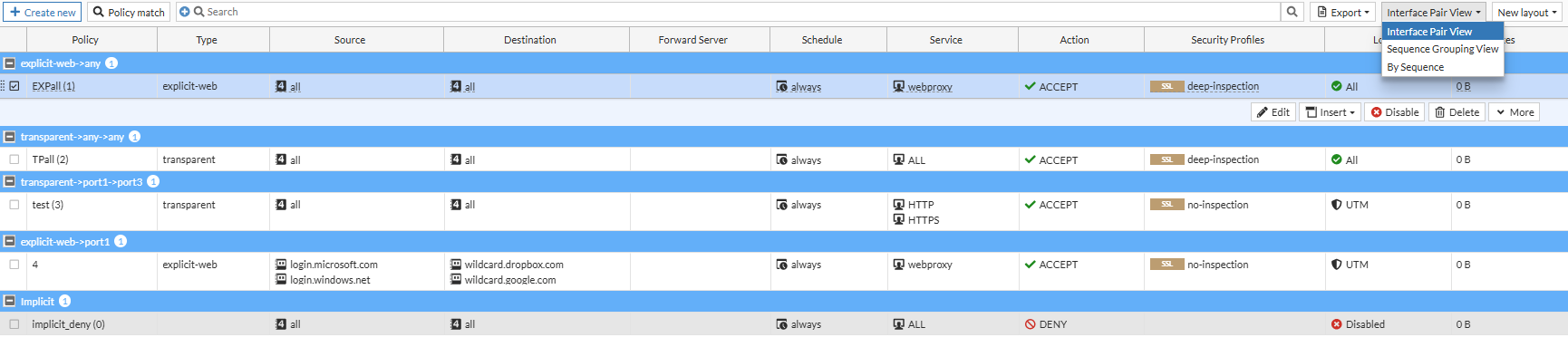
In Policy & Objects policy list pages, there are three policy views: Interface Pair View, Sequence Grouping View, and By Sequence. For large policy tables (thousands of policies), the By Sequence view will load the fastest.
Interface Pair View displays the policies in the order that they are checked for matching traffic, grouped by the pairs of incoming and outgoing interfaces in collapsible sections. The Interface Pair View can be used when a policy is configured with multiple interfaces. Right-click on any pair name and click Expand All or Collapse All to expand or collapse all of the pairs.
By Sequence displays policies in the order that they are checked for matching traffic without any grouping.

In By Sequence or Sequence Grouping View view, policies can be moved by their policy ID before or after another specified policy ID.
To move a policy by policy ID:
-
Go to Policy & Objects > Policy.
Make sure By Sequence or Sequence Grouping View is selected at the top-right corner.
-
Right-click the policy you want to move and select Move by ID.
The Move by ID pane is displayed.
-
Define the new location of the policy:
-
Select whether the policy should be moved Above or Below the policy ID you will define in the next step.
-
In the Destination policy ID field, enter the ID of the destination policy or select it from the dropdown menu.
-
-
If you do not want to automatically view the new location of the policy, disable Jump to policy after move. This feature is enabled by default.
-
Click OK.
The policy will be moved to the new location.
New layout for policies
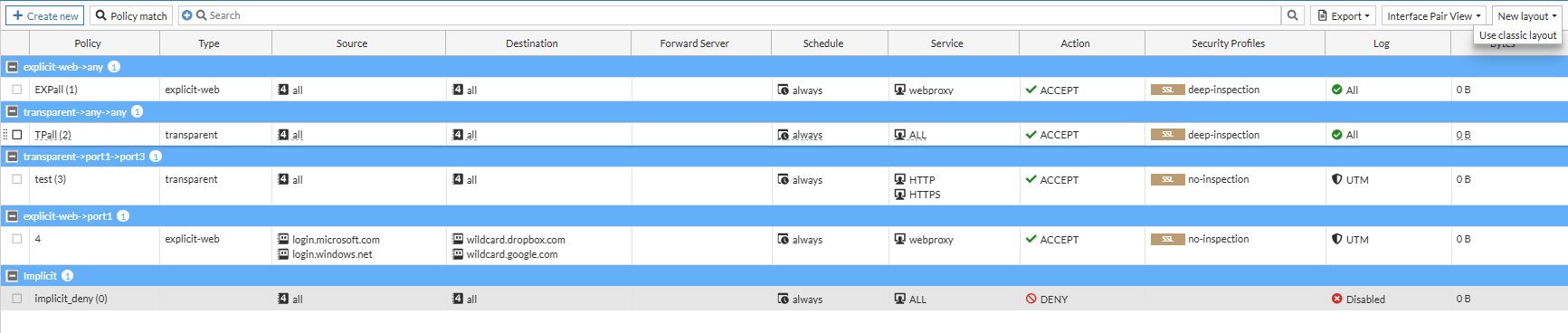
A new layout is available for the policy list with the option to alternate between the new layout and the old layout. To switch between the Classic layout and New layout, select the style from the dropdown menu.
To change from the classic layout to the new layout:
-
Go to Policy & Objects > Policy.
-
Select the Classic layout dropdown menu.
-
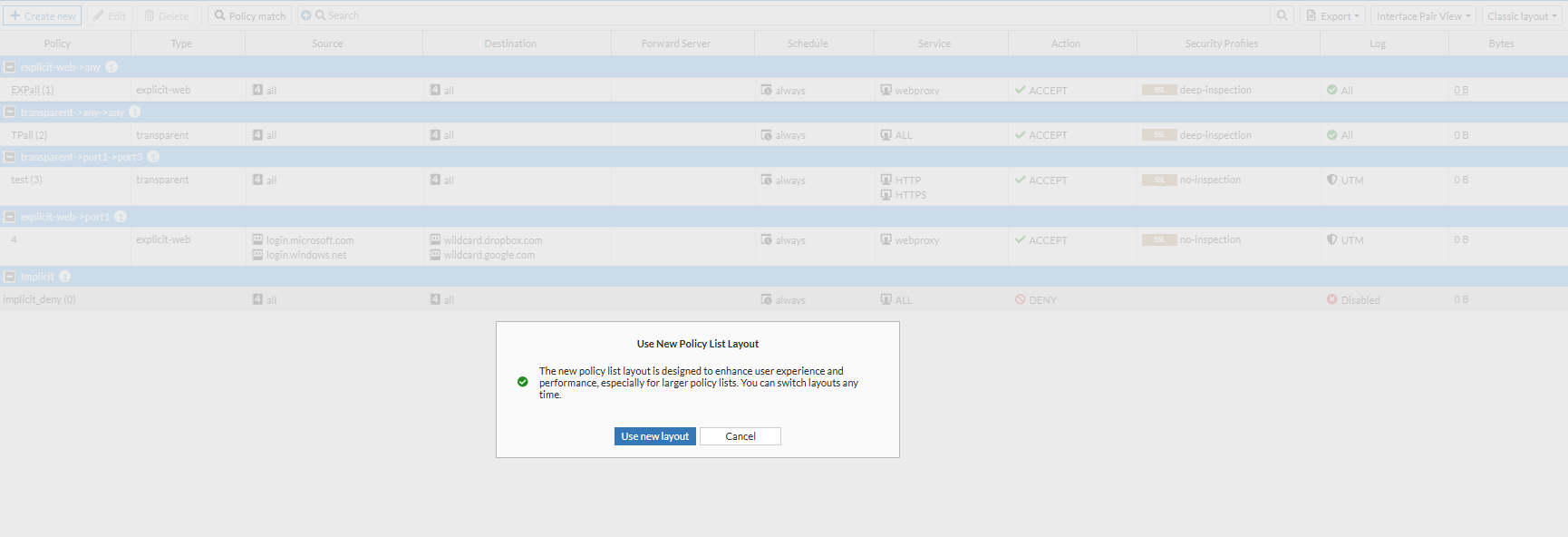
Select Use new layout. A confirmation message is displayed.
-
Click Use new layout. The new layout is displayed.

The New layout includes several features to enhance user experience when using the Policy & Objects > Policy page:
-
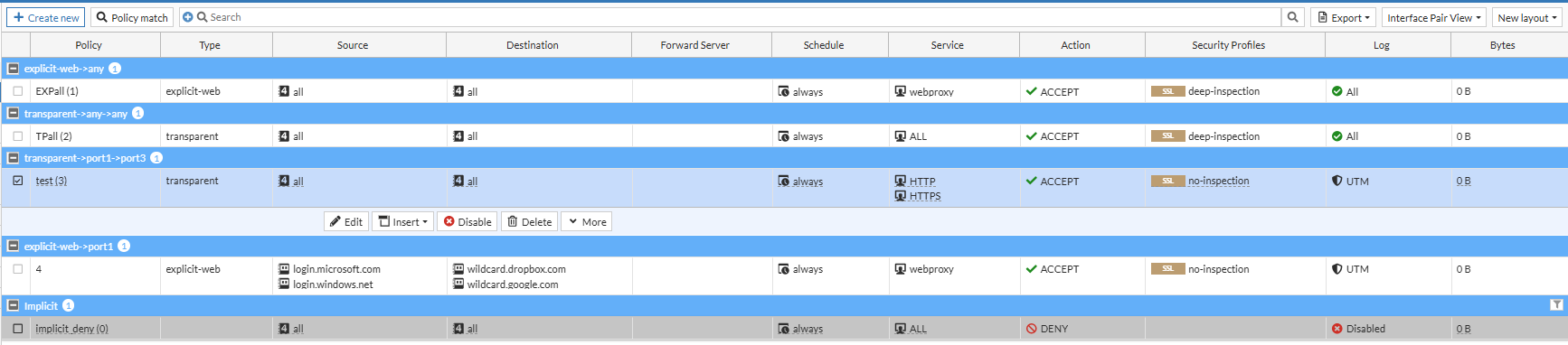
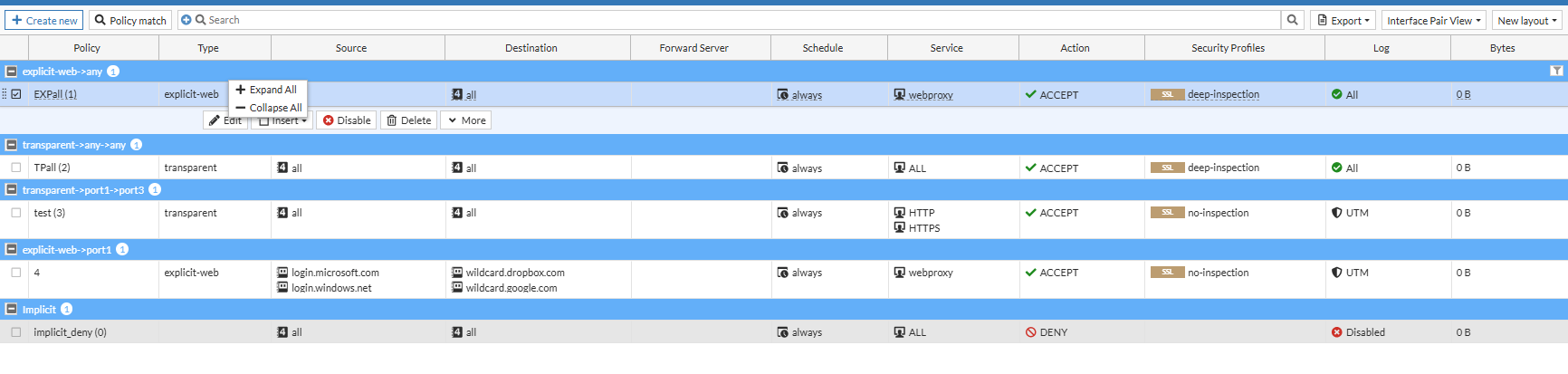
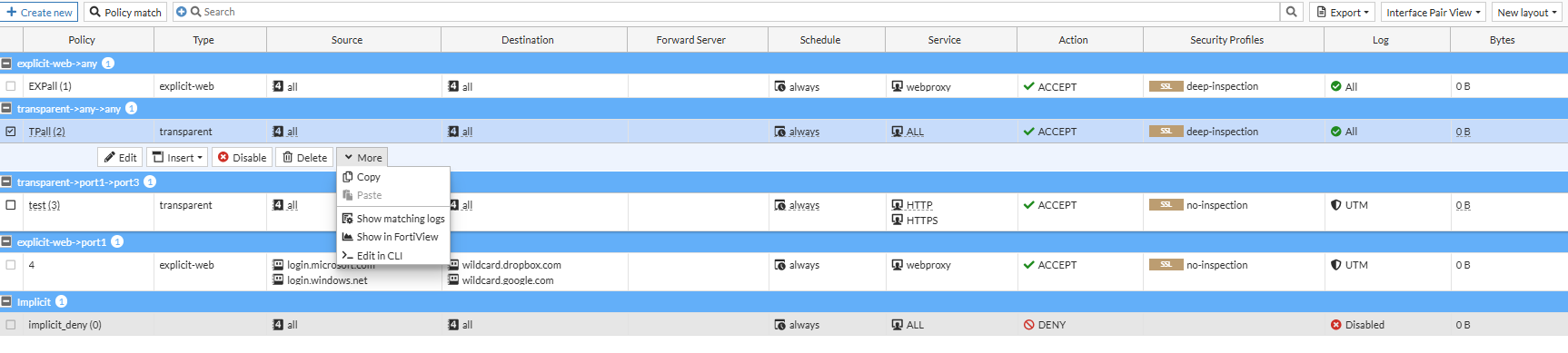
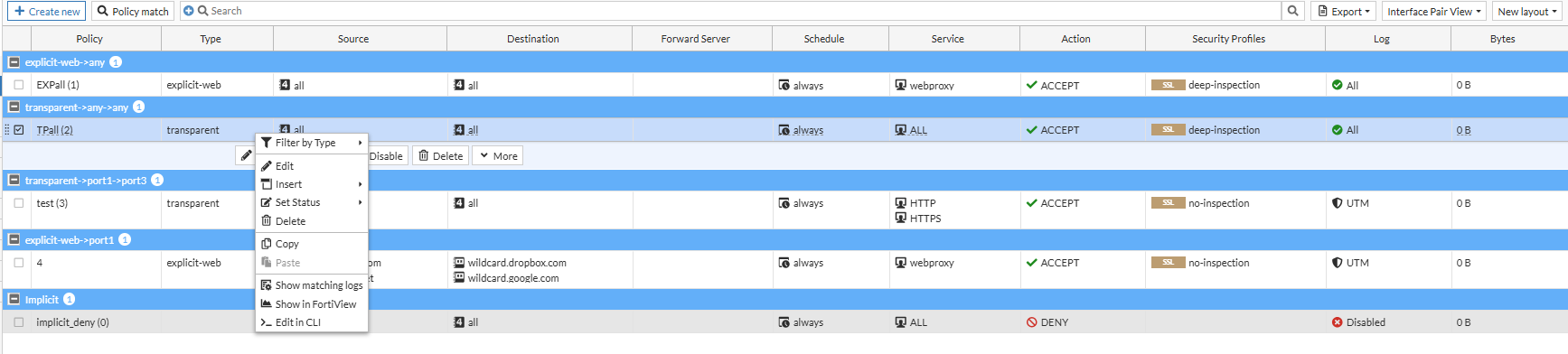
The create, edit, and delete buttons are identified through icons instead of words. Selecting a policy also displays an inline menu with options to edit, delete, insert policies, and the option to show more options.

-
Right-click in Interface Pair View to Expand All or Collapse All sections.
-
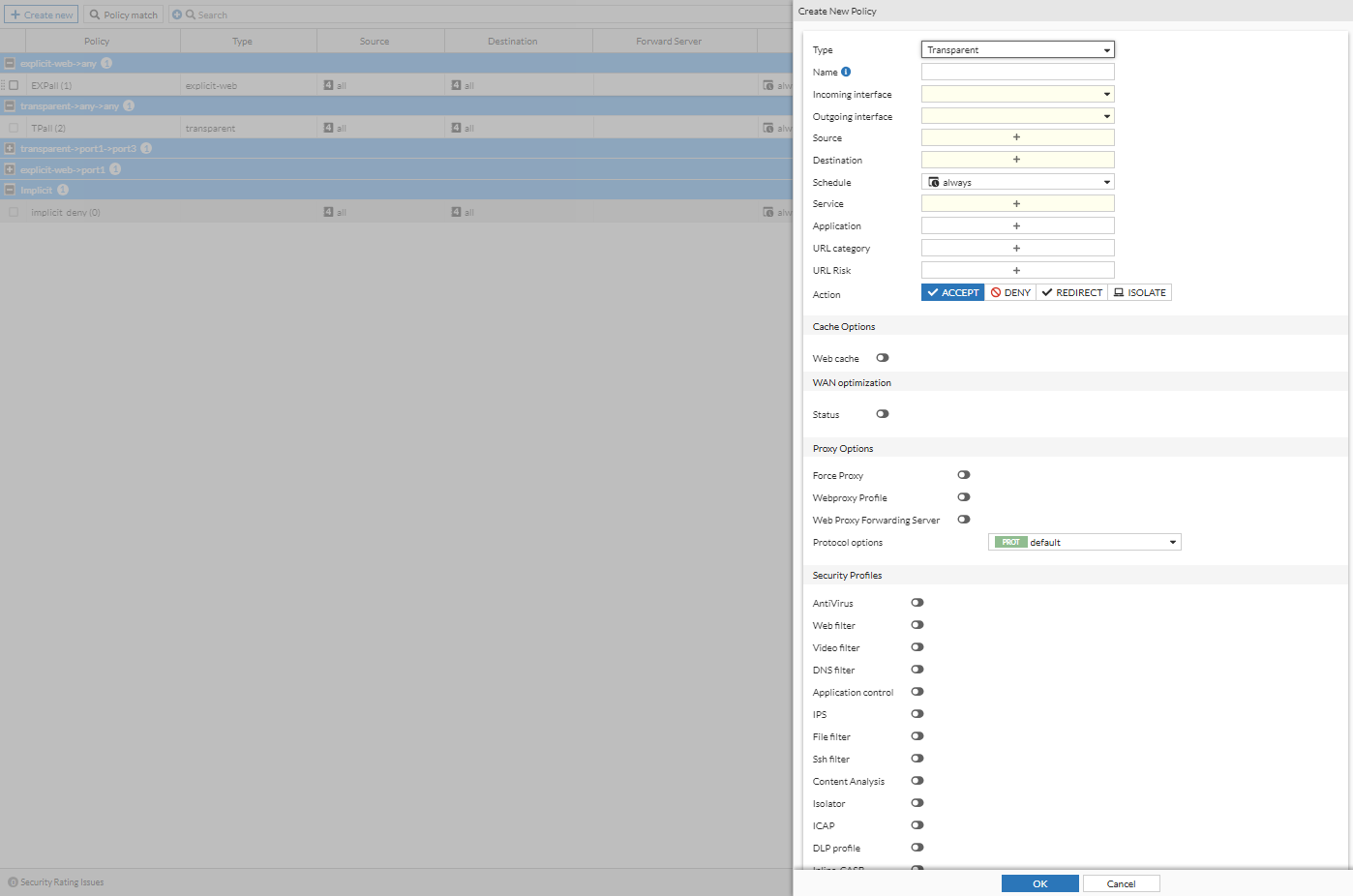
A pane is used to create, edit, and insert policies instead of a separate page.
-
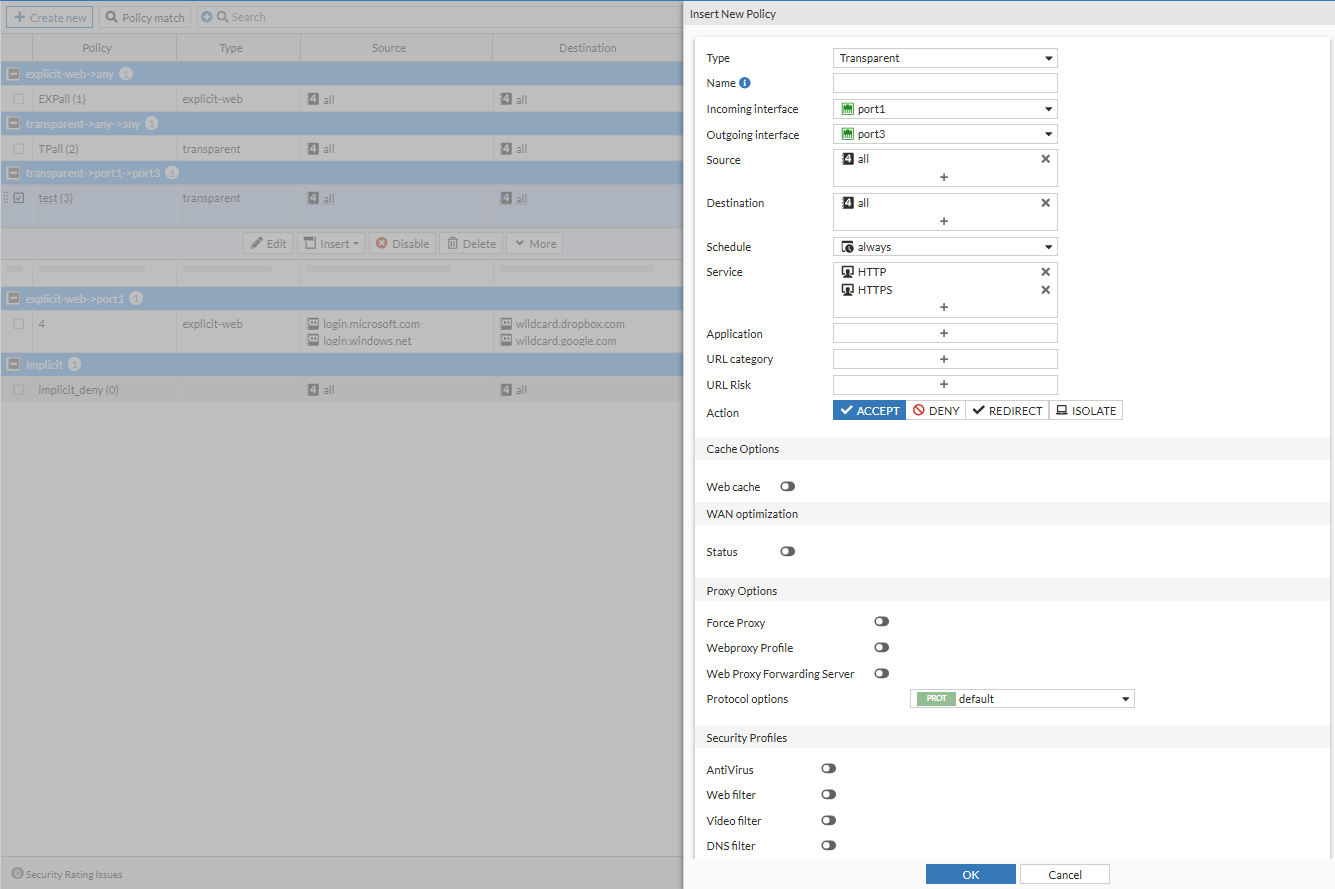
When a policy is inserted in Interface Pair View, the Incoming Interface and Destination Interface fields will be automatically filled. You can confirm the location of the new policy in the right-side gutter before clicking OK to insert the policy.
-
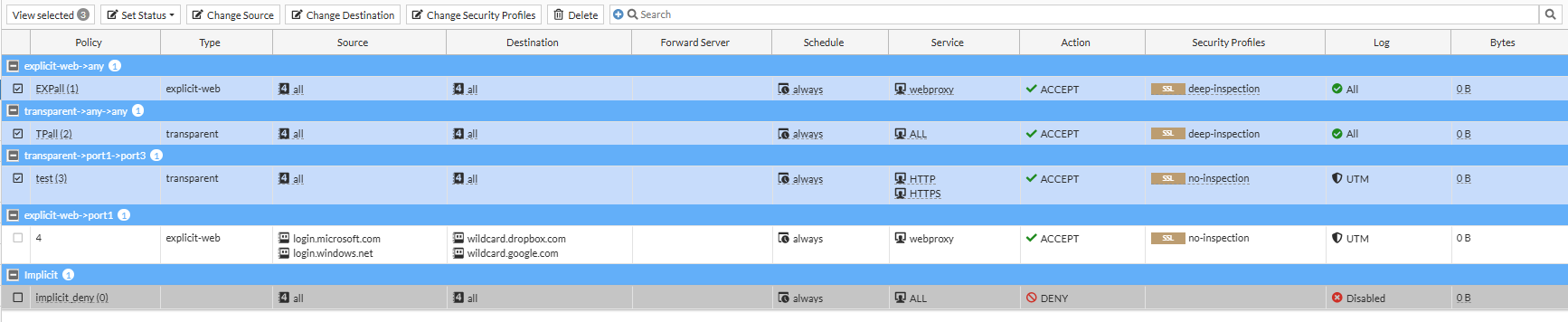
Multiple policies can be selected at once to efficiently work with a large number of policies.
-
When a single policy is selected, an inline menu opens below the row. The More dropdown menu includes the same expanded list of options that are available in the right-click menu.
-
When multiple policies are selected, the top menu bar changes to show buttons that are applicable to the multiple selections.

-
The view selector drop-down includes three options: Interface Pair View, Sequence Grouping View, and By Sequence. For large policy tables (thousands of policies), a tooltip will specify that the By Sequence view will load the fastest.