
Fortinet white logo
Fortinet white logo

Administration Guide

Download quarantined files in archive format

Download quarantined files in archive format

The FortiProxy can download quarantined files in an archive format (.TGZ) instead of the original raw file. This allows for a more detailed analysis of the quarantined files and reduces the risk of malware infection.

The FortiProxy must have a disk logging capacity or be connected to FortiAnalyzer for logging.

To download a quarantined archive file:
  1. Ensure that quarantining files is enabled in the AV profile.

    You can use the following commands to enable quarantine for specific protocols in the antivirus profile:

    config antivirus profile

    edit "default"

    set comment "Scan files and block viruses."

    config http

    set av-scan block

    set quarantine enable

    end

    Repeat this configuration for other protocols as needed (e.g., ftp, imap, pop3, smtp).

  2. Go to Log & Report > Security Events and select the AntiVirus card.

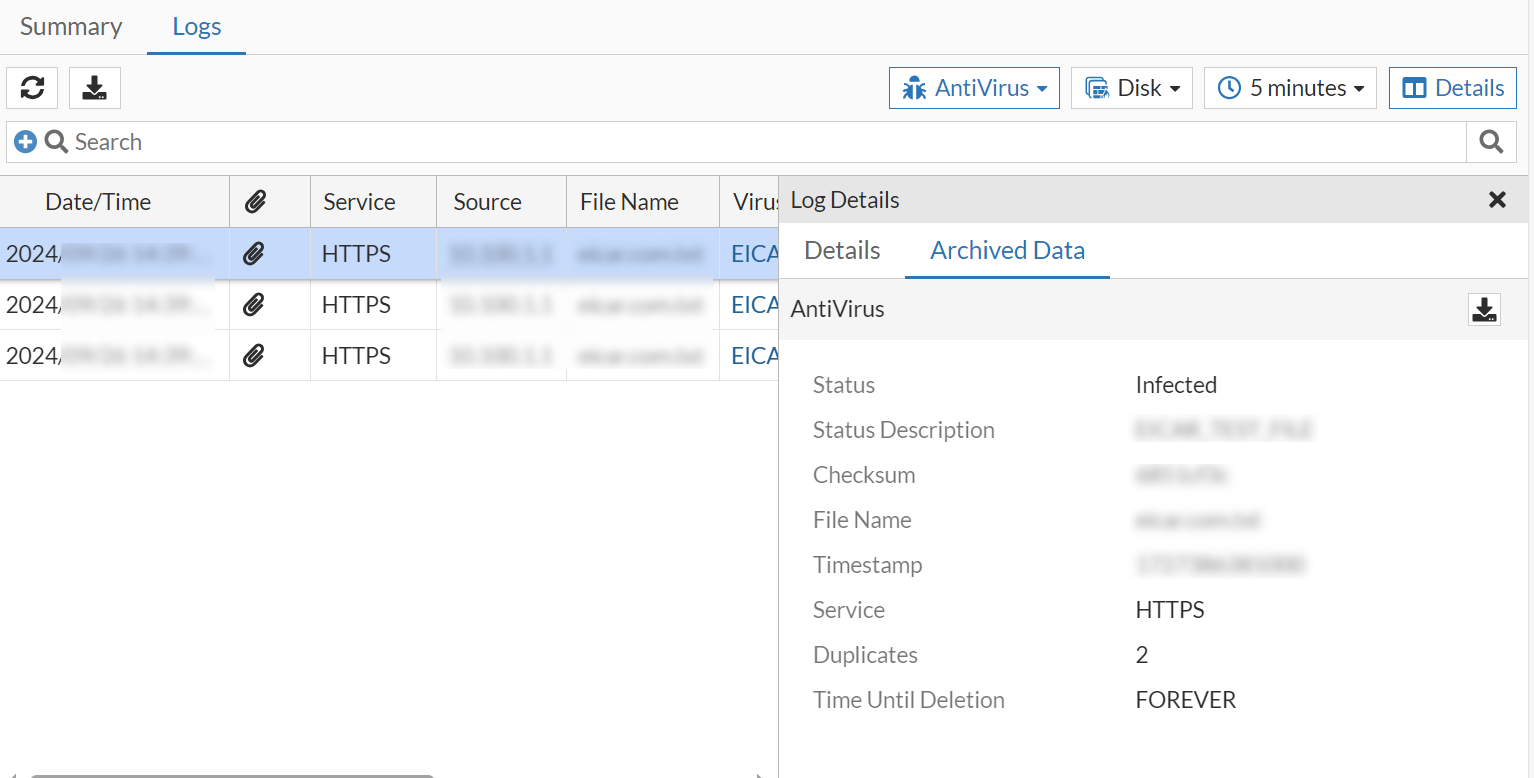
  3. Select a log entry and click Details. The Log Details pane opens.

  4. Select the Archived Data tab and click the download icon (in the AntiVirus title bar).
Download quarantined files in archive format

Download quarantined files in archive format

The FortiProxy can download quarantined files in an archive format (.TGZ) instead of the original raw file. This allows for a more detailed analysis of the quarantined files and reduces the risk of malware infection.

The FortiProxy must have a disk logging capacity or be connected to FortiAnalyzer for logging.

To download a quarantined archive file:
  1. Ensure that quarantining files is enabled in the AV profile.

    You can use the following commands to enable quarantine for specific protocols in the antivirus profile:

    config antivirus profile

    edit "default"

    set comment "Scan files and block viruses."

    config http

    set av-scan block

    set quarantine enable

    end

    Repeat this configuration for other protocols as needed (e.g., ftp, imap, pop3, smtp).

  2. Go to Log & Report > Security Events and select the AntiVirus card.

  3. Select a log entry and click Details. The Log Details pane opens.

  4. Select the Archived Data tab and click the download icon (in the AntiVirus title bar).