

Filtering reports
Reports can by filtered by date range, keywords, categories of filters, and relevance to your organization.
To filter reports:
- Go to Adversary Centric Intelligence > Reports.
- Filter reports by a date range:
- Click Filter Report by Date Range. Two calendars are displayed.
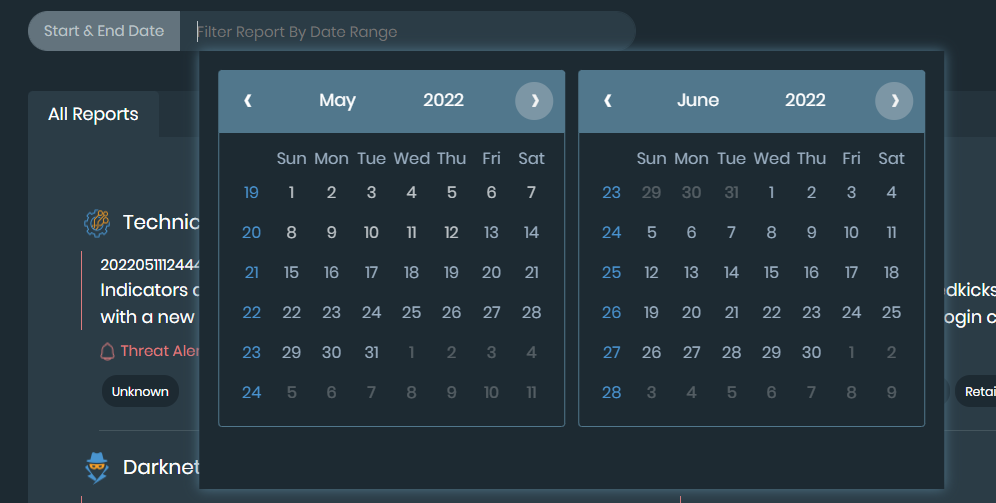
- In the left calendar, select a month, year, and day to specify the start date of the range.
- In the right calendar, select a month, year, and day to specify the end date of the range.
Only reports from the date range are displayed.
- Click the Filter Report by Date Range box, and click X to remove the date range filter.
- Click Filter Report by Date Range. Two calendars are displayed.
- Search for keywords:
- In the Type and hit Enter to Search box, type a keyword, and press Enter.
The reports are filtered to display only reports with the keyword.
- Click the X beside the keyword to remove the filter.
- In the Type and hit Enter to Search box, type a keyword, and press Enter.
- Filter reports by categories:
- On the right side, click the Filters button. The following filter categories are displayed:

Target Industry
Motivation & Tags
Actors
Target Geography
Category
Report Type
- Under the Target Industry, Motivation & Tags, Actors, and Target Geography categories, click Filter <category name>, and select one or more filters.
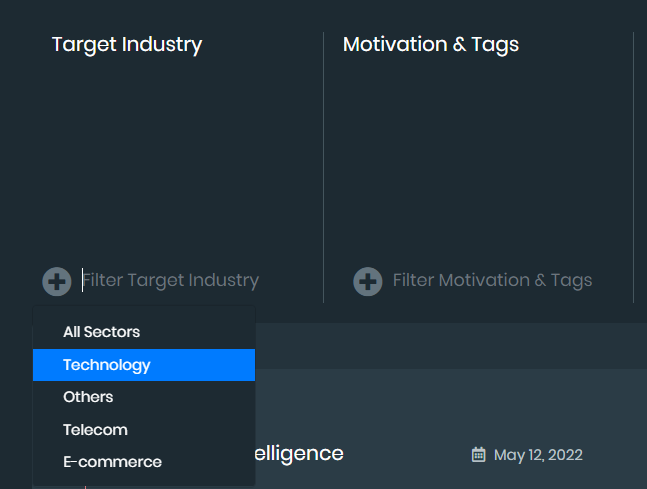
- Under Category and Report Types, select checkboxes to enable the filters, and clear checkboxes to disable filters.
- Under Report Type > Relevance, click High, Medium, and/or Low to enable the filters, and clear the filters to disable them.
- On the right side, click the Filters button. The following filter categories are displayed: