
Fortinet white logo
Fortinet white logo

User Guide

Viewing and filtering CVE reports

Viewing and filtering CVE reports

You can review detailed CVE reports in the ACI > Vulnerability Intelligence page by:

  • Selecting the CVE ID from the Vulnerability exposure > CVEs from EASM Module and CVEs added Manually tabs.

  • Selecting the CVE ID from the Global notable vulnerabilities > Top 10 Notable CVEs.

  • Filtering the vendor reports from Vulnerability exposure > Top 10 vendor by CVEs or Global notable vulnerabilities > Top 5 vendor by CVEs.

  • Filtering all reports with the Show More button.

To filter reports:
  1. Go to ACI > Vulnerability Intelligence.

  2. Select a Vendor Name or the Show More button. The CVE cards page is displayed.
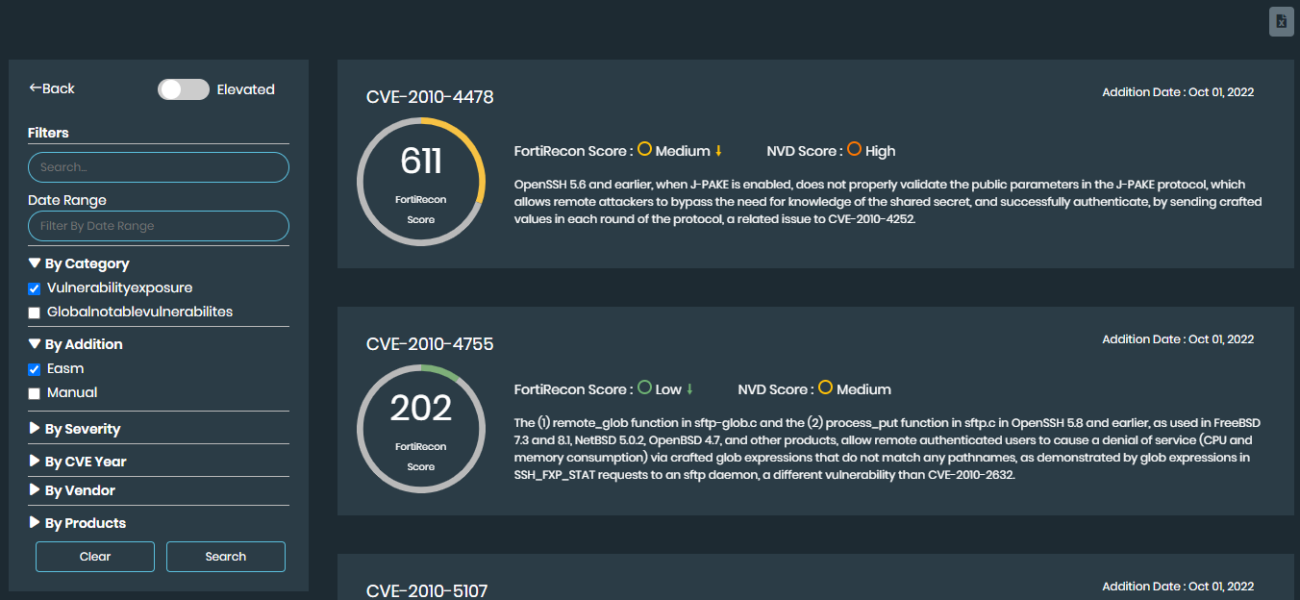
  3. Filter information by a date range:
    1. Click Date Range. Two calendars are displayed.
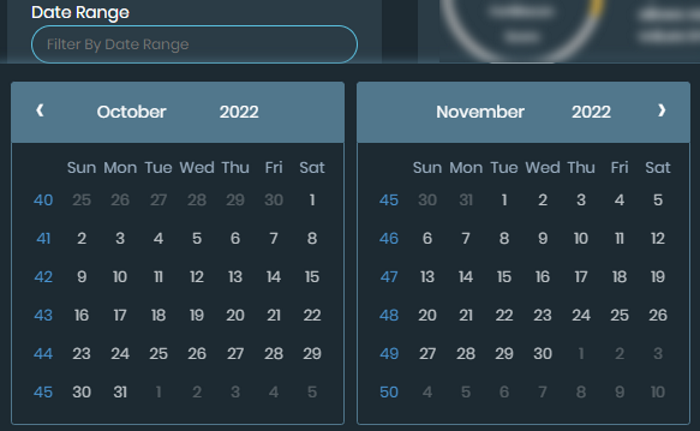
    2. In the left calendar, select a month, year, and day to specify the start date of the range.
    3. In the right calendar, select a month, year, and day to specify the end date of the range.
    4. Click the X to remove the date range filter.
  4. Search for keywords:
    1. In the Search box, type a keyword.
  5. Enable Elevated to search for CVEs that have had the severity increased.
  6. Filter reports by information:
    1. Select the information dropdown menus:
      • By Category

      • By Addition

      • By Severity

      • By CVE Year
      • By Vendor

      • By Products

    2. Select one or more filters.
  7. Click Search. The CVE reports that match the filters are displayed.
  8. Select the CVE ID to view the full, detailed report.

Viewing and filtering CVE reports

Viewing and filtering CVE reports

You can review detailed CVE reports in the ACI > Vulnerability Intelligence page by:

  • Selecting the CVE ID from the Vulnerability exposure > CVEs from EASM Module and CVEs added Manually tabs.

  • Selecting the CVE ID from the Global notable vulnerabilities > Top 10 Notable CVEs.

  • Filtering the vendor reports from Vulnerability exposure > Top 10 vendor by CVEs or Global notable vulnerabilities > Top 5 vendor by CVEs.

  • Filtering all reports with the Show More button.

To filter reports:
  1. Go to ACI > Vulnerability Intelligence.

  2. Select a Vendor Name or the Show More button. The CVE cards page is displayed.

  3. Filter information by a date range:
    1. Click Date Range. Two calendars are displayed.

    2. In the left calendar, select a month, year, and day to specify the start date of the range.
    3. In the right calendar, select a month, year, and day to specify the end date of the range.
    4. Click the X to remove the date range filter.
  4. Search for keywords:
    1. In the Search box, type a keyword.
  5. Enable Elevated to search for CVEs that have had the severity increased.
  6. Filter reports by information:
    1. Select the information dropdown menus:
      • By Category

      • By Addition

      • By Severity

      • By CVE Year
      • By Vendor

      • By Products

    2. Select one or more filters.
  7. Click Search. The CVE reports that match the filters are displayed.
  8. Select the CVE ID to view the full, detailed report.