Fortinet white logo
Fortinet white logo

User Guide

Setup the Organization

Setup the Organization

The first step for creating an Organization requires the root account user to create the Organization and define the Organization hierarchy with OUs.

When you create an Organization your account becomes the Root Account for the organization. Users with the proper permissions can add Organizational Units (OU) and invite members to join the organization.

Note

To create an organization in FortiCare, the FortiCare account must have a FortiCloud Premium subscription.

Enabling Organization Portal

To access Organization Portal in FortiCare, perform the following steps:

  1. Log in to https://support.fortinet.com/ using your FortiCare account with a premium subscription.

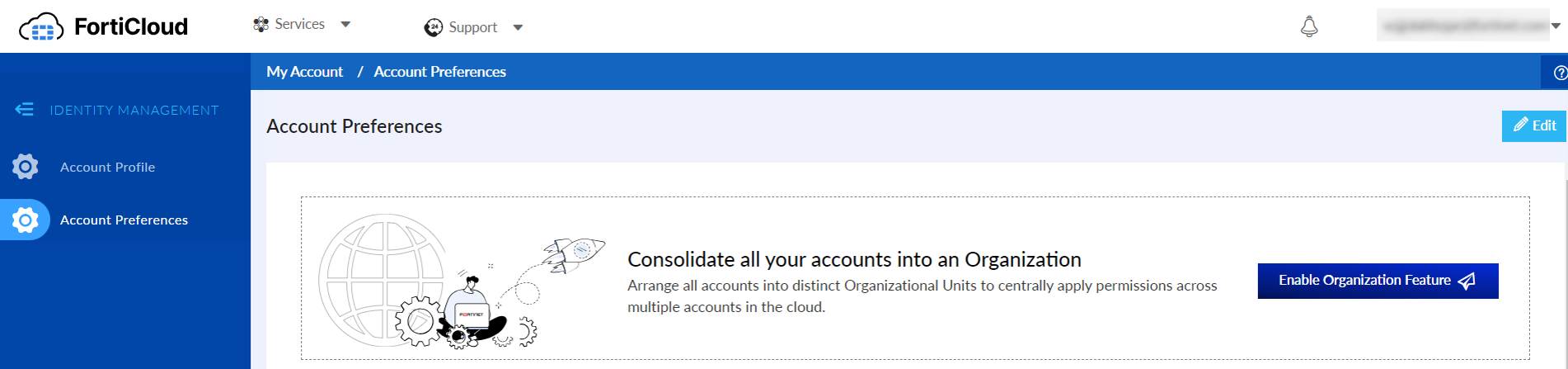
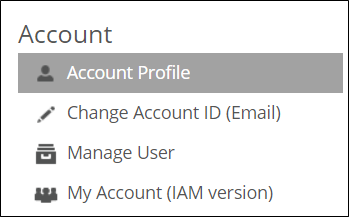
  2. From the profile menu, select My Account.

  3. In the My Account page, click My Account (IAM Version).
  4. Navigate to Account Preferences.

  5. Click Enable Organization Feature.

Creating an Organization

To create an organization, perform the following steps:

  1. Ensure that you have enabled Organization Portal in FortiCare. See Enabling Organization Portal.

  2. In the Organization Portal, click Create Organization. The Master Account page opens.
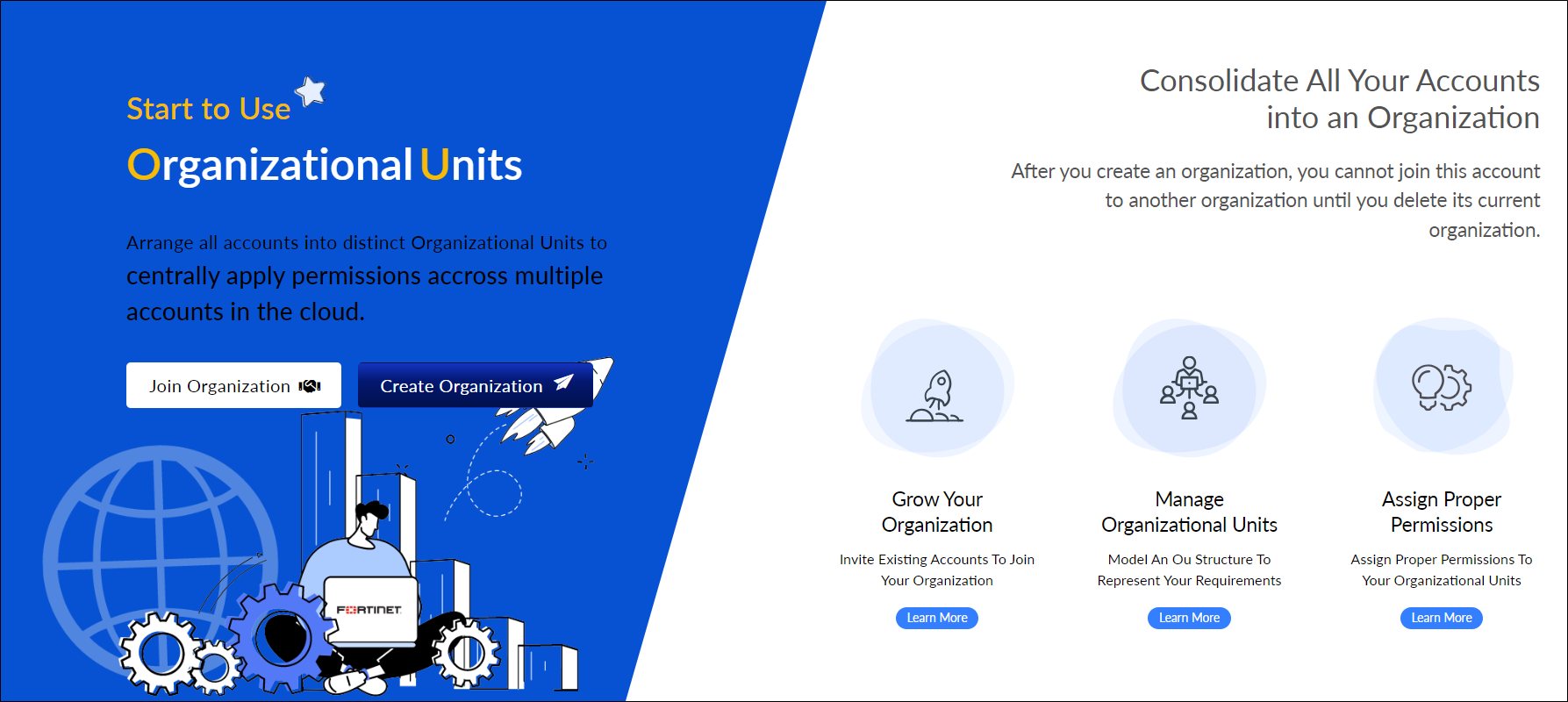
  3. Click Next. The Set up Organization page opens.

  4. Provide the required information:

    Input Organization Info Select this option to create your organization with the GUI.
    Upload Organization Structure Select this option to create the organization and Organizational Units with an Excel sheet. See To create an organization with the Bulk Import template.
    Organization Name Enter a name for the organization.

    Description

    Enter a brief description of the organization.
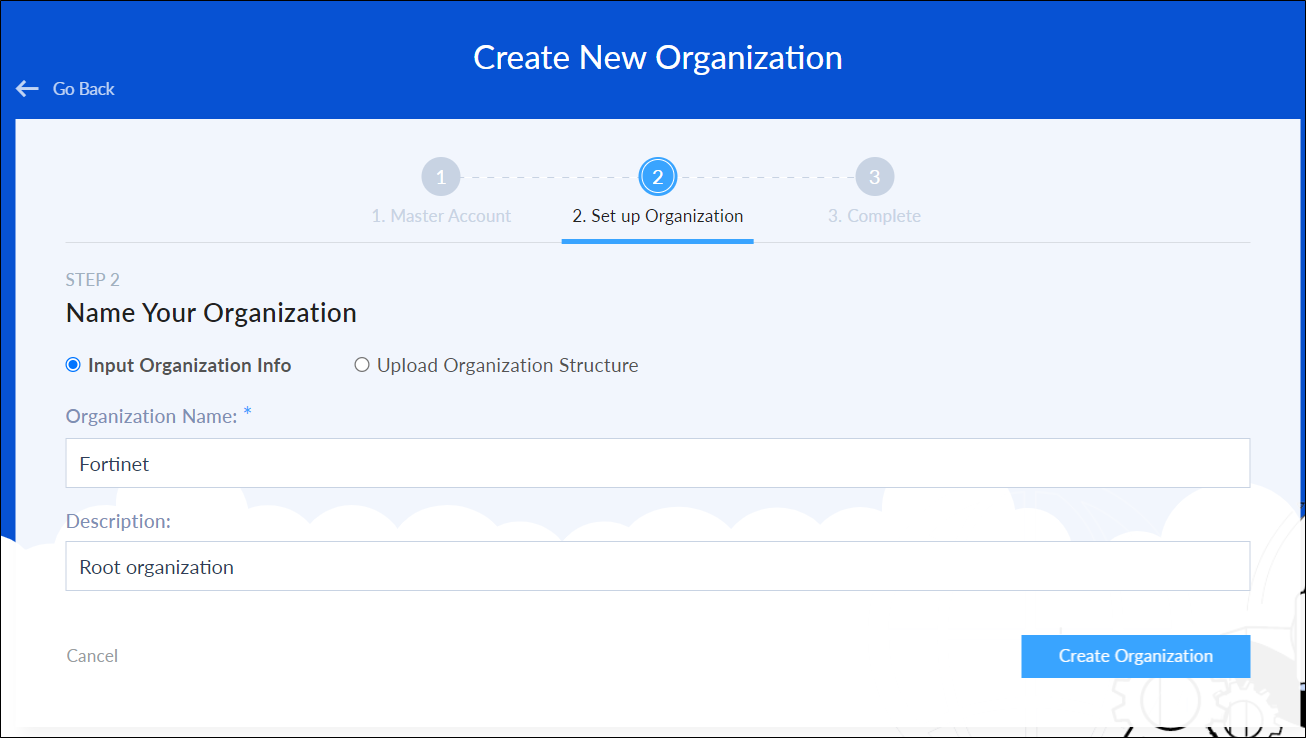
  5. Click Create Organization. The Complete page opens.

  6. Click Close & Go To General. The General page opens.

To create an organization with the Bulk Import template:

  1. On the Set up Organization page, click Upload Organization Structure.

  2. Download the Bulk Import template.

  3. Use the template instructions to enter the OU information and create the organization hierarchy.

  4. After you have completed the template, click Organization Structure File Upload, and upload the file.

  5. Click Confirm.

Adding and deleting OUs

Organizational Units (OU) are folders for organizing your accounts. FortiRecon supports only one level of Organization Unit (OU) structure. After the OU is created, you can edit the organization details, or delete it.

To create an Organizational Unit:

  1. In the navigation menu, hover over the Organization name and click the gear icon.

  2. Click Add a SubOU. The Add a SubOU to <org_name> dialog opens.
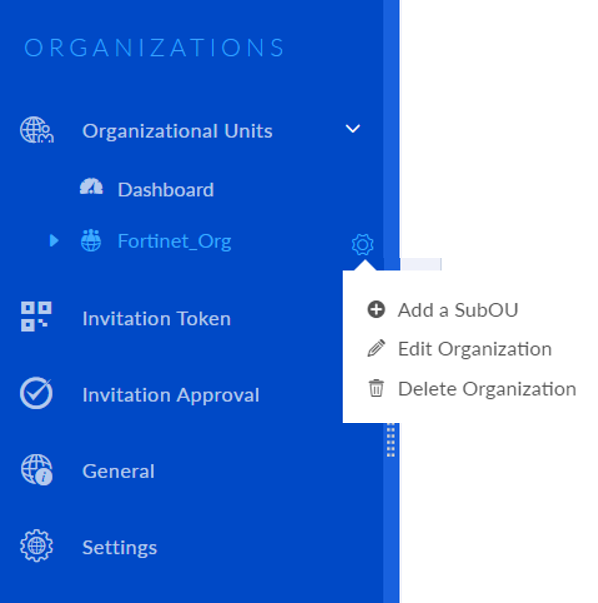
  3. Enter the OU Name and OU Description, then click Confirm. The unit is added to the organization.

To delete an Organizational Unit:

  1. Hover over the OU name and click the gear icon.

  2. Click Delete OU. The Confirm to delete this organizational unit dialog opens.

  3. Accept the terms of the deletion and click Confirm.

To edit an Organization's details:

  1. Hover over the Organization name and click the gear icon.

  2. Click Edit Organization or Edit OU. The Edit <OU_name> dialog opens.

  3. Update the OU Name and OU Description, and click Confirm.

Setup the Organization

Setup the Organization

The first step for creating an Organization requires the root account user to create the Organization and define the Organization hierarchy with OUs.

When you create an Organization your account becomes the Root Account for the organization. Users with the proper permissions can add Organizational Units (OU) and invite members to join the organization.

Note

To create an organization in FortiCare, the FortiCare account must have a FortiCloud Premium subscription.

Enabling Organization Portal

To access Organization Portal in FortiCare, perform the following steps:

  1. Log in to https://support.fortinet.com/ using your FortiCare account with a premium subscription.

  2. From the profile menu, select My Account.

  3. In the My Account page, click My Account (IAM Version).

  4. Navigate to Account Preferences.

  5. Click Enable Organization Feature.

Creating an Organization

To create an organization, perform the following steps:

  1. Ensure that you have enabled Organization Portal in FortiCare. See Enabling Organization Portal.

  2. In the Organization Portal, click Create Organization. The Master Account page opens.

  3. Click Next. The Set up Organization page opens.

  4. Provide the required information:

    Input Organization Info Select this option to create your organization with the GUI.
    Upload Organization Structure Select this option to create the organization and Organizational Units with an Excel sheet. See To create an organization with the Bulk Import template.
    Organization Name Enter a name for the organization.

    Description

    Enter a brief description of the organization.

  5. Click Create Organization. The Complete page opens.

  6. Click Close & Go To General. The General page opens.

To create an organization with the Bulk Import template:

  1. On the Set up Organization page, click Upload Organization Structure.

  2. Download the Bulk Import template.

  3. Use the template instructions to enter the OU information and create the organization hierarchy.

  4. After you have completed the template, click Organization Structure File Upload, and upload the file.

  5. Click Confirm.

Adding and deleting OUs

Organizational Units (OU) are folders for organizing your accounts. FortiRecon supports only one level of Organization Unit (OU) structure. After the OU is created, you can edit the organization details, or delete it.

To create an Organizational Unit:

  1. In the navigation menu, hover over the Organization name and click the gear icon.

  2. Click Add a SubOU. The Add a SubOU to <org_name> dialog opens.

  3. Enter the OU Name and OU Description, then click Confirm. The unit is added to the organization.

To delete an Organizational Unit:

  1. Hover over the OU name and click the gear icon.

  2. Click Delete OU. The Confirm to delete this organizational unit dialog opens.

  3. Accept the terms of the deletion and click Confirm.

To edit an Organization's details:

  1. Hover over the Organization name and click the gear icon.

  2. Click Edit Organization or Edit OU. The Edit <OU_name> dialog opens.

  3. Update the OU Name and OU Description, and click Confirm.