
Fortinet white logo
Fortinet white logo

User Guide

Subscribing to event notifications

Subscribing to event notifications

You can enable subscriptions to receive notifications for one or more threat events. You can also change subscriptions and unsubscribe.

To subscribe to event notifications:
  1. Go to Adversary Centric Intelligence > OSINT - Cyber Threats. The list of events is displayed.
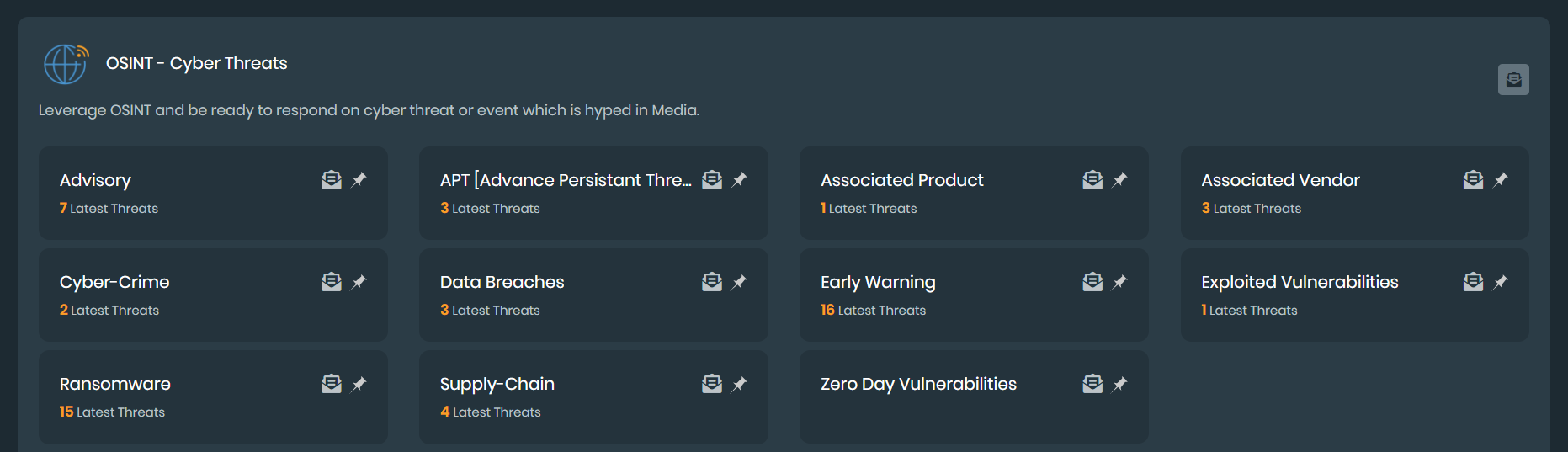
  2. For an event, click the Subscribe icon. The subscription options are displayed for the event.

    In the following example, subscription options are displayed for the Advisory event:
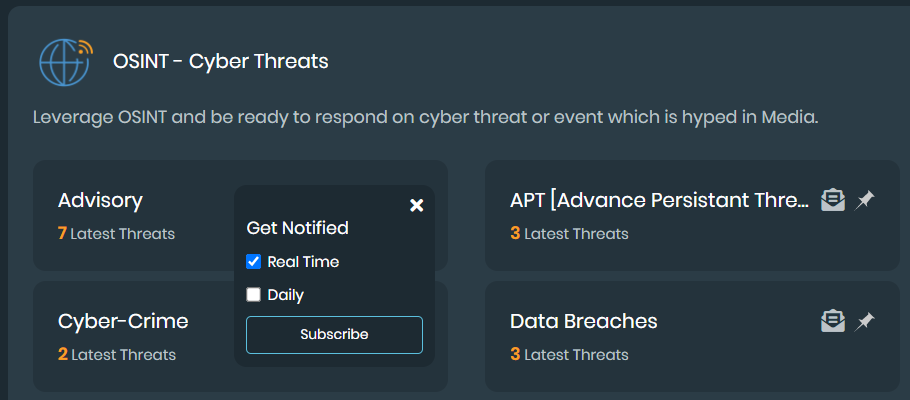
  3. Select one of the following options to specify when to receive the notification:

    Real timeSelect to receive a notification when a new threat event is published.
    DailySelect to specify the time each day to receive a notification about new threat events.
  4. Click Subscribe.

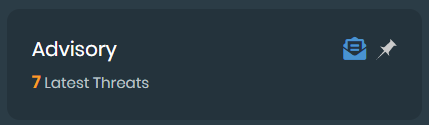
    The Subscribe icon turns blue.
To change event notifications:
  1. Go to Adversary Centric Intelligence > OSINT - Cyber Threats. The list of events is displayed.
  2. Click a blue Subscribe icon. The subscription options are displayed.

  3. Change when you get notified, and click Update.
To unsubscribe from event notifications:
  1. Go to Adversary Centric Intelligence > OSINT - Cyber Threats. The list of events is displayed.
  2. Click a blue Subscribe icon. The subscription options are displayed.
  3. Click Unsubscribe.

    The Subscribe icon turns white, and notifications are turned off.

Subscribing to event notifications

Subscribing to event notifications

You can enable subscriptions to receive notifications for one or more threat events. You can also change subscriptions and unsubscribe.

To subscribe to event notifications:
  1. Go to Adversary Centric Intelligence > OSINT - Cyber Threats. The list of events is displayed.

  2. For an event, click the Subscribe icon. The subscription options are displayed for the event.

    In the following example, subscription options are displayed for the Advisory event:

  3. Select one of the following options to specify when to receive the notification:

    Real timeSelect to receive a notification when a new threat event is published.
    DailySelect to specify the time each day to receive a notification about new threat events.
  4. Click Subscribe.

    The Subscribe icon turns blue.

To change event notifications:
  1. Go to Adversary Centric Intelligence > OSINT - Cyber Threats. The list of events is displayed.
  2. Click a blue Subscribe icon. The subscription options are displayed.

  3. Change when you get notified, and click Update.
To unsubscribe from event notifications:
  1. Go to Adversary Centric Intelligence > OSINT - Cyber Threats. The list of events is displayed.
  2. Click a blue Subscribe icon. The subscription options are displayed.
  3. Click Unsubscribe.

    The Subscribe icon turns white, and notifications are turned off.