
Fortinet white logo
Fortinet white logo

User Guide

Adding assets to a tag

Adding assets to a tag

You can add individual or bulk assets to a tag from the Tag Management tab. You can also add assets to tags by creating tagging rules.

Note
  • Assets must be included in Attack Surface Management > Asset Discovery before they can be tagged.

  • Tags can also be assigned to assets in Attack Surface Management > Asset Discovery. See Assigning tags.

To add assets to a tag:
  1. Go to Attack Surface Management > Asset Management.

  2. Select IASM toggle.

  3. Select the Tag Management tab.

  4. Locate the tag you want to add assets to and click Settings icon. A dropdown menu is displayed.
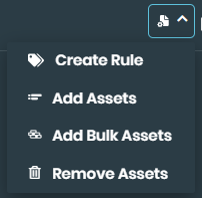
  5. Select Add Assets.

  6. Select the assets to add from the Validated Assets list.

  7. Select Propagate the tag to asset to apply tags to the asset associations. Select the i icon for more information.

  8. Click the right arrow. The selected assets will be moved into the tag field.

  9. Click Save.

To add bulk assets to a tag:
  1. Go to Attack Surface Management > Asset Management.

  2. Select IASM toggle.

  3. Select the Tag Management tab.

  4. Locate the tag you want to add assets to and click Settings icon. A dropdown menu is displayed.

  5. Select Add Bulk Assets.

  6. Enter the asset information in the left field.

  7. Select Propagate the tag to asset to apply tags to the asset associations. Select the i icon for more information.

  8. Click Validate. Once validated, assets are displayed in the right field. Any assets that failed validation are listed.

  9. Click Save.

Adding assets to a tag

Adding assets to a tag

You can add individual or bulk assets to a tag from the Tag Management tab. You can also add assets to tags by creating tagging rules.

Note
  • Assets must be included in Attack Surface Management > Asset Discovery before they can be tagged.

  • Tags can also be assigned to assets in Attack Surface Management > Asset Discovery. See Assigning tags.

To add assets to a tag:
  1. Go to Attack Surface Management > Asset Management.

  2. Select IASM toggle.

  3. Select the Tag Management tab.

  4. Locate the tag you want to add assets to and click Settings icon. A dropdown menu is displayed.

  5. Select Add Assets.

  6. Select the assets to add from the Validated Assets list.

  7. Select Propagate the tag to asset to apply tags to the asset associations. Select the i icon for more information.

  8. Click the right arrow. The selected assets will be moved into the tag field.

  9. Click Save.

To add bulk assets to a tag:
  1. Go to Attack Surface Management > Asset Management.

  2. Select IASM toggle.

  3. Select the Tag Management tab.

  4. Locate the tag you want to add assets to and click Settings icon. A dropdown menu is displayed.

  5. Select Add Bulk Assets.

  6. Enter the asset information in the left field.

  7. Select Propagate the tag to asset to apply tags to the asset associations. Select the i icon for more information.

  8. Click Validate. Once validated, assets are displayed in the right field. Any assets that failed validation are listed.

  9. Click Save.