

Managing keywords
You can add a custom rule to match keywords against the discovered domains, sub domains and IPs.
To add a keyword rule:
-
Go to Brand Protection > Code Repo Exposure.
-
Click Keyword Watchlist.
-
Click + icon.
-
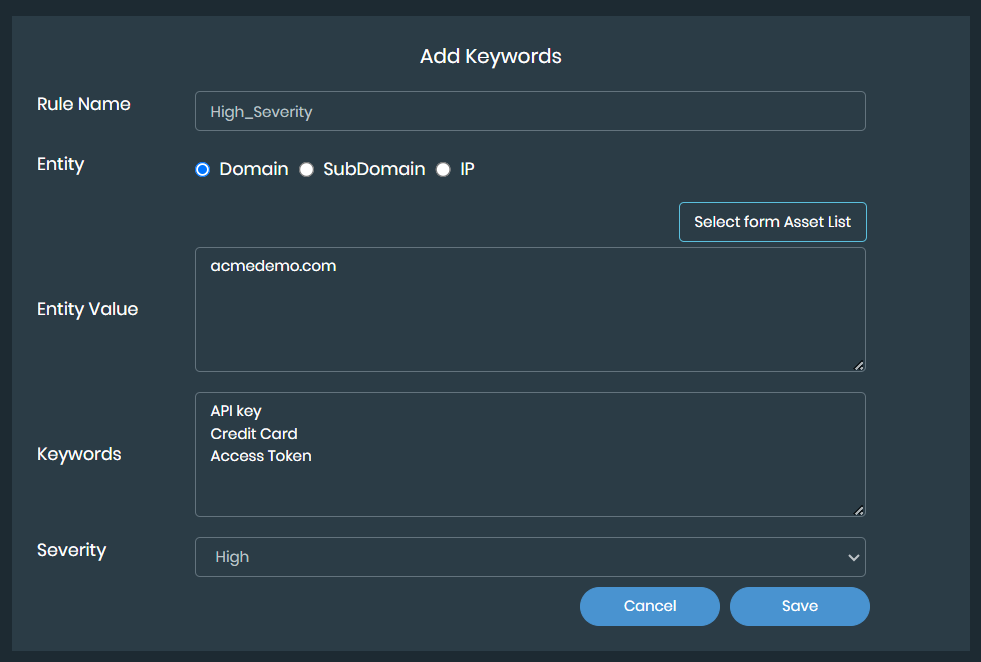
In the Add Keywords pop-up, enter the following information and click Add.
-
Rule Name: Enter a name for the rule.
-
Entity: Select the type of entity.
-
Entity Value: Based on the entity type selected, you can either enter entity values or select the required entities from the Select from Asset List. The Select from Asset List contains a list of assets discovered by the EASM module. You can add multiple entities separated by a comma or by adding each entity in a new line.
-
Keywords: Enter the required keywords. You can add multiple keywords separated by a comma or by adding each keyword in a new line.
-
Severity: Select the severity level from the dropdown.

You can only add multiple keywords with a single entity, or vice versa. You cannot add both multiple keywords and multiple entities together.
-
To delete a keyword rule:
-
Go to Brand Protection > Code Repo Exposure.
-
Click Keyword Watchlist.
-
Optionally, search for the specific keyword using the search bar.
-
Click Delete icon next to the desired keyword rule.
-
To bulk delete all the rules, select the checkbox in the header. Once all the keywords are selected, click Delete icon next to search bar.

To edit a keyword rule:
-
Go to Brand Protection > Code Repo Exposure.
-
Click Keyword Watchlist.
-
Optionally, search for the specific keyword using the search bar.
-
Click Edit icon next to the desired keyword rule.
-
Update the details and click Update. You can update Rule Name and Severity fields only.