
Fortinet white logo
Fortinet white logo

User Guide

Viewing reports

Viewing reports

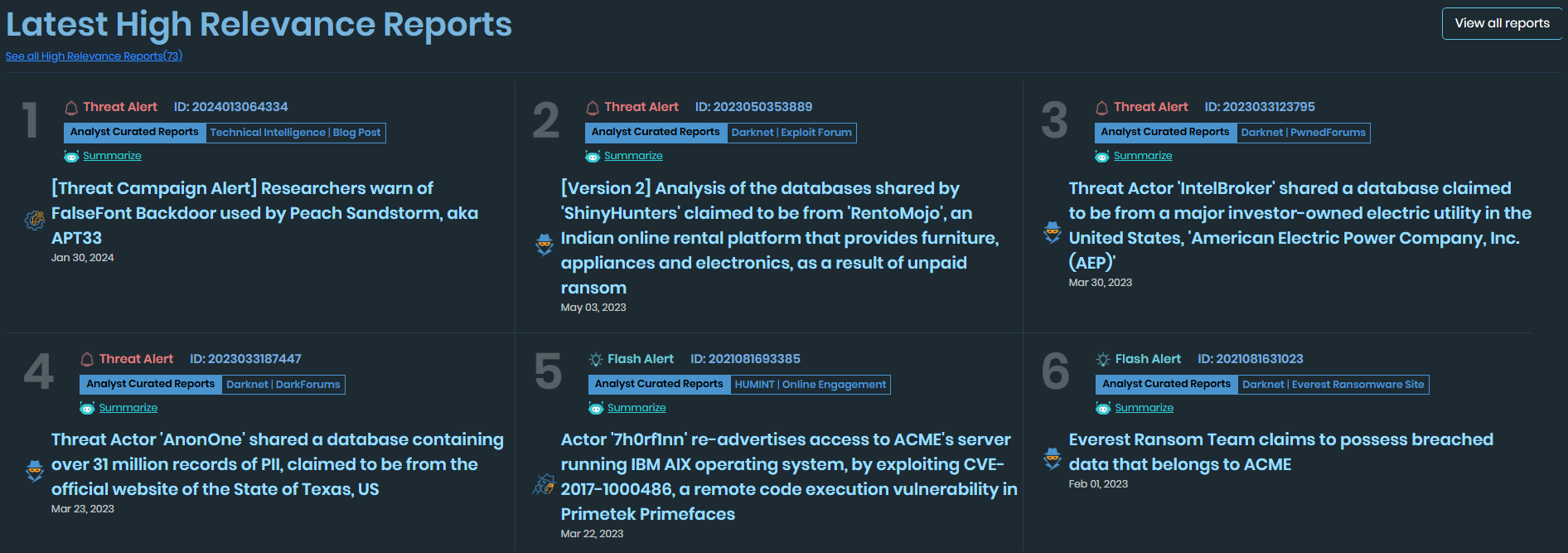
The Adversary Centric Intelligence > Reports page displays a list of threat intelligence reports. By default, the top six high-relevance reports are shown.

You can filter the list of reports, and search the list of reports using a keyword. See Filtering reports.

To view high relevance reports:
  1. Go to Adversary Centric Intelligence > Reports .

  2. The top six high-relevance reports are displayed, if available.

  3. Click a report title to view its details in the right pane.

  4. Click See all High Relevance Reports. All high-relevance reports will be displayed.
To view all reports:
  1. Go to Adversary Centric Intelligence > Reports.

  2. Click View All Reports. All available reports will be displayed.

  3. Click a report title to display the report details in right pane.

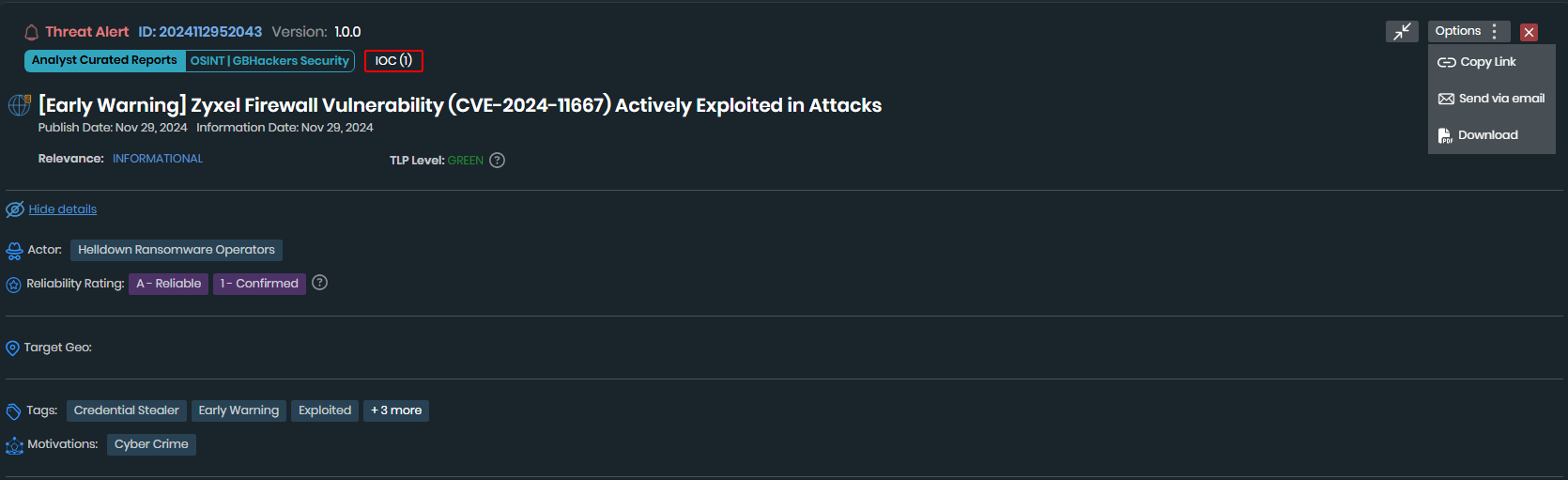
    Once you open a report, its details are displayed in the right pane. From here, you can:

    • Click the help icon next to the TLP Level to view definitions of the different TLPs and rules around sharing the information.

    • Click the help icon next to the Reliability Rating to view how ratings are assigned.

    • Click the Options menu and select Download to download a PDF of the report.

    • Click the Options menu and select Copy Link to copy a link to the report. You can then share this link with another user who has a FortiRecon account. Alternatively, you can select Send via Email to share the link directly via email.
    The following information is displayed for each report.

    • Full Report: The detailed report, including a FortiAI summary.

    • Data Attributes: Identified data attributes, such as CVEs and URLs.

    • Observables: A list of indicators of compromise (IOCs). Click Download to download the IOCs in Microsoft Excel format.

    When the report includes indicators of compromise (IOCs), you can download the IOCs in Microsoft Excel format.

    To bulk download IOCs:
    1. Select the reports containing the IOCs you want to download.

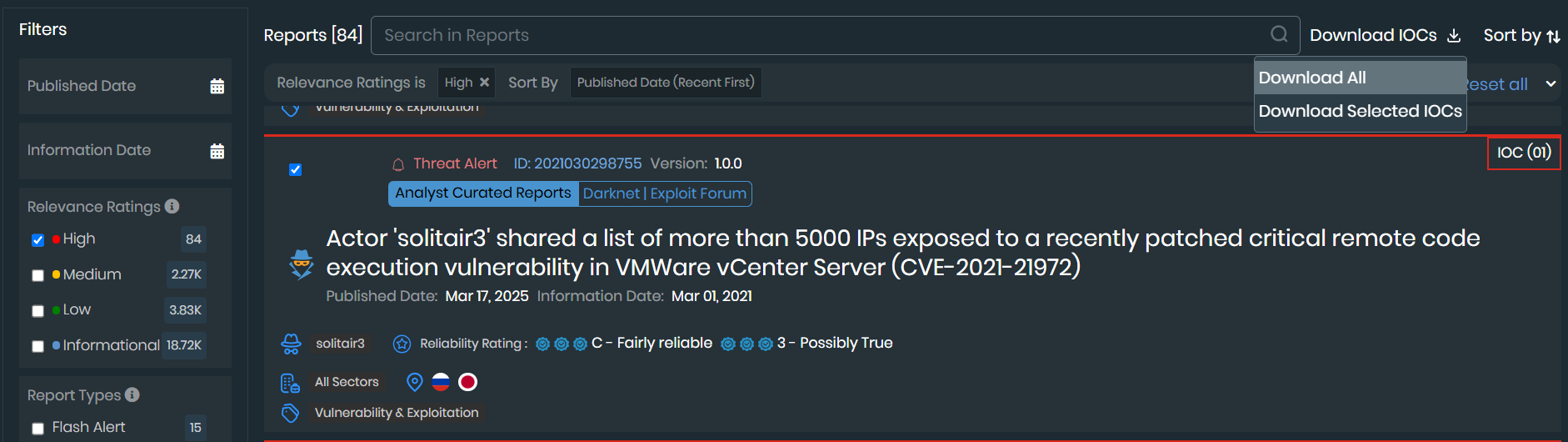
    2. Locate the Download IOCs button, which appears next to the search bar.

    3. Click the Download IOCs button.

      • If the total number of IOCs from your selected reports is less than 200, a menu appears. Choose either Download All to get all IOCs from the selected reports or Download Selected IOCs if you've specifically chosen individual IOCs within those reports. The file will download directly to your computer.

      • If the total number of IOCs is greater than 10,000, FortiRecon initiates the download process in the background. You can monitor the progress and download the completed file from the Profile Settings > Downloads page.
Viewing reports

Viewing reports

The Adversary Centric Intelligence > Reports page displays a list of threat intelligence reports. By default, the top six high-relevance reports are shown.

You can filter the list of reports, and search the list of reports using a keyword. See Filtering reports.

To view high relevance reports:
  1. Go to Adversary Centric Intelligence > Reports .

  2. The top six high-relevance reports are displayed, if available.

  3. Click a report title to view its details in the right pane.

  4. Click See all High Relevance Reports. All high-relevance reports will be displayed.

To view all reports:
  1. Go to Adversary Centric Intelligence > Reports.

  2. Click View All Reports. All available reports will be displayed.

  3. Click a report title to display the report details in right pane.

    Once you open a report, its details are displayed in the right pane. From here, you can:

    • Click the help icon next to the TLP Level to view definitions of the different TLPs and rules around sharing the information.

    • Click the help icon next to the Reliability Rating to view how ratings are assigned.

    • Click the Options menu and select Download to download a PDF of the report.

    • Click the Options menu and select Copy Link to copy a link to the report. You can then share this link with another user who has a FortiRecon account. Alternatively, you can select Send via Email to share the link directly via email.

    The following information is displayed for each report.

    • Full Report: The detailed report, including a FortiAI summary.

    • Data Attributes: Identified data attributes, such as CVEs and URLs.

    • Observables: A list of indicators of compromise (IOCs). Click Download to download the IOCs in Microsoft Excel format.

    When the report includes indicators of compromise (IOCs), you can download the IOCs in Microsoft Excel format.

    To bulk download IOCs:
    1. Select the reports containing the IOCs you want to download.

    2. Locate the Download IOCs button, which appears next to the search bar.

    3. Click the Download IOCs button.

      • If the total number of IOCs from your selected reports is less than 200, a menu appears. Choose either Download All to get all IOCs from the selected reports or Download Selected IOCs if you've specifically chosen individual IOCs within those reports. The file will download directly to your computer.

      • If the total number of IOCs is greater than 10,000, FortiRecon initiates the download process in the background. You can monitor the progress and download the completed file from the Profile Settings > Downloads page.