
Fortinet white logo
Fortinet white logo

User Guide

Filtering security issues

Filtering security issues

By default, the Attack Surface Management > Asset Discovery page displays all potential security issues, starting with critical security issues. You can use filters to display specific types of issues.

Note

You can search for specific security issues using the Search by Asset field. Enter IP address information, such as 192.168.10.10 or 192.168.12.0/24.

To filter security issues:
  1. Go to Attack Surface Management > Security Issues. Choose EASM using toggle, the respective security issues are displayed.
  2. Select the Issues On New Assets checkbox to filter security issues on newly discovered assets.
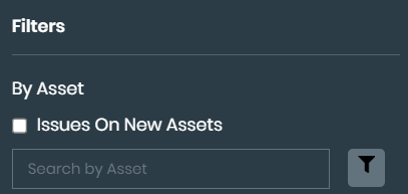
  3. Add advanced search features:
    1. Click the filter icon. The advanced search fields are displayed.
    2. Select the Search Type.
    3. Click Search.
  4. Select one or more filters:

    Filter

    Options

    Status

    Select one of the following statuses:

    • Active
    • Resolved
    • Risk accepted
    • False positive

    FortiRecon Severity

    Select one or more of the following severity statuses:

    • Critical
    • High
    • Medium
    • Low

    NVD Severity

    Note: Ensure Vulnerable Software category is selected to enable this filter.

    Select one or more of the following severity statuses:

    • Critical
    • High
    • Medium
    • Low

    Category

    Select one or more of the categories. The list of categories changes based on the displayed security issues.

    Tags

    Select one or more tags.

    The list of filtered security issues is displayed.

  5. (Optional) In the Filters list, toggle on False Positive. The list displays only issues marked with a status of False Positive.
  6. In the Filters list, click Clear to remove all filters.

Filtering security issues

Filtering security issues

By default, the Attack Surface Management > Asset Discovery page displays all potential security issues, starting with critical security issues. You can use filters to display specific types of issues.

Note

You can search for specific security issues using the Search by Asset field. Enter IP address information, such as 192.168.10.10 or 192.168.12.0/24.

To filter security issues:
  1. Go to Attack Surface Management > Security Issues. Choose EASM using toggle, the respective security issues are displayed.
  2. Select the Issues On New Assets checkbox to filter security issues on newly discovered assets.
  3. Add advanced search features:
    1. Click the filter icon. The advanced search fields are displayed.
    2. Select the Search Type.
    3. Click Search.
  4. Select one or more filters:

    Filter

    Options

    Status

    Select one of the following statuses:

    • Active
    • Resolved
    • Risk accepted
    • False positive

    FortiRecon Severity

    Select one or more of the following severity statuses:

    • Critical
    • High
    • Medium
    • Low

    NVD Severity

    Note: Ensure Vulnerable Software category is selected to enable this filter.

    Select one or more of the following severity statuses:

    • Critical
    • High
    • Medium
    • Low

    Category

    Select one or more of the categories. The list of categories changes based on the displayed security issues.

    Tags

    Select one or more tags.

    The list of filtered security issues is displayed.

  5. (Optional) In the Filters list, toggle on False Positive. The list displays only issues marked with a status of False Positive.
  6. In the Filters list, click Clear to remove all filters.