

Verifying private proxy functionality
After following all the steps in Configuration workflow, you can proceed with verifying private proxy functionality.
To verify private proxy functionality:
-
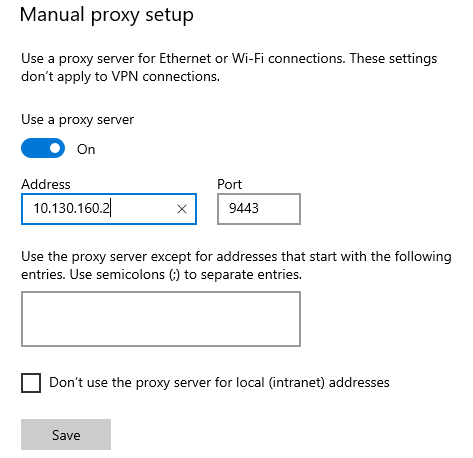
Configure the Proxy settings on the proxy user client machine. This example on a Windows machine configures manual proxy setup with the Primary IP of 10.130.160.2 and port 9443.
-
Using a web browser, access a desired Internet web site. For example, enter https://example.com.
-
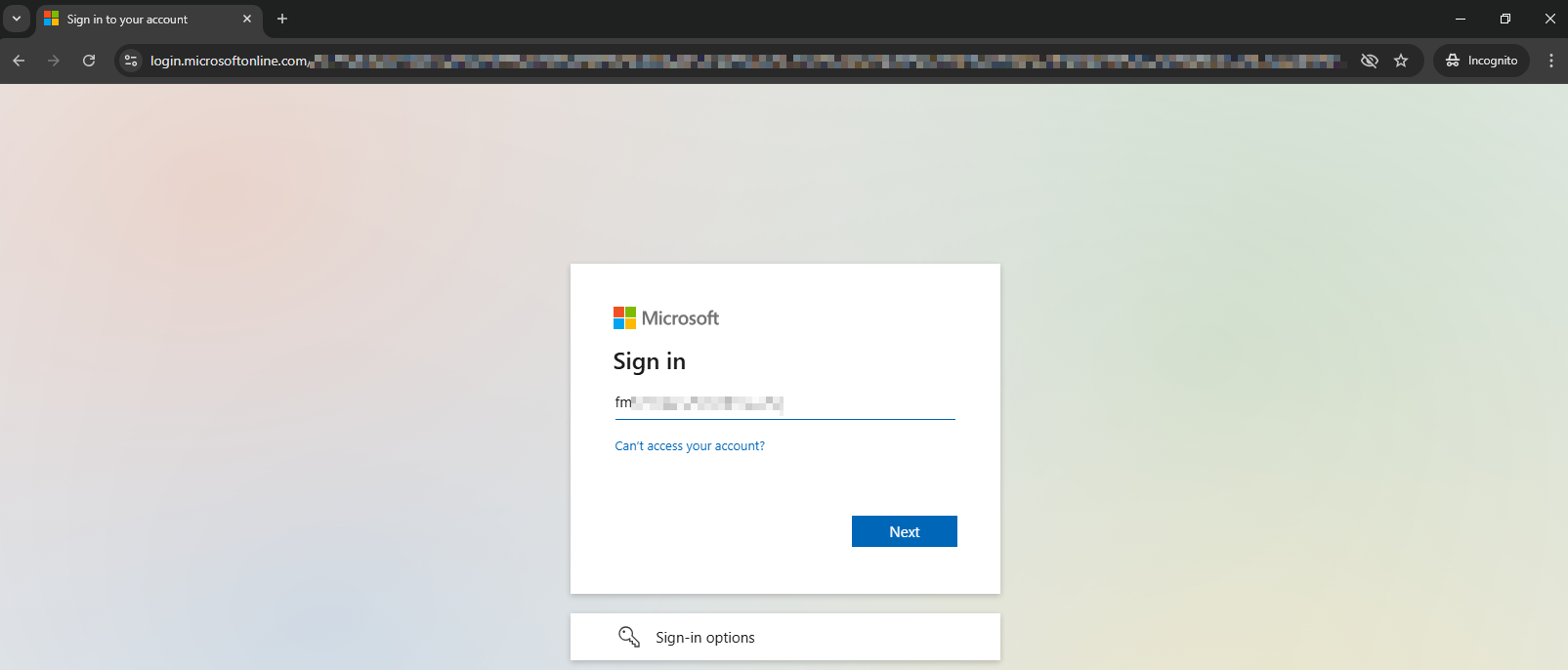
With SSO configured, the configured SAML IdP will prompt for user authentication. Sign in using valid SSO user credentials.
-
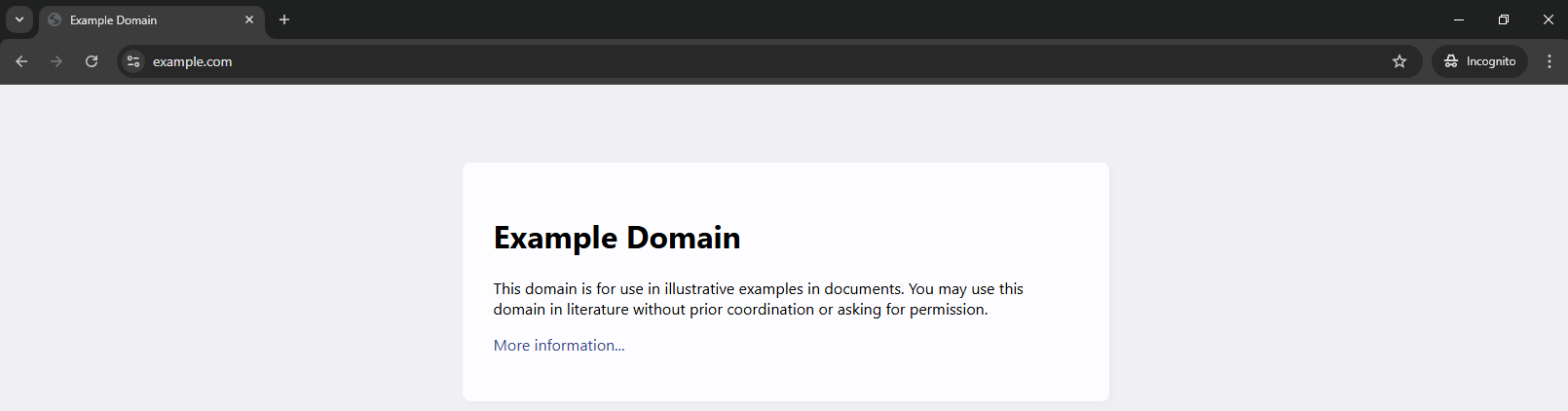
After successfully authenticating, observe the desired Internet web site loads in the web browser. This access is confirmed in the traffic logs in a later step.
-
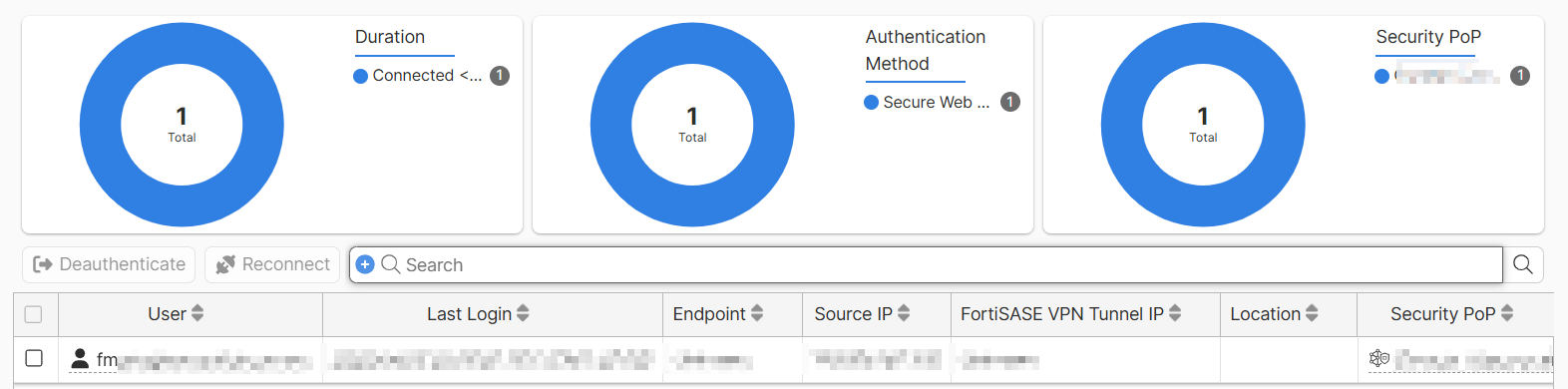
Go to Operations > Connectivity > Connected users and observe that the private proxy user is listed there with relevant data.
-
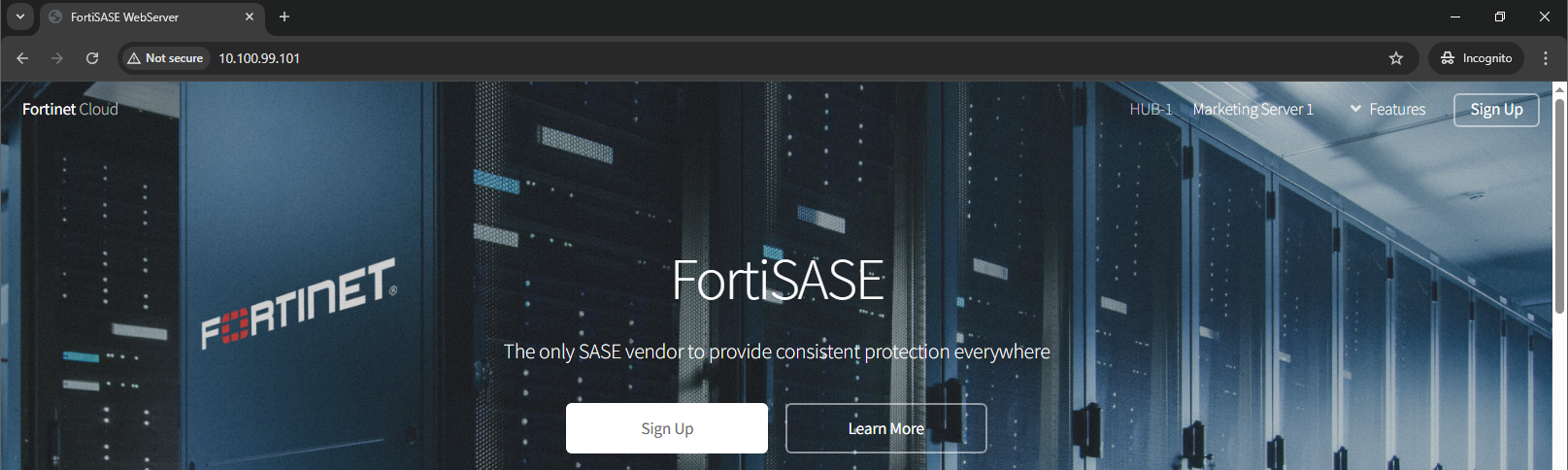
If an SPA hub and private resources have been configured, then using a web browser, access a desired private access resource. For example, enter http://10.100.99.101 to access an internal marketing server behind an SPA hub.
Observe that you do not need to authenticate again since you have already done so previously and observe that the private server web site loads in the web browser.
-
Go to Operations > Logs > Traffic and click All Internet & Private Access Traffic to view the desired logs.

-
In the All Internet Access & Private Access Traffic logs, observe the traffic for web sites accessed previously.
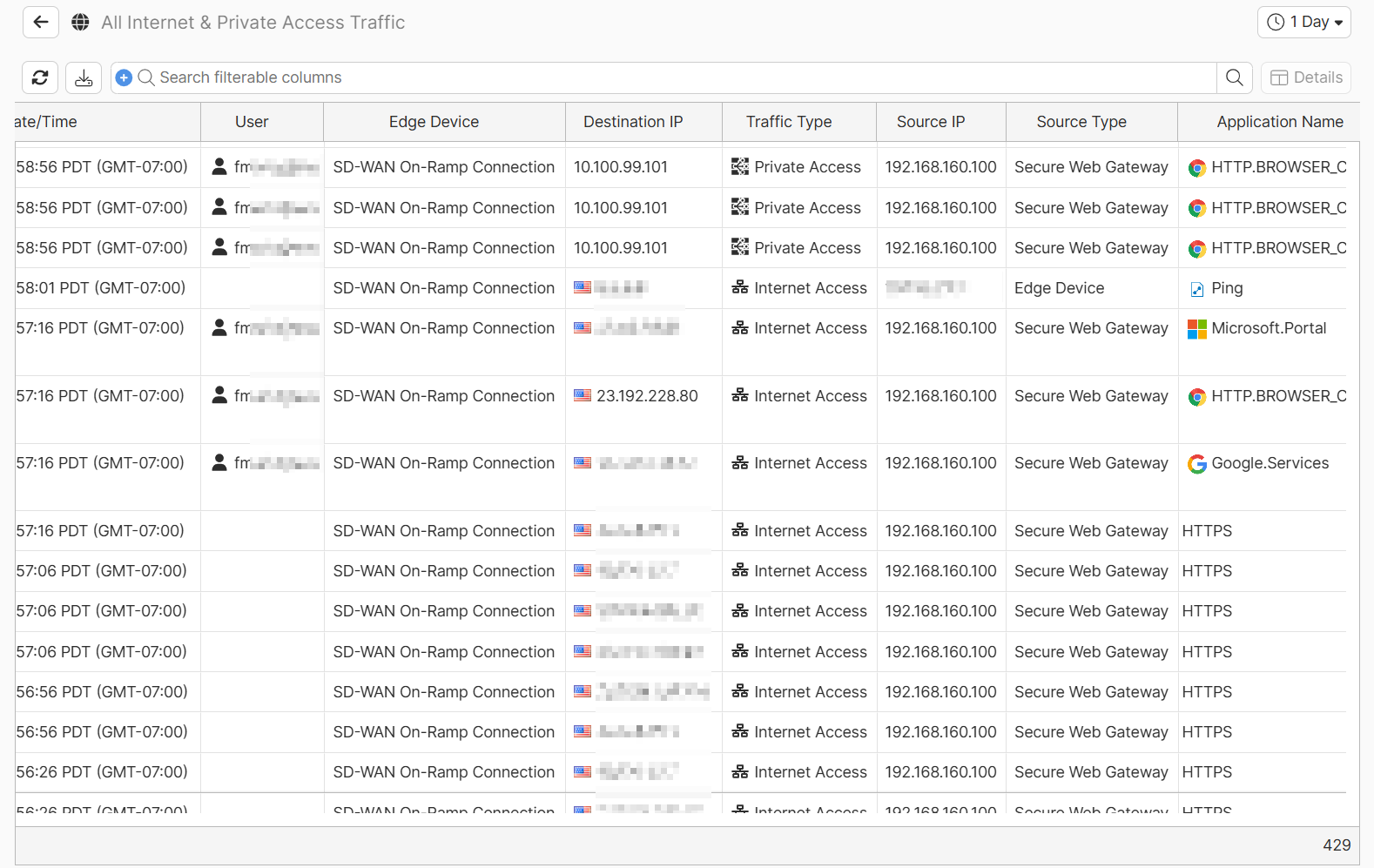
Observe that:
-
Prior to SAML authentication, no user information is available.
-
Edge Device is listed with SD-WAN On-Ramp Connection and Source Type lists Proxy. A log entry with this combination verifies that private proxy is working as expected.
-
Traffic matching the Destination IP for Internet access and private access web sites is shown.
-
Source IP lists the IP address of the client machine in the LAN environment of the Branch On-ramp on-premises device.
-