

Upgrading FortiSOAR Cloud
Fortinet offers a managed upgrade service for FortiSOAR Cloud customers to simplify and streamline the upgrade process. You can request the following types of upgrades:
- Upgrade the release of your FortiSOAR Cloud instance
- Expand resources for your FortiSOAR Cloud instance
Upgrading your FortiSOAR Cloud instance
You can request a FortiSOAR Cloud instance upgrade using either of the following methods:
Upgrading your FortiSOAR Cloud instance using the FortiSOAR Cloud portal
- Log into the FortiSOAR Cloud Portal and navigate to your FortiSOAR Cloud instance page.
- On the
Manage Instancepage, click the Initiate Upgrade Request button in theUpgradesection: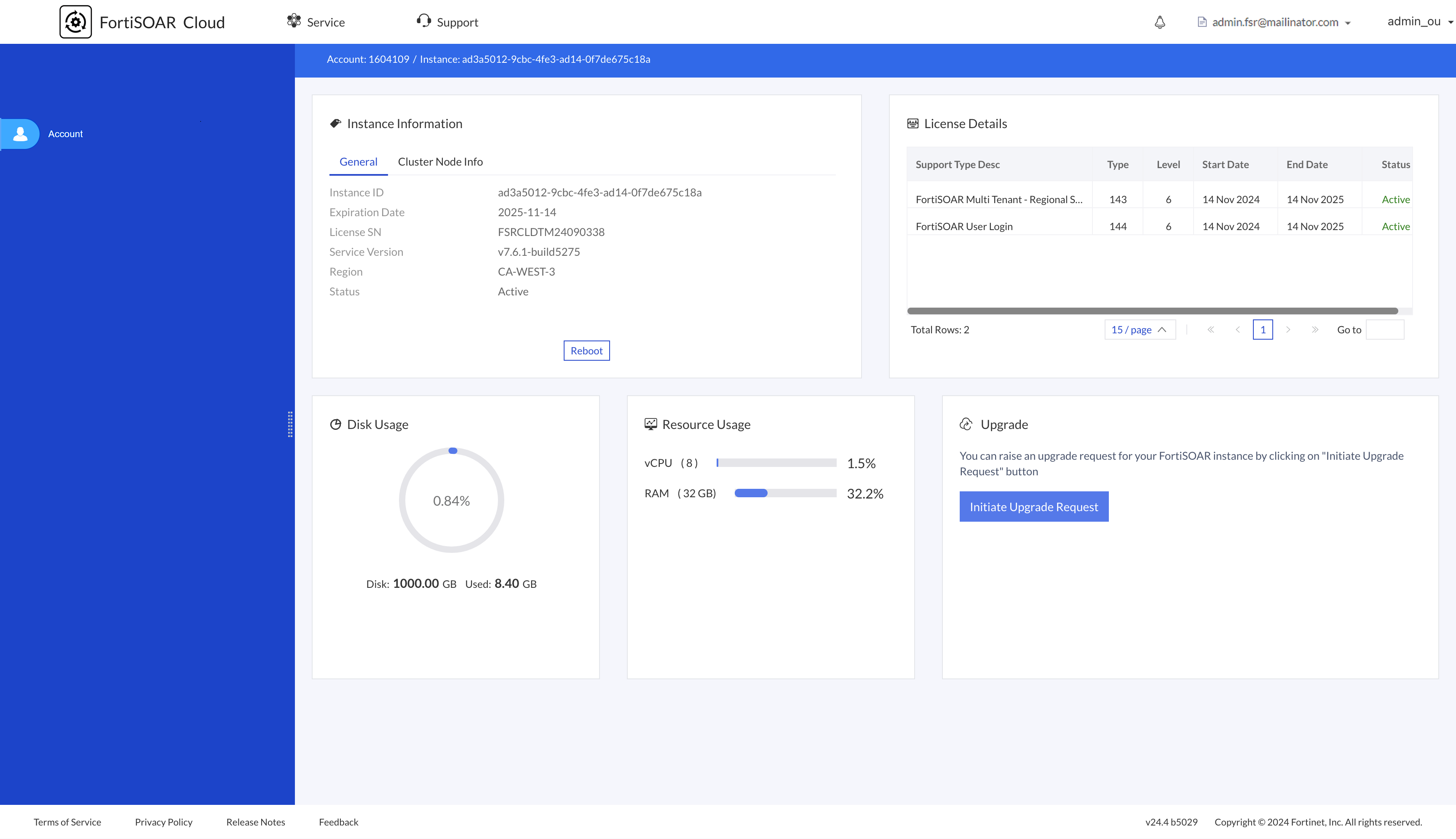
- Clicking Initiate Upgrade Request opens the
Create Upgrade Requestform, where you will need to verify or provide the following details:- Account Name (Read Only): Pre-populated and read-only based on the logged-in account.
- Account Email ID (Read Only): Pre-populated and read-only based on the logged-in account.
- Primary Account ID (Read Only): Pre-populated and read-only based on the logged-in account.
- Type of Deployment (Enterprise, Multitenant, Cluster): Select the appropriate deployment type based on your requirements:
- Enterprise: Standalone instances with license type set to 'Enterprise'.
- Multitenant: Instances with license type set to 'multitenant'.
- Cluster: Instances that are part of a HA cluster.
- For a high availability (HA) cluster contains instances whose license type is set to 'multitenant', select 'Multitenant.'
- If your instance is part of a cluster, submit separate upgrade requests for each system in the cluster.
- Upgrade Path: Specify the upgrade path from the supported options.
- Instance ID (Read Only): Pre-populated and read-only based on the current instance.
- After completing the form, click the Submit Upgrade Request button. This will display a pop-up with the upgrade details based on your inputs.
Submitting the form will send an email to the Fortinet support team, who will create a support ticket on your behalf and contact you to complete the upgrade. You can view your submitted requests in the 'Upgrade' section of yourManage Instancepage.
Upgrading your FortiSOAR Cloud instance by opening a Support ticket
- Create a support ticket for upgrade. The ticket must include the following information:
- Account Name
- Account Email ID
- Primary Account ID
- Type of Deployment: Specify the appropriate deployment type based on your requirements, from the following options:
- Enterprise: Standalone instances with license type set to 'Enterprise'.
- Multitenant: Instances with license type set to 'multitenant'.
- Cluster: Instances that are part of a HA cluster. NOTES:
- For a high availability (HA) cluster contains instances whose license type is set to 'multitenant', select 'Multitenant.'
- If your instance is part of a cluster, submit separate upgrade requests for each system in the cluster.
- Upgrade Path: Specify the upgrade path from the supported options
- Instance ID
- The Support team will contact you to complete the upgrade process. Once completed, you will receive a notification, and the ticket will be closed.
Expanding resources for your FortiSOAR Cloud instance
If you need to expand the resources for your FortiSOAR Cloud instance, you can purchase additional resources. The SKU provides 1000 GB storage, 8 GB RAM and 4 vCPUs. After purchasing the SKU for additional resources, follow these steps:
- Register the contract for the extra resources on the Support portal.
- Create a Support ticket for resource expansion. The ticket must include the following information:
- Account ID
- Service Region
- Instance ID
- Serial Number
- The Support team will manage the resource expansion process. Once completed, you will receive a notification, and the ticket will be closed.