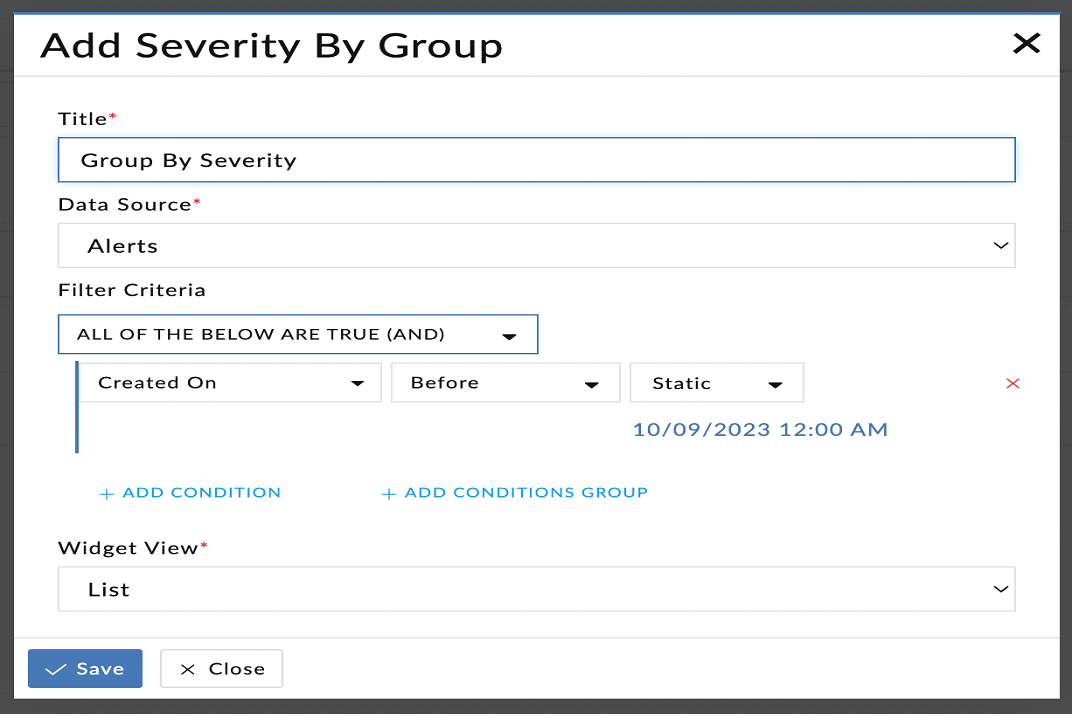
Fortinet white logo
Fortinet white logo

Directives

Directives

This topic provides information about the various custom directives that are available for developing widgets.

Field Directive

Overview

The "cs-field" directive dynamically renders fields based on a specified form type. It enforces that the rendered fields are required and binds the value to the ng-model attribute.

Selector to render a field - data-cs-field

Usage

<div data-cs-field="field" data-mode="'add'" data-ng-model=" value" data-size="'small'" data-change-method="changeMethod" data-enable-jinja="true" data-enable-expression="enableExpression" data-allow-add-tag="true"
	data-blur-method="changeMethod" data-ignore-editable="true" data-disabled="disabled" data-use-placeholder="true" data-fields-mapping="fieldsMapping" data-form-name="'fieldForm'">
</div>

Arguments

Parameters Definition Data Type
Field
(Required)
Field definition for rendering a field.
scope.field = new Field({
   'name':'password',
   'formType': 'password',
   'title': 'Password',
   'writeable': true,
   'validation': {
   'required': true
  }
});

FormType

  • password
  • text

  • checkbox

  • integer

  • checkbox.select

  • decimal

  • datetime

  • Datetime.advance

  • phone

  • email

  • DynamicList

  • multiselect

  • richtext

  • json

  • textarea

  • picklists

  • multiselectpicklist

  • lookup

  • ipv4

  • ipv6

  • domain

  • url

  • tags

Field
ng-mode
(Required)
Used to store/populate the value of a field after it is rendered or changed. Any value based on field type
FieldOptions
(Optional)
Used in ViewPanel SVT to set fields such as linky, readonly, highlightMode etc.
For example,
fieldOptions = {linky: boolean, readOnly: boolean, highlightMode: boolean}
For multiselect fields, it can also pass options such as,
{entity: {module: string, id: string }}
object
UsePlaceholder
(Optional)
Used to enable use of a placeholder in a field. boolean
Size
(Optional)
Size of the field to be rendered. Options can be large, small. string
ChangeMethod
(Optional)
Method to be called after the field value is changed. function
BlurMethod
(Optional)
Method to be called after the blur event of a field. function
FocusMethod
(Optional)
Method to be called after the focus event of a field. function
Disabled
(Optional)
Used to enable or disable a field. boolean
EnableJinja
(Optional)
Used to enable Jinja for a field. boolean
EnableExpression
(Optional)
Used to enable expressions for a field. boolean
Mode
(Optional)
Used to check whether the field is in the 'edit' mode. boolean
fieldsMapping
(Optional)
Used to update the fieldType based on the field mapping. object

Examples

Create an input text field using the field directive:

<div data-cs-field="field" data-ng-model="playbookNote" data-use-placeholder="'Add Version Description'" data-form-name="'playbookVersionForm'"></div>

$scope.field = new Field({
	'name': 'note',
	'formType': 'text',
	'title': 'Note',
	'writeable': true,
	'validation': {
	'required': true
   }
})

The above snippet creates a input text field named "Note":
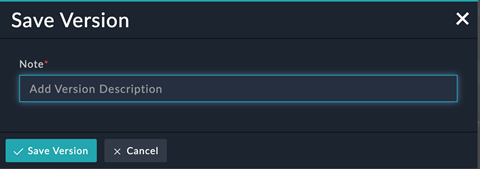
Field directive to create a input text field

Create a tag field using field directive:

<div data-cs-field="tagsField" data-ng-model="tag" data-use-placeholder="'Add tags'" data-form-name="'playbookVersionForm'"></div>

$scope.tagsField = new Field({
	'name': 'tags',
	'formType': 'tags',
	'title': 'Tags',
	'writeable': true,
	'validation': {
	'required': true
   }
})

The above snippet creates a "tag" field:

Field directive to create a tag field

Conditional Filters

Overview

The "cs-conditional" directive dynamically renders conditional fields based on a specified form type. It enforces that the rendered fields are required and binds the value to the ng-model attribute.

Selector to add conditional filters - data-cs-conditional

Usage

<div data-cs-conditional data-enable-nested-filter="enableNestedFilter"
data-fields="params.fields" data-ng-model="config.filters" data-form-name="'editWidgetForm'" data-parent-form="editWidgetForm" 
data-reset-field="params.fields"></div>

Arguments

Parameters Definition Data Type
data-fields
(Required)
Populates the fields to be applied in the filter drop-down. Fields parameters are mandatory.
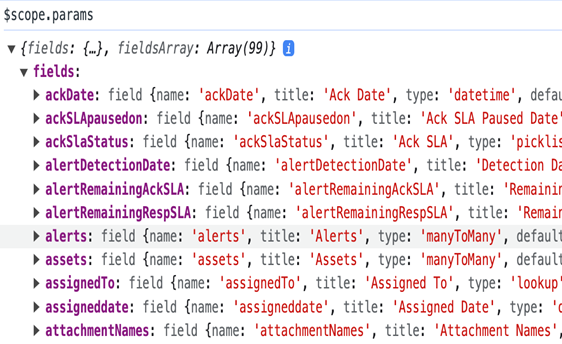
Conditional Filters directive for data-field parameter
Array of an object
[Array<Object>]
data-ng-model
(Required)
Used to assign the selected filters in the filter criteria.
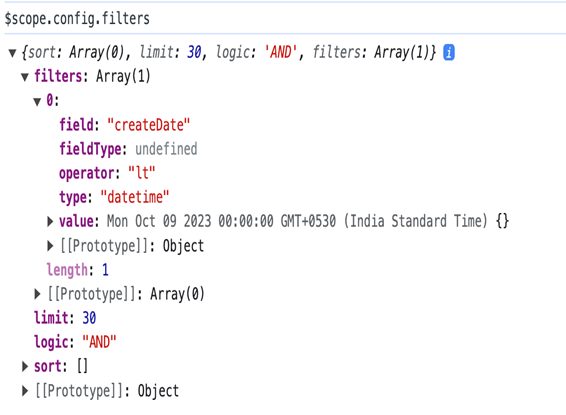
Conditional Filters directive for data-ng-model parameter
Array of an object
[Array<Object>]
data-enable-nested-filter
(Optional)
Used to allow nested fields in filters. boolean
Template
(Optional)
Used only if a custom template is defined. This parameter is used to render all conditional fields. By default, the built-in template is used, so nothing needs to be specified for this parameter. HTML template
data-form-name
(Optional)
Used to create the current form name in HTML. string
data-reset-name
(Optional)

Used to reset a query if any field passed in this parameter is updated.
Fields are similar to data-fields.

Array of an object
[Array<Object>]

data-hide-related-fields
(Optional)

Used to hide related fields.

boolean

data-mode
(Optional)

Used to specify the context of the condition. For example, if it is being used as a query filter or as a trigger condition in workflows.

string

EnableJinja
(Optional)
Used to enable Jinja for a filter field. boolean
EnableExpression
(Optional)
Used to enable expressions for a filter field. boolean

Example:

Reference Widget: widget-funnel-chart

data-cs-messages

Overview

The "data-cs-messages" directive displays error messages for specific form fields. It requires the form name and form field as input parameters and works in conjunction with AngularJS's built-in form validation.

Selector to render messages - data-cs-messages

Usage

<div data-cs-messages="auth.login_username"></div>

Arguments

Parameters Defintion Data Type
data-cs-messages
(Required)
Used to displays error message of a form field. It contains the form name and form field. string

Example

Create an form field with input parameters that display information that they are required:

<div class="form-group margin-top-20">
	<label for="login_username" class="form-label font-size-12">Username</label>
	<input class="form-control" type="text" id="username" name="login_username" data-ng-model="credentials.loginid" data-cs-focus autocomplete="off" required>
	<div data-cs-messages="auth.login_username"></div>
</div>

The above snippet creates a form field with required input parameters that display the "This field is required" message.
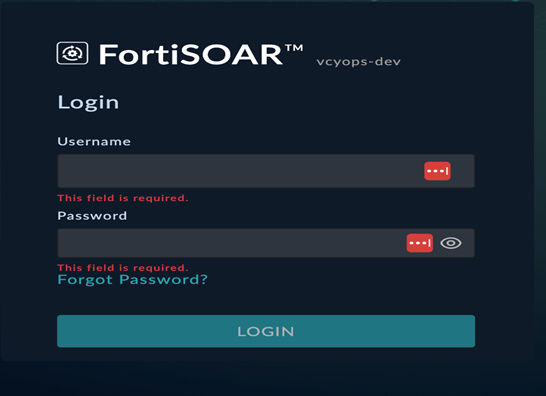
Form field using data-cs-messages directive

Grid Directive

Overview

The "cs-grid" directive renders data in a grid format. It relies on the "gridOptions" property to define the configuration of the grid, and uses the "pagedCollection" property to display data in the grid.

Selector to render a grid on pages - data-cs-grid

Usage

<div data-cs-grid data-grid-options="gridOptions" column-defs="columnDefs" data-paged-collection="pagedCollection"></div>

Arguments

Parameters Definition Data Type
GridOptions
(Required)

Used to add options to the grid as required.

var defaultGridOptions = {
        csOptions: {
          allowAdd: true,
          addText: 'Add',
          allowLink: false,
          allowUnlink: false,
          allowDelete: true,
          allowClone: true,
          allowSync: false,
          allowGlobalFilter: true,
          allowModuleFilter: false,
          customRecordTypeFilter:false,
          allowDateFilter: false,
          allowUserFilter: false,
          allowGridFilter: false,
          allowCardView: false,
          auditLogView: false,
          viewType: '',
          allowActions: false,
          allowPlaybookActions: false,
          bulkButtons: [],
          showPagination: true,
          searchPlaceholder: 'Search',
          searchEnable: true,
          cloneRelationshipsByDefault: false,
          clone: clone,
          contextMenu: contextMenuService.getConfig,
          isRelationship: false,
          searchMinLength: 0,
          enableSelectMenu: true,
          enableSavedFilters: true,
          wideSearchBar: false,
          unlinkButtonText: 'Remove Link',
          isFullScreenMode: false
        },
        rowTemplate: 'app/components/grid/clickableRow.html',
        paginationPageSizes: [5, 10, 30, 50, 100, 250],
        paginationPageSize: 30,
        onRegisterApi: scope._setGridApi,
        enableGrouping: false,
        enableFiltering: true,
        useExternalFiltering: true,
        useExternalSorting: true,
        enableGridMenu: true,
        enableColumnMenus: false,
        enableColumnResizing: true,
        enableColumnMoving: true,
        enableExpandable: false,
        exporterMenuCsv: false,
        exporterMenuPdf: false,
        expandableRowHeaderWidth: 0,
        expandableRowHeaderTitle: null,
{Object}
ColumnDefs
(Optional)
Used to render the specified column definitions in the JSON format. {Object}
PagedCollection
(Required)
The page collection service used to fetch the data that needs to be displayed on the grid. Array<Object>

Example

To display a 'grid' of an 'alert':

<div class="col-md-12 collection-grid-container margin-top-lg fade-in-animation">
	<div data-cs-grid data-grid-options="gridOptions" data-paged-collection="pagedCollection" class="grid-widget-container"></div>
</div>

The above snippet is used to display an alert grid:
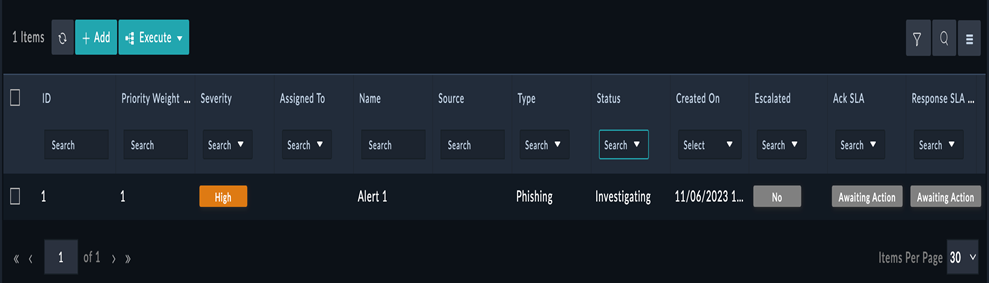
An alert grid creating using the grid directive

Chart Directive

Overview

The "cs-chart" directive renders charts based on selected configuration details. Users can specify chart configuration options and data to render the chart.

Selector to create a chart with selected config details - data-cs-chart

Usage

<div data-cs-chart="config"></div>

Config = {
aggregate: true,
assignedToSetting: "onlyMe",
chart: "pie",
mapping: {
  assignedToPerson: 'assignedTo', 
  fieldName: 'severity'
},
query: {
  sort: Array(1), 
  limit: 2147483647, 
  logic: 'AND', 
  filters: Array(1), 
  aggregates: Array(4)
},
resource: "alerts",
showTabularData: false,
title: "Open Alerts By Severity",
wid: "f9eb224f-b6bb-4480-a5df-f43dc0ab6d5d",
widgetAlwaysDisplay: true
}

Arguments

Parameters Definition Data Type
data-cs-chart Adds chart configuration details to a widget.
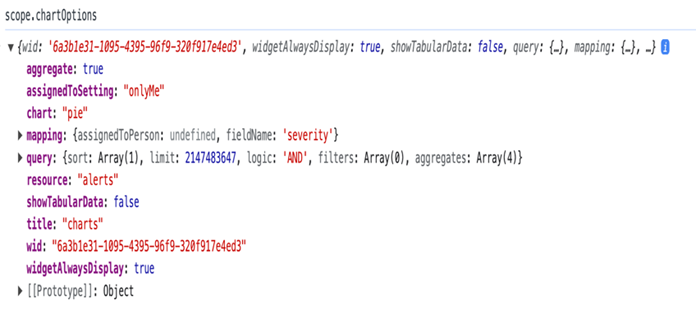
Scope for chart options
[Array<Object>]

Example

An example of a rendered chart:
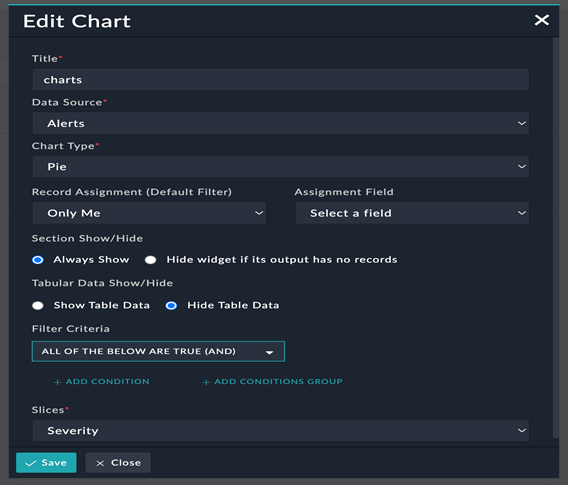
Chart rendered using the chart directive

Focus Directive

Overview

The "data-cs-focus" directive sets focus on an HTML DOM element when applied to that element. This enhances the user experience by automatically focusing on specific form fields or elements.

Selector to focus on an HTML DOM element - data-cs-focus

Usage

<input type="text" id="filename" name="filename" class="form-control" data-ng-model="title" data-cs-focus required>

Arguments

Parameters Definition Data Type
data-cs-focus An attribute directive for adding focus to an HTML element.

Example

To create a focus on the HTML element, i.e. stepName:

<input id="stepName" type="text" class="input-sm form-control" name="stepName" data-ng-model="stepSelected.name" data-cs-focus data-ng-required="stepSelected">

The above snippet is used to display a dialog in which the 'Step Name' field is in focus:
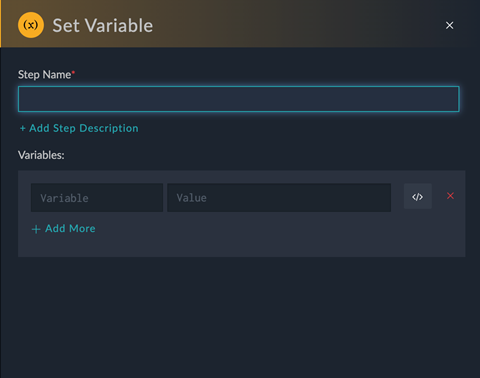
Dialog in which the 'Step Name' field is in focus

Card Directive

Overview

The "data-cs-card"directive displays data as a card in the widget.

Selector to create cards used to display data - data-cs-card

Usage

<div data-cs-card data-ng-model="record" data-size="config.size" data-mapping="config.mapping" data-actions="actions"></div>

Arguments

Parameters Definition Data Type
data-ng-model
(Required)
Used to display data in a card format. Array<Object>
Size
(Required)
Used to define the size of the card widget. string
data-mapping
(Required)
Used to define the list of fields to be displayed in the card widget. Array<Object>

Pagination Directive

Overview

The "data-cs-pagination" directive adds pagination to grids or pages.

Selector to add pagination on grids or pages - data-cs-pagination

Usage

<div class="search-pagination"
	data-ng-hide="pagedCollection.filters.q.length === 0 || pagedCollection.filters.index.length === 0"
	data-cs-pagination data-ng-model="pagedCollection">
</div>

Arguments

Parameters Definition Data Type
data-ng-model
(Required)
Used to display data on the page where pagination is to be applied. Array<Object>

Datetime Grid Directive

Overview

The "data-cs-datetime-grid" directive adds datetime functionality to a grid.

Selector to add datetime to a grid - data-cs-datetime-grid

Usage

<div data-cs-datetime-grid="::field"></div>

Tags Directive

Overview

The "data-cs-tags" directive adds tags to a specified module. Tags are useful for categorizing or labeling items within an application.

Selector to add tags to a specified module - data-cs-tags

Usage

<div class="cs-tags-container padding-left-sm padding-right-sm">
	<div data-cs-tags="tagsField" cs-allow-add-tag="false" data-change-method="tagsChanged" data-ng-model="item.value.tags"
	data-placeholder="tagsPlaceholder" class="position-relative width-100pt">
	</div>
</div>

Example

To add tags:

<div class="cs-tags-container">
	<div data-cs-tags="tagsField" cs-allow-add-tag="false" data-change-method="tagsChanged" data-ng-model="input.recordTags"
	data-placeholder="tagsPlaceholder" class="position-relative pull-left">
	</div>
</div>

Example of the 'Filter Logs by Tags' dialog using the 'tags' directive :
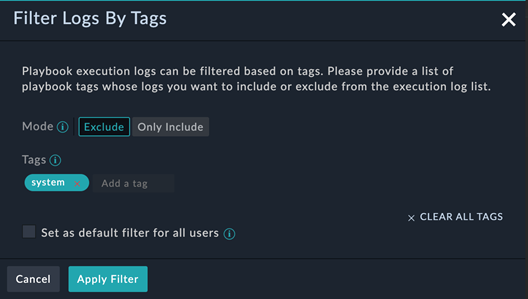
Example of tags directive used in a dialog

Markdown Editor Directive

Overview

The "data-cs-markdown-editor" directive embeds a markdown editor in the DOM, enabling users to create and edit markdown content in a user-friendly manner.

Selector to add tags to embed markdown editor in DOM - data-cs-markdown-editor

Usage

<div data-cs-markdown-editor data-mode="'view'" data-ng-model="task.description"
data-form-name="'task-' + $index"></div>

Example

Example of the Value field that using the markdown editor directive to allow users to add or edit content using markdown:
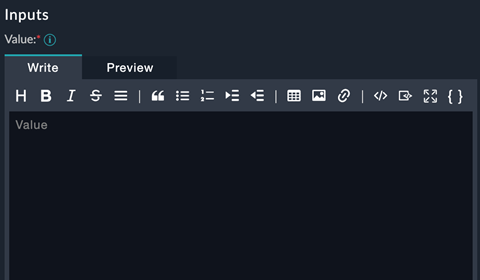
Example of markdown editor directive used in the Value field

Spinner Directive

Overview

The "data-cs-spinner" directive displays a spinner while data is being processed or fetched. This enhances the user experience by indicating ongoing operations.

Selector to add a spinner- data-cs-spinner

Usage

<cs-spinner data-ng-show="processing"></cs-spinner>

Example

Example of spinner directive used to display a spinner on the alerts grid

Unique Directive

Overview

The "data-cs-unique" directive checks if a given value is unique within a specified context or dataset, allowing for uniqueness validation on input fields or elements.

Selector to check if the given value is unique or not- data-cs-unique

Usage

<input id="variableName" type="text" class="input-sm form-control" name="variableName" data-ng-model="dynamicVariable.name"
data-ng-pattern="varRegex" data-cs-unique="dynamicVariablesNameList" data-cs-focus required>

Arguments

Parameters Definition Data Type
data-ng-model
(Required)
Used to display data in the widget. string
data-cs-unique
(Required)
Used to specify the list of data in which uniqueness needs to be checked. Array<Object>

Example

Example of the Variable Name field using the unique directive, indicating that the value specified in this field must be unique:
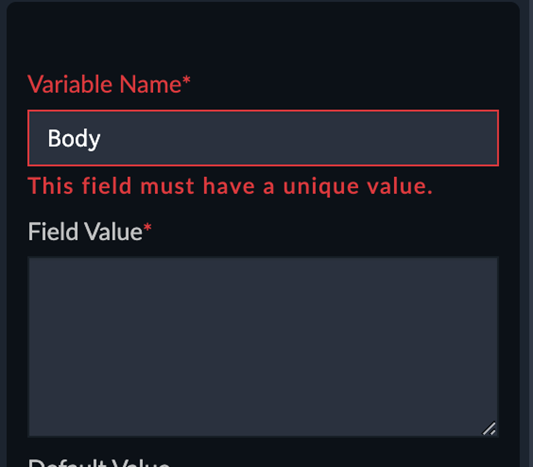
Example of the unique directive used in the Variable Name field

Directives

Directives

This topic provides information about the various custom directives that are available for developing widgets.

Field Directive

Overview

The "cs-field" directive dynamically renders fields based on a specified form type. It enforces that the rendered fields are required and binds the value to the ng-model attribute.

Selector to render a field - data-cs-field

Usage

<div data-cs-field="field" data-mode="'add'" data-ng-model=" value" data-size="'small'" data-change-method="changeMethod" data-enable-jinja="true" data-enable-expression="enableExpression" data-allow-add-tag="true"
	data-blur-method="changeMethod" data-ignore-editable="true" data-disabled="disabled" data-use-placeholder="true" data-fields-mapping="fieldsMapping" data-form-name="'fieldForm'">
</div>

Arguments

Parameters Definition Data Type
Field
(Required)
Field definition for rendering a field.
scope.field = new Field({
   'name':'password',
   'formType': 'password',
   'title': 'Password',
   'writeable': true,
   'validation': {
   'required': true
  }
});

FormType

  • password
  • text

  • checkbox

  • integer

  • checkbox.select

  • decimal

  • datetime

  • Datetime.advance

  • phone

  • email

  • DynamicList

  • multiselect

  • richtext

  • json

  • textarea

  • picklists

  • multiselectpicklist

  • lookup

  • ipv4

  • ipv6

  • domain

  • url

  • tags

Field
ng-mode
(Required)
Used to store/populate the value of a field after it is rendered or changed. Any value based on field type
FieldOptions
(Optional)
Used in ViewPanel SVT to set fields such as linky, readonly, highlightMode etc.
For example,
fieldOptions = {linky: boolean, readOnly: boolean, highlightMode: boolean}
For multiselect fields, it can also pass options such as,
{entity: {module: string, id: string }}
object
UsePlaceholder
(Optional)
Used to enable use of a placeholder in a field. boolean
Size
(Optional)
Size of the field to be rendered. Options can be large, small. string
ChangeMethod
(Optional)
Method to be called after the field value is changed. function
BlurMethod
(Optional)
Method to be called after the blur event of a field. function
FocusMethod
(Optional)
Method to be called after the focus event of a field. function
Disabled
(Optional)
Used to enable or disable a field. boolean
EnableJinja
(Optional)
Used to enable Jinja for a field. boolean
EnableExpression
(Optional)
Used to enable expressions for a field. boolean
Mode
(Optional)
Used to check whether the field is in the 'edit' mode. boolean
fieldsMapping
(Optional)
Used to update the fieldType based on the field mapping. object

Examples

Create an input text field using the field directive:

<div data-cs-field="field" data-ng-model="playbookNote" data-use-placeholder="'Add Version Description'" data-form-name="'playbookVersionForm'"></div>

$scope.field = new Field({
	'name': 'note',
	'formType': 'text',
	'title': 'Note',
	'writeable': true,
	'validation': {
	'required': true
   }
})

The above snippet creates a input text field named "Note":
Field directive to create a input text field

Create a tag field using field directive:

<div data-cs-field="tagsField" data-ng-model="tag" data-use-placeholder="'Add tags'" data-form-name="'playbookVersionForm'"></div>

$scope.tagsField = new Field({
	'name': 'tags',
	'formType': 'tags',
	'title': 'Tags',
	'writeable': true,
	'validation': {
	'required': true
   }
})

The above snippet creates a "tag" field:
Field directive to create a tag field

Conditional Filters

Overview

The "cs-conditional" directive dynamically renders conditional fields based on a specified form type. It enforces that the rendered fields are required and binds the value to the ng-model attribute.

Selector to add conditional filters - data-cs-conditional

Usage

<div data-cs-conditional data-enable-nested-filter="enableNestedFilter"
data-fields="params.fields" data-ng-model="config.filters" data-form-name="'editWidgetForm'" data-parent-form="editWidgetForm" 
data-reset-field="params.fields"></div>

Arguments

Parameters Definition Data Type
data-fields
(Required)
Populates the fields to be applied in the filter drop-down. Fields parameters are mandatory.
Conditional Filters directive for data-field parameter
Array of an object
[Array<Object>]
data-ng-model
(Required)
Used to assign the selected filters in the filter criteria.
Conditional Filters directive for data-ng-model parameter
Array of an object
[Array<Object>]
data-enable-nested-filter
(Optional)
Used to allow nested fields in filters. boolean
Template
(Optional)
Used only if a custom template is defined. This parameter is used to render all conditional fields. By default, the built-in template is used, so nothing needs to be specified for this parameter. HTML template
data-form-name
(Optional)
Used to create the current form name in HTML. string
data-reset-name
(Optional)

Used to reset a query if any field passed in this parameter is updated.
Fields are similar to data-fields.

Array of an object
[Array<Object>]

data-hide-related-fields
(Optional)

Used to hide related fields.

boolean

data-mode
(Optional)

Used to specify the context of the condition. For example, if it is being used as a query filter or as a trigger condition in workflows.

string

EnableJinja
(Optional)
Used to enable Jinja for a filter field. boolean
EnableExpression
(Optional)
Used to enable expressions for a filter field. boolean

Example:

Reference Widget: widget-funnel-chart

data-cs-messages

Overview

The "data-cs-messages" directive displays error messages for specific form fields. It requires the form name and form field as input parameters and works in conjunction with AngularJS's built-in form validation.

Selector to render messages - data-cs-messages

Usage

<div data-cs-messages="auth.login_username"></div>

Arguments

Parameters Defintion Data Type
data-cs-messages
(Required)
Used to displays error message of a form field. It contains the form name and form field. string

Example

Create an form field with input parameters that display information that they are required:

<div class="form-group margin-top-20">
	<label for="login_username" class="form-label font-size-12">Username</label>
	<input class="form-control" type="text" id="username" name="login_username" data-ng-model="credentials.loginid" data-cs-focus autocomplete="off" required>
	<div data-cs-messages="auth.login_username"></div>
</div>

The above snippet creates a form field with required input parameters that display the "This field is required" message.

Form field using data-cs-messages directive

Grid Directive

Overview

The "cs-grid" directive renders data in a grid format. It relies on the "gridOptions" property to define the configuration of the grid, and uses the "pagedCollection" property to display data in the grid.

Selector to render a grid on pages - data-cs-grid

Usage

<div data-cs-grid data-grid-options="gridOptions" column-defs="columnDefs" data-paged-collection="pagedCollection"></div>

Arguments

Parameters Definition Data Type
GridOptions
(Required)

Used to add options to the grid as required.

var defaultGridOptions = {
        csOptions: {
          allowAdd: true,
          addText: 'Add',
          allowLink: false,
          allowUnlink: false,
          allowDelete: true,
          allowClone: true,
          allowSync: false,
          allowGlobalFilter: true,
          allowModuleFilter: false,
          customRecordTypeFilter:false,
          allowDateFilter: false,
          allowUserFilter: false,
          allowGridFilter: false,
          allowCardView: false,
          auditLogView: false,
          viewType: '',
          allowActions: false,
          allowPlaybookActions: false,
          bulkButtons: [],
          showPagination: true,
          searchPlaceholder: 'Search',
          searchEnable: true,
          cloneRelationshipsByDefault: false,
          clone: clone,
          contextMenu: contextMenuService.getConfig,
          isRelationship: false,
          searchMinLength: 0,
          enableSelectMenu: true,
          enableSavedFilters: true,
          wideSearchBar: false,
          unlinkButtonText: 'Remove Link',
          isFullScreenMode: false
        },
        rowTemplate: 'app/components/grid/clickableRow.html',
        paginationPageSizes: [5, 10, 30, 50, 100, 250],
        paginationPageSize: 30,
        onRegisterApi: scope._setGridApi,
        enableGrouping: false,
        enableFiltering: true,
        useExternalFiltering: true,
        useExternalSorting: true,
        enableGridMenu: true,
        enableColumnMenus: false,
        enableColumnResizing: true,
        enableColumnMoving: true,
        enableExpandable: false,
        exporterMenuCsv: false,
        exporterMenuPdf: false,
        expandableRowHeaderWidth: 0,
        expandableRowHeaderTitle: null,
{Object}
ColumnDefs
(Optional)
Used to render the specified column definitions in the JSON format. {Object}
PagedCollection
(Required)
The page collection service used to fetch the data that needs to be displayed on the grid. Array<Object>

Example

To display a 'grid' of an 'alert':

<div class="col-md-12 collection-grid-container margin-top-lg fade-in-animation">
	<div data-cs-grid data-grid-options="gridOptions" data-paged-collection="pagedCollection" class="grid-widget-container"></div>
</div>

The above snippet is used to display an alert grid:

An alert grid creating using the grid directive

Chart Directive

Overview

The "cs-chart" directive renders charts based on selected configuration details. Users can specify chart configuration options and data to render the chart.

Selector to create a chart with selected config details - data-cs-chart

Usage

<div data-cs-chart="config"></div>

Config = {
aggregate: true,
assignedToSetting: "onlyMe",
chart: "pie",
mapping: {
  assignedToPerson: 'assignedTo', 
  fieldName: 'severity'
},
query: {
  sort: Array(1), 
  limit: 2147483647, 
  logic: 'AND', 
  filters: Array(1), 
  aggregates: Array(4)
},
resource: "alerts",
showTabularData: false,
title: "Open Alerts By Severity",
wid: "f9eb224f-b6bb-4480-a5df-f43dc0ab6d5d",
widgetAlwaysDisplay: true
}

Arguments

Parameters Definition Data Type
data-cs-chart Adds chart configuration details to a widget.
Scope for chart options
[Array<Object>]

Example

An example of a rendered chart:

Chart rendered using the chart directive

Focus Directive

Overview

The "data-cs-focus" directive sets focus on an HTML DOM element when applied to that element. This enhances the user experience by automatically focusing on specific form fields or elements.

Selector to focus on an HTML DOM element - data-cs-focus

Usage

<input type="text" id="filename" name="filename" class="form-control" data-ng-model="title" data-cs-focus required>

Arguments

Parameters Definition Data Type
data-cs-focus An attribute directive for adding focus to an HTML element.

Example

To create a focus on the HTML element, i.e. stepName:

<input id="stepName" type="text" class="input-sm form-control" name="stepName" data-ng-model="stepSelected.name" data-cs-focus data-ng-required="stepSelected">

The above snippet is used to display a dialog in which the 'Step Name' field is in focus:

Dialog in which the 'Step Name' field is in focus

Card Directive

Overview

The "data-cs-card"directive displays data as a card in the widget.

Selector to create cards used to display data - data-cs-card

Usage

<div data-cs-card data-ng-model="record" data-size="config.size" data-mapping="config.mapping" data-actions="actions"></div>

Arguments

Parameters Definition Data Type
data-ng-model
(Required)
Used to display data in a card format. Array<Object>
Size
(Required)
Used to define the size of the card widget. string
data-mapping
(Required)
Used to define the list of fields to be displayed in the card widget. Array<Object>

Pagination Directive

Overview

The "data-cs-pagination" directive adds pagination to grids or pages.

Selector to add pagination on grids or pages - data-cs-pagination

Usage

<div class="search-pagination"
	data-ng-hide="pagedCollection.filters.q.length === 0 || pagedCollection.filters.index.length === 0"
	data-cs-pagination data-ng-model="pagedCollection">
</div>

Arguments

Parameters Definition Data Type
data-ng-model
(Required)
Used to display data on the page where pagination is to be applied. Array<Object>

Datetime Grid Directive

Overview

The "data-cs-datetime-grid" directive adds datetime functionality to a grid.

Selector to add datetime to a grid - data-cs-datetime-grid

Usage

<div data-cs-datetime-grid="::field"></div>

Tags Directive

Overview

The "data-cs-tags" directive adds tags to a specified module. Tags are useful for categorizing or labeling items within an application.

Selector to add tags to a specified module - data-cs-tags

Usage

<div class="cs-tags-container padding-left-sm padding-right-sm">
	<div data-cs-tags="tagsField" cs-allow-add-tag="false" data-change-method="tagsChanged" data-ng-model="item.value.tags"
	data-placeholder="tagsPlaceholder" class="position-relative width-100pt">
	</div>
</div>

Example

To add tags:

<div class="cs-tags-container">
	<div data-cs-tags="tagsField" cs-allow-add-tag="false" data-change-method="tagsChanged" data-ng-model="input.recordTags"
	data-placeholder="tagsPlaceholder" class="position-relative pull-left">
	</div>
</div>

Example of the 'Filter Logs by Tags' dialog using the 'tags' directive :

Example of tags directive used in a dialog

Markdown Editor Directive

Overview

The "data-cs-markdown-editor" directive embeds a markdown editor in the DOM, enabling users to create and edit markdown content in a user-friendly manner.

Selector to add tags to embed markdown editor in DOM - data-cs-markdown-editor

Usage

<div data-cs-markdown-editor data-mode="'view'" data-ng-model="task.description"
data-form-name="'task-' + $index"></div>

Example

Example of the Value field that using the markdown editor directive to allow users to add or edit content using markdown:

Example of markdown editor directive used in the Value field

Spinner Directive

Overview

The "data-cs-spinner" directive displays a spinner while data is being processed or fetched. This enhances the user experience by indicating ongoing operations.

Selector to add a spinner- data-cs-spinner

Usage

<cs-spinner data-ng-show="processing"></cs-spinner>

Example

Example of spinner directive used to display a spinner on the alerts grid

Unique Directive

Overview

The "data-cs-unique" directive checks if a given value is unique within a specified context or dataset, allowing for uniqueness validation on input fields or elements.

Selector to check if the given value is unique or not- data-cs-unique

Usage

<input id="variableName" type="text" class="input-sm form-control" name="variableName" data-ng-model="dynamicVariable.name"
data-ng-pattern="varRegex" data-cs-unique="dynamicVariablesNameList" data-cs-focus required>

Arguments

Parameters Definition Data Type
data-ng-model
(Required)
Used to display data in the widget. string
data-cs-unique
(Required)
Used to specify the list of data in which uniqueness needs to be checked. Array<Object>

Example

Example of the Variable Name field using the unique directive, indicating that the value specified in this field must be unique:

Example of the unique directive used in the Variable Name field