General Features & Navigation
The FortiTIP Cloud interface is based around a common navigation bar on the left side of the application, a global search bar, and various conditional filtering options within modules. The Navigation menu and its options become available depending on the permissions given as part of the Role-based Access Control (RBAC). For example, you can view alert records only if you have been given read permissions to the Alerts module.
Launching Setup Guide
The Setup Guide helps first-time, and recurrent, FortiTIP Cloud™ administrators to optimally set up FortiTIP Cloud™ based on best practices. It helps administrators perform various important configurations and install solution packs vital for the smooth working of their FortiTIP Cloud™ environment.
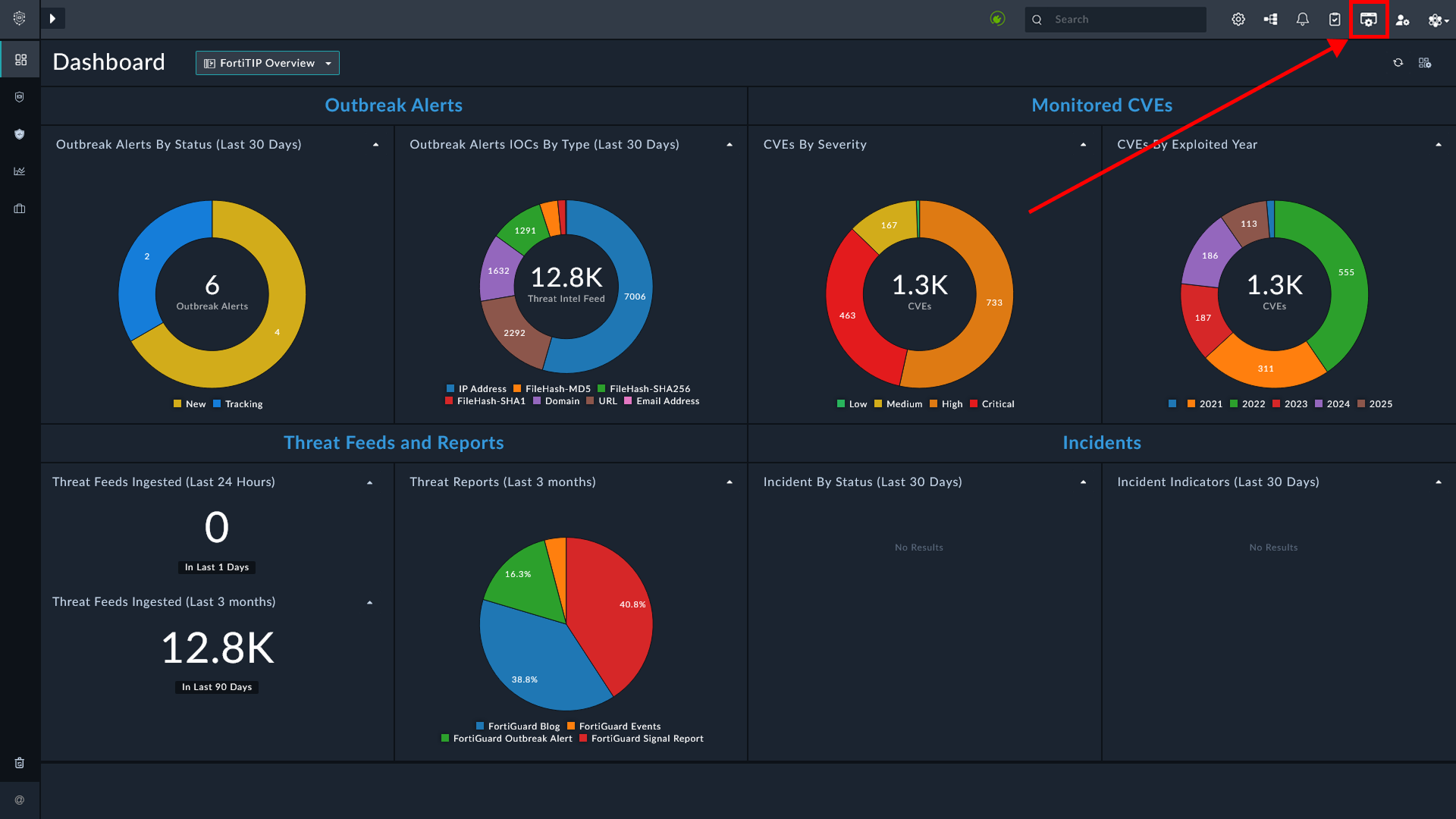
Click  to open a list of tasks.
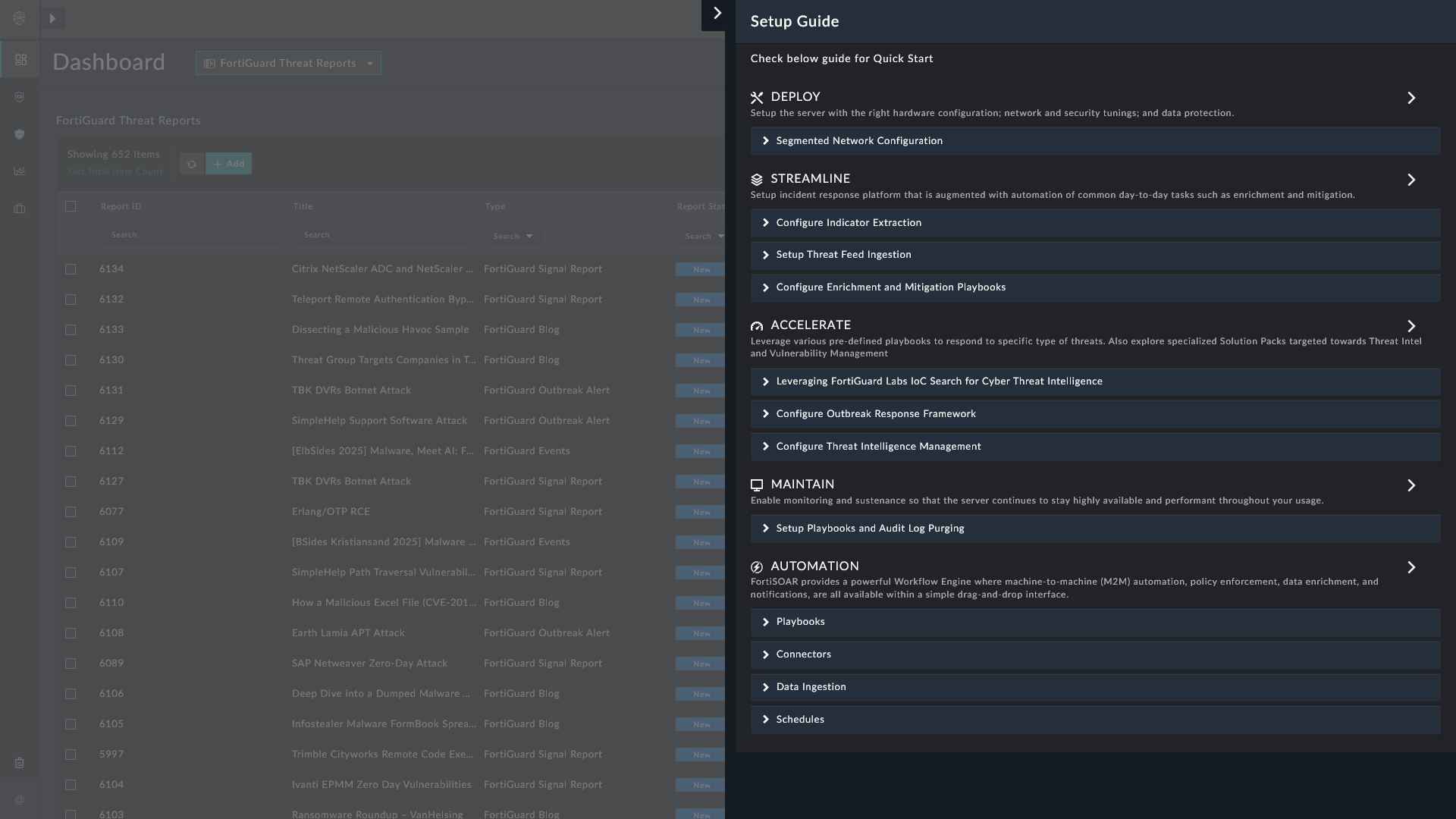
The task list is divided into sections. Some tasks open features in FortiTIP Cloud™, where you can complete the task. Others link to product documentation with instructions for performing the task.
- Deploy: FortiTIP Cloud supports segmented networks to help investigate a multi-segmented network by allowing secure remote execution of connector actions. Use FSR Agents to remotely run connector actions. For more information, refer to Segmented Network Support section, in FortiSOAR Administration Guide.
- Streamline: The streamline section lists tasks related to configuring indicator extraction, setting up threat feed ingestion, and configuring enrichment and mitigation playbooks.
- Accelerate: Use predefined playbooks to respond to specific types of threats. Explore FortiGuard Labs IoC Search for cyber threat intelligence, configure the Outbreak Response Framework, and set up Threat Intel Management. These tasks help streamline your threat response workflows and improve detection and mitigation efficiency.
- Maintain: Set up regular log purging to manage disk space by automatically rotating logs at set intervals. This prevents excessive log accumulation, which can impact system performance and storage capacity.
- Automation: FortiTIP Cloud offers a powerful Workflow Engine with a simple drag-and-drop interface for automation, policy enforcement, data enrichment, and notifications. You can build workflows using playbooks, connectors, data ingestion sources, and schedules—all in one unified platform.
Managing Setup Guide Tasks
For each task you have three options:
- Mark as Done: Click this button to mark the task as done, once you complete it.
- Click Reset Task Options button to bring back the task, in case you clicked Marked as Done in error.
- I will complete later: Select this button to skip that task and complete it at a later time. Clicking the button collapses the task, but the task options remain active.
- Not Applicable: Select this button if a task does not apply to your FortiTIP Cloud environment.
- Click Reset Task Options button to bring back the task, in case you clicked Not Applicable in error.
Navigation Menu
The navigation menu gives quick access to multiple tools that help review and process information as part of FortiTIP Cloud.
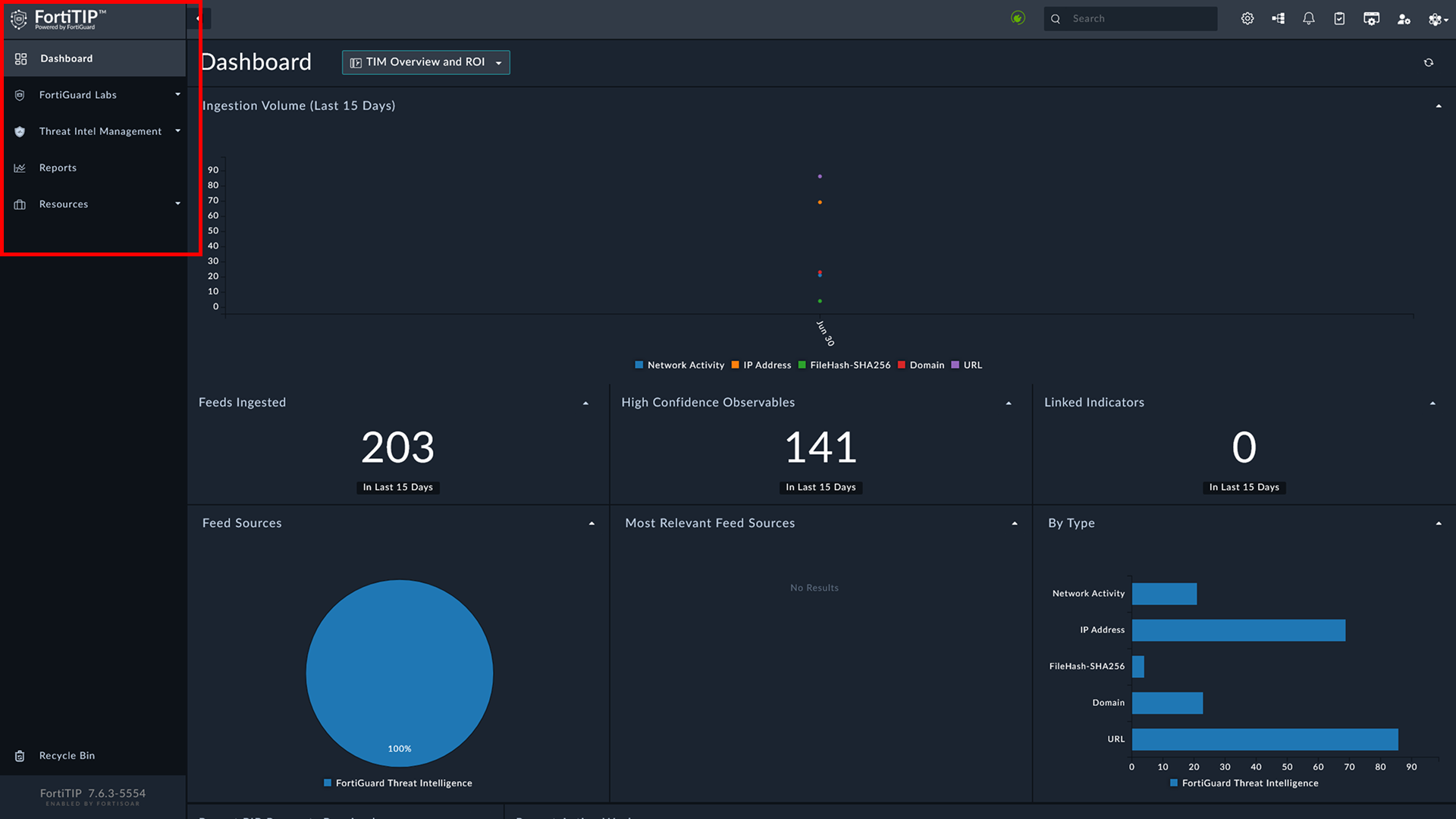
Click  to expand the navigation menu. Alternatively, you can hover over individual navigation menu items to view included features.
Settings
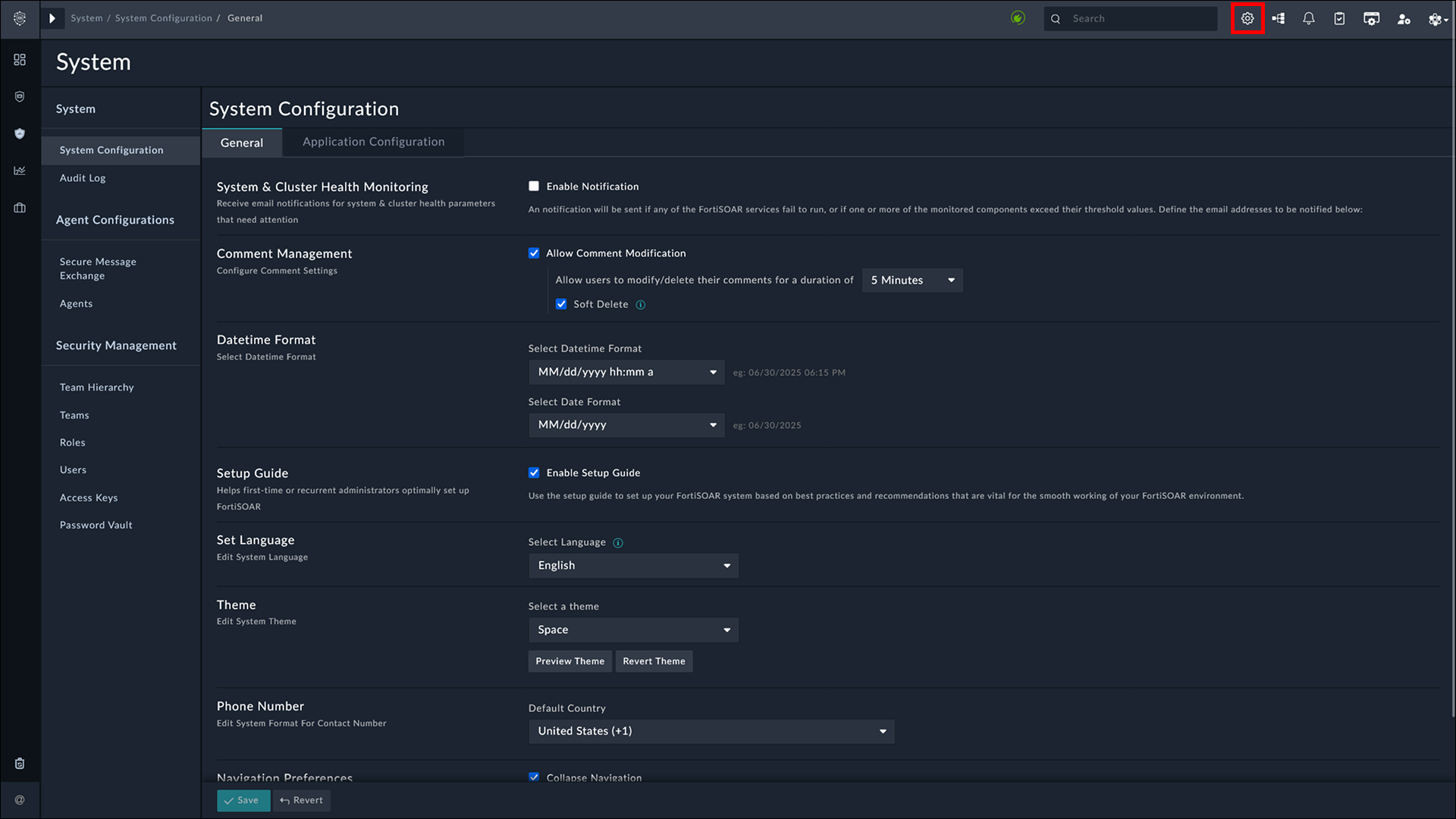
Click  on the top-right corner of your screen to configure and customize FortiTIP Cloud. Your administrator would already have configured these options, and hence you must not edit these options. For various settings available in FortiTIP Cloud, refer to the chapter System Settings within this document.
Search
There are three methods of searching within FortiTIP Cloud:
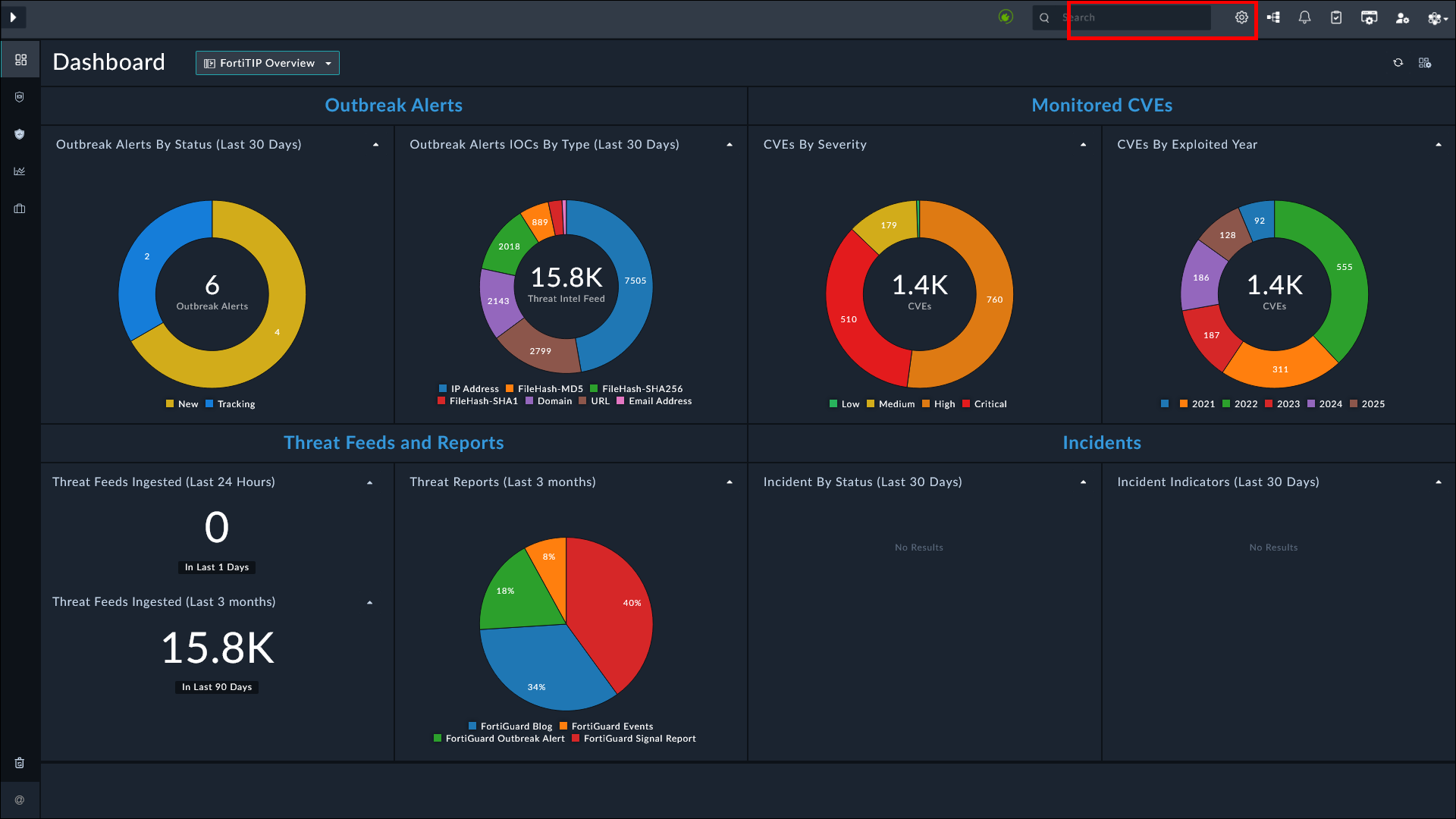
- Global Search: The Global search bar at the top of the screen helps you to search for one or more keywords across all records within the system.
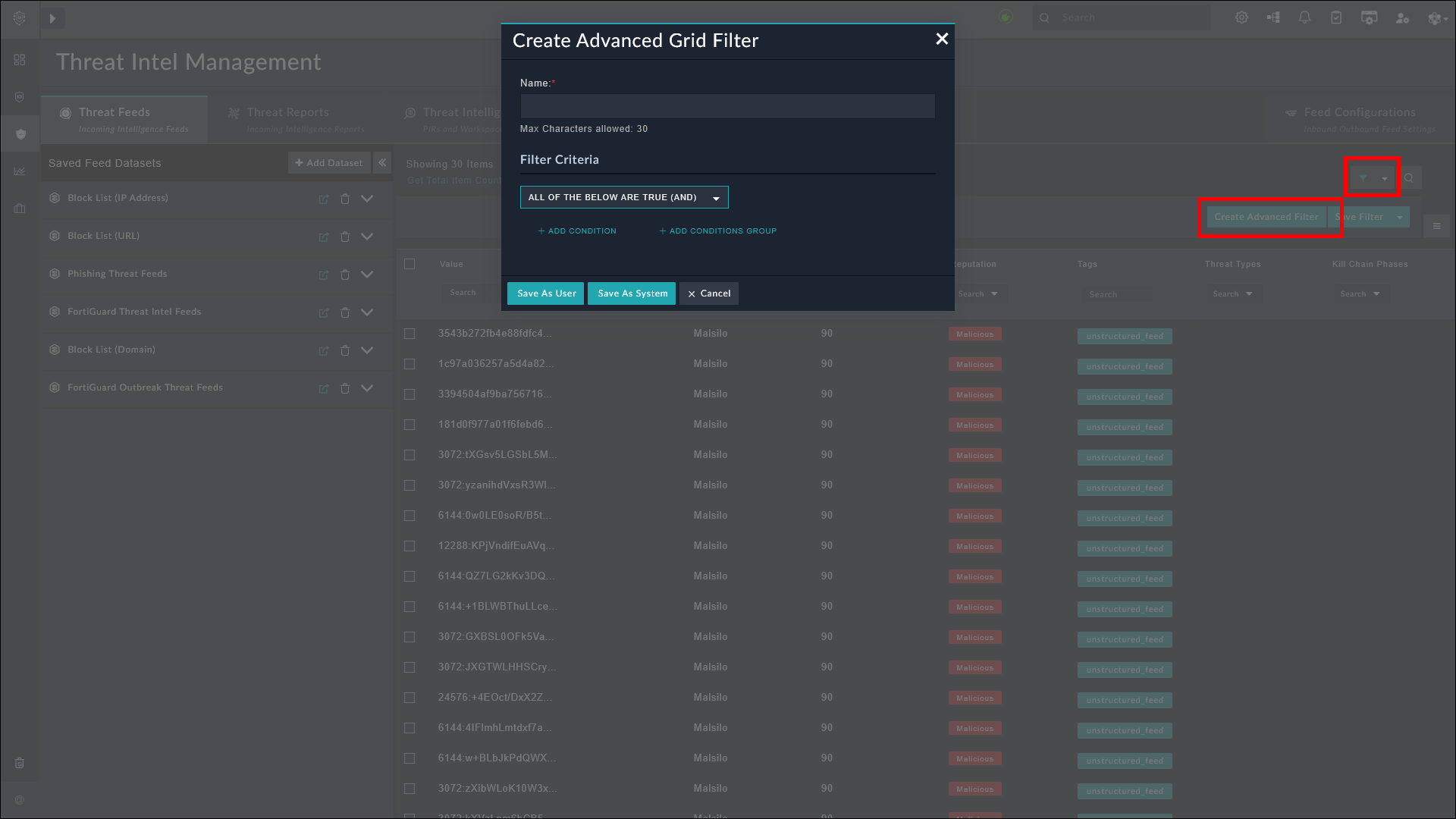
- Records Search: The Records search helps you to search for specific records within a module, such as Threat Intel Feed, by applying or defining filter conditions. Click

 Create Advanced Filter and define the filter conditions in the Create Advanced Grid Filter dialog box.
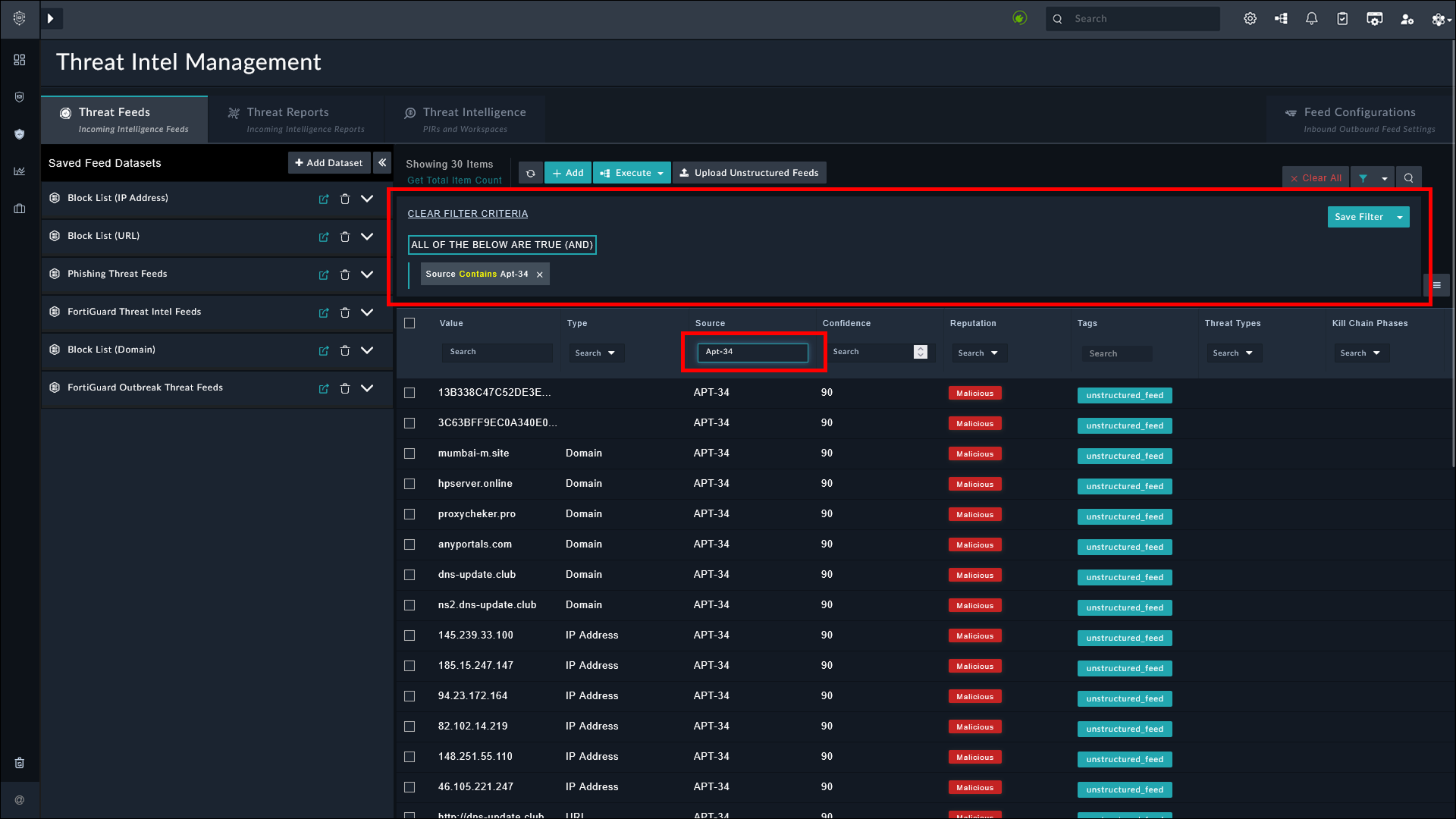
- Column Search: The Column search helps you to search specific records from a module, such as Threat Intel Feed, within the individual data column on the records table.
Notifications
The Notifications icon  appears with badges to denote an unread notification. Notifications include informative information, such as failure of workflows, assignment of user on created and updated alerts, incidents, tasks, etc., and actions that require user review. Click to display the Notifications Panel:
In the Notification Panel, use the Search box to search for a particular notification, or filter notifications as follows:
-
Click All to display all notifications, both read and unread.
-
Click Action Required to display notifications that are pending for some user action, such as an approval.
-
Click @Mentions to display a list of comments where you have been tagged.
-
Select Show only Unread to display unread notifications. Notifications are marked read once you click them to open their contents.
You can also delete notifications from the Notifications Panel by clicking the Delete icon. However, you can delete only those notifications that are assigned to you and not those that are assigned to a team, or any other user, or system (global) notifications such as workflow failures.
Users with a minimum of Update permissions on the Security Module can also click the Purge All icon to display the Purge Notifications dialog. Click Purge All to delete all notifications.
Pending Tasks
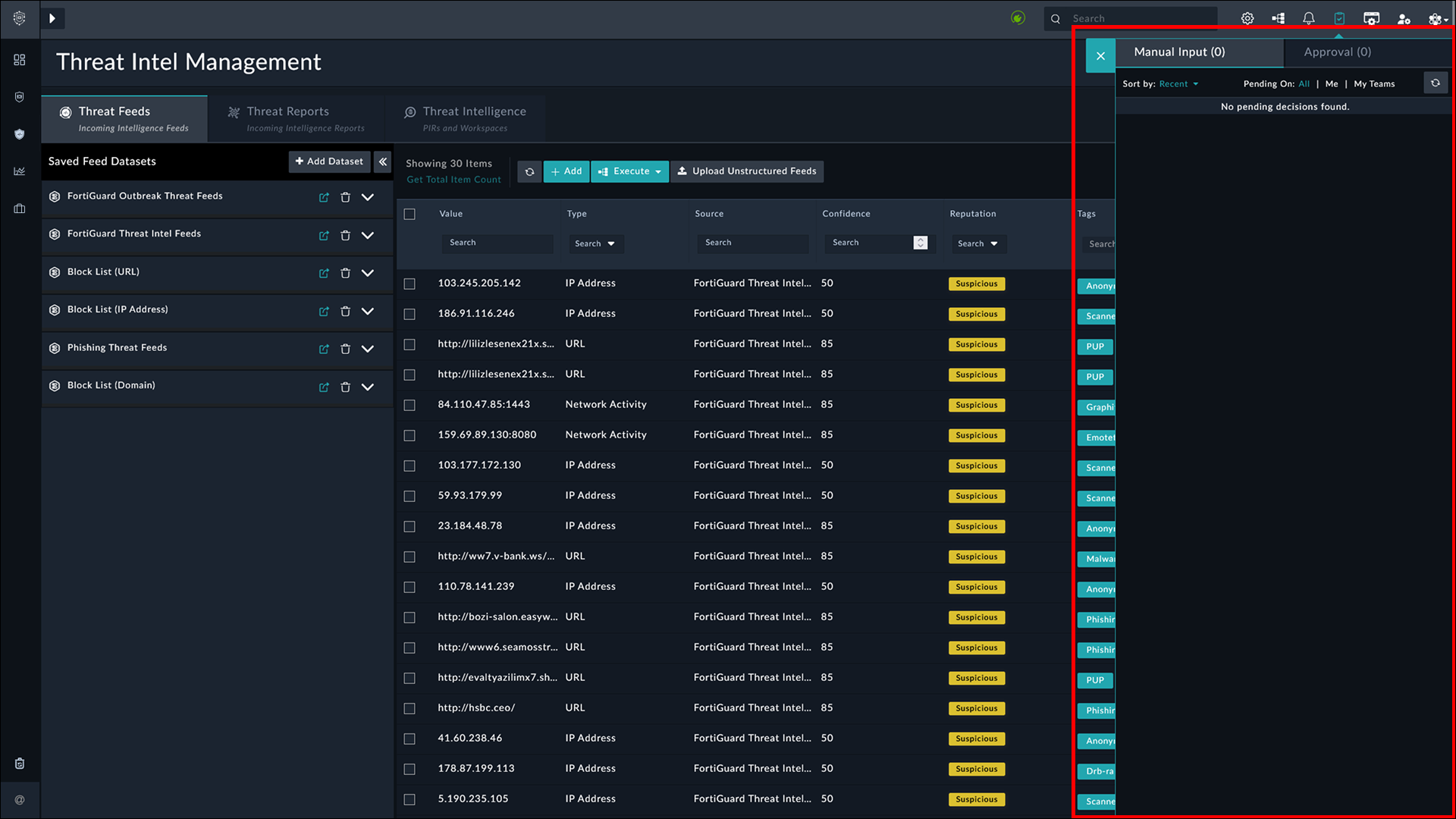
The Pending Tasks icon appears with badges to denote the number of pending tasks for approvals and manual inputs, both. Click  to display the Pending Tasks panel. For more information on the pending tasks panel, manual inputs, and approvals, see the Triggers and Steps chapter in the FortiSOAR Playbooks Guide.

|
To view and interact with approval notifications, you must have Create, Read, and Execute permissions to the Playbook module along with Read and Update permissions to the Approvals module. |
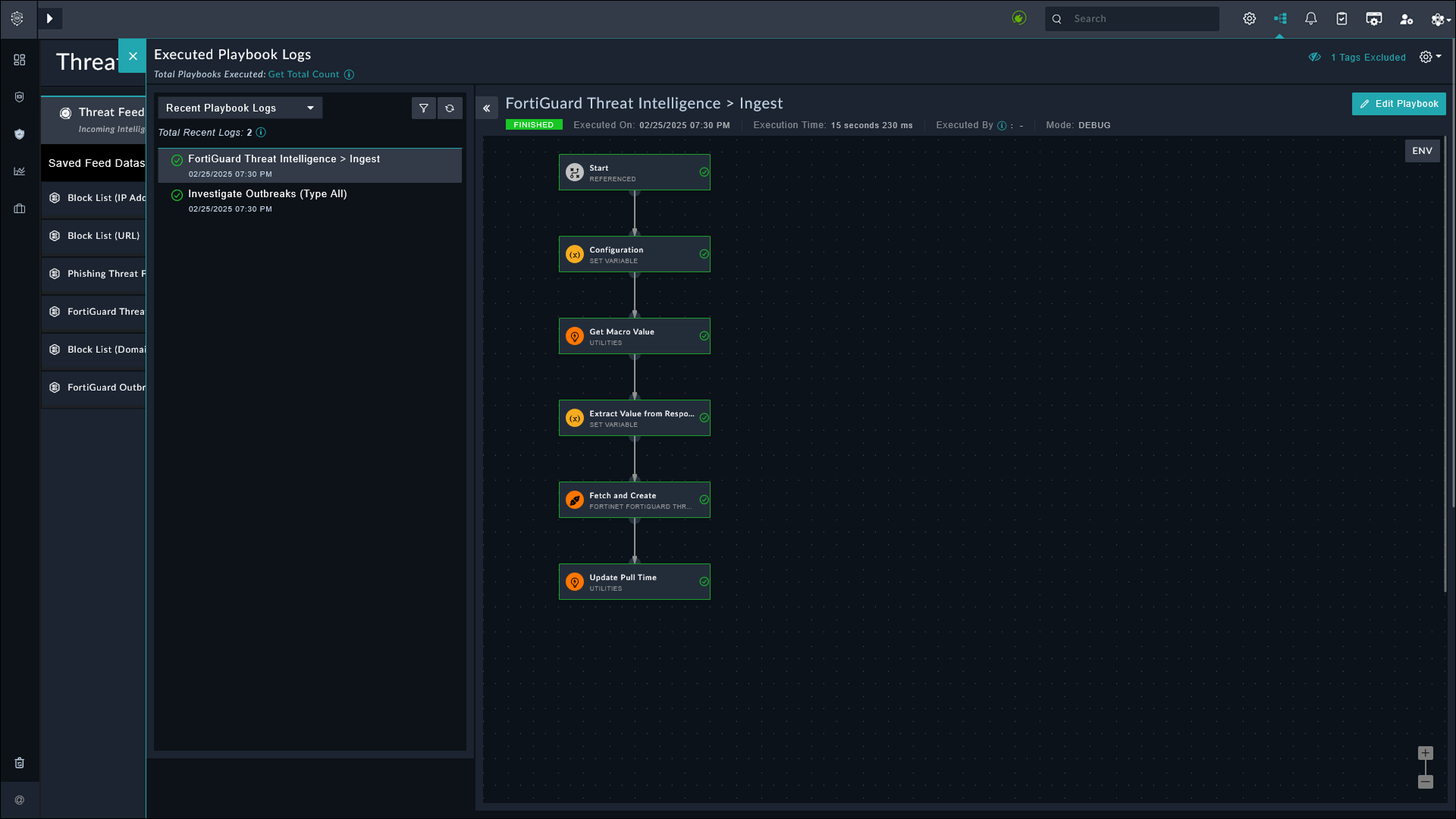
Executed Playbook Logs
Click  to view the executed playbook logs.